Find in Files
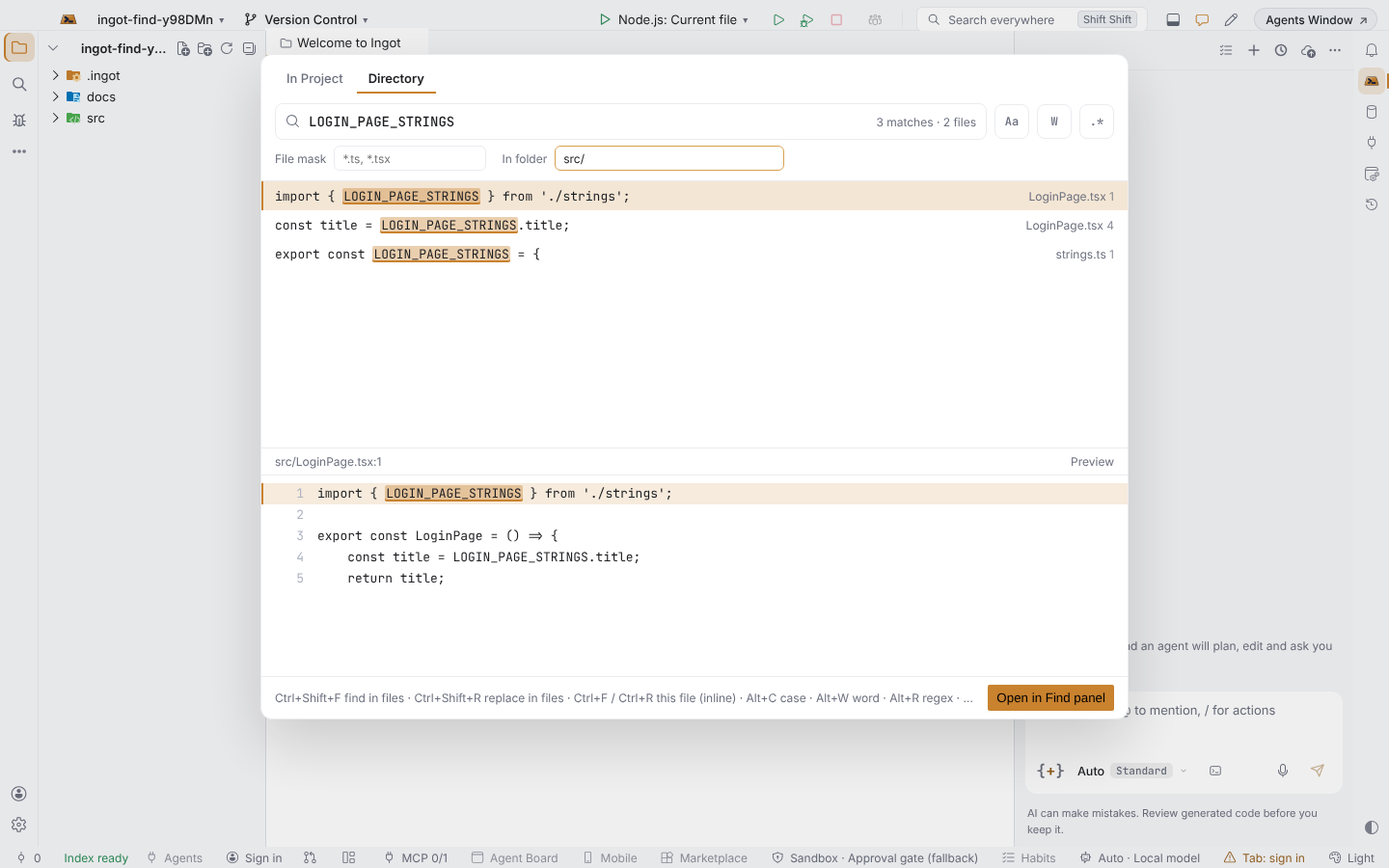
⌘⇧F (Ctrl+Shift+F) opens Find in Files as a popup over the editor.
Search
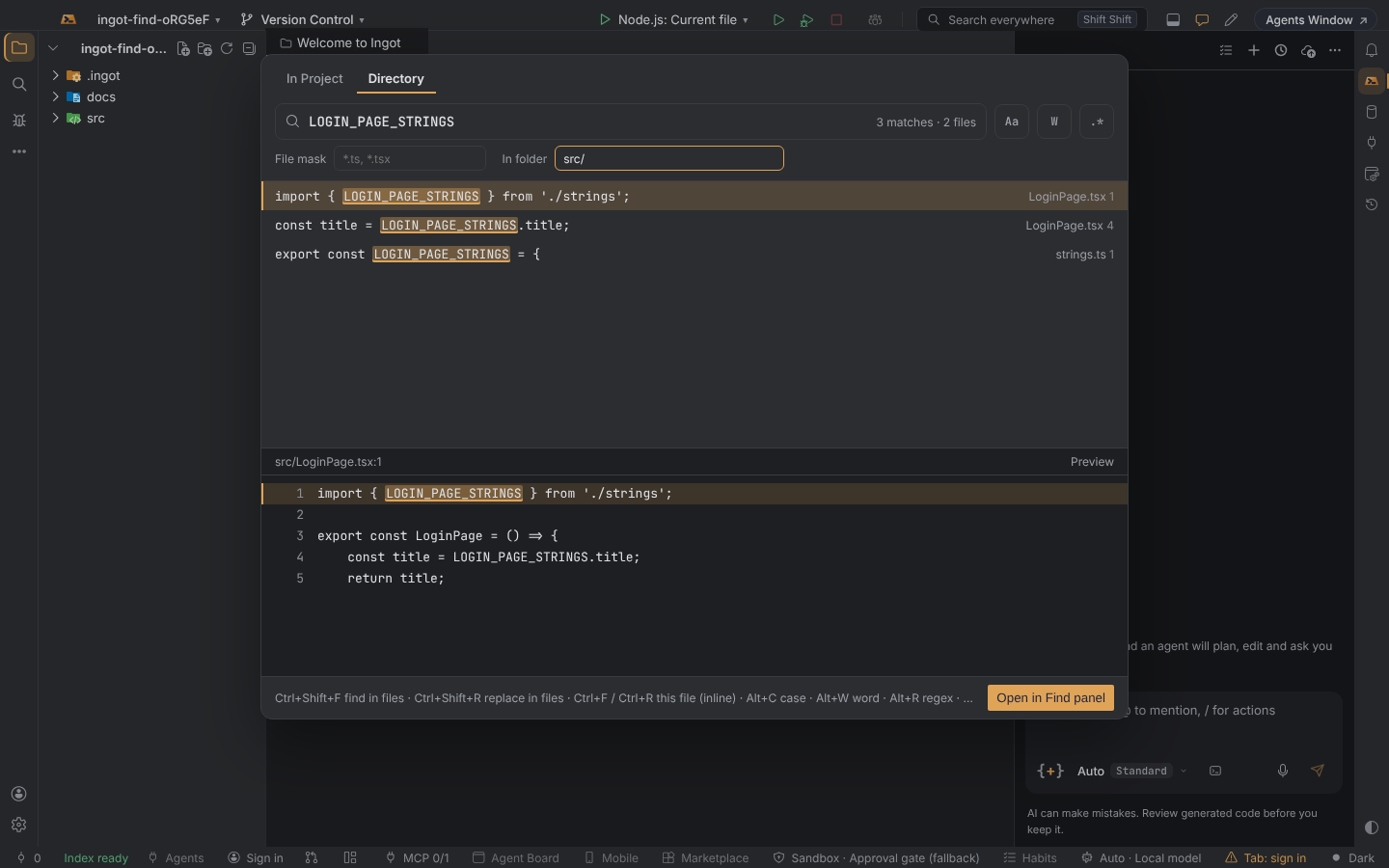
- Type to search every file in the project. The count shows matches and files ("3 matches · 2 files").
- Aa matches case, W matches whole words only, and .* treats the query as a regular expression. Hover a toggle to see what it does and its shortcut (⌥C / ⌥W / ⌥R, or Alt+C / Alt+W / Alt+R).
- Matches are marked in the theme accent (gold by default, or your own accent), and so are the selected row and the preview's hit line.
Filters
Under the search field:
- File mask limits the search to some file types (
*.ts, *.tsx). - In folder limits it to one folder (
mobile/src/pages/) and suggests your project's folders as you type. - Typing
path:mobile/srcin the search field does the same as In folder. Usepath:"my folder"for a folder name with spaces.
Results
- One row per match: the line on the left, the file and line number on the right. ↑ ↓ move the selection, and the preview below follows it.
- Enter opens the file at the match, ⇧Enter opens it beside the current editor, and Esc closes the popup. Your query, toggles and filters are kept for next time.
- Open in Find panel docks the search in the Search view.
Turn the popup off in Settings › Editor › Search › Find in Files popup; ⌘⇧F then opens the Search view as before.
Replace in Files
⌘⇧R (Ctrl+Shift+R) opens the same popup with a Replace field under the search field. ⌘⇧F opens it without Replace, and the Replace button next to the count switches between the two.
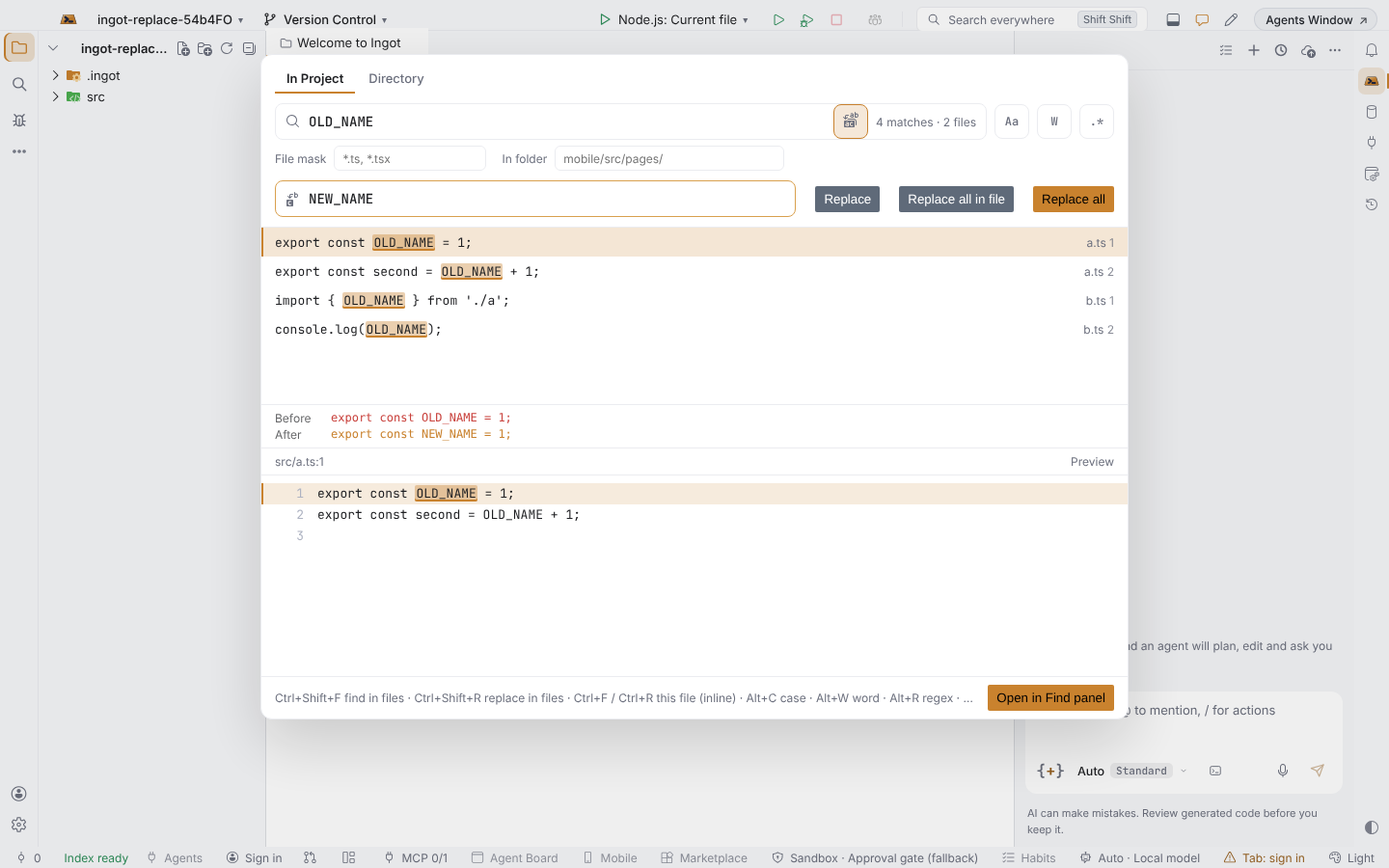

- Scope, File mask, In folder, Aa / W / .* and the preview work as in Find in Files. The selected line is shown Before and After the change. With .* on,
$1and$&in the Replace field work. - Replace changes the selected match, Replace all in file changes every match in that file, and Replace all changes every file in the results. Replace all first asks "Replace N matches in M files?".
- The changes are applied to the files as pending edits with the review bar, so you can undo each one before you save.
Turn it off in Settings › Editor › Search › Replace in Files popup; ⌘⇧R then opens the Search view's replace as before. The shortcut is in Keymap and can be changed.
Go to (⌘⇧O and ⇧⇧)
⌘⇧O (Ctrl+Shift+N on Windows and Linux) opens Go to on the Files tab, and ⇧⇧ (double Shift) opens it on All. ⌘O opens it on Classes and ⌘⌥O on Symbols.
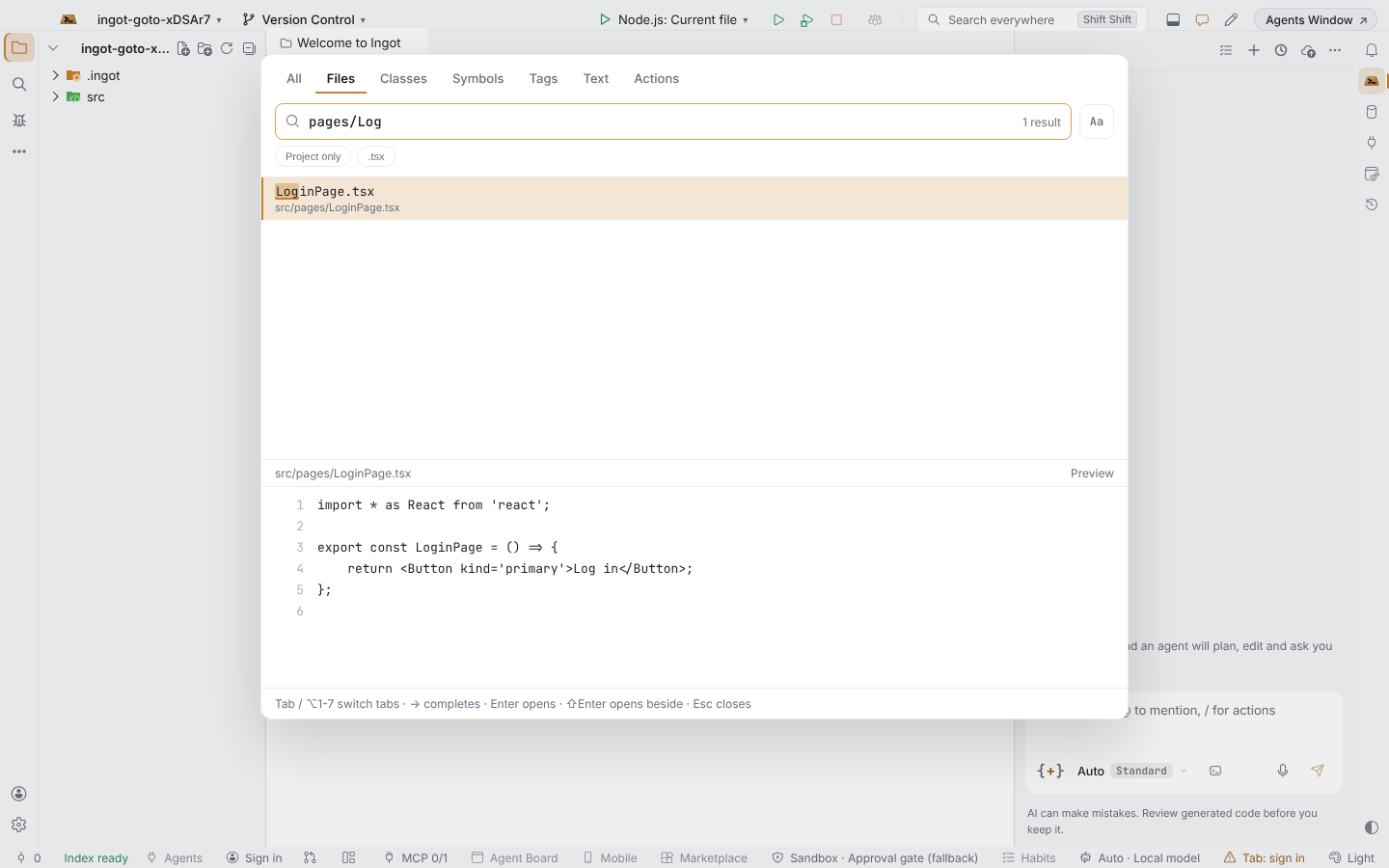

- Files finds a file by name or by path:
pages/Logmatchessrc/pages/LoginPage.tsx.LoginPage.tsx:42opens the file at line 42, and:42alone jumps to a line of the open file. - Classes lists classes, interfaces and enums. Symbols lists functions, methods, constants and types. Tags lists HTML and JSX tags and components. Text searches the text of the files. Actions runs a command.
- All shows every kind in sections. Tab and Shift+Tab move between the tabs, ⌥1 to ⌥7 jump to one, and → completes the ghost text after your query.
- Aa matches case, Project only / Libraries also searches libraries such as
node_modules, and the.tschips limit the results to a file type. - The preview shows the selected item in its file. Enter opens it, ⇧Enter opens it beside the current editor.
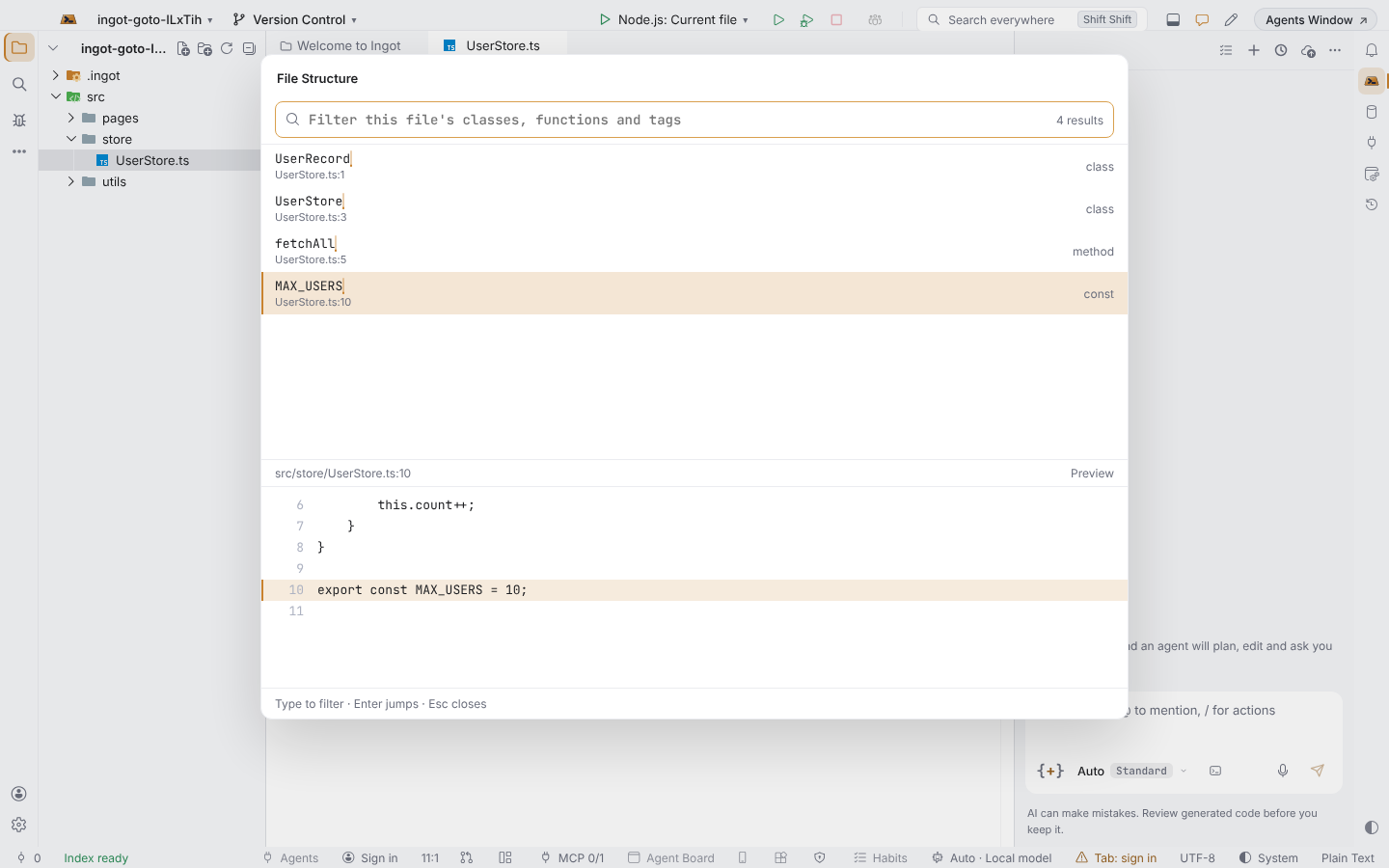
File Structure (⌘F12)
⌘F12 (Ctrl+F12) lists the classes, functions, methods, constants, types and JSX tags of the open file. Typing filters the list, the item nearest your caret is selected first, and Enter jumps to it.

Turn it off in Settings › Editor › Search › Go to popup; the shortcuts then open the quick input list as before. All the shortcuts are in Keymap and can be changed.