Remote control
Remote control lets you watch and steer the agents running in Ingot on your computer from your phone or any browser. Open ingotide.com/remote or the Ingot app for Android, sign in with the same account, and you see your computers, their agent chats and any approval that is waiting for you. It is off by default.
What you can do
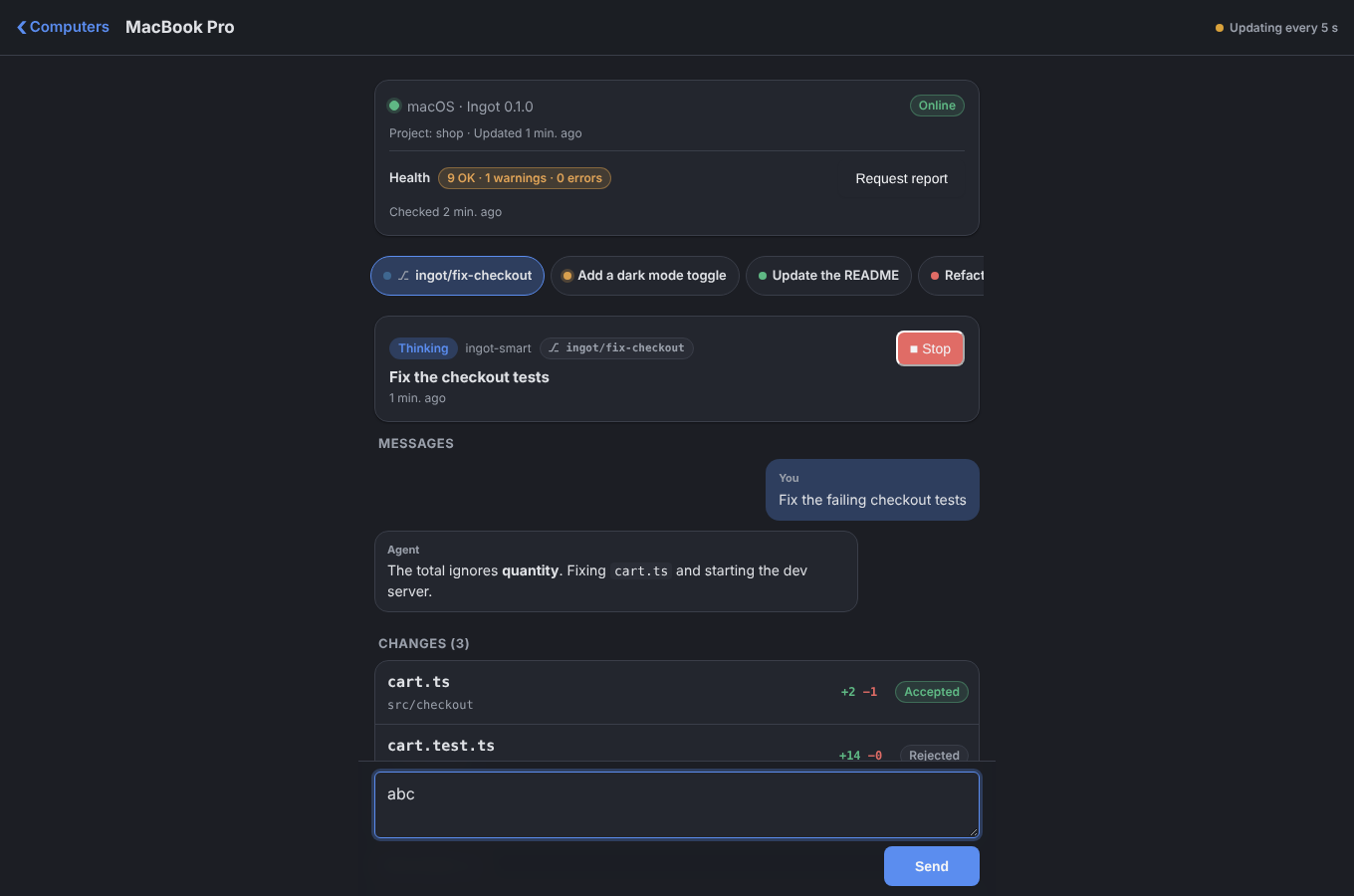
- See your computers. Each signed-in Ingot with Remote control on shows its name, platform, an online dot, how many chats it has and how many approvals are waiting. One computer is one entry, however many Ingot windows it has open.
- Follow a chat. You see up to 30 agent chats from all of the computer's windows. Each shows its status (idle, thinking, editing, waiting for approval, paused, done or error), model and last update. A chat shows its last messages, the agent's answers as formatted text, and up to 50 changed files with lines added and removed.
- Approve or skip. When an agent is waiting on an approval card, tap Approve or Skip. Ingot runs it exactly as if you clicked it on the computer. Approve and Skip only act on the card you saw: if the agent has moved on to another card, the computer refuses the old tap.
- Send a message to a chat. It is the same as typing it in that chat's composer on the computer.
- Start a new chat with New task. The new chat opens as a tab in Ingot on the computer.
- Stop an agent that is running.
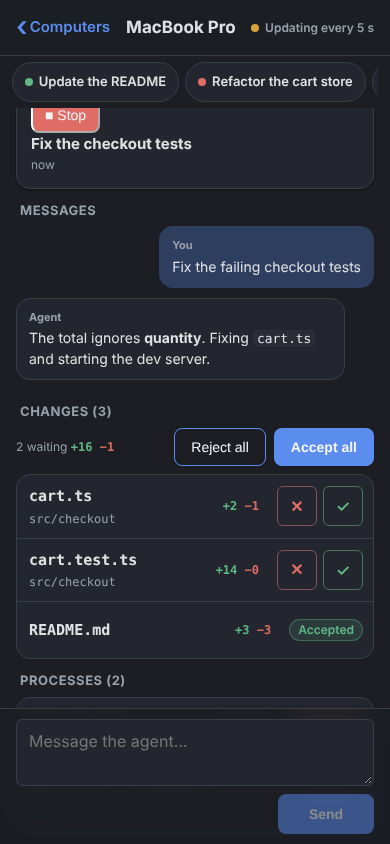
- Switch between chats with tabs. Each agent chat of the computer is a tab with a state dot (running, waiting for approval, done or error) and a badge with the messages you have not seen yet. A chat that works in its own git worktree shows the worktree branch as its label. Swipe left or right on a phone, or press ← and → in a desktop browser; + starts a new chat.
- Review changes in the tray. Below the messages, the chat's changed files show with lines added and removed, the same list as the tray above the chat box in Ingot. Accept or Reject a file, or all of them, and tap a file for a read-only diff.
- Watch processes. Dev servers and other processes the agent started show with their command, port and state. Stop a running one, and tap it for its last 40 log lines.
- Check the computer's Health. A compact row shows how many Ingot Health checks (Help › Ingot Health… in Ingot) are OK, warning or failing. Request report brings the redacted diagnostic report to the phone, ready to copy.
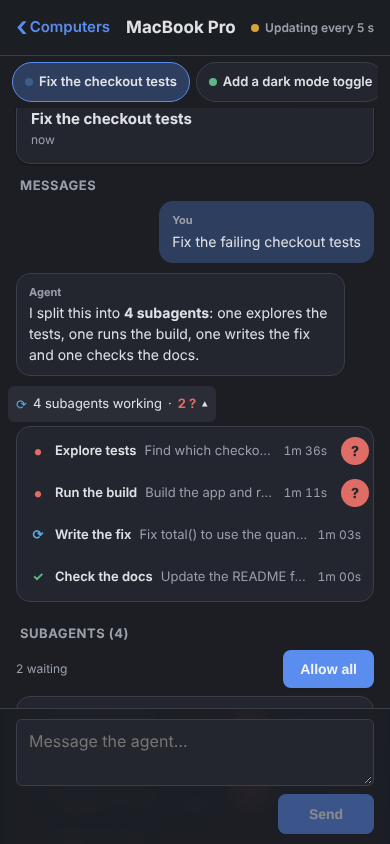
- Follow and answer subagents. When an agent opens subagents, the chat shows them like in Ingot: a quiet line under the messages and a row per subagent in the tray, with a red ? when one asks you something or waits for an approval (see Subagents).
- Get notified when an agent finishes, needs an approval or a subagent needs you (see Notifications).
Updates arrive live. If the live connection is blocked (some networks and proxies do this), the page refreshes every 5 seconds instead. Every action you send shows its state: pending, then done, failed or expired.
Subagents
When an agent opens subagents (with the task tool in a regular chat, or in Multi-agent mode), the page shows them in the same two places as Ingot on your computer.
- In the conversation, like the Thinking… row, one quiet line such as ⟳ 3 subagents working · 1 ?. Tap it to open the list (in a desktop browser, hover it; click or Enter keeps it open). Each line shows the subagent's state, name, task and time.
- In the tray, above the changed files, one row per subagent with its state, elapsed time and steps. The row's buttons are Allow (allow the action it waits on), Pause or Resume (it stops before its next step; the main chat keeps going) and Stop. Allow all in the tray allows every action your subagents wait on. Questions still need your answer.
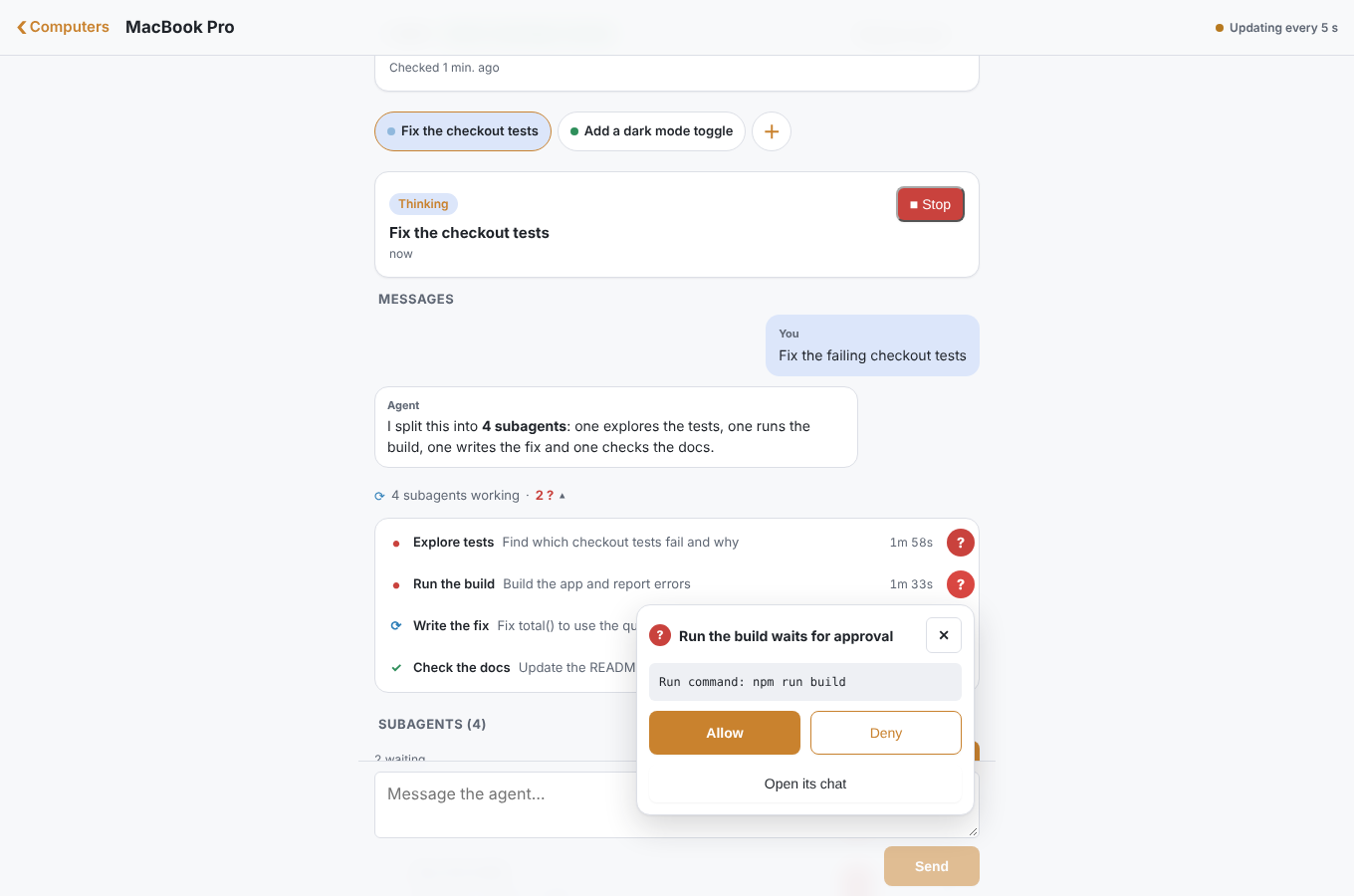
- The red ? means a subagent asked a question or waits for your approval. Tap it to answer: on a phone a sheet opens from the bottom of the screen, and in a desktop browser a small popover opens next to it. A question offers its quick answers and a reply field. An approval shows the full action with Allow and Deny, under the same rules as an agent's approval card.
- Tap a subagent (in the list or the tray) to open its own view: its state, its task, what it waits on, its result once it ends and its latest steps. From: with the main chat's name, at the top, takes you back to it. A notification about a subagent opens this view directly.
The phone gets the same rows as the tray in Ingot, up to 12 per chat. A subagent's steps show once Ingot has sent its chat; the whole log is in Ingot on your computer. Subagents need the current Ingot on the computer. Stop needs the subagent's own chat on the page, so it is not offered for older subagents whose chat Ingot no longer sends.
Turn it on in Ingot
- Open Ingot on your computer and sign in. Remote control only works while you are signed in.
- Turn it on in Settings › Tools › Remote control, or run Remote Control: Turn On or Off from Find Action (⌥⇧⌘F11 on macOS, Ctrl+Alt+Shift+F11 on Windows and Linux).
- Keep Ingot open. Within a few seconds the computer appears on /remote.
Remote control can only be turned on in your user settings. A project's settings can never turn it on, so opening a repository does not share your chats.
While it is on, a Remote item sits in the status bar. Hover it to see the state, and click it to open the page on your phone or the web:
| State | Meaning |
|---|---|
| Connected | The computer is on /remote and picks up your actions. |
| Connecting | Ingot is reaching the Ingot server. |
| Offline. Retrying… | The server can't be reached. Ingot retries on its own, waiting a little longer each time (from 1 second up to 1 minute), and reconnects when the network is back. |
| Signed out | You are signed out of Ingot. Sign in to use Remote control. |
A computer that has not been in touch for 90 seconds shows as offline on the page. Commands need it to be online: open Ingot on it again.
Use it from your phone or the web
- Web: open www.ingotide.com/remote in any browser. If you are signed out you go to sign-in first and come back.
- Android: the Ingot app opens the same page in an app window. In the app you sign in with a code by email (Google and GitHub sign-in work on the website). Sign in once and it remembers you.
The page is made for phones (it works from 360 px wide), follows your light or dark theme and is available in English, Spanish and Hebrew.
Approvals
The phone shows the full command or action of an approval card, with its line breaks, in a box you can scroll. Approve and Skip from the phone or web go through the same approval card, policy and workspace trust rules as on the computer. Nothing is approved that you could not approve locally.
If part of the command can't be shown on the phone, because it is very long or contains something that looks like a secret, Approve is turned off there with the note Approve this on your computer — part of the command is hidden here. You can still skip it from the phone.
To keep approvals on the computer only, turn off ingot.remote.allowApprovals. The approval card is then shown on the phone with a note, without the buttons, and the computer refuses any approval sent to it. You can still watch chats, send messages, start a new chat and stop agents.
Notifications
On /remote, turn on Notifications to get Agent finished, Agent needs approval and Subagent needs you on that device. The notification shows the chat or subagent title and a short line, never code or messages, and tapping it opens the chat or the subagent. Choose which ones in Ingot with ingot.remote.notify (both, only finished, only approvals, or off); Subagent needs you counts as an approval.
- Desktop browsers and Android Chrome: supported.
- iPhone and iPad: add the page to your Home Screen first (Share › Add to Home Screen), open it from there and turn notifications on.
- The Android app: not yet. The app is a web view, which can't receive web notifications; it needs an app update with native push. Until then, open ingotide.com/remote in Chrome on the phone and turn them on there.
Notifications are sent by the Ingot server when a chat changes. The server stores only the browser's push address and keys, never chat text. Turn them off on the page, or block them in the browser's site settings.
Older Ingot versions
The page and Ingot agree on a protocol version. An older Ingot keeps working with the page: you can watch chats, approve, send, start and stop, and the tabs still show. Tray actions, diffs, process logs, Health and subagents need the current Ingot; the page says so instead of offering them.
What phone commands can do
Commands from the phone run on the computer like your own clicks and typing, under the same rules. Accept and Reject in the tray do exactly what the tray buttons in Ingot do, Stop on a process stops it like its Stop button, and Allow, Pause, Resume and Stop on a subagent act like its row in Ingot's tray. Always Run choices, the Agent Sandbox and workspace trust all apply. A new chat or message from the phone gets no more access than one you type in Ingot.
Privacy
- Remote control is off by default, and only you see your computers: a phone or browser only sees computers signed in to the same account.
- Ingot sends a short summary of your agent chats: titles, status, the last 20 messages (each cut to 2,000 characters), the pending approval, the changed file names, the worktree branch, the commands of the chat's processes, the Health counts and the chat's subagent rows (title, task, state, time, steps, a one-line result and what it waits on).
- A diff, a process log or the Health report is sent only when you ask for it on the page, with the same secret and path removal, and is kept in server memory for 10 minutes at most.
- Common secret patterns, such as API keys and tokens, are removed before anything is sent. This is pattern-based, so it can miss a secret in an unusual format.
- File paths are shown relative to the project; paths in your home folder start with
~, and anything else shows only the file name. The project shows as its folder name, never a full path. - Your Ingot sign-in token stays in the IDE backend and your system keychain. It is never sent to the page or the phone.
- Chat text is relayed through the Ingot server and kept in memory only. It is not written to a database or to logs, and a computer's data is dropped 10 minutes after it goes offline.
- Turning Remote control off stops sending right away.
Settings
| Setting | Default | What it does |
|---|---|---|
ingot.remote.enabled | Off | Remote control: see and steer this computer's agents from the Ingot app or ingotide.com/remote (user settings only) |
ingot.remote.allowApprovals | On | Allow Approve and Skip from the phone or web (user settings only) |
ingot.remote.notify | Both | Which notifications the phone or browser gets once you turn them on there: both, finished, approval or off (user settings only) |
FAQ
Does my phone need to be on the same network? No. The phone and the computer both talk to the Ingot server over HTTPS.
Is there an iPhone app? Not yet. On iPhone, open ingotide.com/remote in Safari and add it to your Home Screen.
Why did my action expire? The computer did not pick it up within 5 minutes, usually because Ingot was closed or the computer was asleep.