Status bar
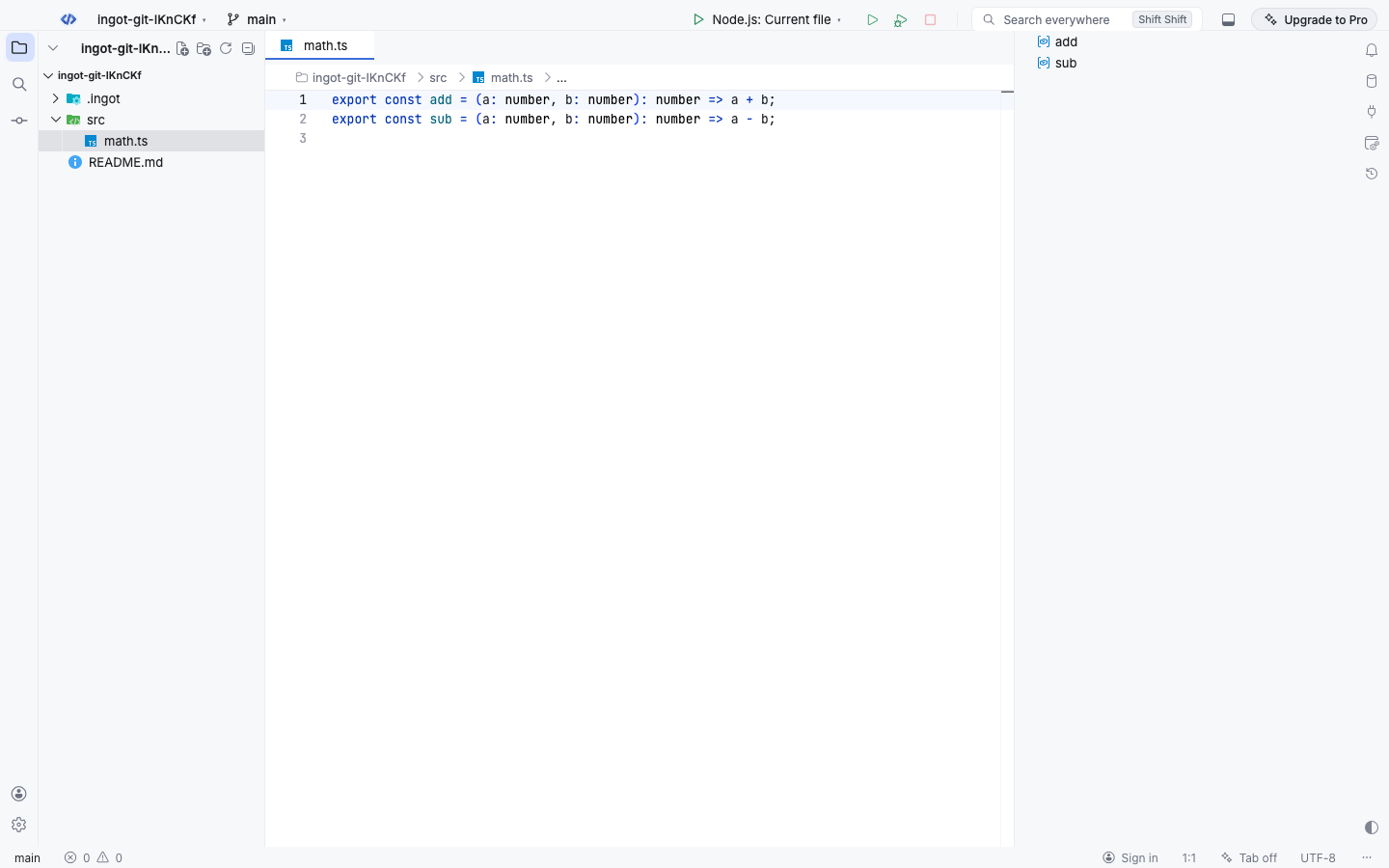
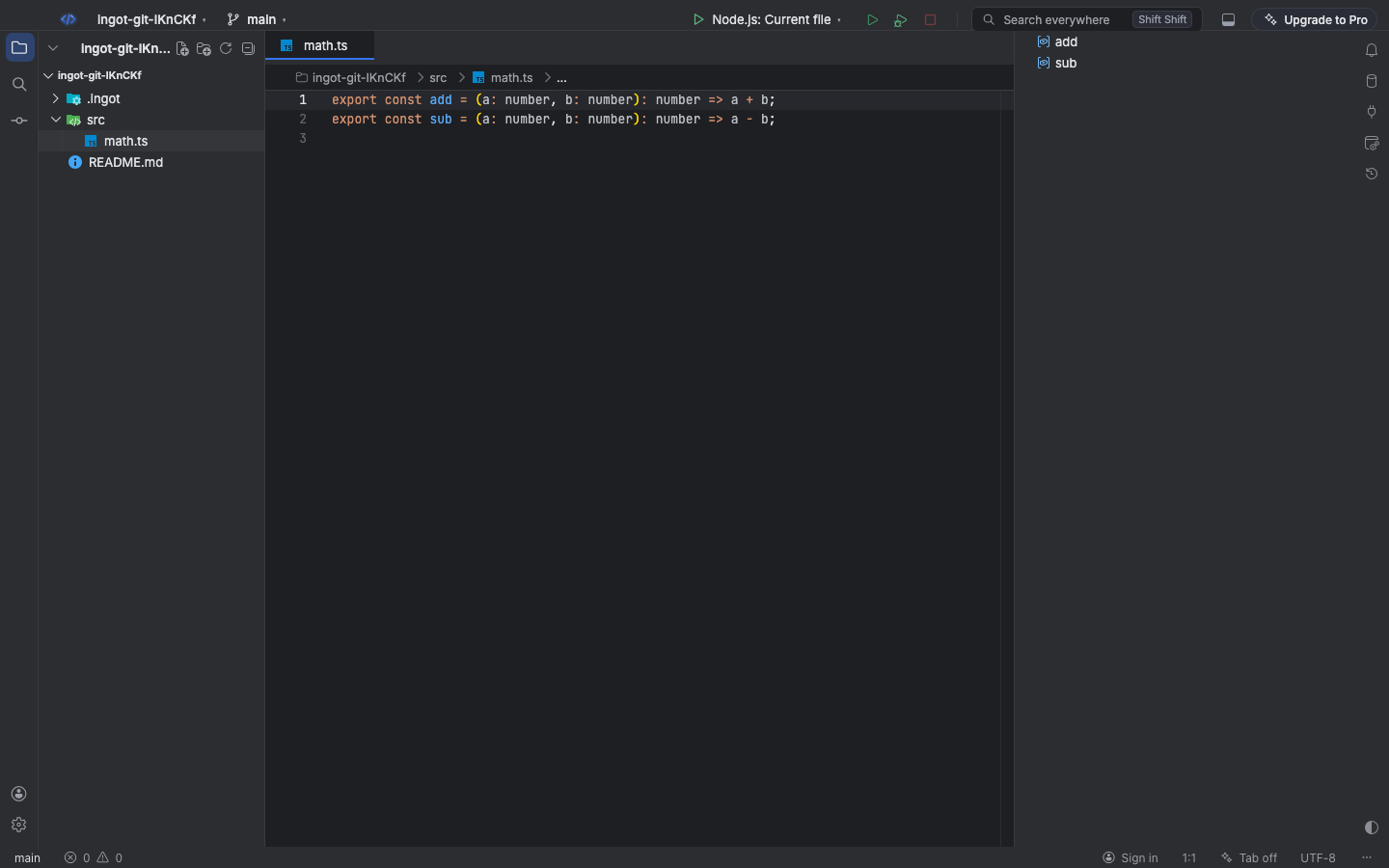
The status bar at the bottom of the window shows only a few essentials. Feature buttons wait in the … menu at its right end, where you can open them or pin them back.
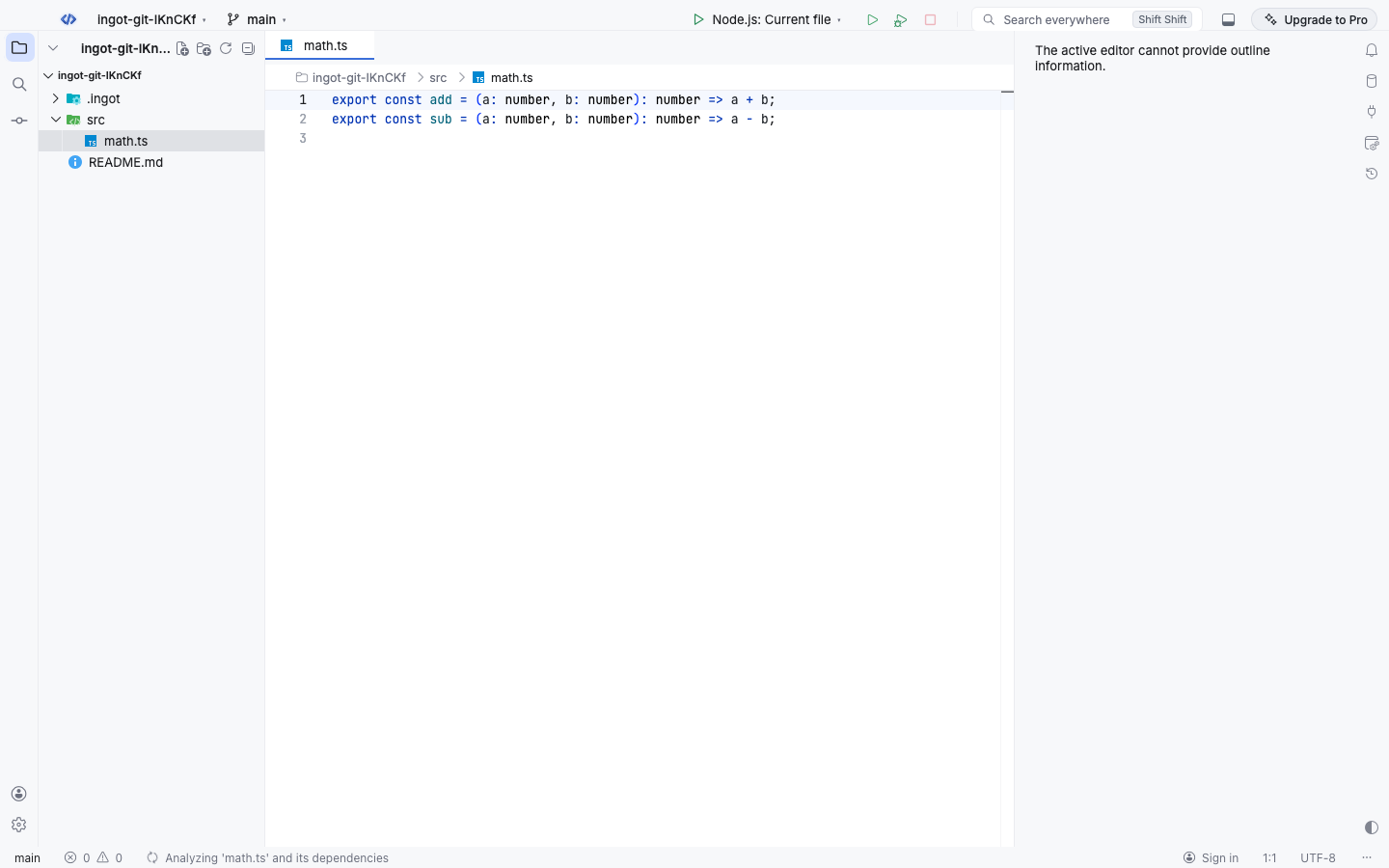
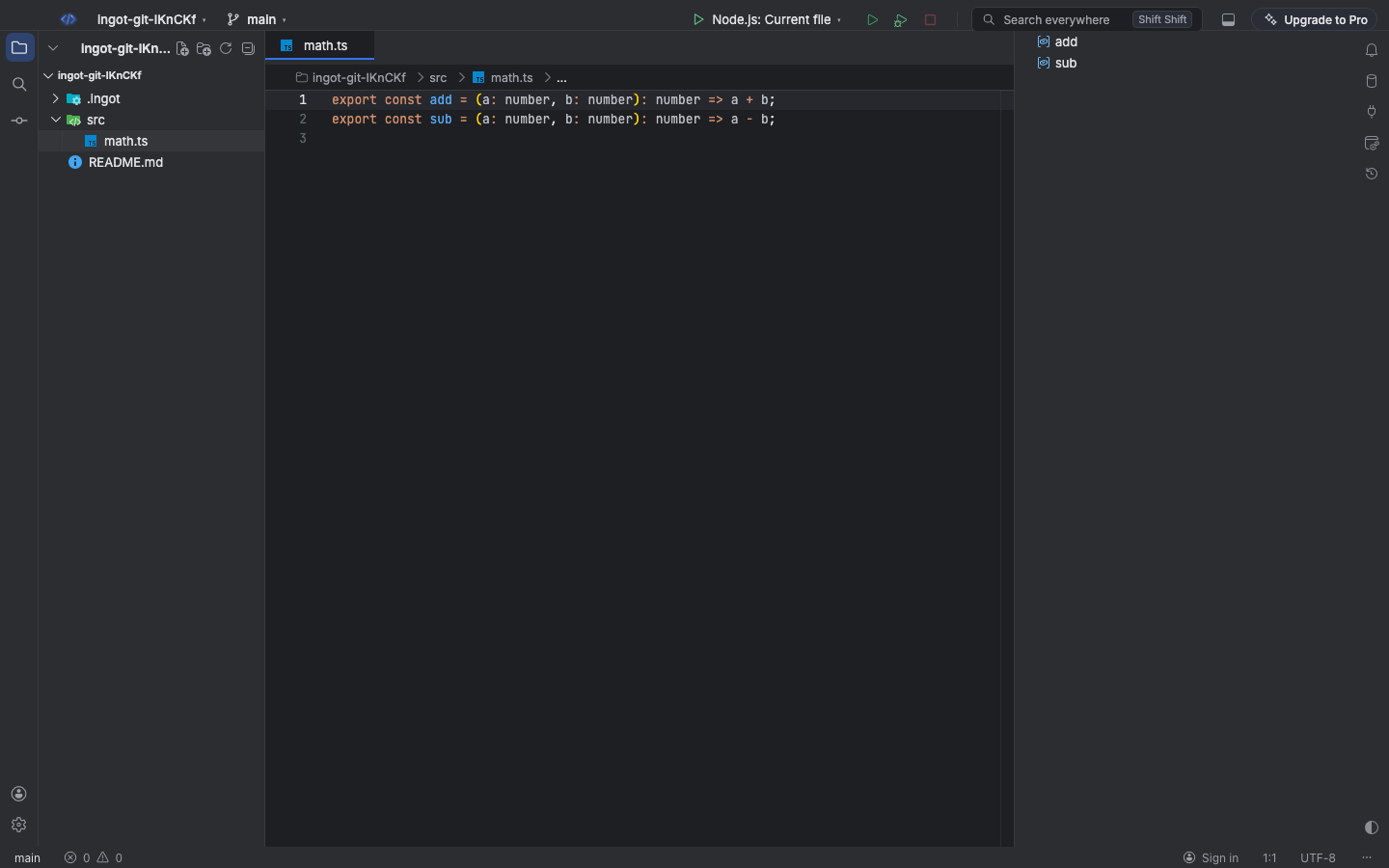
Calm status bar
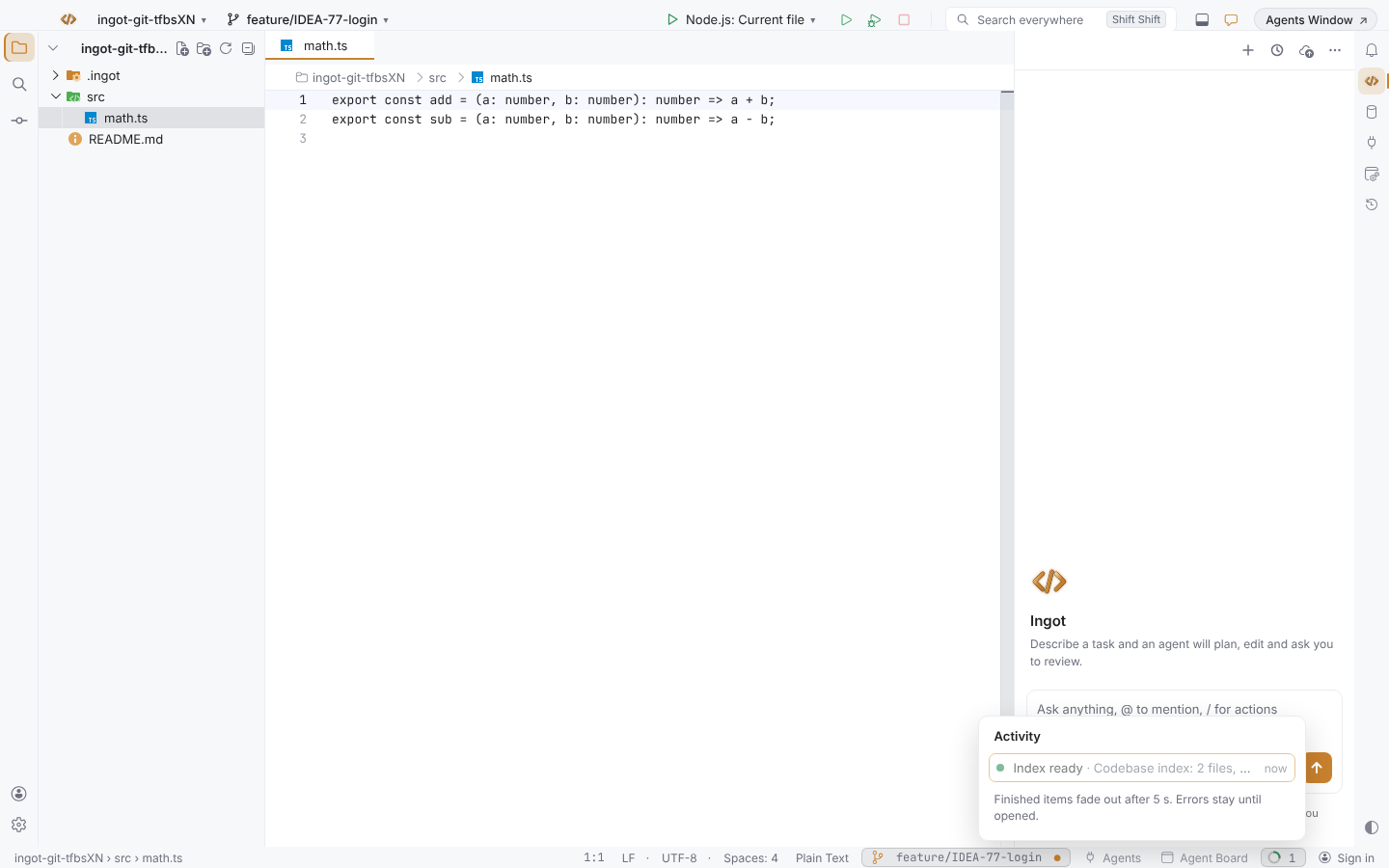
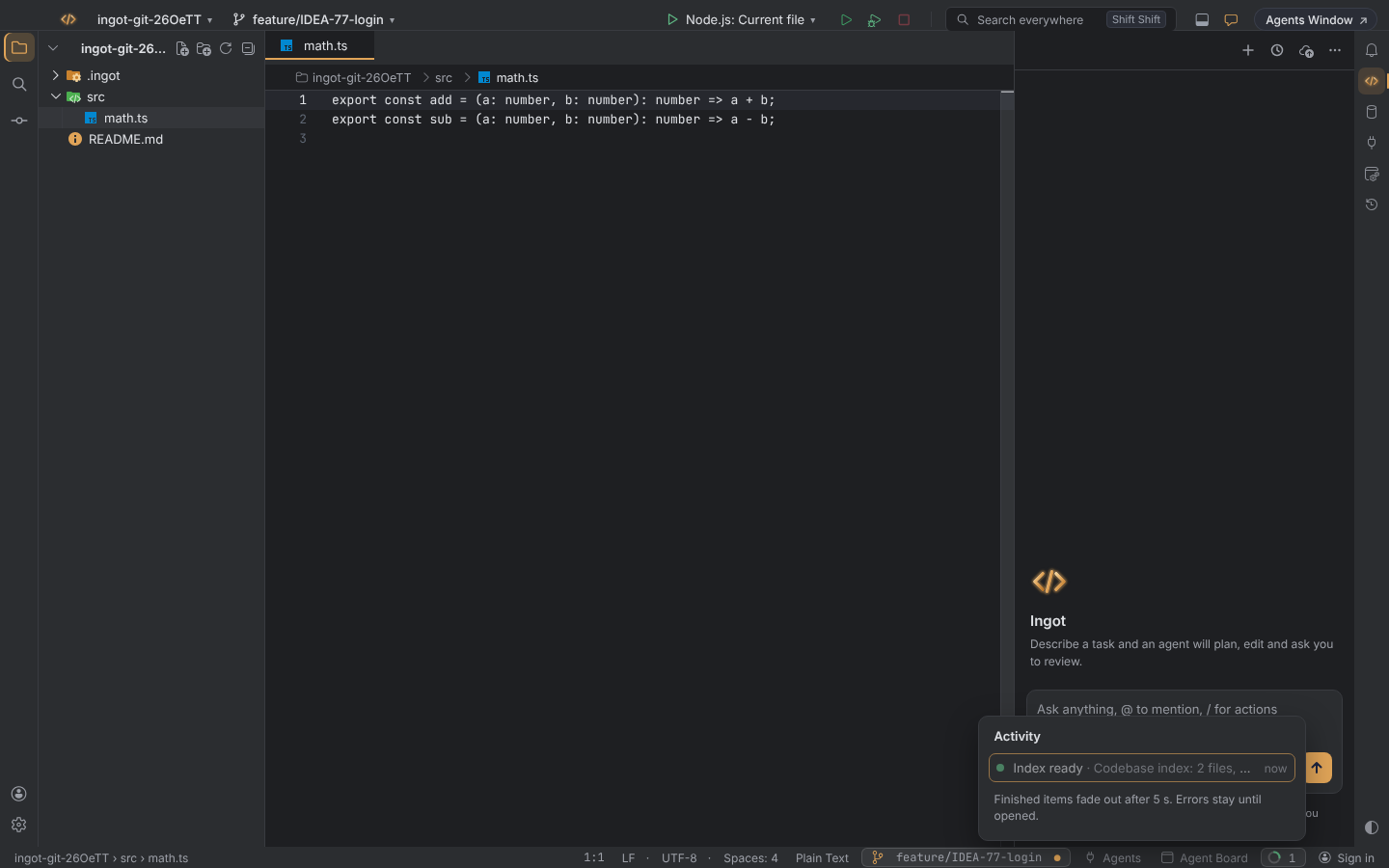
The calm status bar keeps the bottom of the window quiet: one branch pill, one activity ring and only the items you choose.
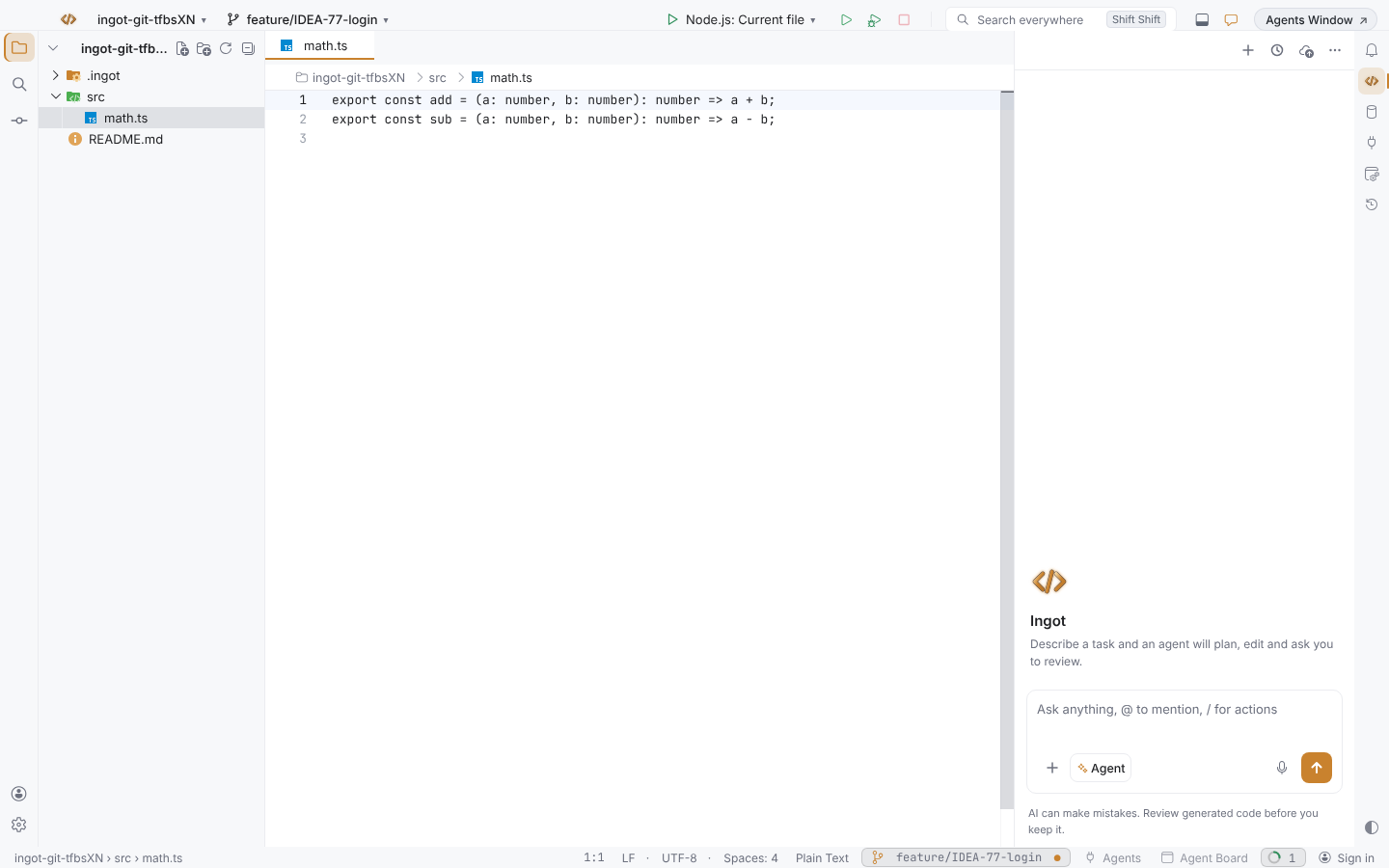
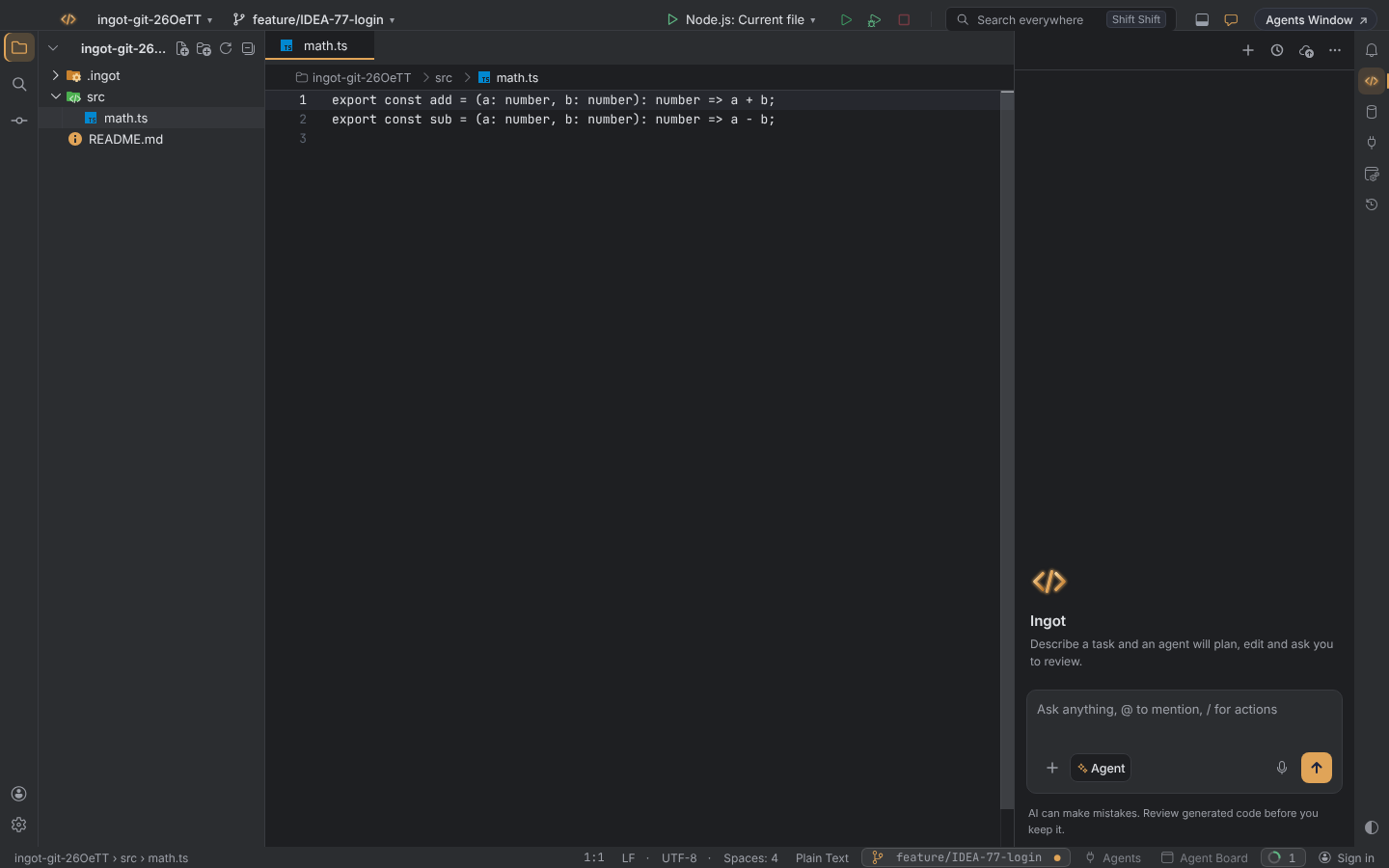
- On the left, the file breadcrumb.
- On the right, the position and encoding (for example
32:7 · LF · UTF-8 · 2 spaces), one branch pill, the agents pill ("2 agents working"), one activity ring and your account.
Branch pill
The pill shows the branch name, a dot when you have uncommitted files, and ↑ or ↓ for commits ahead of or behind the upstream. Click it to open the Branches popup. Right-click it for Branches…, New Branch… and Rename Branch….
Activity ring
The ring collects passing states: codebase indexing, Git sync, remote control, Ingot Together, following a pull request and progress from extensions. Its number counts what is running, live or failed. Click the ring, or run Status Bar: Show Activity, to see the list. Finished items fade out after 5 seconds. Errors stay until you open them.
Choose what is shown
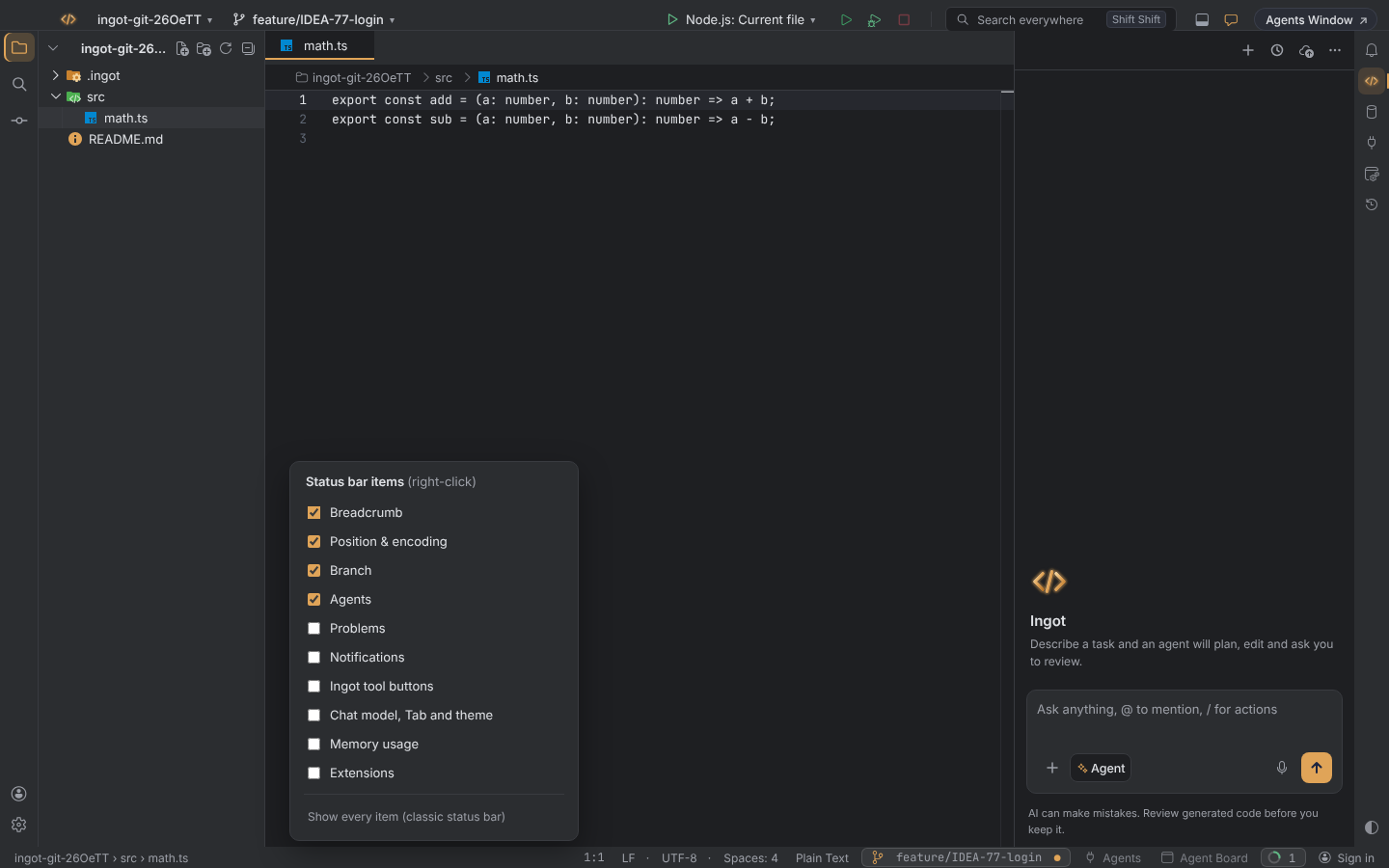
Right-click the status bar, or run Status Bar: Choose Items…, for a checklist:
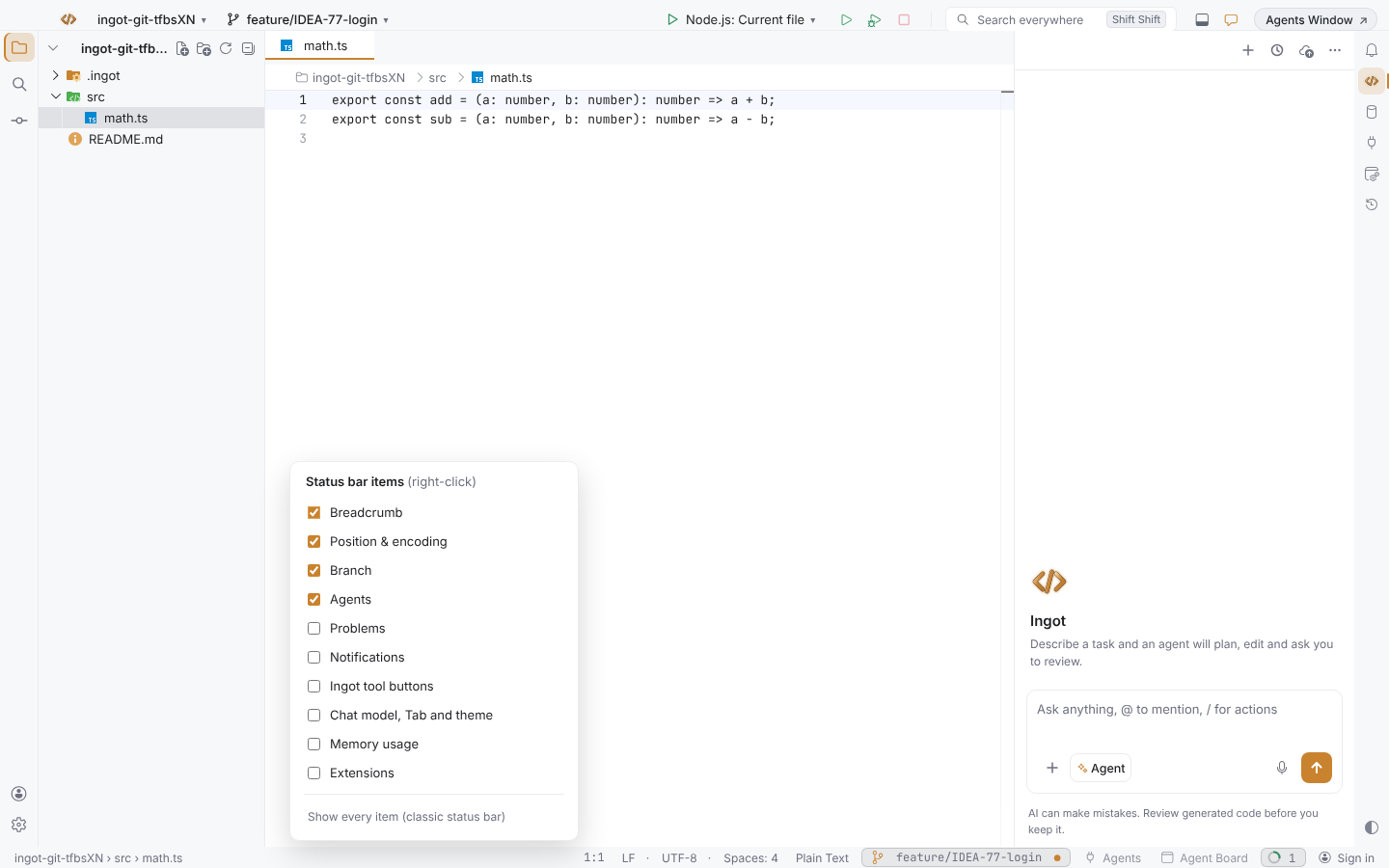
- Breadcrumb
- Position & encoding
- Branch
- Agents
- Problems
- Notifications
- Ingot tool buttons: Commit window, Sandbox, Marketplace, Session Panes, Mobile preview, Arena, Git Hosts
- Chat model, Tab and theme
- Memory usage
- Extensions, for example GitLens Launchpad or database tools
Extensions are hidden by default; one click shows them at the end of the bar. Your choice is saved per user in ingot.statusBar.items.
Upgrade to Pro appears only in the title bar, never in the status bar. The Git extension's second branch item is not shown.
Turn it off
Turn off the calm status bar (ingot.statusBar.calm) in any of these places. With it off, every item is shown in the bar as before.
- Settings › Features › Calm status bar
- Settings › Appearance › Status bar & branches
- Status Bar: Calm Mode (On/Off) in Find Action
- Show every item (classic status bar) at the bottom of the checklist
What stays in the status bar
| Item | Shows | Click it to |
|---|---|---|
| Git branch | the branch of the open project | open Source Control |
| Problems | errors and warnings in the project | open the Problems panel |
| Account | Sign in, or the tokens and units you have left | sign in, or see your usage |
| Line and column | where you are in the file, for example 12:4 | go to a line |
| Encoding | the file encoding, for example UTF-8 | reopen or save with another encoding |
| … | the names of the items in the menu, in its tooltip | open the … menu |
Some items show only while they matter: progress of a running task, a lost connection, a key chord you started, Restricted Mode, the zoom level when it isn't 100%, the running debug configuration, the size of an open image or PDF, the editing mode of a modal editor and Update required. They go away on their own.
Extensions can add their own status items. Up to two of them stay in the status bar: the two with the highest priority. The rest go to the … menu.
When the status bar is too narrow
Items never overlap, and no window width hides an item you can't reach. When the right side of the status bar holds more than fits, the bar measures what fits, one step at a time:
- Icons first. The least important items give up their text and keep their icon, one at a time from the left, until the rest fits. Hover an icon for its name; a click does what it always did.
- Then the … button. If icons are not enough, items step out, lowest priority first, and a … button appears at the start of the right side. Its menu, More status items, lists every item that did not fit, with its icon and what it says right now. A row does what a click on the item does.
- Back when there is room. Make the window wider and the items come back, then their labels, and the … button goes away.


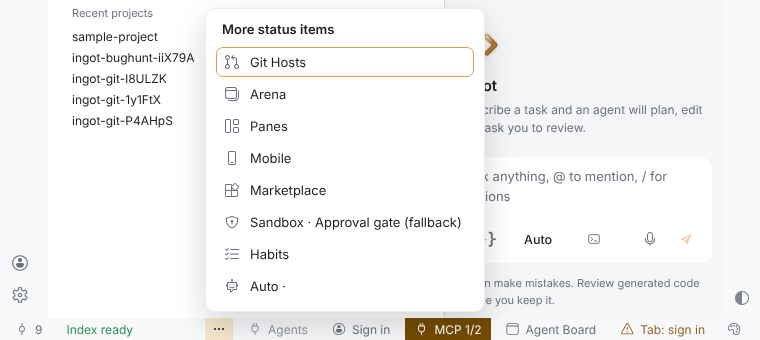
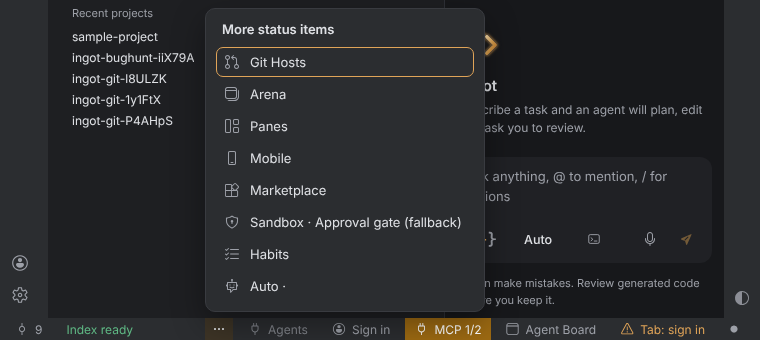
- The More status items menu works with the keyboard too: Enter opens it with the focus on the first row, ↑ and ↓ move, Enter runs a row and Esc closes it.
- A problem that needs your attention, such as the red Health item from Ingot Health, always stays visible and clickable with its text, and so does your account.
- On the left side, the breadcrumb and Problems give way together with the middle items.
This works the same in the desktop app and in the browser, and it has no settings. It is a different button from the … menu at the right end of the bar, described next. The bottom panel tabs follow the same rule.
The … menu
Click … at the right end of the status bar, press ⌥⇧⌘` (Ctrl+Alt+Shift+` on Windows and Linux) or run Status Bar: More Items… from Find Action.
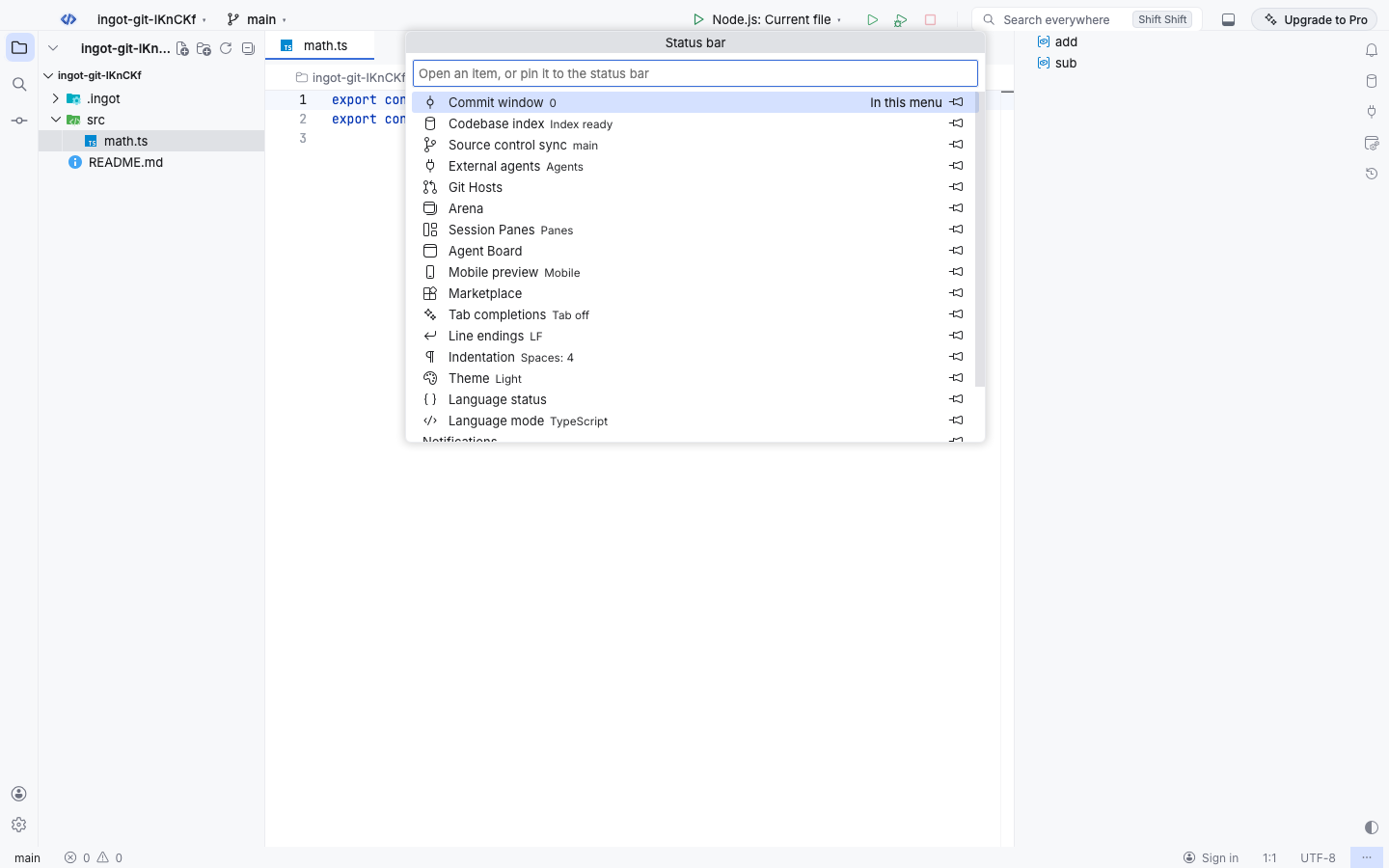
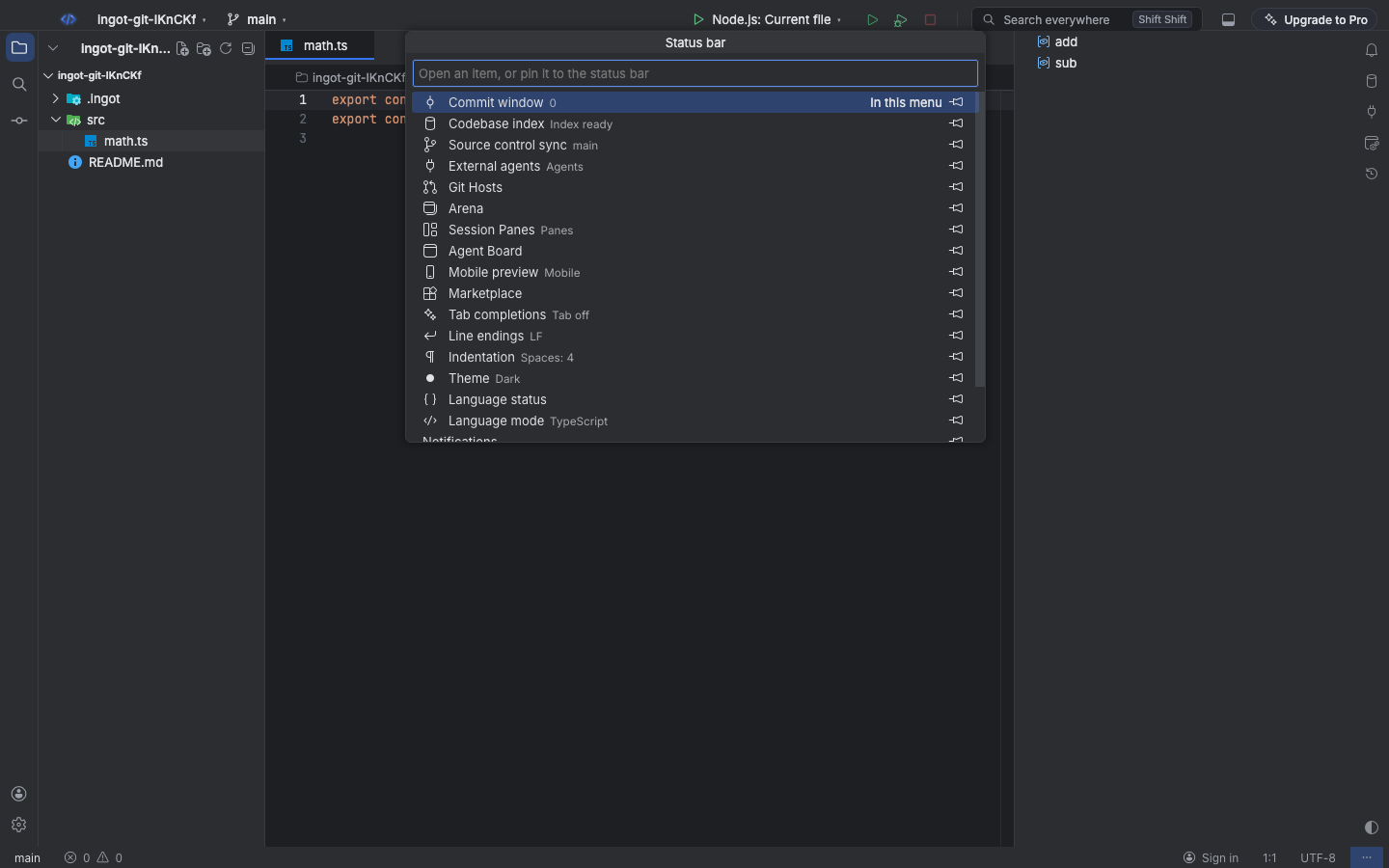
The menu lists every item that used to sit in the status bar, with its current value next to the name:
- Commit window, Codebase index, Active agents, Source control sync
- External agents, Git Hosts, Arena, Session Panes, Agent Board, Mobile preview, Marketplace
- Tab completions, Chat model, Theme
- Language mode, Line endings, Indentation, Language status, Notifications
Type to filter, then press Enter or click an item. It does exactly what its status bar button did: Arena turns Arena on and opens it, Tab completions opens the Tab menu, Theme switches the theme.
At the bottom of the menu, Show every item in the status bar brings all items back, and Status bar settings… opens the settings below.
Pin an item
Use an item every day? Click the pin button on its row. It moves to the Pinned to the status bar section of the menu and shows in the status bar again, until you unpin it there.
One Upgrade to Pro button
On the Free tier the only Upgrade to Pro button is the pill at the right end of the title bar. The status bar never shows one. After you sign in on Pro or above, the pill goes away too. See Plans & AI access.
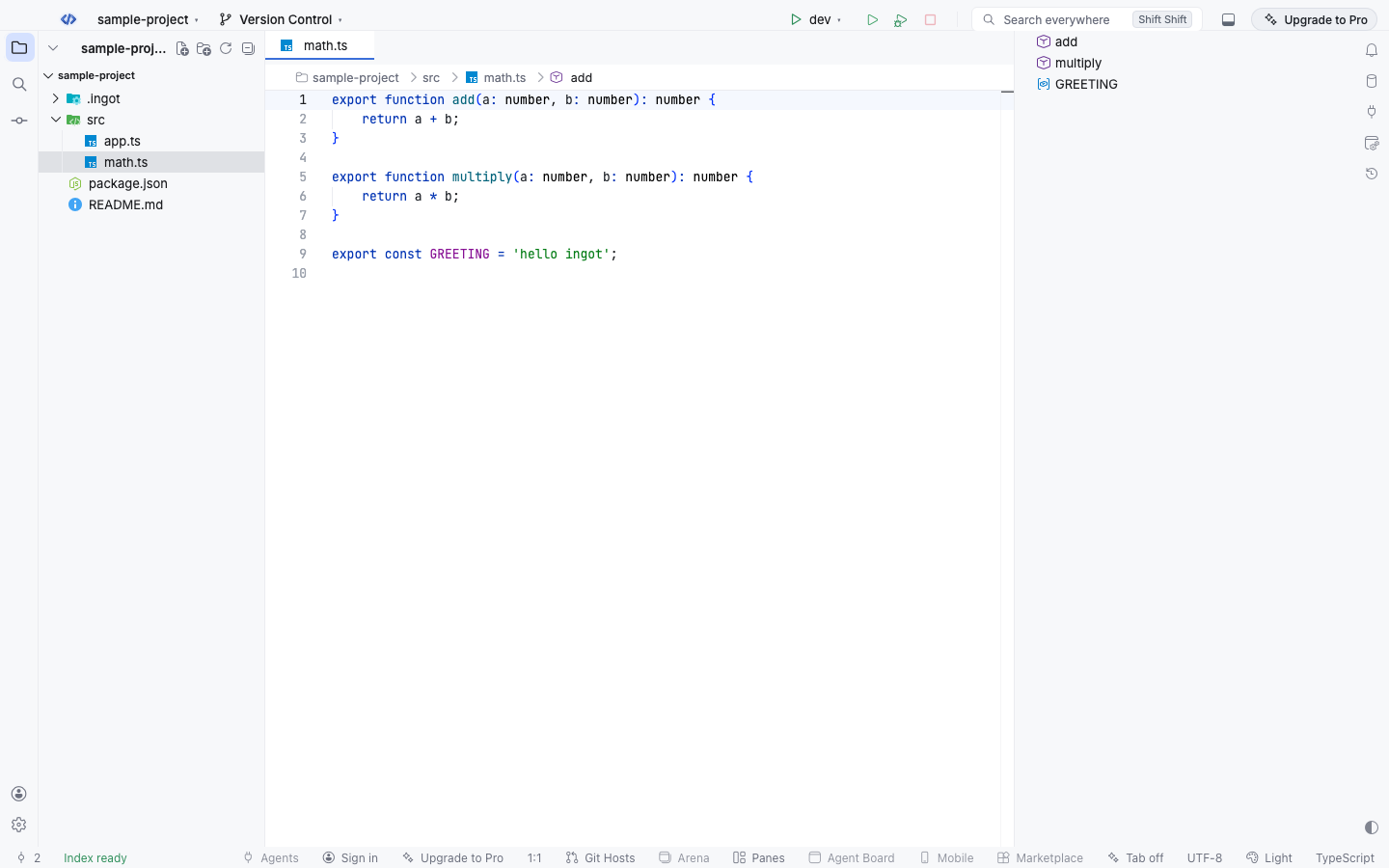
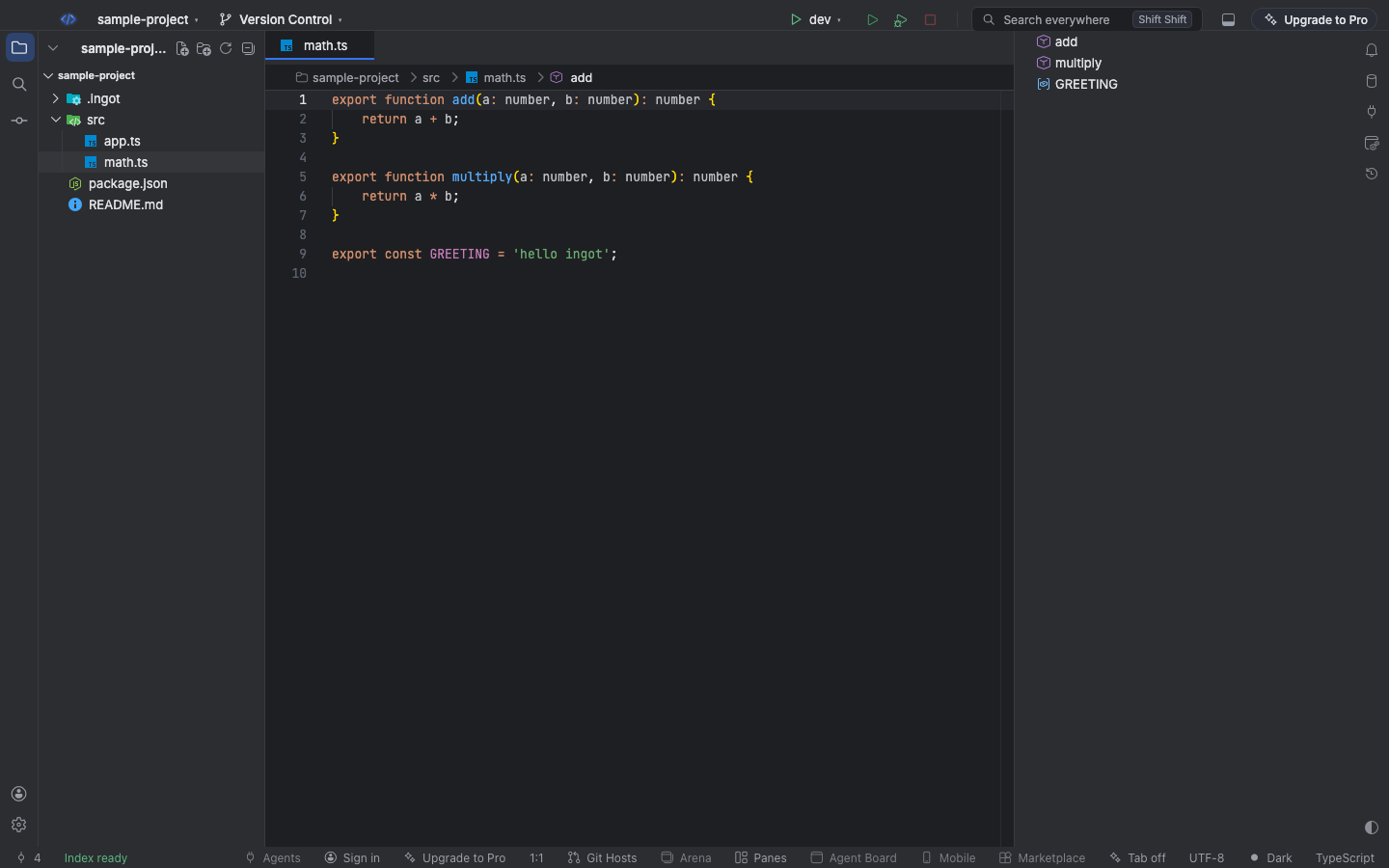
Before this change the status bar held more than a dozen buttons, and Upgrade to Pro showed in both places:
Settings
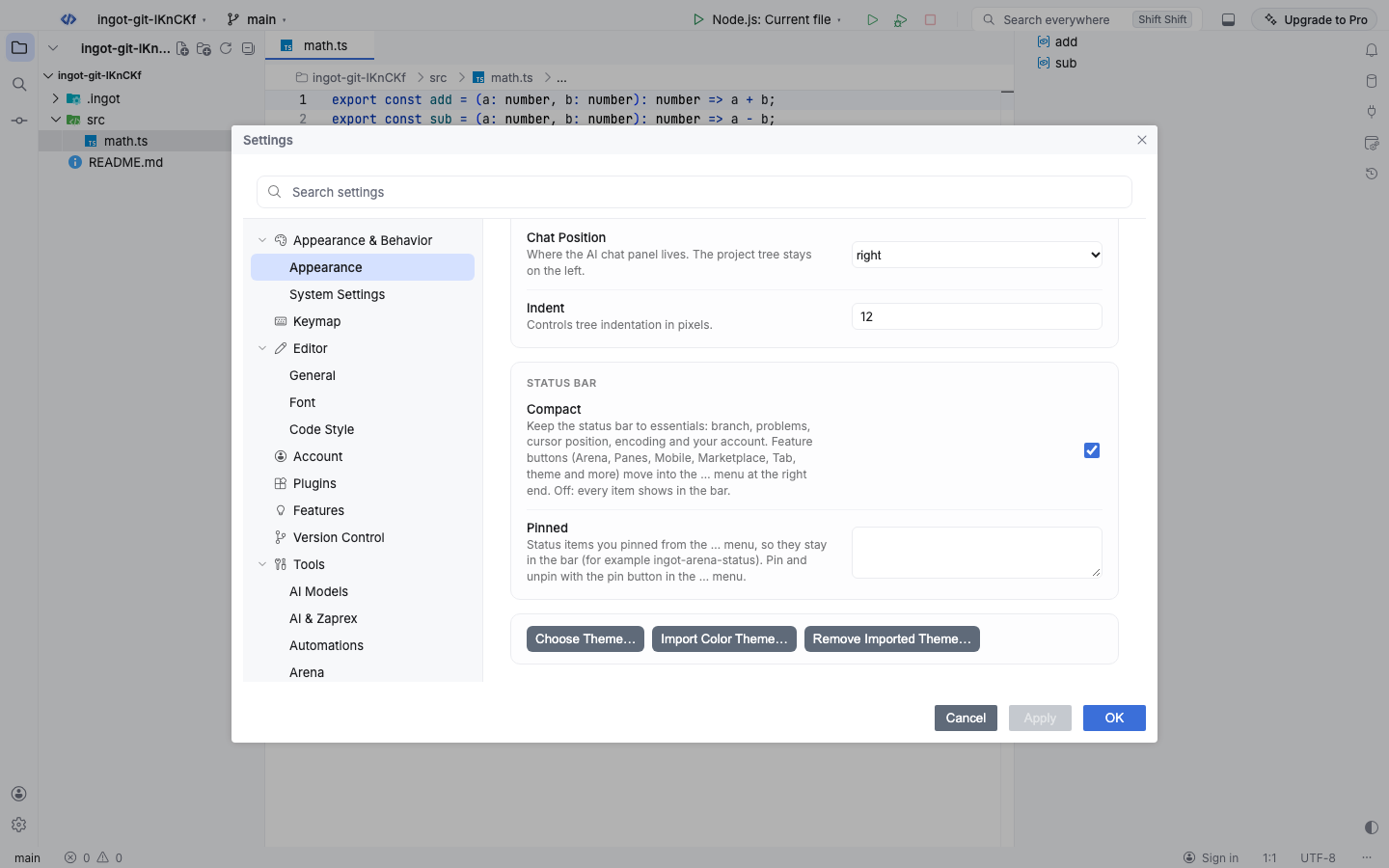
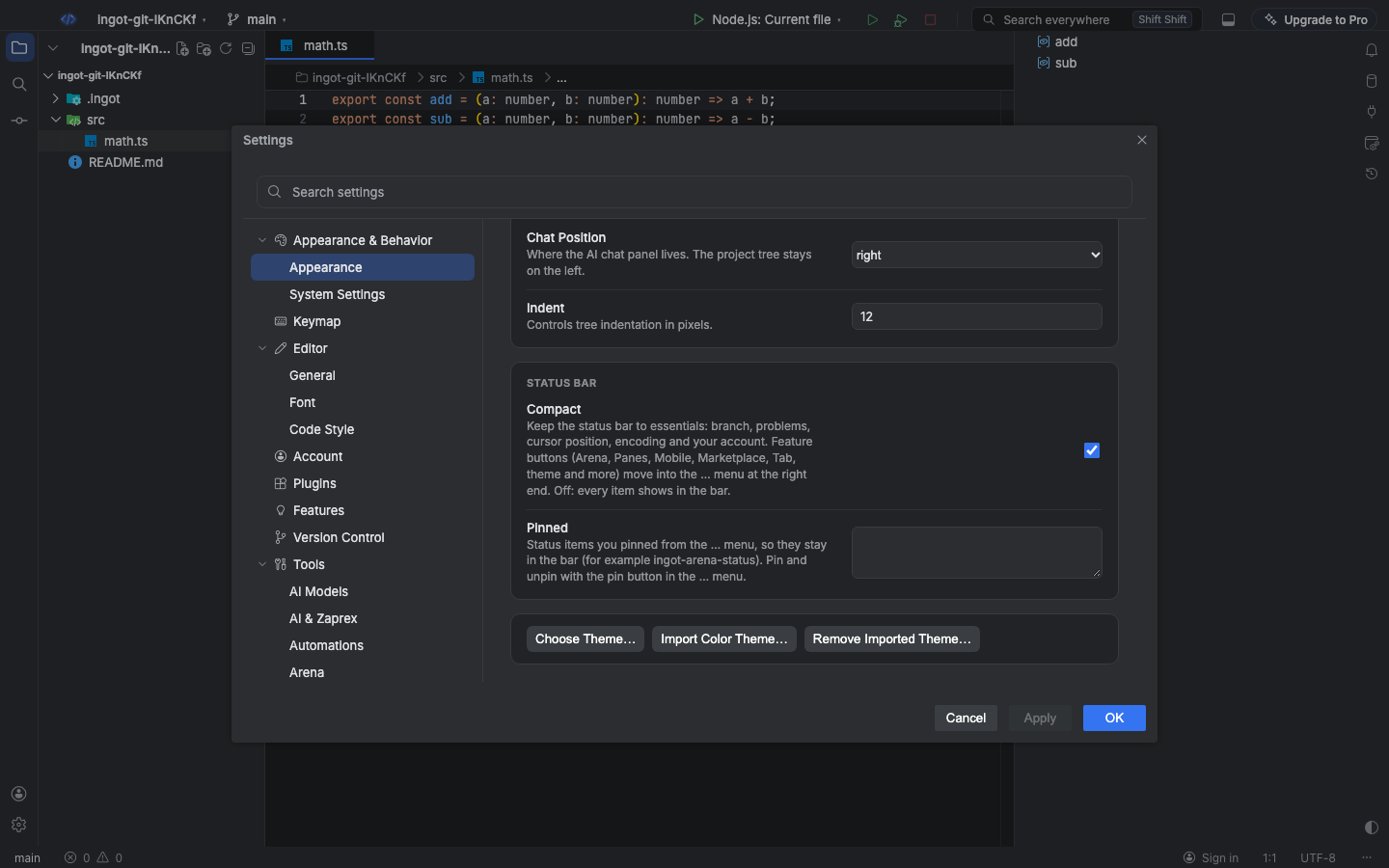
Open Settings › Appearance › Status bar.
| Setting | Default | What it does |
|---|---|---|
ingot.statusBar.compact | On | Compact: show only the essentials in the status bar. Off shows every item in the status bar, as before. Upgrade to Pro stays in the title bar either way |
ingot.statusBar.pinned | [] | Pinned: ids of the items you pinned from the … menu, for example ["ingot-tab-status"] |
ingot.statusBar.calm | On | Calm status bar: one branch pill, one activity ring and only the items you choose. Off shows every item in the bar |
ingot.statusBar.items | the items you chose in the Status bar items checklist |
Status Bar: Show Only Essentials (On/Off) in Find Action switches ingot.statusBar.compact too.
Optional features
The status bar policy doesn't hide any feature. The ways to find optional features still work: the chat suggests them, Settings › Features has a switch for each, and the one-click button for each is in the … menu. Pin the button if you want it back in the status bar.
FAQ
Where did Arena, Panes, Mobile and Marketplace go? To the … menu, with the same one-click behavior. Pin any of them to put it back in the status bar.
How do I get the old, full status bar back? Turn off Compact in Settings › Appearance › Status bar, or choose Show every item in the status bar in the … menu.
An extension's status item disappeared. Ingot keeps two extension items in the status bar. Find the others in the … menu and pin the ones you need.