Mobile preview
Open your app on iOS Simulators, Android emulators and real phones from the App Preview, in device frames, with a QR code for your phone.
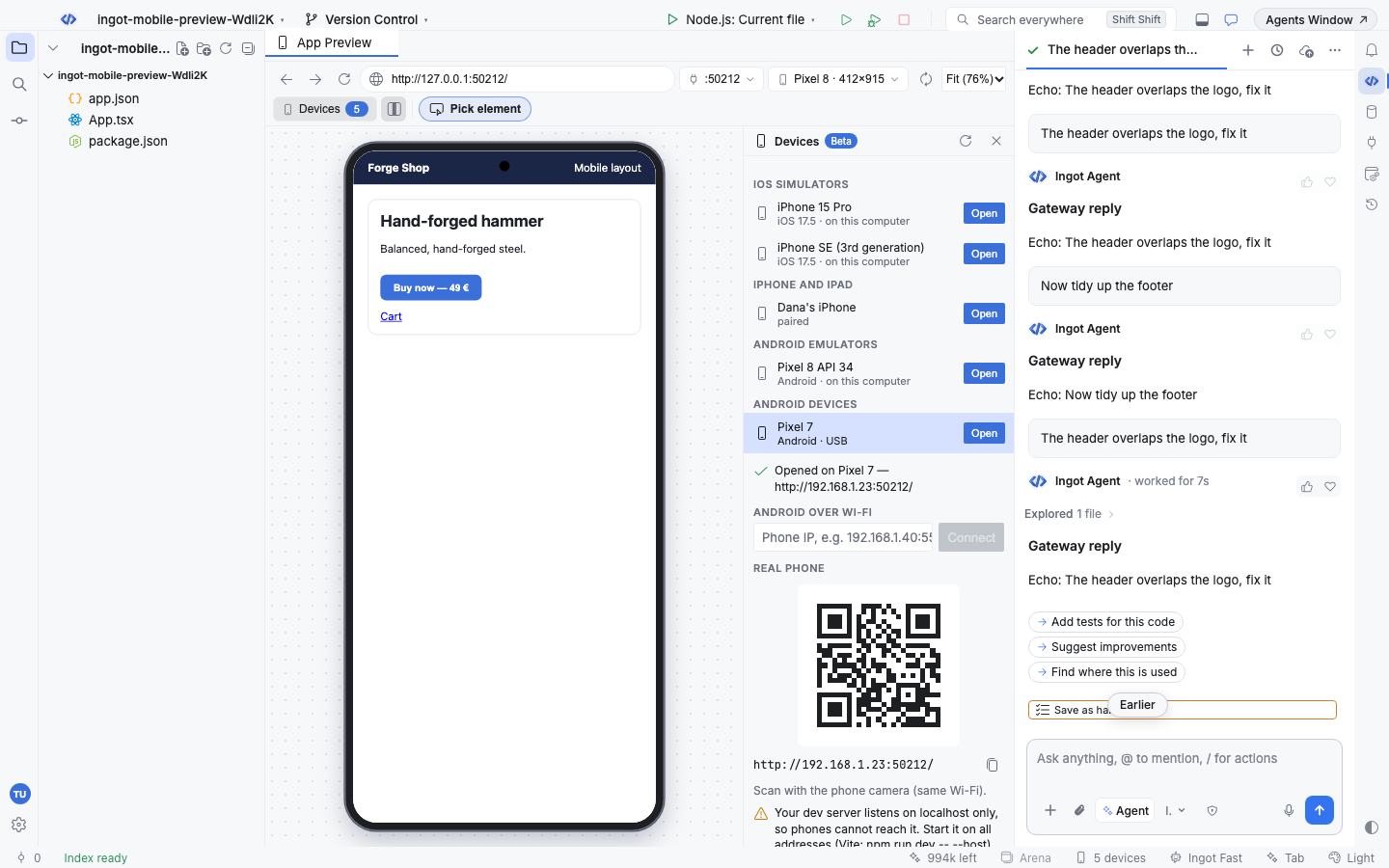
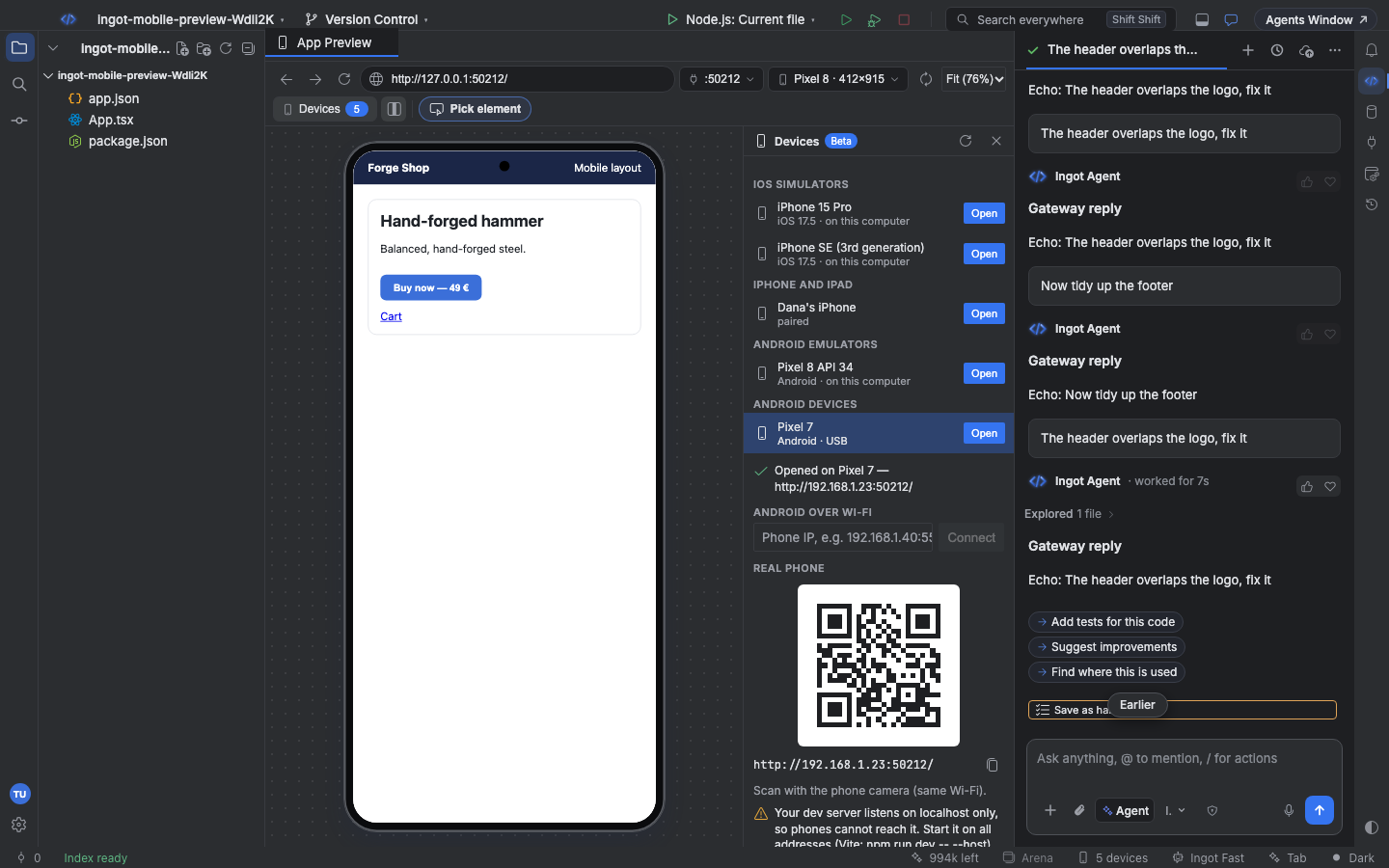
Beta Mobile preview is an optional feature of the App Preview and is off until you turn it on. It adds a Devices panel next to the page: every simulator, emulator and phone that is running or plugged in, a button that opens the page you are previewing on any of them, your React Native or Expo app in Expo Go or a development build, and a QR code of the address a phone on your Wi-Fi can open.
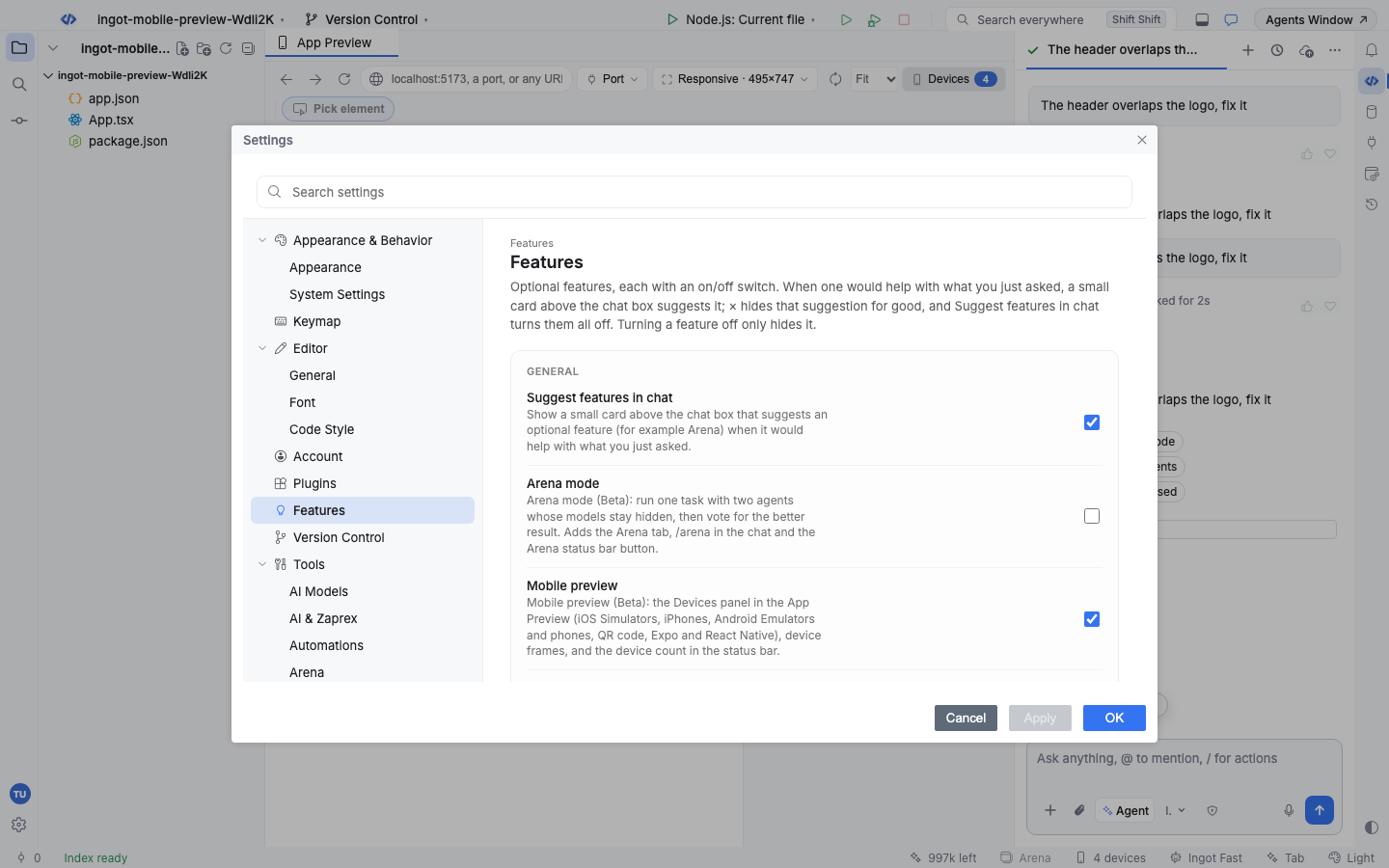
Turn it on
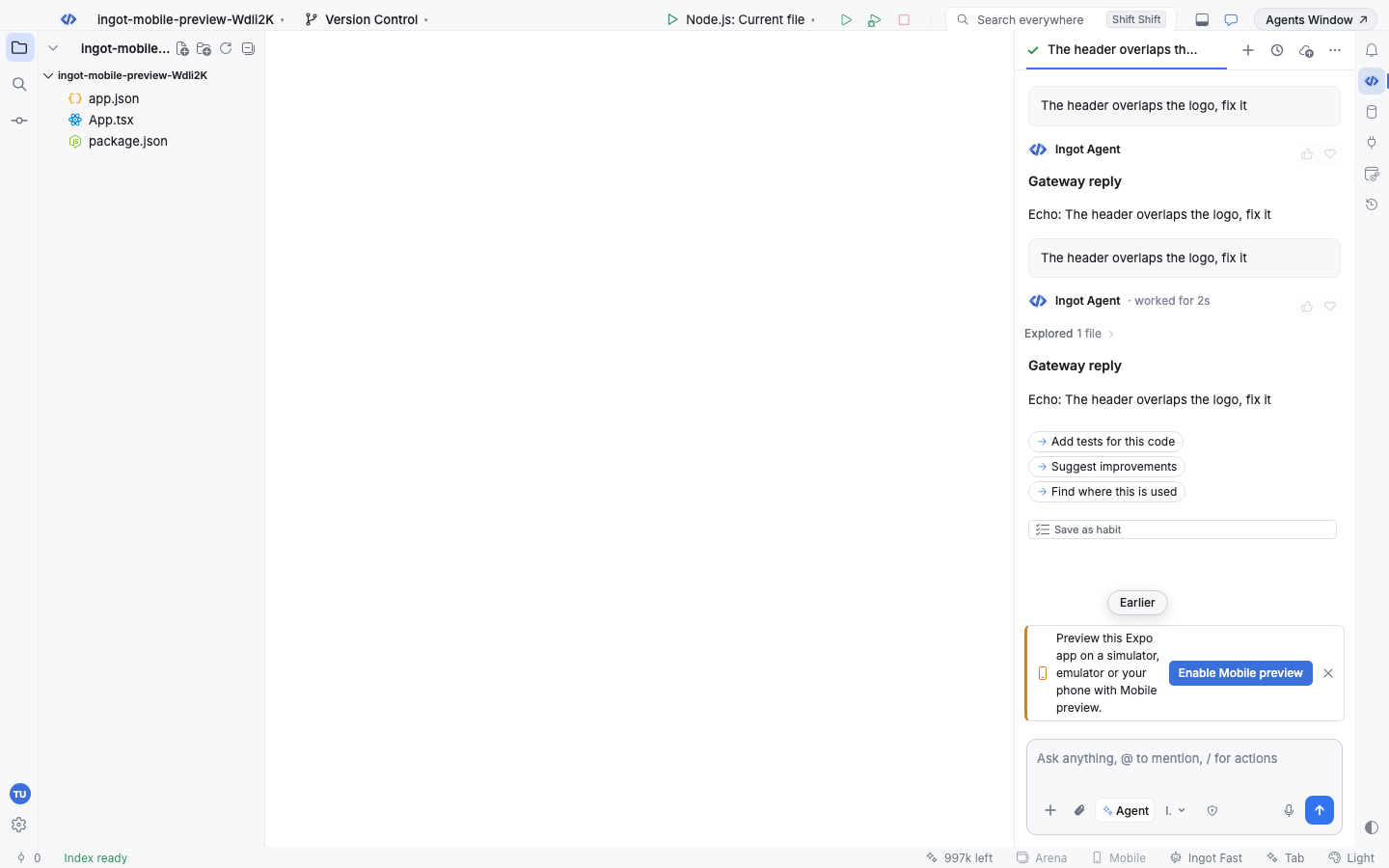
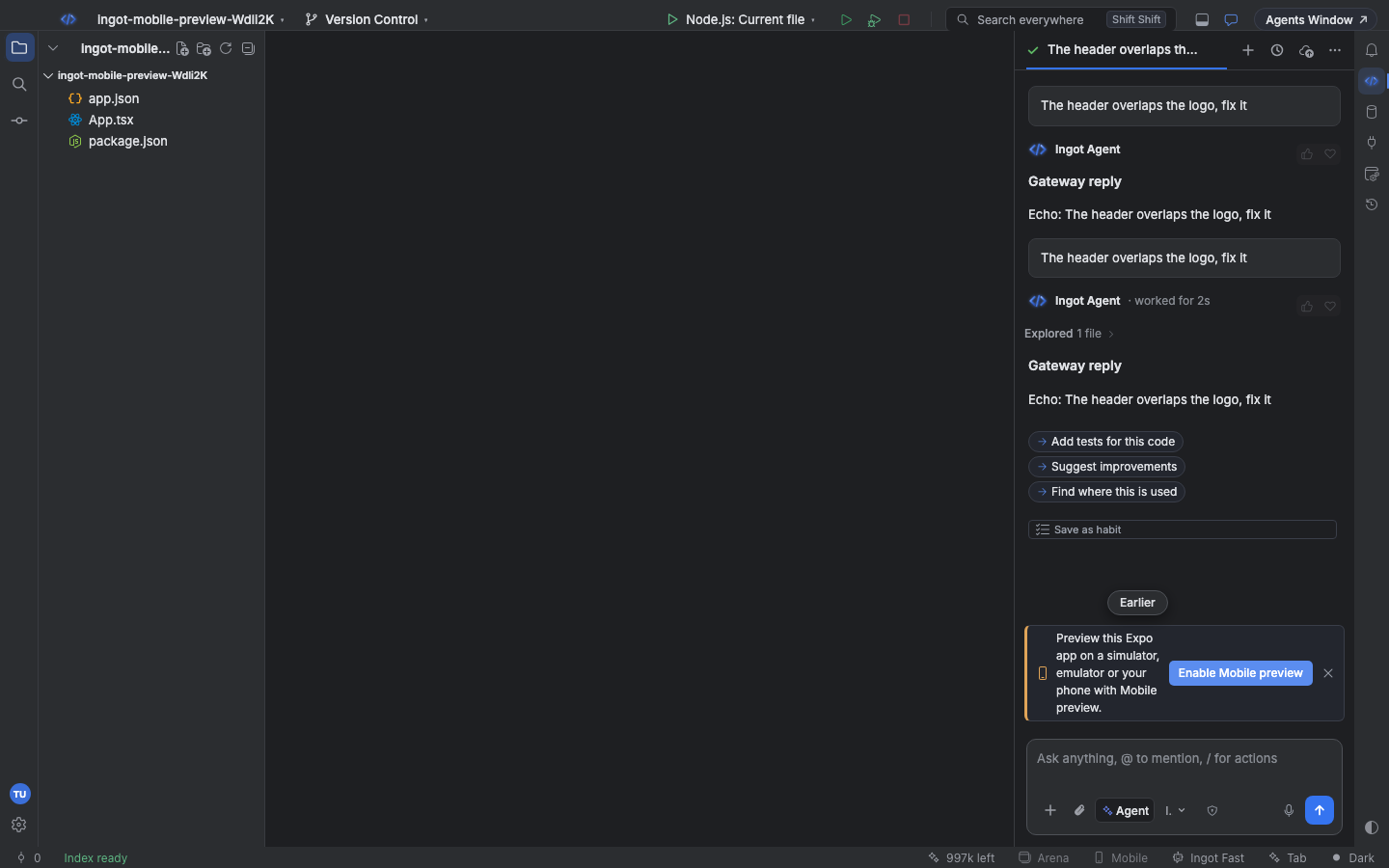
Mobile preview is easy to find in three ways, like every optional feature:
- A suggestion in the chat. When your project is a React Native, Expo, Capacitor, Ionic or Cordova app, when a simulator, emulator or phone is running, or when you ask about phones, tablets or responsive layouts, a small card above the chat box offers Enable Mobile preview. × hides it for good.
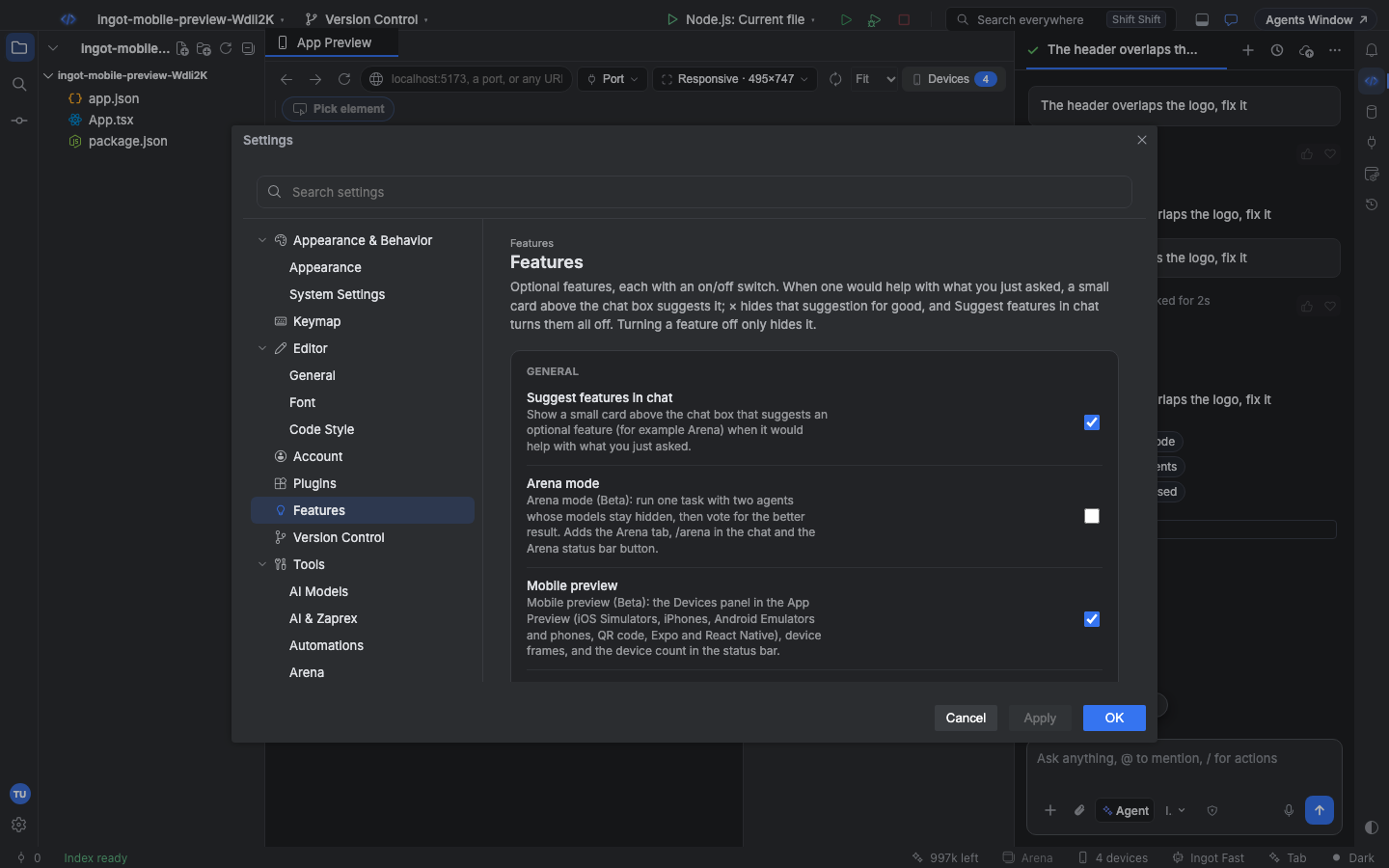
- Settings › Features › Mobile preview. An on/off switch. Turning it off hides the Devices panel and the device frames.
- The Mobile button in the status bar and Devices in the App Preview toolbar. One click turns Mobile preview on and opens the Devices panel. When it is on, the status bar shows how many devices are ready ("2 devices").
The Devices panel
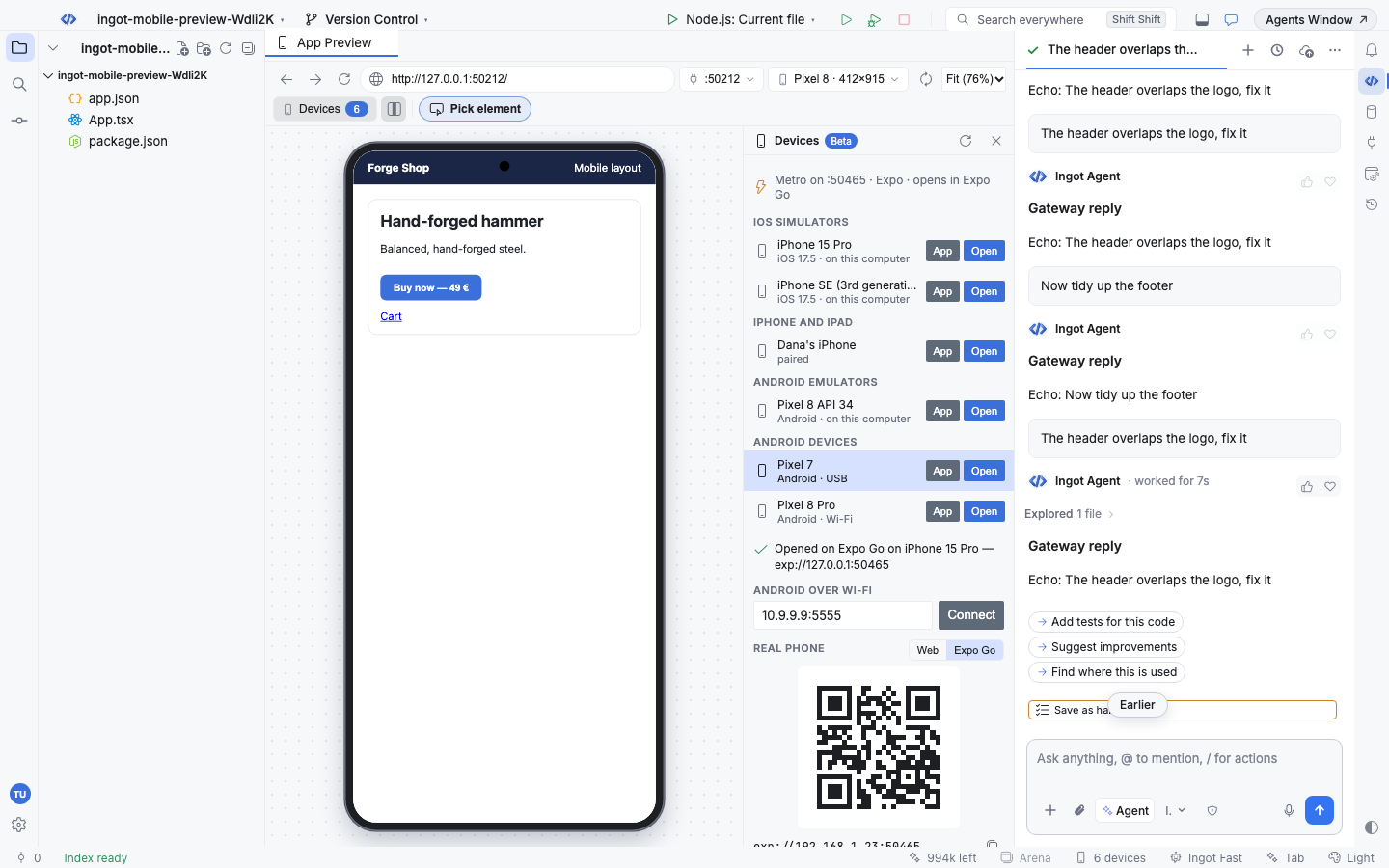
The panel lists what is running, grouped and refreshed every few seconds while it is open:
| Group | Found with | What is listed |
|---|---|---|
| iOS Simulators | xcrun simctl list devices | Booted iPhone and iPad simulators, with their iOS version |
| iPhone and iPad | xcrun devicectl list devices (Xcode 15 or later) | Phones and tablets paired with this Mac, over USB or the network |
| Android Emulators | adb devices -l | Running emulators |
| Android devices | adb devices -l | Phones and tablets over USB or Wi-Fi; unauthorized or offline ones are shown dimmed |
- Click a device to preview the page at its size: the App Preview switches to the closest device size (iPhone SE, iPhone 15 Pro, Pro Max, Pixel 8, Galaxy S23, iPad mini or iPad Pro) and draws its frame.
- Open sends the page you are previewing to that device.
- App opens your React Native or Expo app instead (see React Native and Expo).
- Refresh scans again now. A line under the list says what happened, for example "Opened on iPhone 15 Pro (Simulator)".
What each device opens
The App Preview shows localhost, which only this computer can reach. Ingot gives each device an address it can open:
| Device | Address it gets | How it is opened |
|---|---|---|
| iOS Simulator | localhost, as is (the simulator shares this Mac's network) | xcrun simctl openurl |
| Android Emulator | 10.0.2.2, the emulator's name for this computer | adb shell am start -a android.intent.action.VIEW |
| iPhone or iPad | This computer's LAN address, in Safari | xcrun devicectl device process launch --payload-url |
| Android phone or tablet | This computer's LAN address, in the default browser | adb shell am start -a android.intent.action.VIEW |
Real devices need to be on the same Wi-Fi as your computer, and your dev server has to listen on all addresses, not just localhost. When it only listens on localhost the panel says so. For Vite run npm run dev -- --host; for Next.js next dev -H 0.0.0.0.
Android over Wi-Fi
Turn on Developer options › Wireless debugging on the phone, type its address in Android over Wi-Fi (for example 192.168.1.40:5555, port 5555 when you leave it out) and click Connect. Ingot runs adb connect and the phone joins the list. Connect Android Phone over Wi-Fi… in Find Action does the same.
QR code for your phone
Real phone at the bottom of the panel shows a QR code of the page's LAN address. Scan it with the phone's camera to open the page there. The address is under the code with a copy button. The code is always dark on light, in every theme, so cameras can read it.
Ingot uses your Wi-Fi or Ethernet IPv4 address. If that is the wrong one (a VPN, several networks), set Settings › Tools › Mobile preview › LAN address.
React Native and Expo
When your project uses React Native or Expo and Metro is running (on port 8081 or any local port whose /status answers packager-status:running), the panel shows Metro on :8081 · Expo · opens in Expo Go and every device gets an App button:
| Project | App opens in | Address |
|---|---|---|
| Expo | Expo Go | exp://<host>:<port> |
Expo with expo-dev-client and a scheme in app.json | Your development build | <scheme>://expo-development-client/?url=… |
| React Native without Expo | The installed app (bundle id from app.json or the Xcode project, package from android/app/build.gradle) | Android first gets adb reverse so the app finds Metro on localhost |
Simulators use localhost, the Android Emulator 10.0.2.2 and phones the LAN address. With Metro running, Web and Expo Go (or Dev build) above the QR code switch between the page's address and the app's, so a phone with Expo Go can scan straight into your app.
Device frames
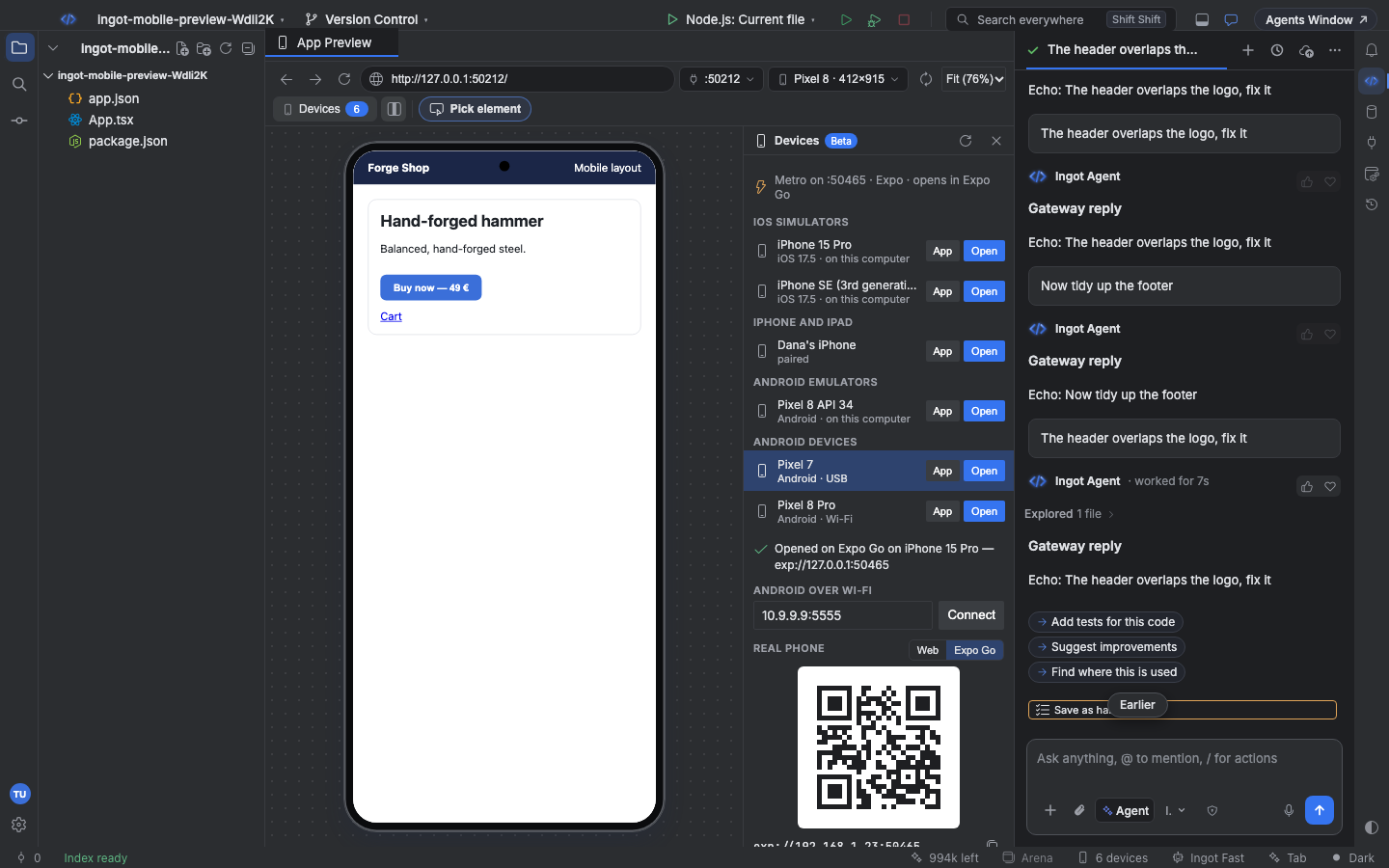
With Mobile preview on, phone and tablet sizes in the App Preview get a device frame: an iPhone with its island, an iPhone SE with a home button, a Pixel with a punch-hole camera, or a tablet. Rotating turns the frame. The frame button next to Devices hides or shows frames, and Settings › Tools › Mobile preview › Device frames keeps your choice. Desktop sizes and Responsive never get a frame.
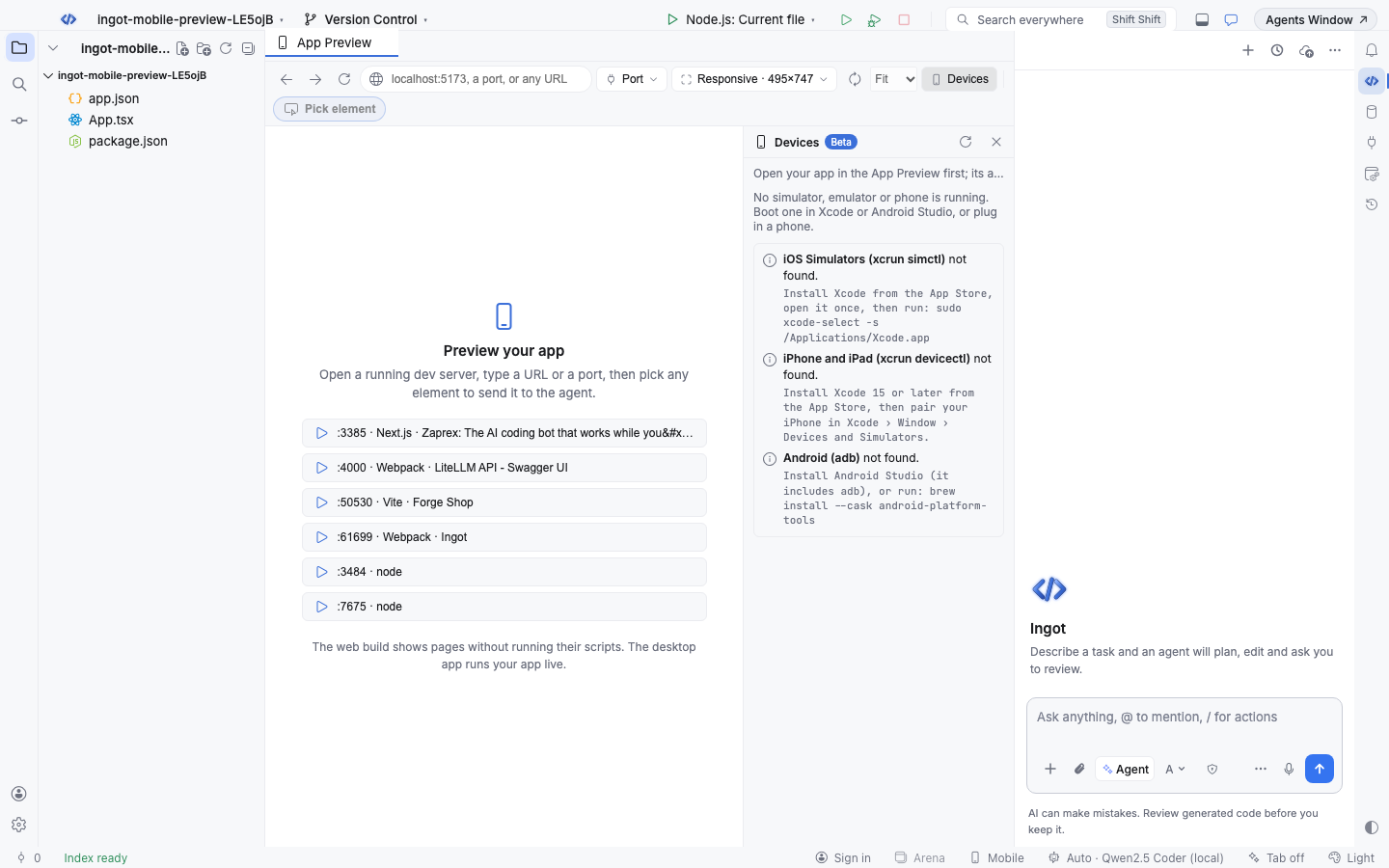
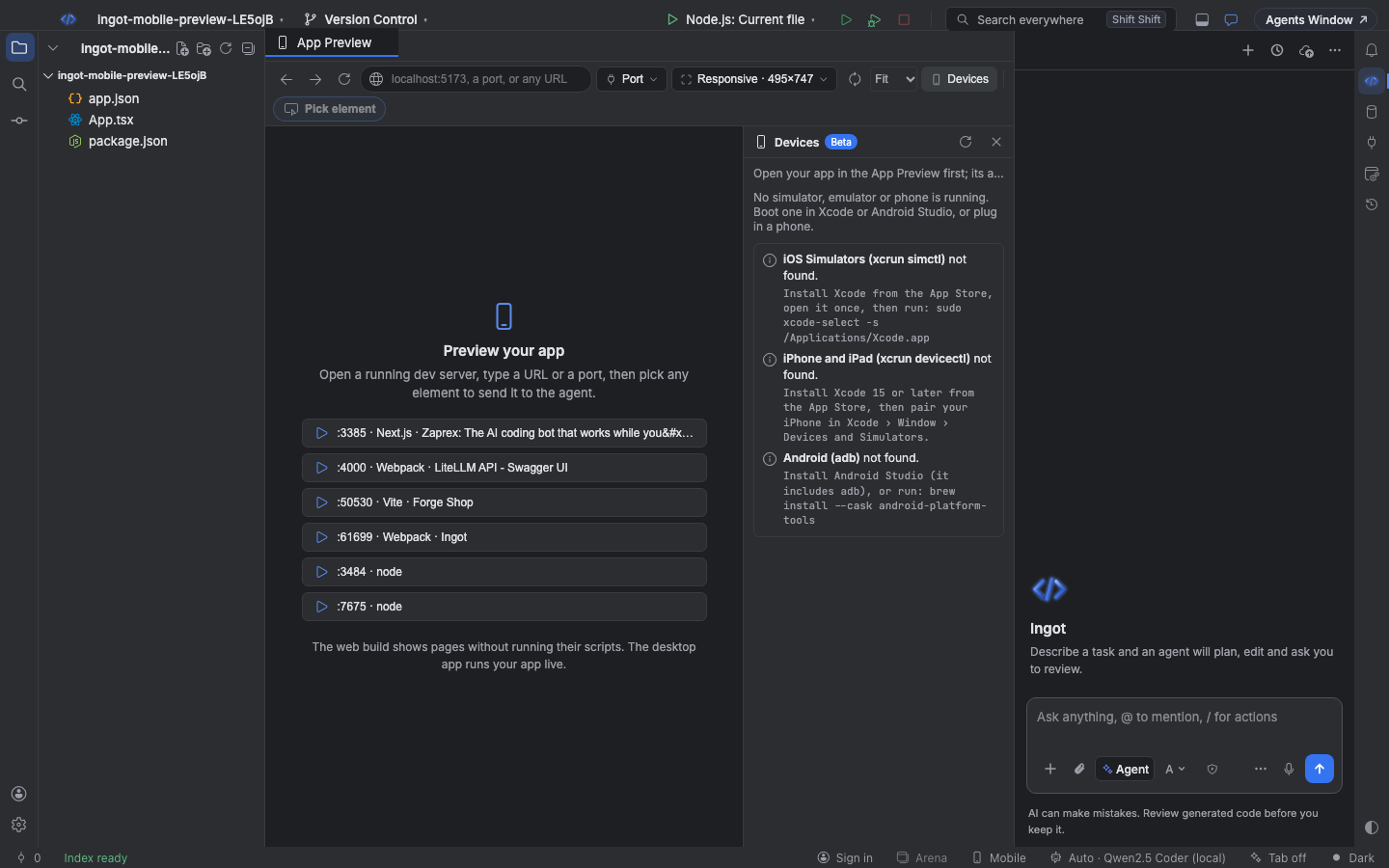
When Xcode or adb is missing
The panel lists what it could not find and how to install it, and keeps working with what is there:
| Missing | macOS | Windows and Linux |
|---|---|---|
| iOS Simulators | Install Xcode from the App Store, open it once, then run sudo xcode-select -s /Applications/Xcode.app | iOS Simulators need a Mac with Xcode |
| iPhone and iPad | Xcode 15 or later, with the phone paired in Xcode › Window › Devices and Simulators | A Mac with Xcode |
| Android (adb) | Install Android Studio (it includes adb), or brew install --cask android-platform-tools | Install Android Studio, or the Android SDK Platform-Tools |
Ingot looks for adb on your PATH, in ANDROID_HOME or ANDROID_SDK_ROOT, in the Android Studio SDK folder and in Homebrew. To use another copy, set INGOT_ADB_BIN (or INGOT_XCRUN_BIN) to its full path before you start Ingot.
Keyboard shortcuts
| Action | macOS | Windows / Linux |
|---|---|---|
| Mobile Preview: Open Devices | ⌘⌥⇧Home | Ctrl+Alt+Shift+Home |
| Mobile Preview: Turn On or Off | ⌘⌥⇧M | Ctrl+Alt+Shift+M |
| Open App on Device… | ⌘⌥O | Ctrl+Alt+O |
| Show QR Code for Phone | ⌘⌥Q | Ctrl+Alt+Q |
| Connect Android Phone over Wi-Fi… | ⌘⌥⇧A | Ctrl+Alt+Shift+A |
| Refresh Devices | ⌘⌥⇧R | Ctrl+Alt+Shift+R |
| Toggle Device Frames | ⌘⌥F | Ctrl+Alt+F |
Every shortcut except Open Devices works while the App Preview has focus. All of them are in Find Action and in the keymap settings.
Settings
| Setting | Default | What it does |
|---|---|---|
ingot.appPreview.mobile.enabled | false | Mobile preview (Settings › Features): the Devices panel, device frames and the device count in the status bar |
ingot.appPreview.mobile.deviceFrames | true | Device frames: draw an iPhone, iPhone SE, Pixel or tablet frame around phone and tablet sizes |
ingot.appPreview.mobile.refreshInterval | 3 | Refresh devices every (seconds): how often the open Devices panel scans, 1 to 60 |
ingot.appPreview.mobile.lanAddress | empty | LAN address: the address phones use to reach this computer, for real devices and the QR code; empty uses the Wi-Fi or Ethernet IPv4 address |
ingot.suggestions.enabled | true | Suggest features in chat: the small cards that suggest optional features |
ingot.suggestions.dismissed | [] | Suggestions you closed: mobile-preview is added when you close its card with × |
Privacy
Everything runs on your computer: Ingot calls xcrun and adb locally and only reads their device lists. Nothing about your devices or your app is sent anywhere, and the QR code only holds your dev server's local address.
From the terminal
ingot preview mobile lists the same devices, ingot preview mobile open sends a dev server to one, and ingot preview qr prints the QR code in the terminal:
ingot preview mobile                          # devices by group, Metro, and what is missing; --json
ingot preview mobile open "iPhone 15 Pro" 5173  # a device by id or name, a port or URL
ingot preview mobile open emulator-5554 --app # the Expo / React Native app
ingot preview mobile connect 192.168.1.40     # adb over Wi-Fi
ingot preview qr 5173                         # QR code of the LAN address; --expo for Expo Go, --invert
Every command is on CLI.