Chat layout and the changes tray
In the modern chat layout (the default), the agent's edits wait in a changes tray right above the chat box. You accept or reject each file or each change there, where you talk to the agent, and the agent is told about every change you reject or make yourself.
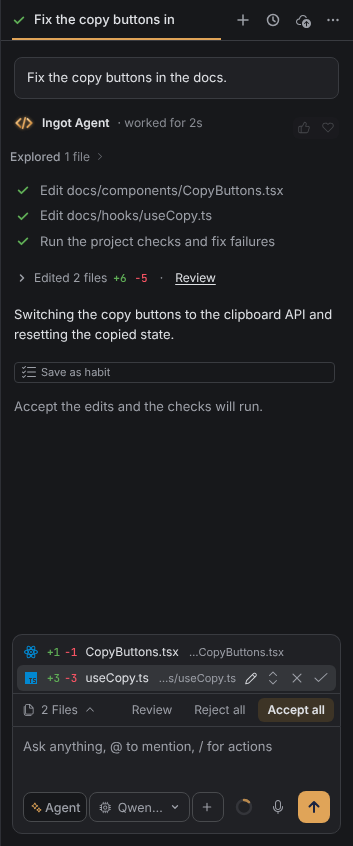
Modern or classic
| Layout | What you get |
|---|---|
| Modern (default) | The changes tray, the tray rows for processes, the browser and subagents, the timeline thread, a chat surface apart from the editor and thin splitters. |
| Classic | The chat, its edits list and the splitters as before. |
Switch in any of these places:
- Settings › Appearance › Layout › Chat layout
- Settings › Features › Modern chat layout (off means Classic)
- the first-run setup (Help › Set Up Ingot…)
The changes tray
The tray shows while files wait for your review. Each row has the file icon, +N −N, the file name and its path, shortened from the left.
| To | Do this |
|---|---|
| open a file's diff in the editor | click its row |
| accept or reject one file | hover or focus the row › Accept (✓) or Reject (✕) |
| act on single changes | hover the row › the changes toggle, then Accept, Reject or Edit on each change |
| review everything | Review in the tray footer |
| take or drop every file | Accept all or Reject all in the footer |
| fold the tray | click N Files in the footer; folded, it reads › N Files +a −b with Review |
Rows also show a mark when you edited the file yourself. ↑ ↓, Home and End move between rows.
In the agent's reply, the edits are one line: Edited N files +a −b · Review. Click it to open the file rows and the Agent review block. In the Review tab, every change has Edit too.
The editor keeps its own Accept and Reject buttons on each change, and Ctrl+Y / Ctrl+N accept or reject the file. Both stay in sync with the tray. See Reviewing code changes.
The agent knows what you changed
Every Accept, Reject and manual edit in a file the agent touched goes along with your next message, and the chat shows Told the agent: …. If the agent later writes exactly a change you rejected, or undoes one of your own edits, Ingot rejects it on its own and says Kept your version of ….
Splitters and colors
The splitters between the editor, the chat and the tool windows are a 1px line with a 6px grab area; the handle lights up in the accent color on hover and while you drag. Themes can set the chat colors with ingotChat.background, ingotChat.cardBackground and ingotSplitter.border. Ingot's own themes set them; other themes get matching defaults.
Settings
| Setting | Values | Default |
|---|---|---|
ingot.chat.layout | modern, classic | modern |
ingot.chat.timeline | true, false: the timeline thread in the modern layout | true |