העמוד הזה עוד לא תורגם; מוצגת הגרסה באנגלית.

בטא בקרוב. הפיצ׳ר עדיין בפיתוח, ולכן שמות ופרטים עשויים להשתנות לפני השחרור.

Sign in on the welcome

The first time you open Ingot, it starts with a welcome: Sign in, Create account or Continue without AI. The usual setup screens (look and keys, privacy and agent) follow.
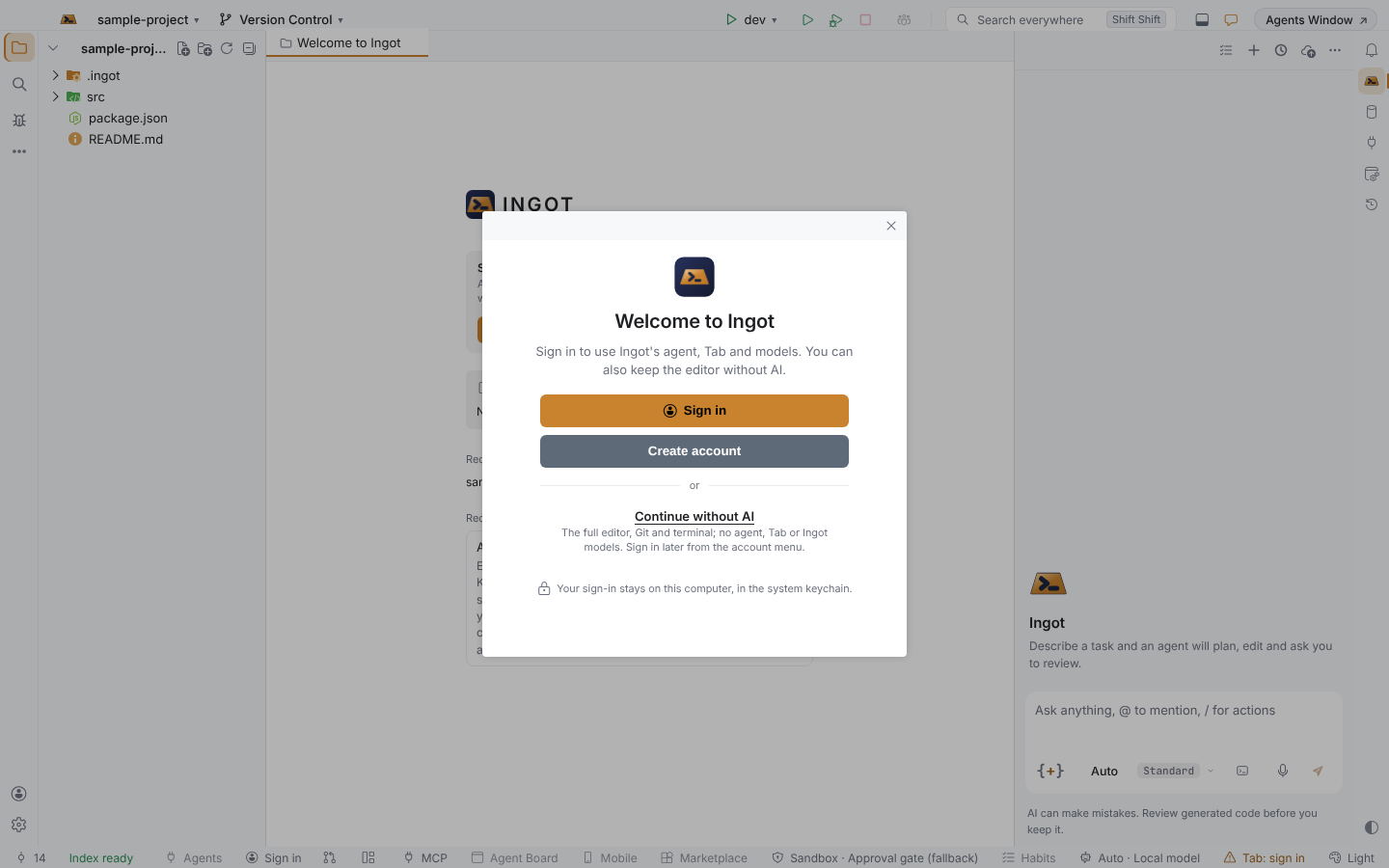
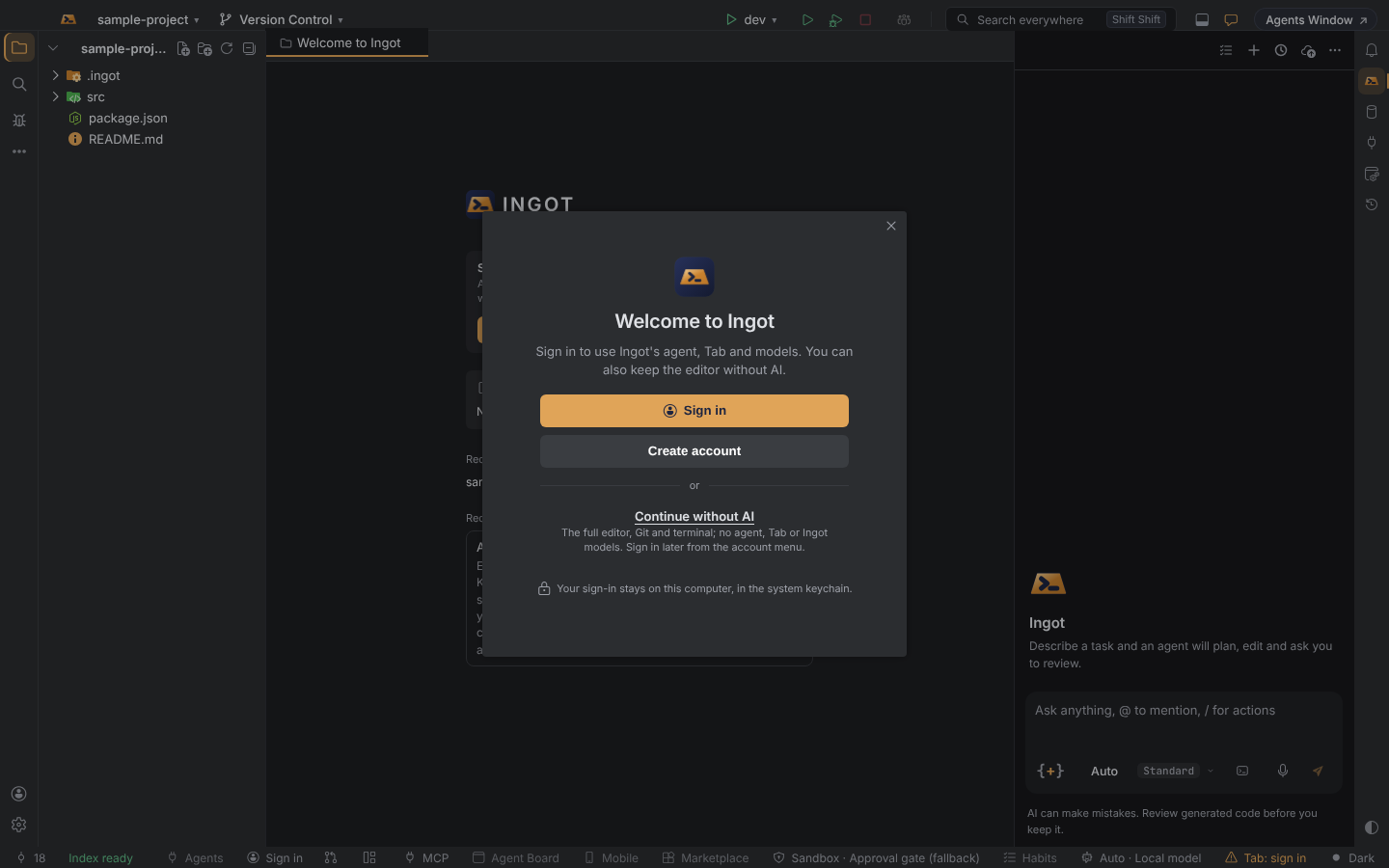
The Welcome to Ingot screen with a gold Sign in button, Create account, and Continue without AI belowThe Welcome to Ingot screen with a gold Sign in button, Create account, and Continue without AI below
The Welcome to Ingot screen with a gold Sign in button, Create account, and Continue without AI below

Sign in

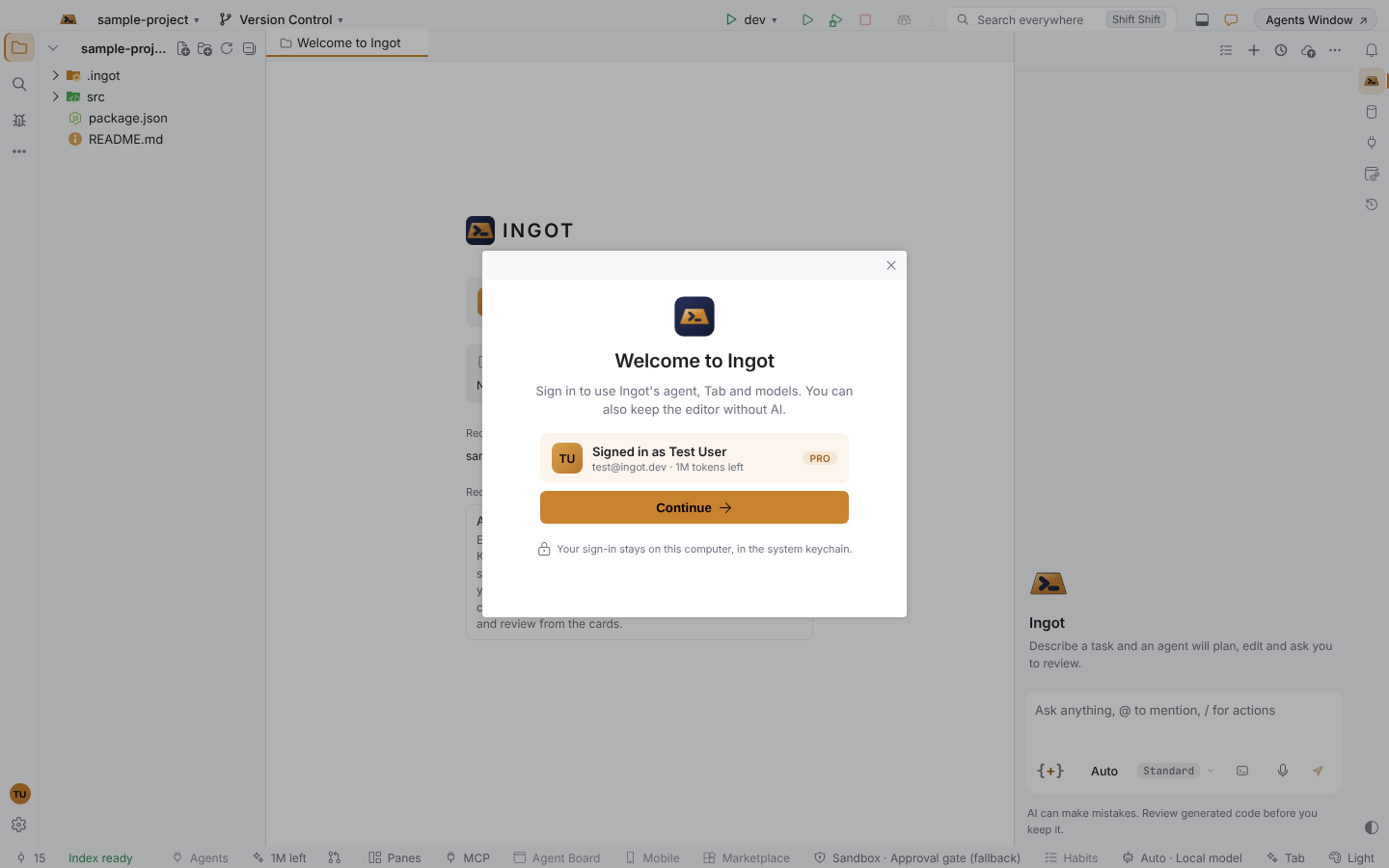
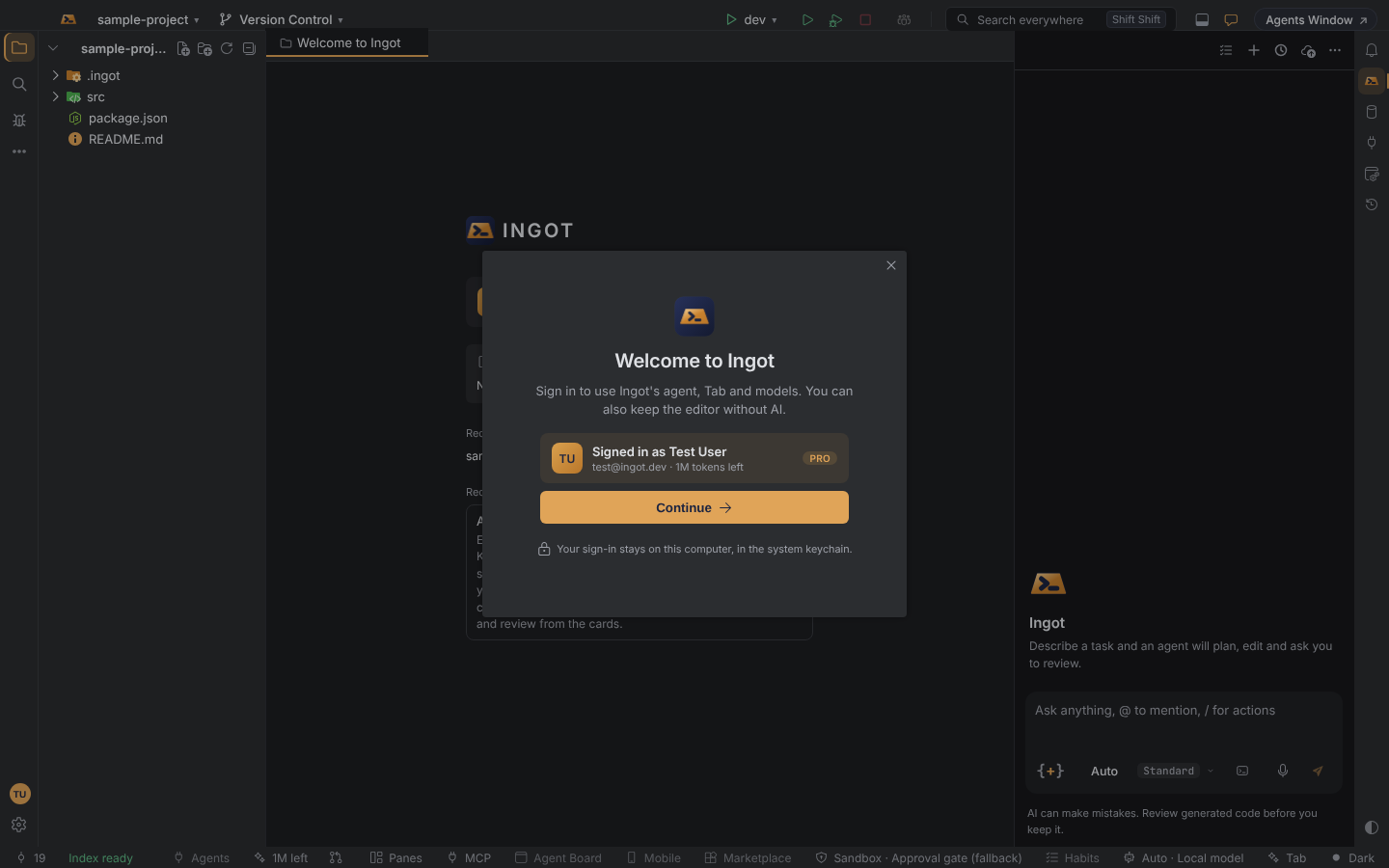
Sign in opens your browser. Approve there and come back: the welcome updates on its own and shows Signed in as your name, your plan and the units left this period. Continue goes on to the setup. Changed your mind while the browser is open? Cancel returns to the choices.
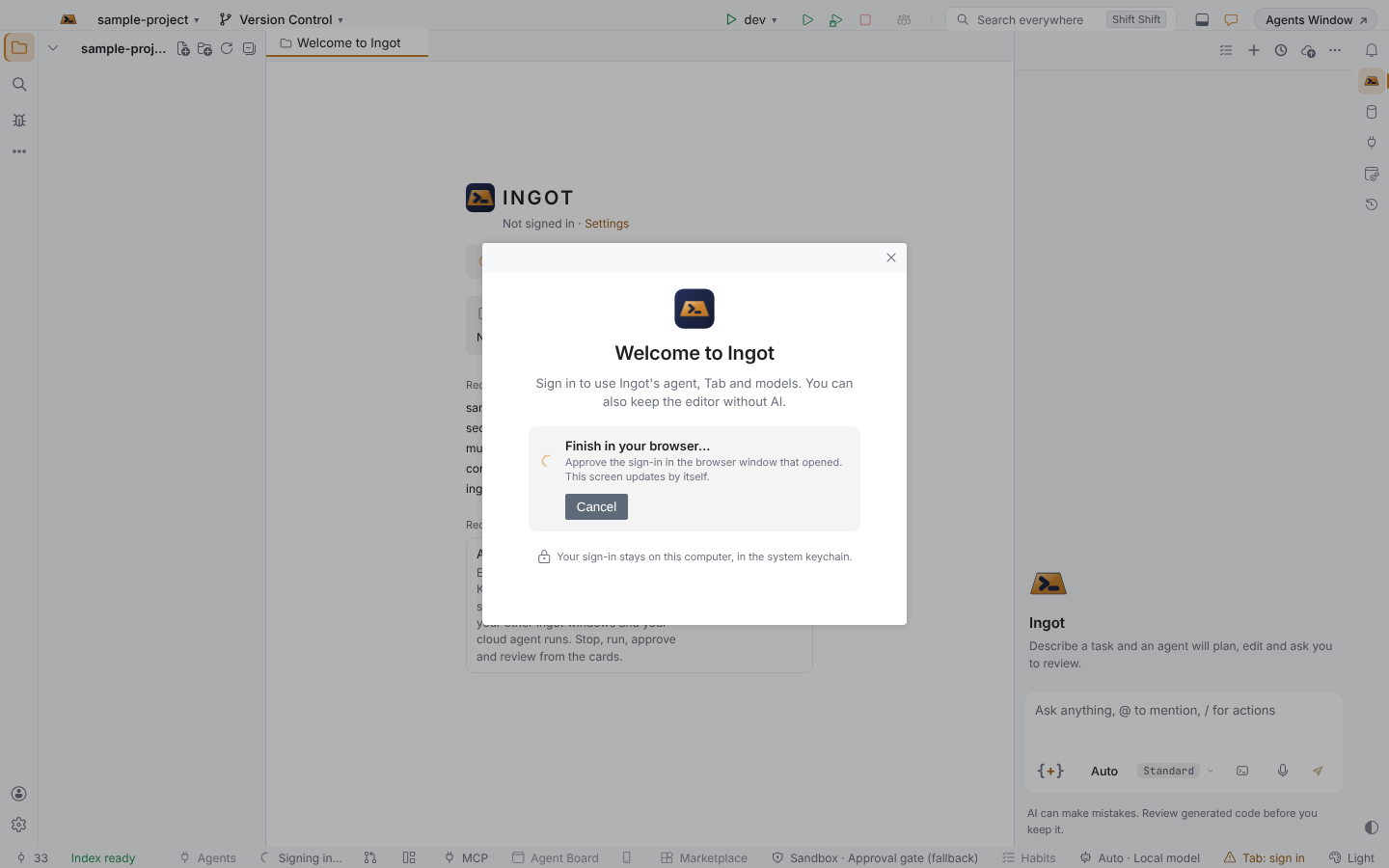
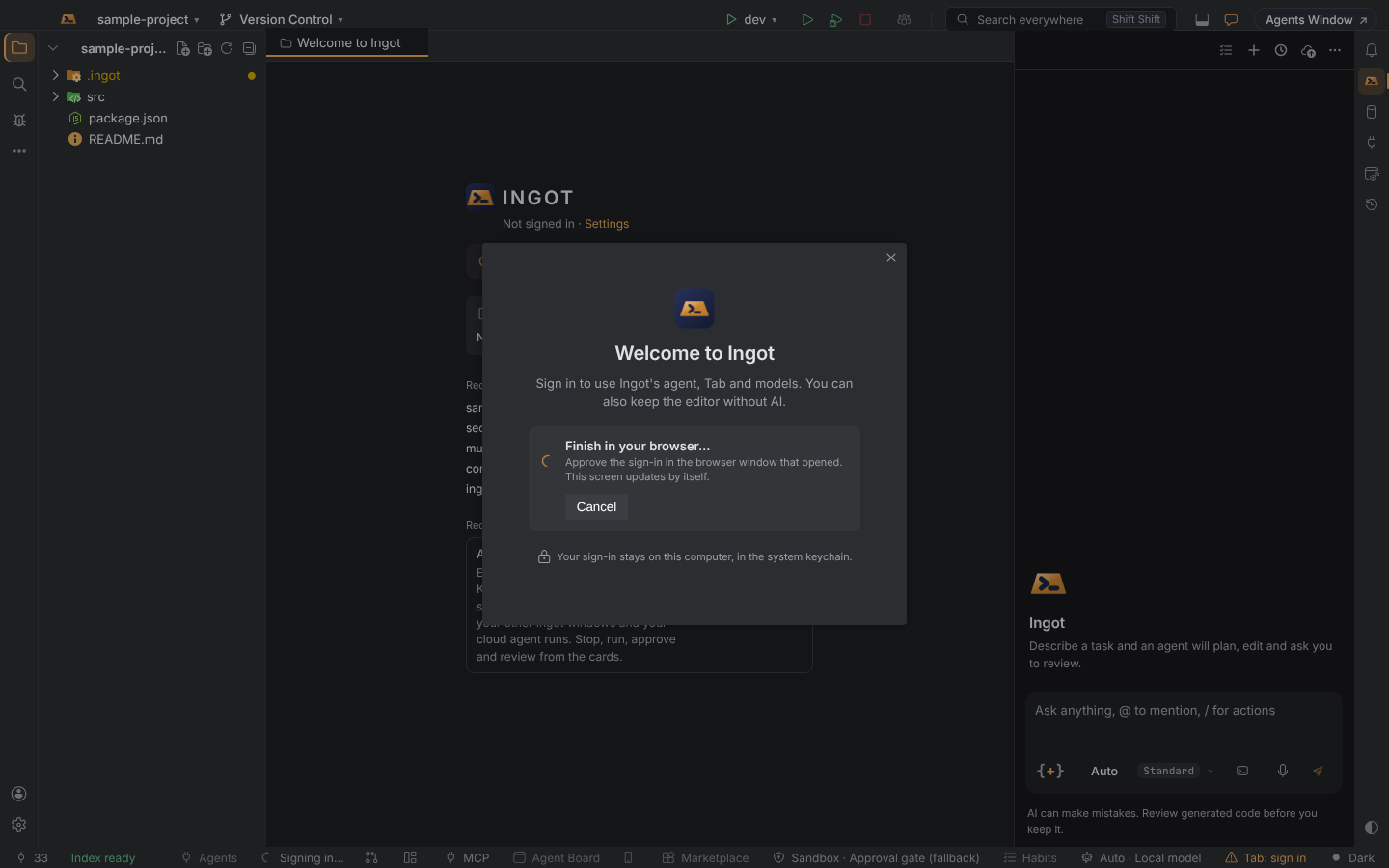
The welcome while the browser sign-in is open: a spinner, Finish in your browser…, and a Cancel buttonThe welcome while the browser sign-in is open: a spinner, Finish in your browser…, and a Cancel button
The welcome while the browser sign-in is open: a spinner, Finish in your browser…, and a Cancel button
The welcome after signing in: initials, Signed in as Test User, the email and tokens left, a PRO chip and a gold Continue buttonThe welcome after signing in: initials, Signed in as Test User, the email and tokens left, a PRO chip and a gold Continue button
The welcome after signing in: initials, Signed in as Test User, the email and tokens left, a PRO chip and a gold Continue button

Create account

Create account opens the ingotide.com sign-up page. When you finish, the browser goes straight on to approve the sign-in for Ingot, so you are signed in with no second step.

Continue without AI

Continue without AI (or Esc) keeps the full editor, Git and terminal, with no agent, Tab or Ingot models. You can sign in any time later from the account menu at the bottom of the left stripe, or from the welcome page.

Your sign-in stays on your computer, in the system keychain, and lasts for weeks (see Sign in).

On the welcome page

A window with no folder shows your account above the project cards: photo or initials, name, plan and units left, with Account for the dashboard. Signed out, the card offers Sign in and Create account.
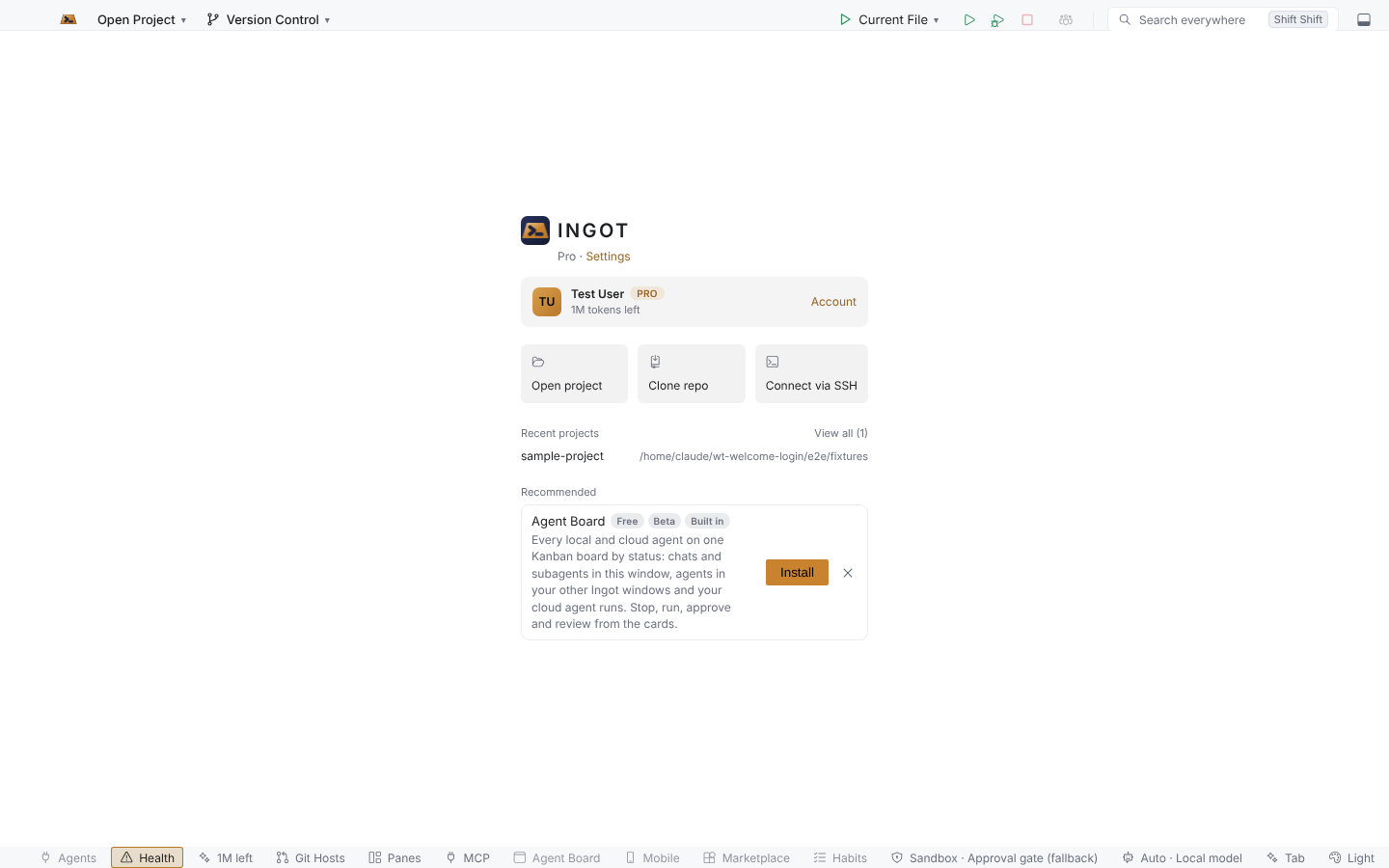
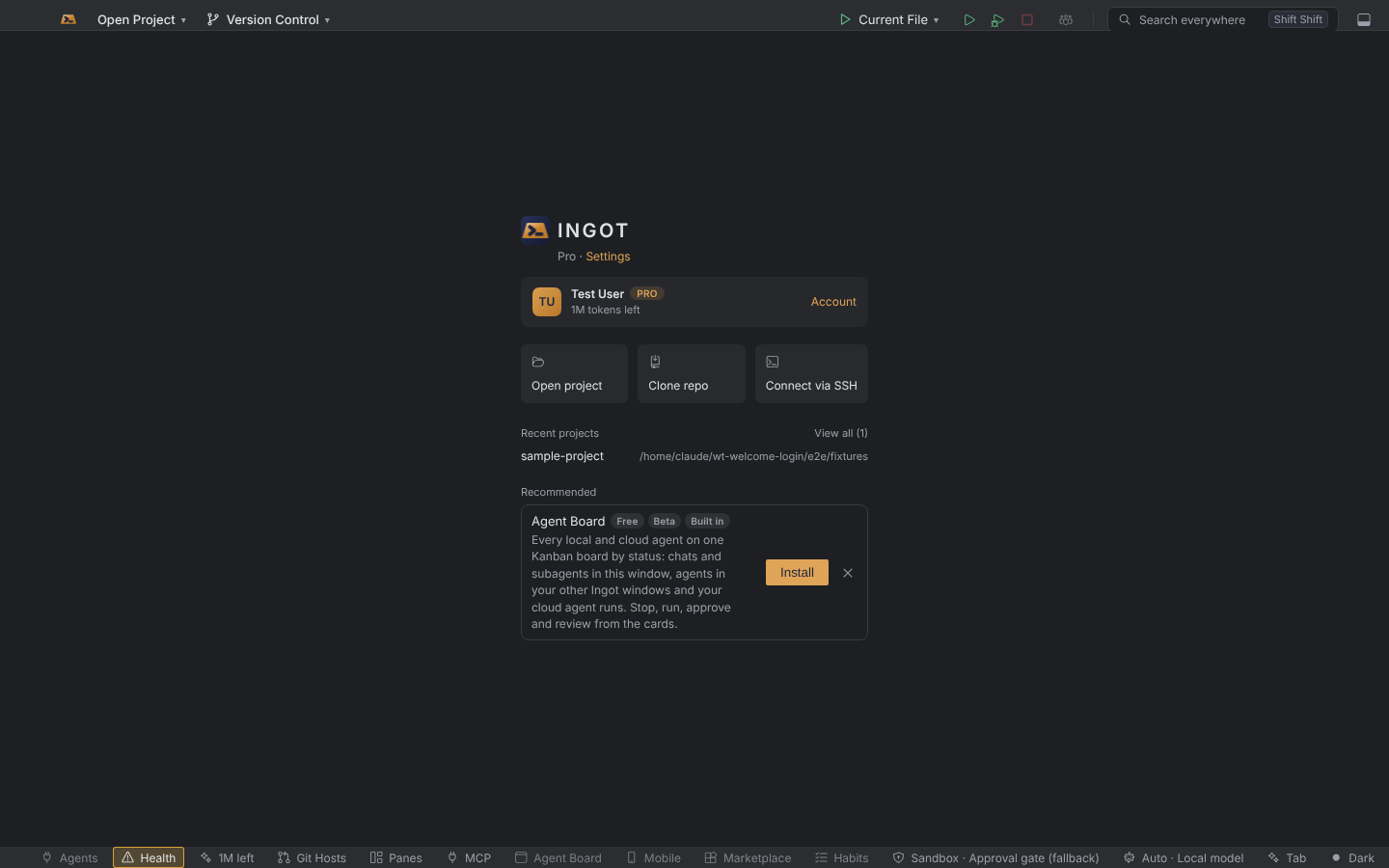
The welcome page with an account card for Test User with a PRO chip and tokens left, above Open project, Clone repo and Connect via SSHThe welcome page with an account card for Test User with a PRO chip and tokens left, above Open project, Clone repo and Connect via SSH
The welcome page with an account card for Test User with a PRO chip and tokens left, above Open project, Clone repo and Connect via SSH

Turn it off

Settings › Features › Sign in on the welcome is on by default. Turn it off and the first run goes straight to the setup, and the welcome page shows only your plan.