Focused agent layout
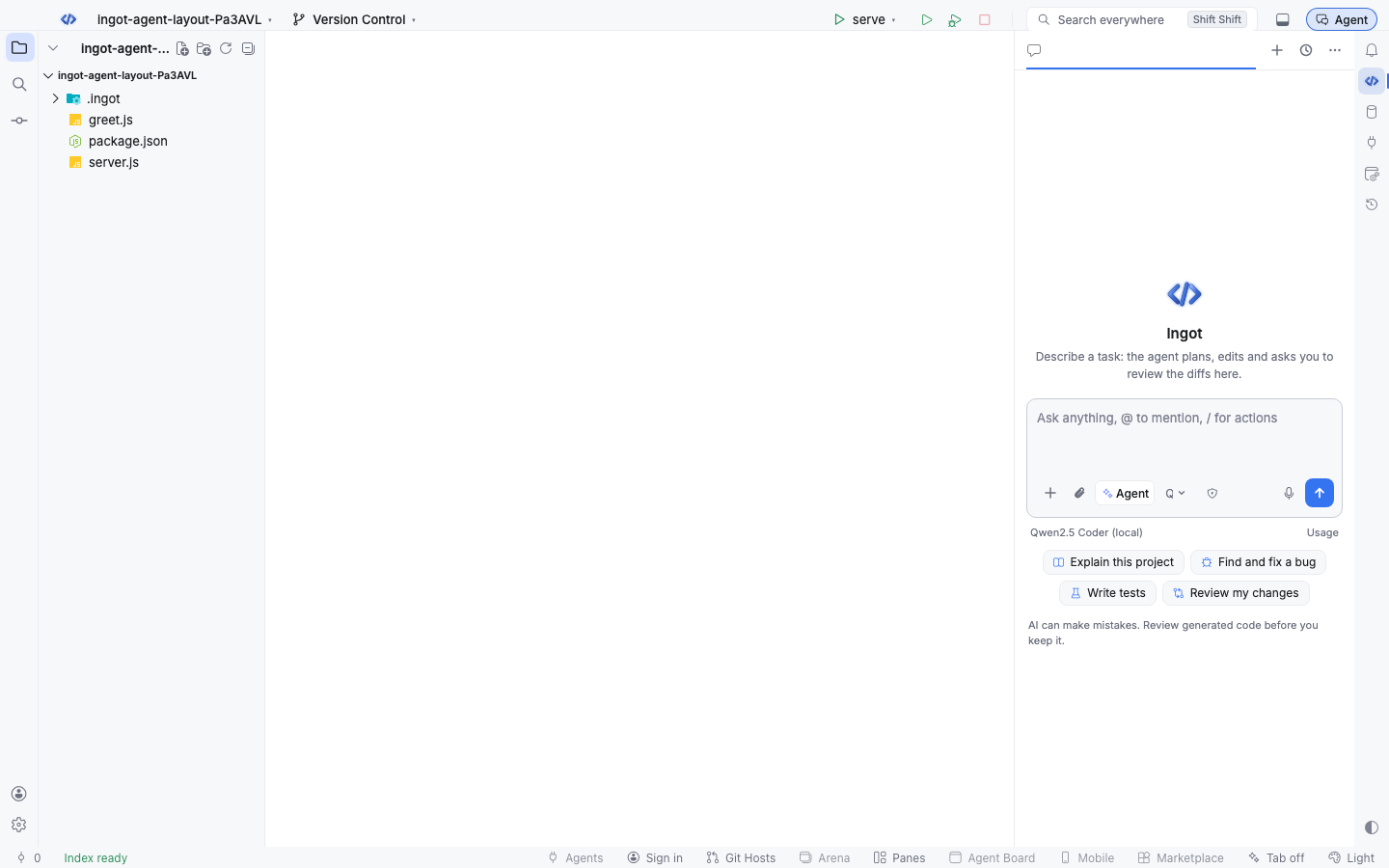
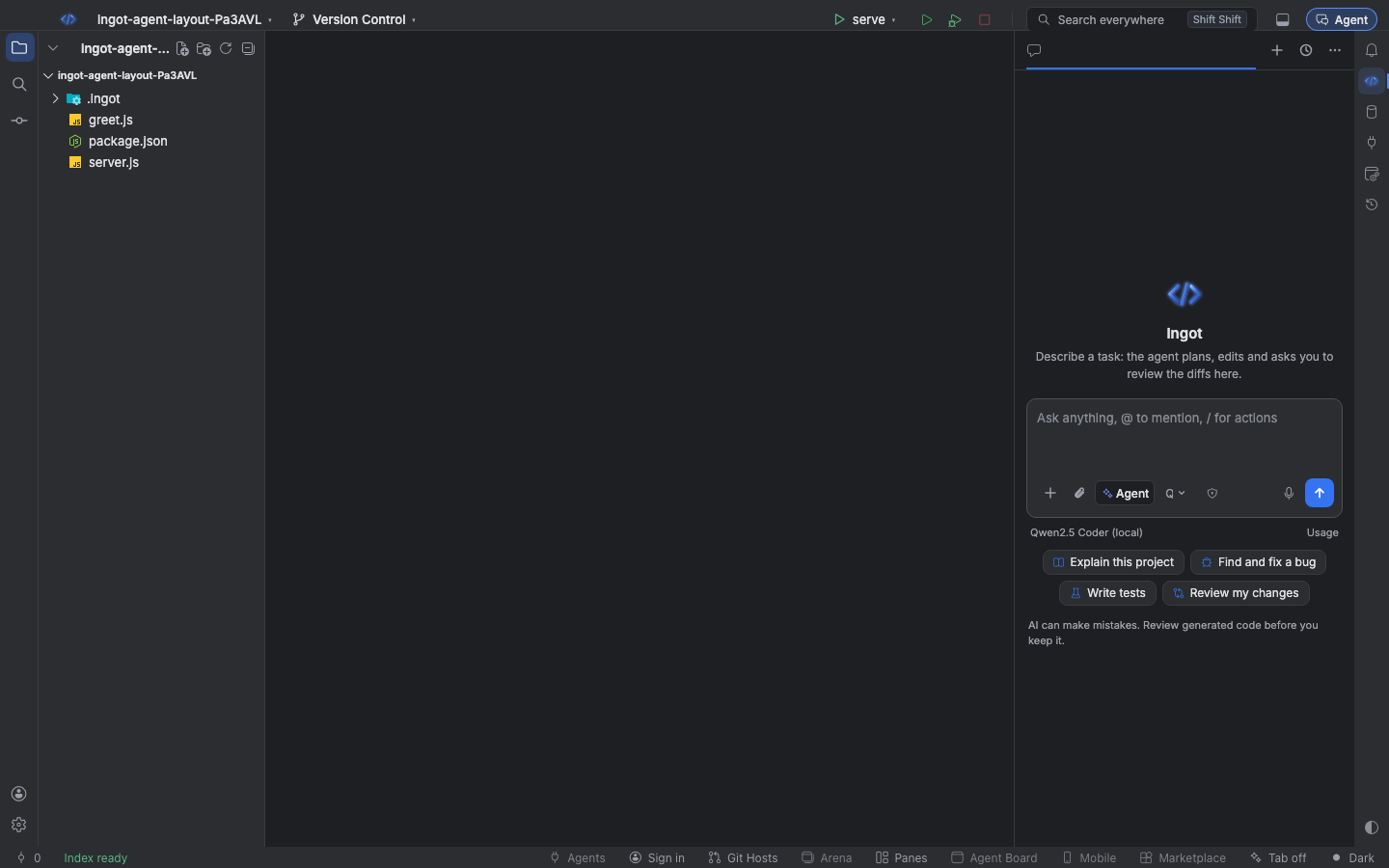
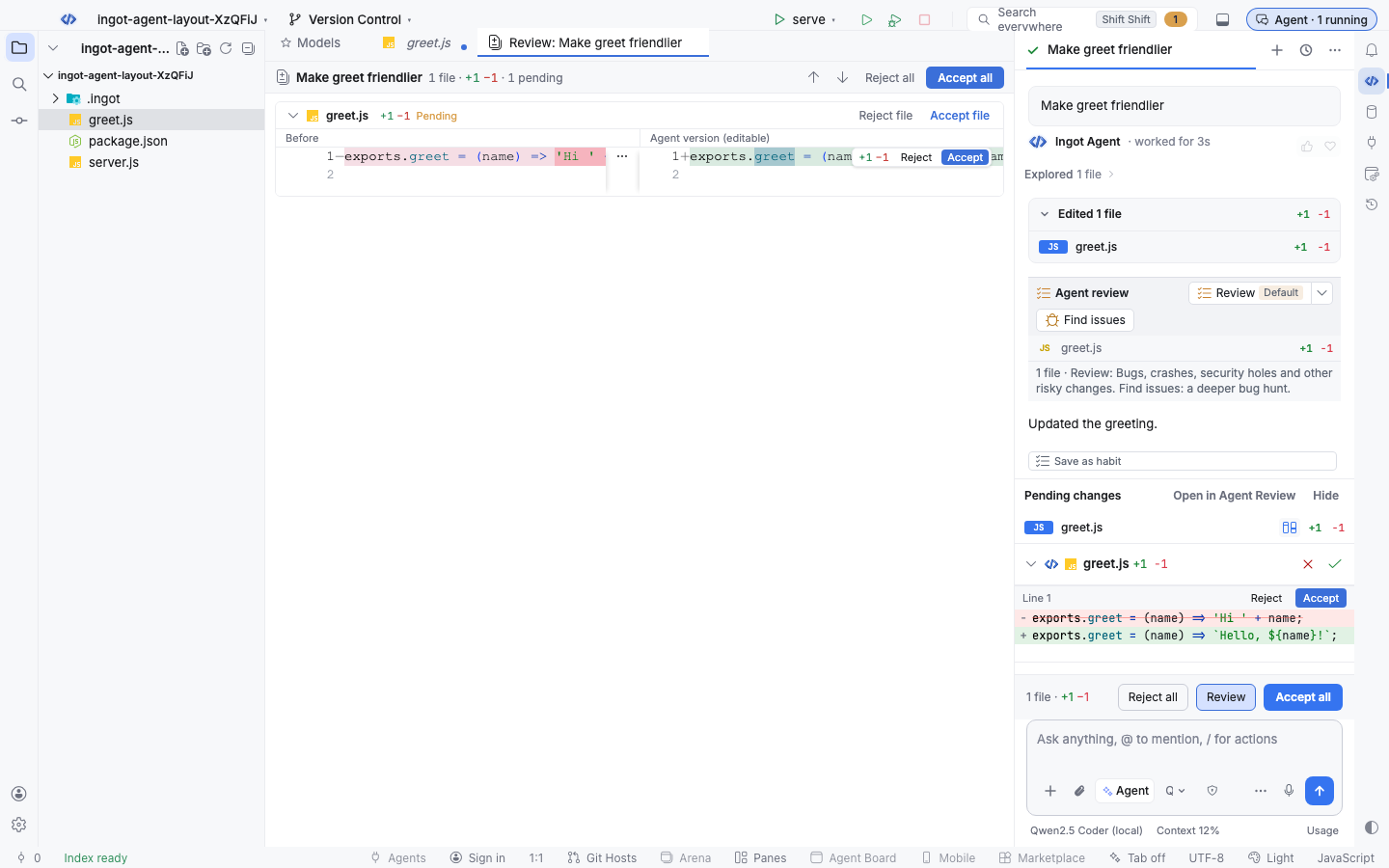
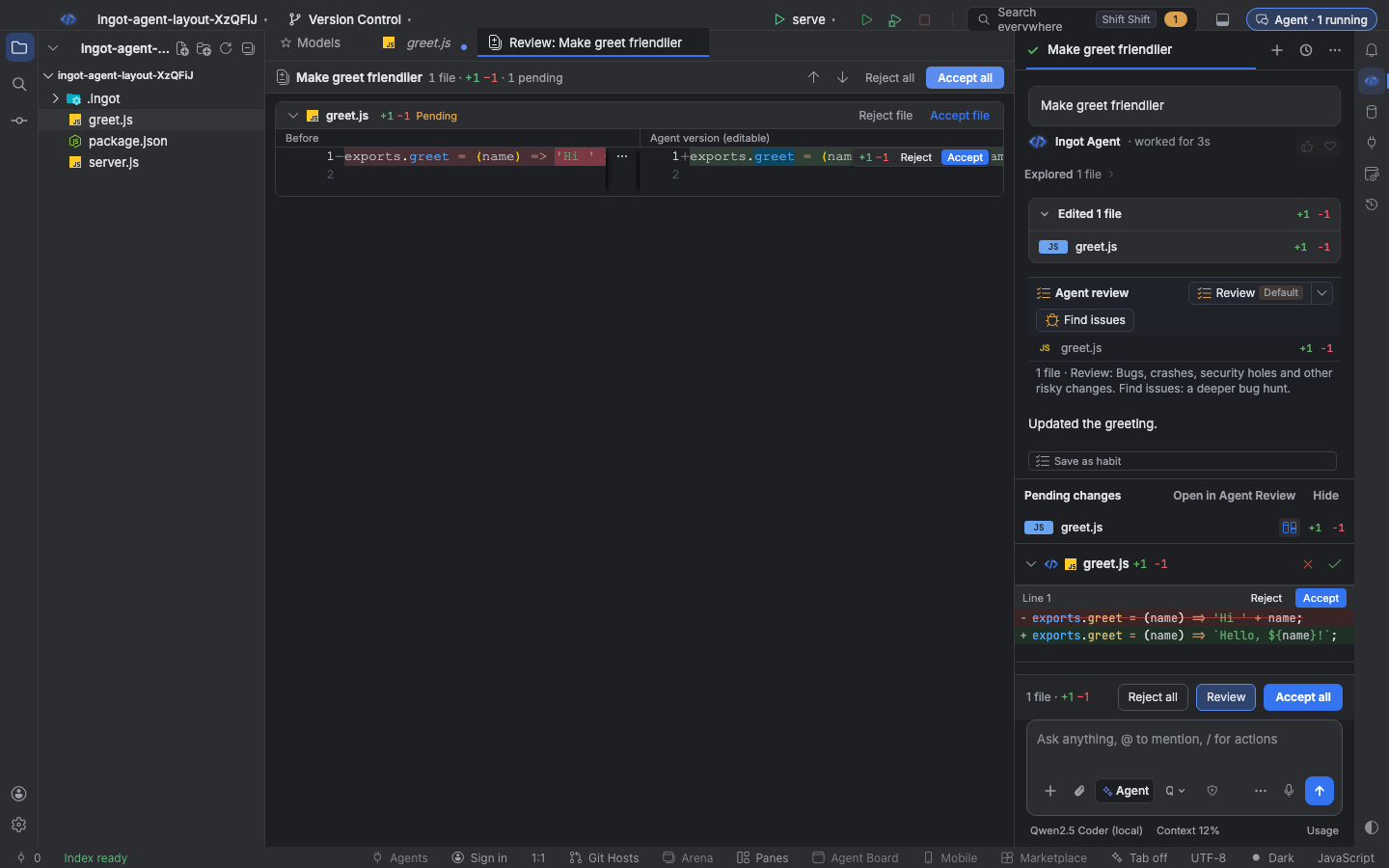
The focused agent layout keeps ask, edit and review in one place: the Agent panel. You type in one composer, pick the model under it, see what the next run costs, and apply or reject the agent's diffs right above the composer. The duplicate chat buttons in the title bar and status bar are gone, and everything else is one click away in the chat's More menu.
It is on by default. You can turn it off for the classic chat panel at any time.
One place for ask, edit and review
- Composer. A new chat puts the composer in the middle of the panel, with starter prompts under it: Explain this project, Find and fix a bug, Write tests and Review my changes. A click puts the prompt in the composer so you can edit it before you send. After the first message the composer moves to the bottom, as usual.
- Model and usage. The line under the composer shows the model by name, how full the context window is (Context 12%) and the estimate for the next run (~$0.01 next run). Click the model to open the model picker, click Context for the breakdown, and Usage opens your usage dashboard.
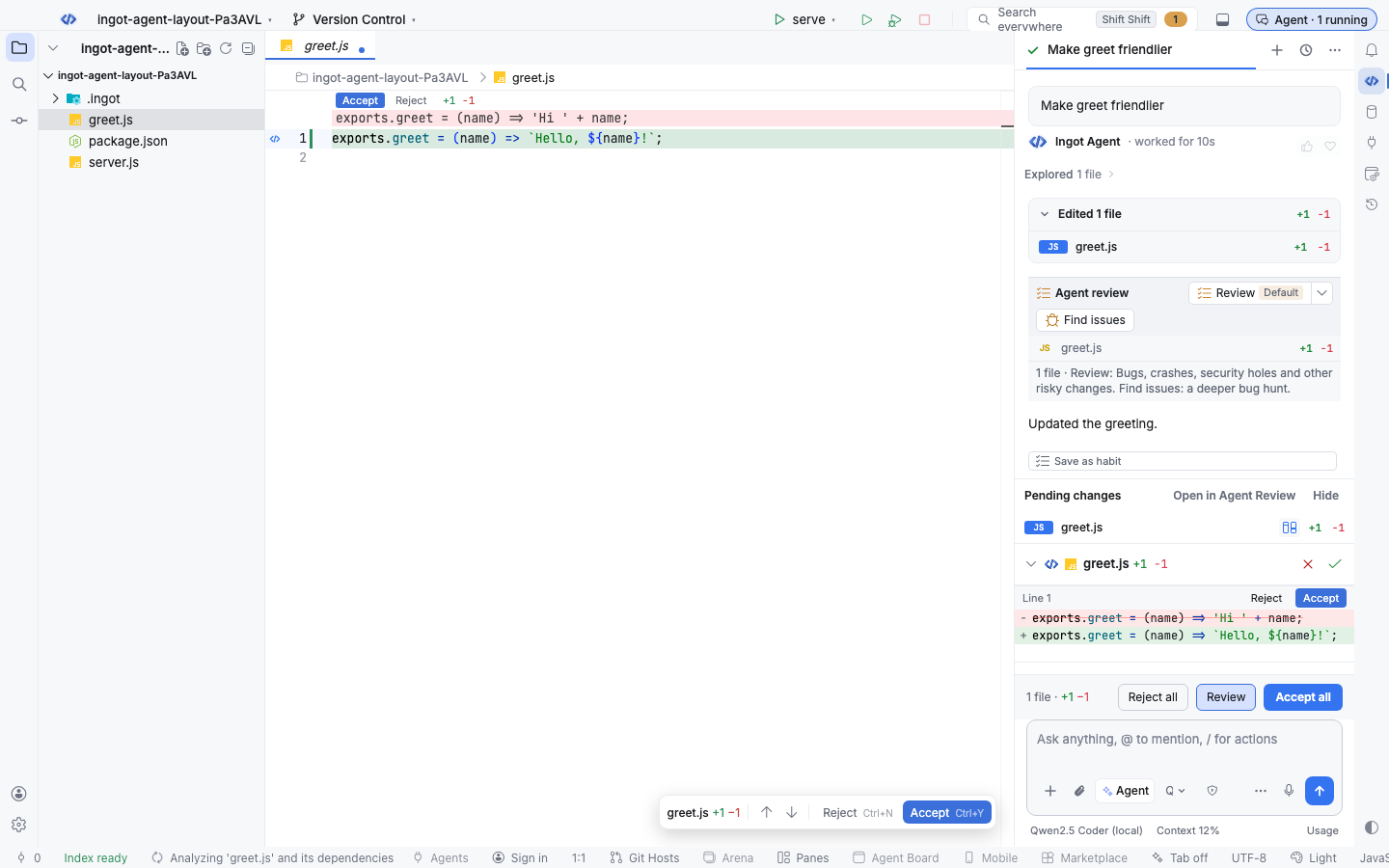
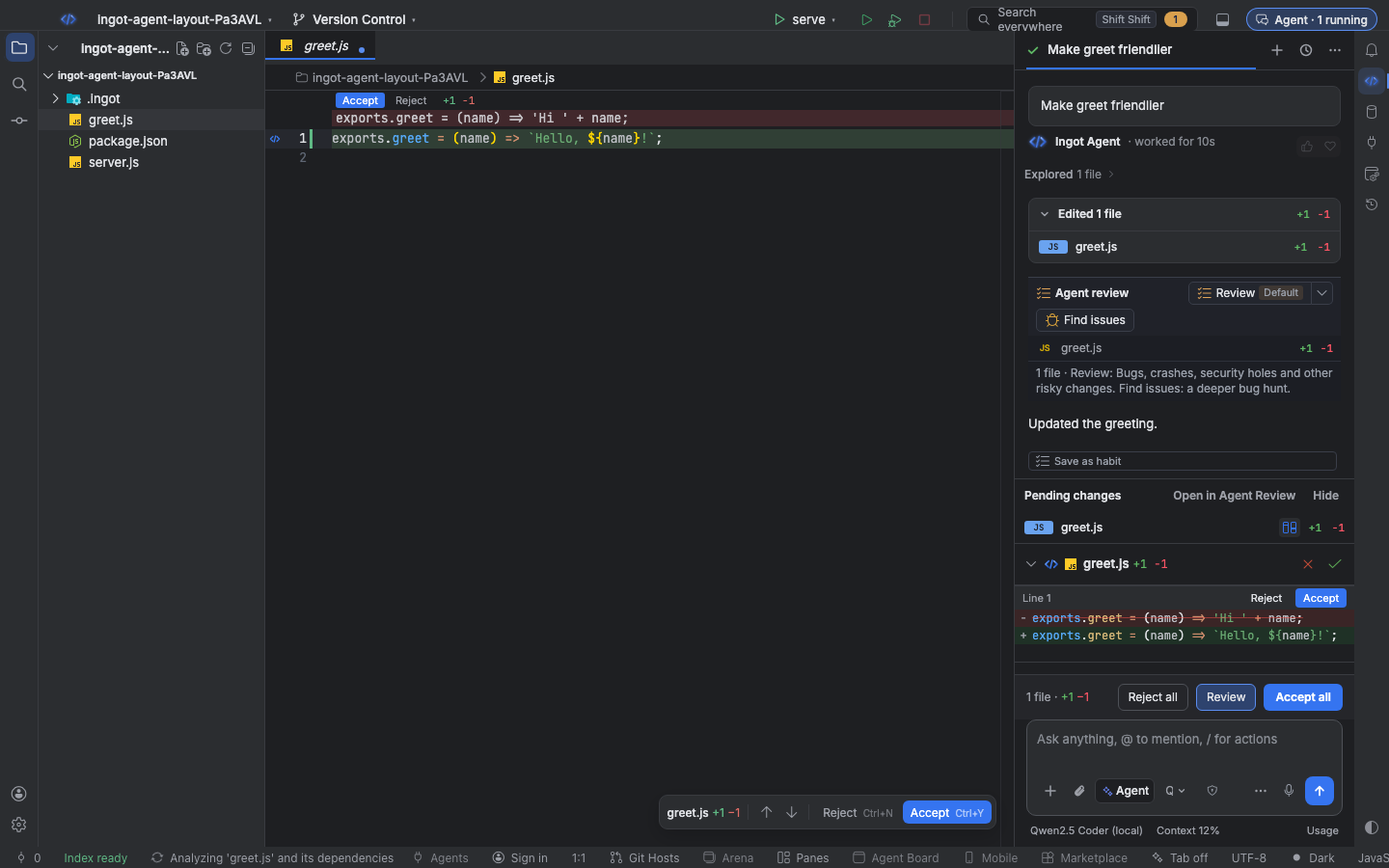
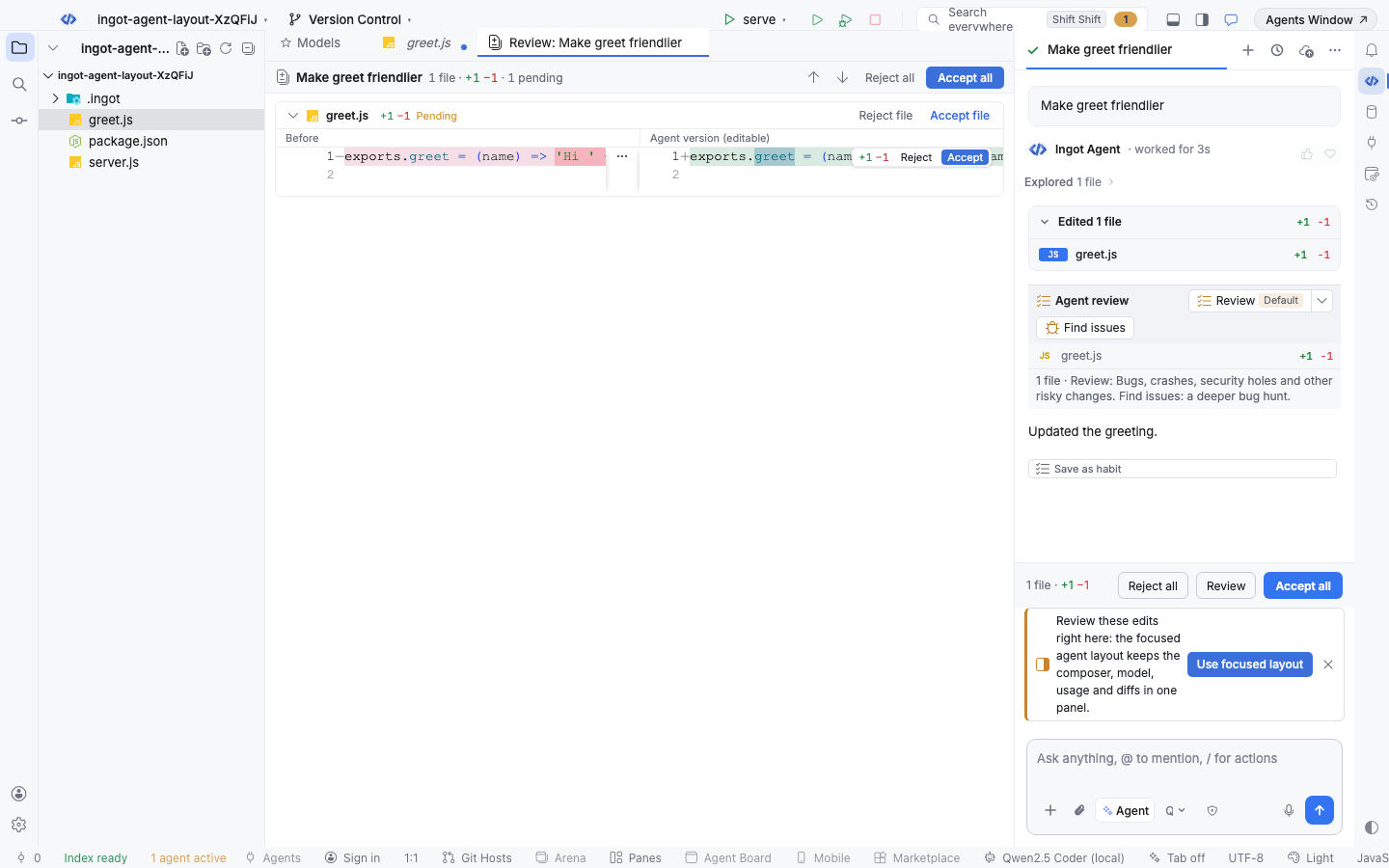
- Apply and review. When the agent edits files, Review in the bar above the composer opens the pending files with their diffs right there. Accept or reject a file or a single change, or use Accept all and Reject all. Open in Agent Review still opens the full side-by-side editor.
What moved
Nothing was removed. Entry points that used to be spread around the window now have one home.
| Before | In the focused layout |
|---|---|
| Chat icon and Agents Window pill in the title bar | One Agent button in the title bar; it counts running agents (Agent · 2 running). Open in Agents Window is in the chat's More menu |
| Model name in the status bar | The model picker and the usage line under the composer |
| N agents active in the status bar | The count on the title bar Agent button |
| Send to Cloud Agent icon in the chat header | More › Send to Cloud Agent |
| Agent Command Center, Agent Manager, chat on the right or at the bottom | More in the chat header |
| Review opens the Agent Review editor | Review opens the diffs in the chat. Set Review opens to Agent Review editor for the old behavior |
Turn it on or off
You can find the focused layout three ways:
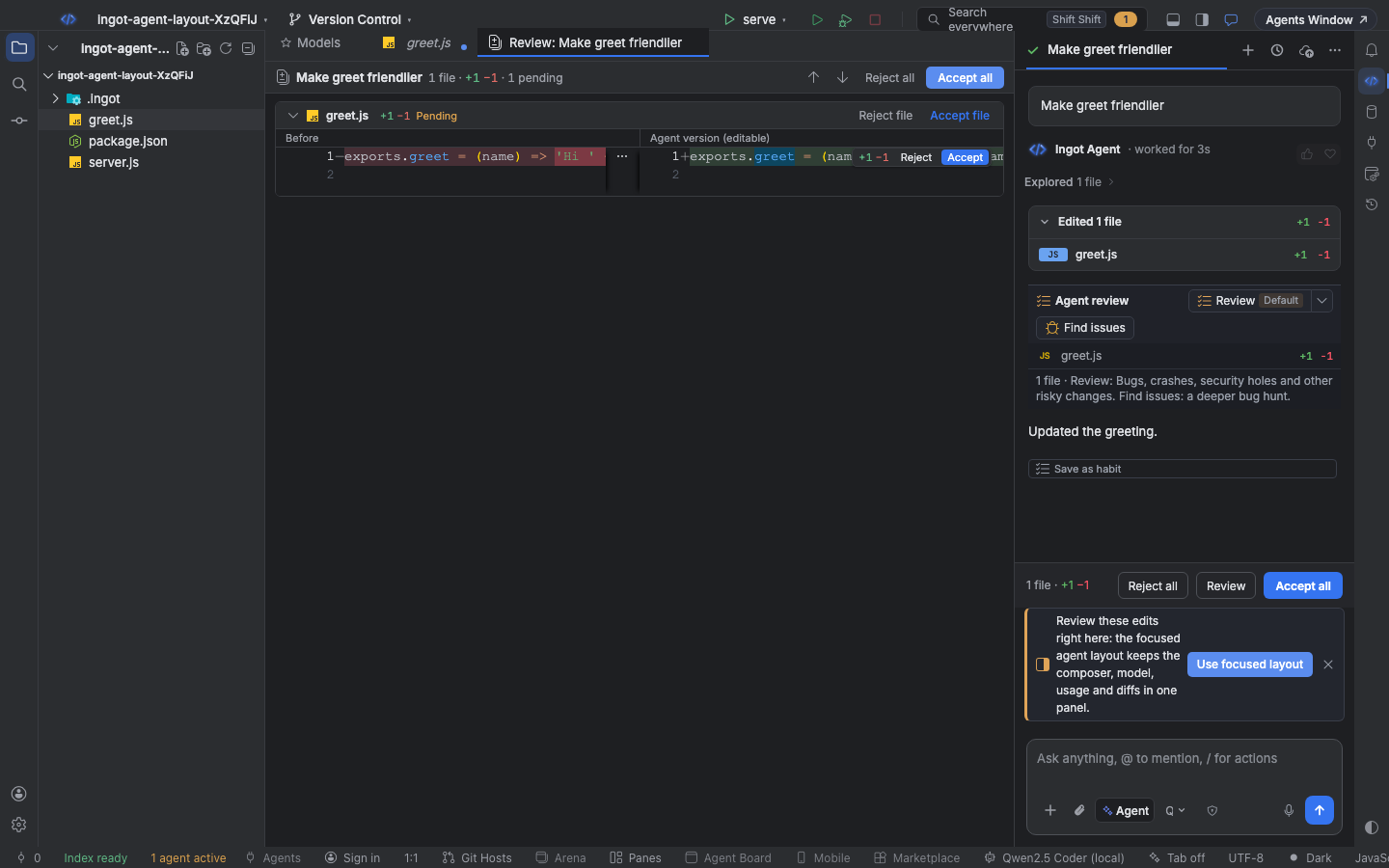
- In the chat. In the classic layout, when Review opens the separate Agent Review editor, a small card above the composer offers Use focused layout. × hides that card for good, and Suggest features in chat in Settings › Features turns every suggestion off. See Finding optional features.
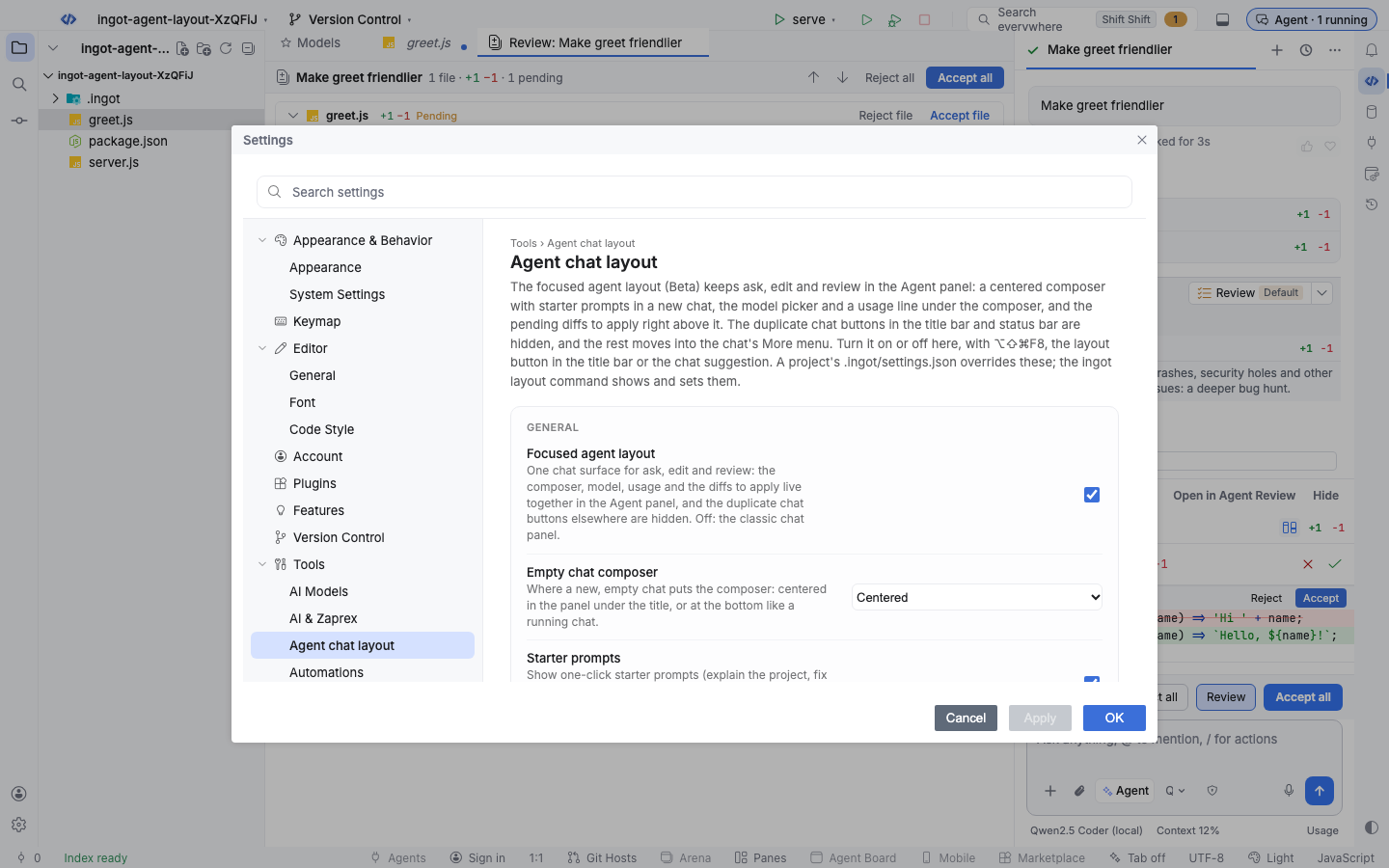
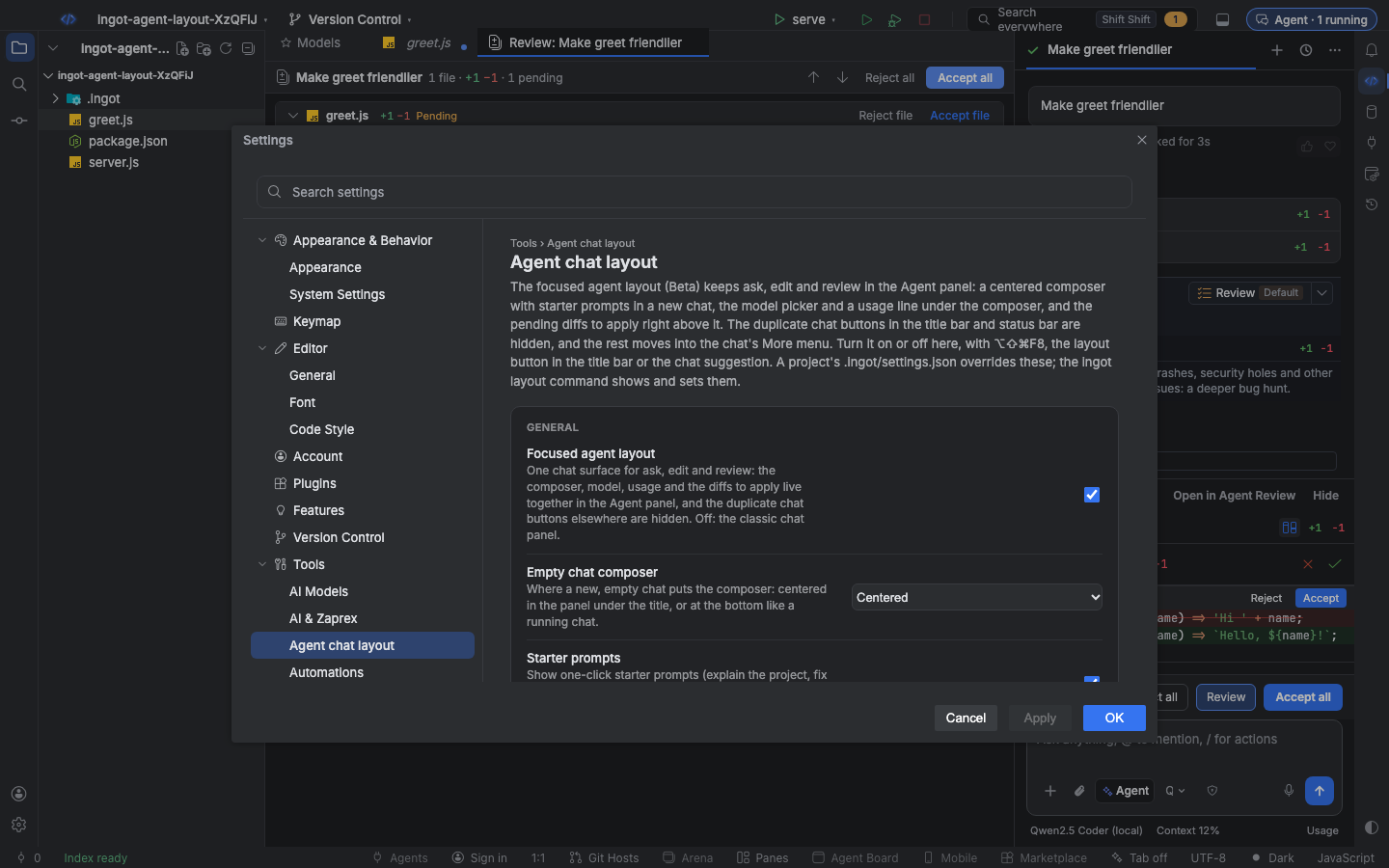
- In Settings. Settings › Tools › Agent chat layout has the Focused agent layout switch and its options.
- In the title bar. In the classic layout, the layout button next to the chat icon turns the focused layout on and opens the chat.
Agent: Focused Layout (On/Off) in Find Action (⌘⇧A, Ctrl+Shift+A) and ⌥⇧⌘F8 (Ctrl+Alt+Shift+F8) switch it too, and so does View › Layout. Agent: Open Focused Layout turns it on and opens the chat, and Agent: Layout Settings… opens its Settings page.
The chat opens with Ingot
The agent chat is open every time Ingot starts with a project, also when you closed it last time, so the agent is ready the moment the window appears. A window that starts on the welcome screen opens the chat as soon as you open a folder. Ingot Web does the same.
To keep the chat open or closed as you left it, turn off Open the chat on launch in Settings › Appearance › Layout ("ingot.layout.openChatOnLaunch": false). It is on by default, and it is listed in Settings › Features.
From the chat to your files
Everything the agent points at opens the same way, from the Agents panel and from the Agents Window:
- A file (a path in a reply such as
src/app.ts:42, a file chip, a file in a mission or plan card, a Habits playbook) opens in the editor at its lines, the focus moves to the editor, and the file is selected in the Project tree when the tree is showing. - A folder (a folder path or a folder chip) is revealed, expanded and selected in the Project tree.
- Text that isn't a file or folder in the chat's project or worktree, such as a command or a symbol, opens nothing.
- In the Agents Window, files and folders open in the project's main window, which comes to the front. The Project button in the chat header (also Go to Project Window in Find Action) does the same without a file. With no main window open, the file opens in the Agents Window itself.
- Back to the agent. The title bar Agent button brings the chat back with its replies where you left them. Open in Agents Window brings an Agents Window that is already open for the project to the front, on the current chat, instead of opening a second one.
Settings
All seven are on Settings › Tools › Agent chat layout. Like every setting, they live in settings.json: ~/.ingot/settings.json for you, and <project>/.ingot/settings.json to override them for one project. ~/.ingot/ingot.settings.json is read under your user settings, so it works as a global default.
| Key | Values | Default |
|---|---|---|
ingot.agentLayout.enabled | Focused agent layout: one chat surface for ask, edit and review, with the duplicate chat buttons elsewhere hidden. Off: the classic chat panel; true, false | true |
ingot.agentLayout.emptyState | Empty chat composer: centered puts the composer in the middle of a new chat, bottom keeps it at the bottom | centered |
ingot.agentLayout.starters | Starter prompts: show the four one-click prompts under the centered composer of a new chat; true, false | true |
ingot.agentLayout.showUsage | Usage line: show the model, context use and next-run estimate under the composer; true, false | true |
ingot.agentLayout.review | Review opens: inline shows the pending diffs in the chat, editor opens the Agent Review editor | inline |
ingot.agentLayout.headerActions | Header actions: compact keeps New chat, History and More in the chat header and moves the rest into More; full shows Send to Cloud Agent as its own icon | compact |
ingot.agentLayout.statusBarModel | Model in the status bar: also name the chat's model in the status bar; true, false | false |
For example, a project that wants the diffs in the Agent Review editor and the composer at the bottom:
{
  "ingot.agentLayout.review": "editor",
  "ingot.agentLayout.emptyState": "bottom"
}
From the terminal
ingot layout shows and changes the same settings without opening Ingot. It never calls a model.
npx @ingotide/cli layout                         # each setting, its value and the file it comes from; --json
npx @ingotide/cli layout set review editor       # in this project's .ingot/settings.json
npx @ingotide/cli layout set enabled off --user  # in ~/.ingot/settings.json (--global: ~/.ingot/ingot.settings.json)
npx @ingotide/cli layout reset review            # remove it from the project file
npx @ingotide/cli layout list                    # every setting with its values and default
set and reset keep the comments and formatting of the file. A file that isn't valid JSON is never rewritten: the command exits with code 1. See the CLI reference.
FAQ
Where did the Agents Window button go? It is More › Open in Agents Window in the chat header. Turn the focused layout off to get the title bar pill back.
Can I keep the model in the status bar? Yes. Turn on Model in the status bar.
Does the focused layout change how agents work? No. Only the layout changes. Modes, models, approvals and Agent review work the same way.
I turned it off, but one project still shows it. That project's .ingot/settings.json sets ingot.agentLayout.enabled. Run ingot layout to see which file each value comes from.
I turned it off, but a project still shows it. The project's .ingot/settings.json sets ingot.agentLayout.enabled. Run ingot layout to see which file each value comes from.