App Preview
See your running app inside Ingot at any device size, switch between local ports, and pick an element on the page to send it to the agent.
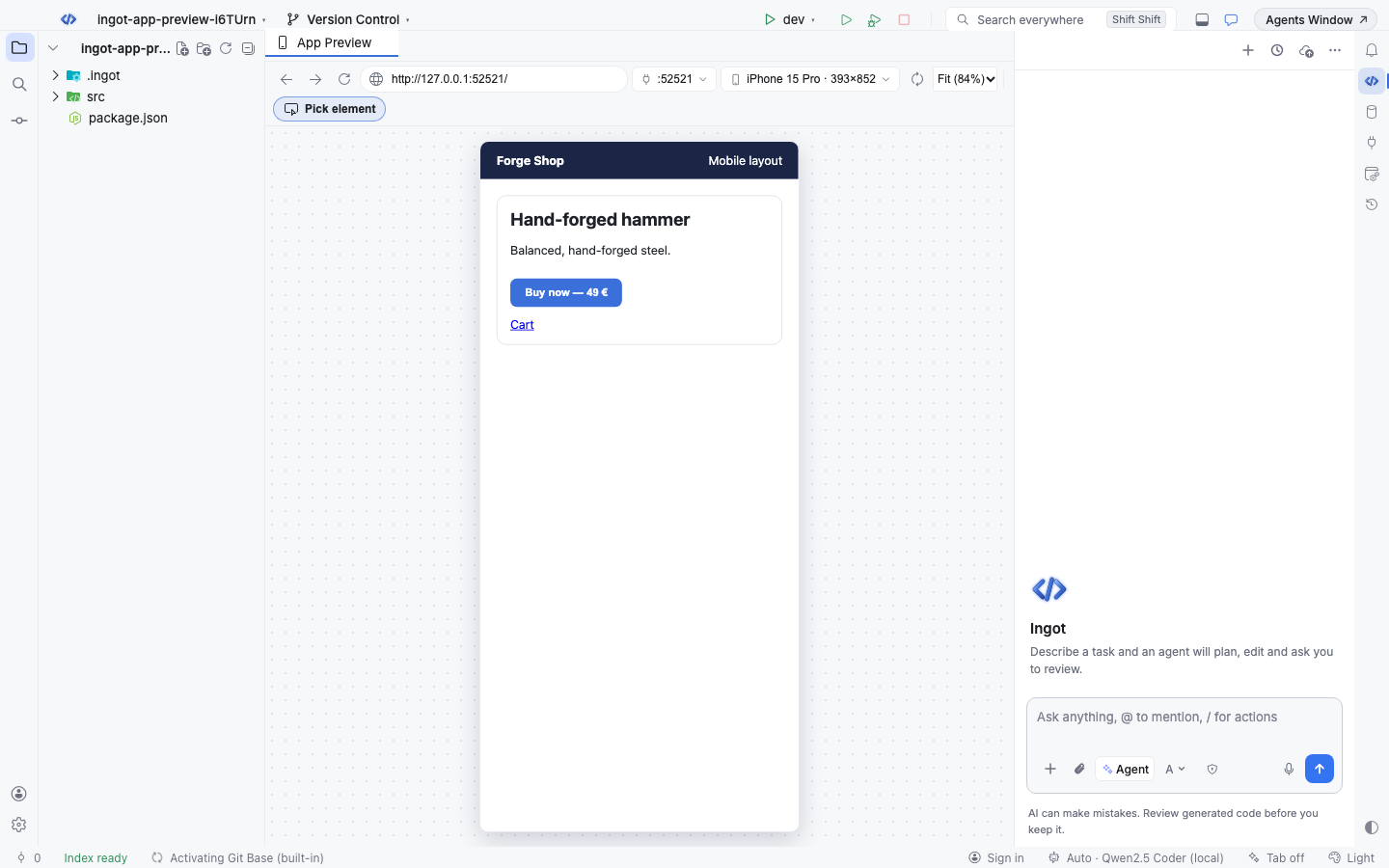
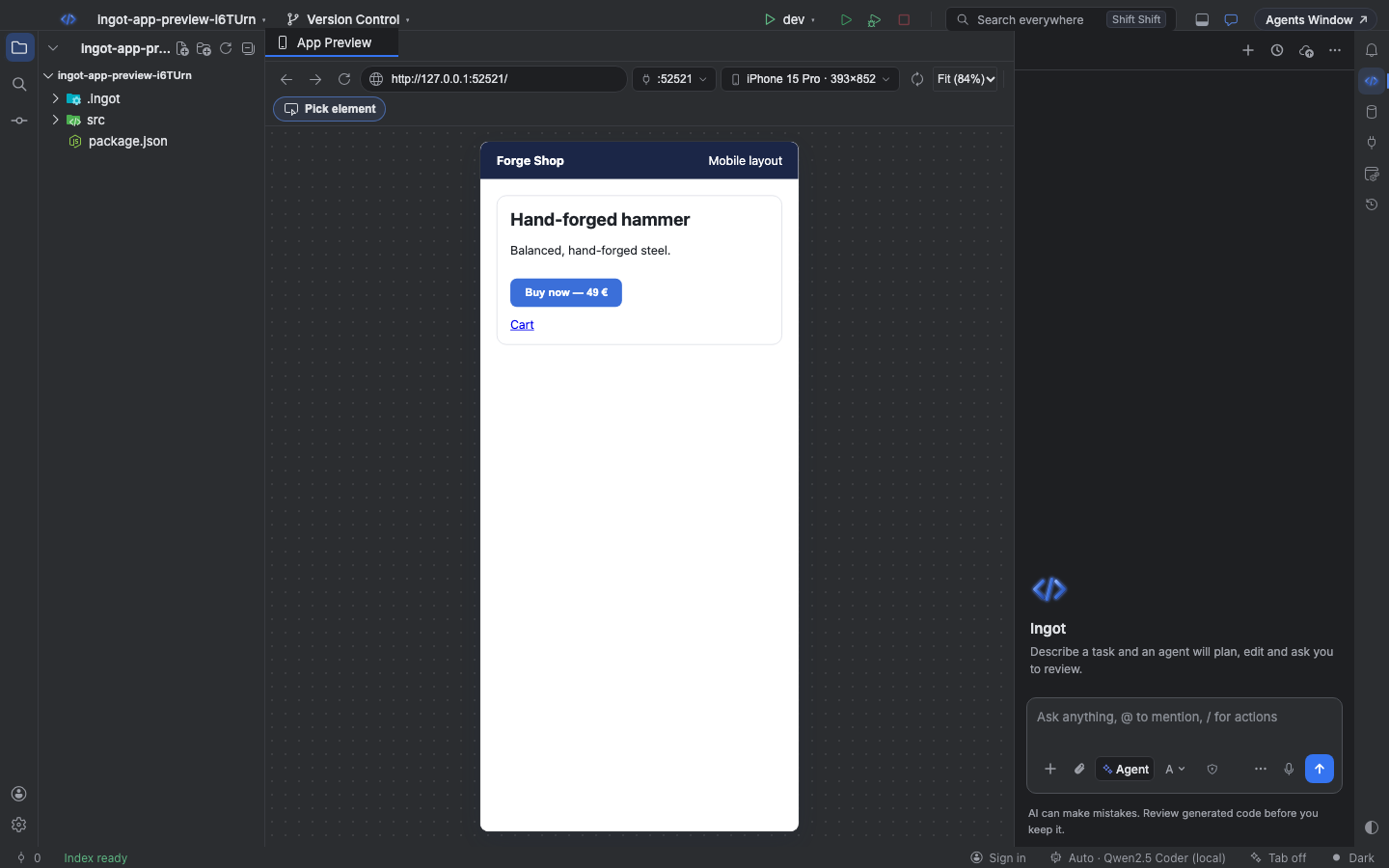
The App Preview tab shows the app your dev server is running, next to your code. Switch between the servers on your machine, try it as a phone, tablet or desktop, then click any element and ask the agent to change it. The agent gets the element's selector, its source file and its styles.
Open the App Preview
| How | Where |
|---|---|
| Open App Preview | Find Action, or ⌘⌥⇧9 (Ctrl+Alt+Shift+9 on Windows and Linux) |
| Open in App Preview | The phone button on a port in the Ports tool window |
| A dev server in the empty tab | The App Preview lists the dev servers it finds; click one to open it |
The tab remembers its address, device and zoom between sessions.
The address bar and ports
Type a full URL, a host and path (localhost:3000/cart) or just a port (5173) and press Enter. Back, Forward and Reload work like a browser.
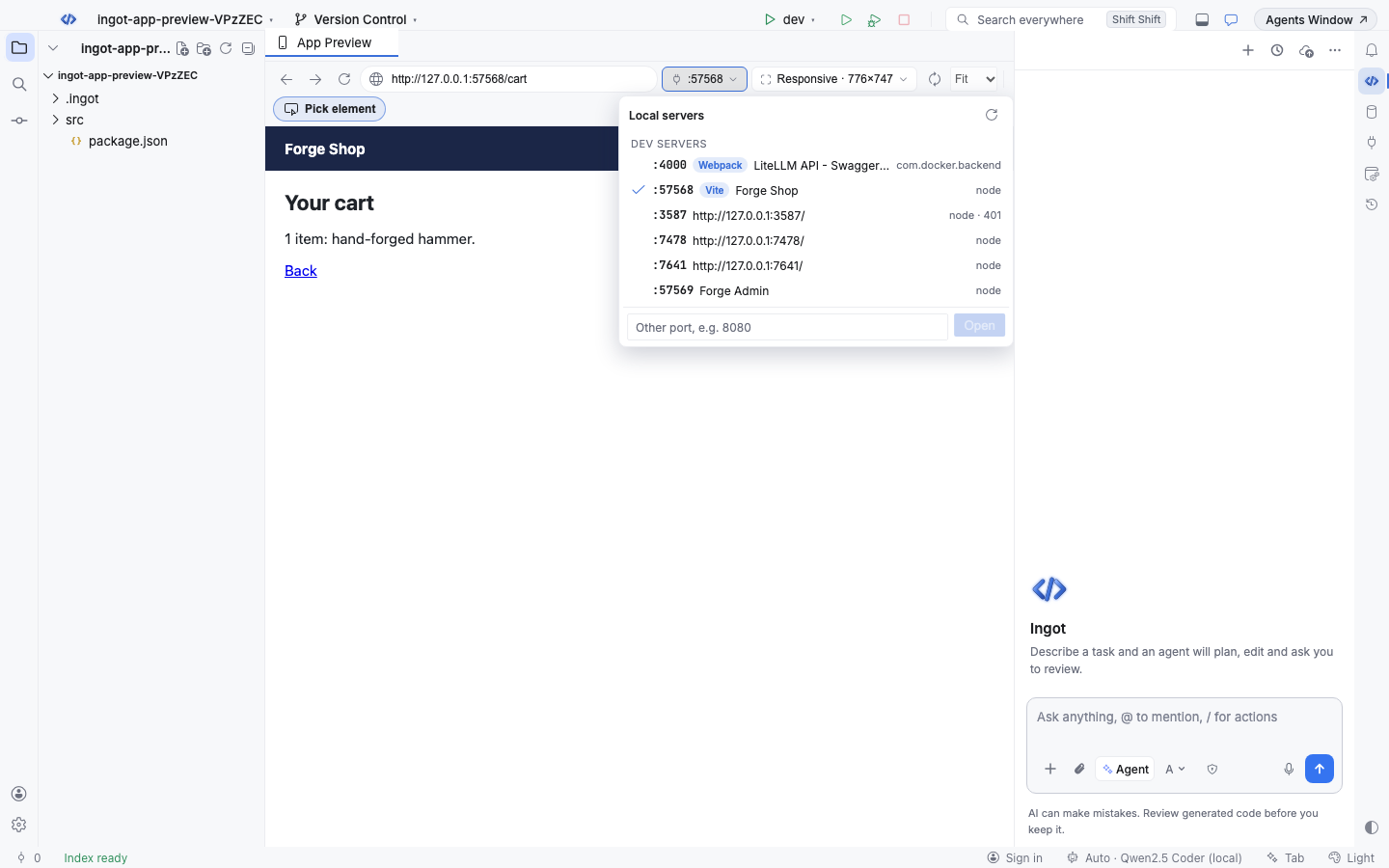
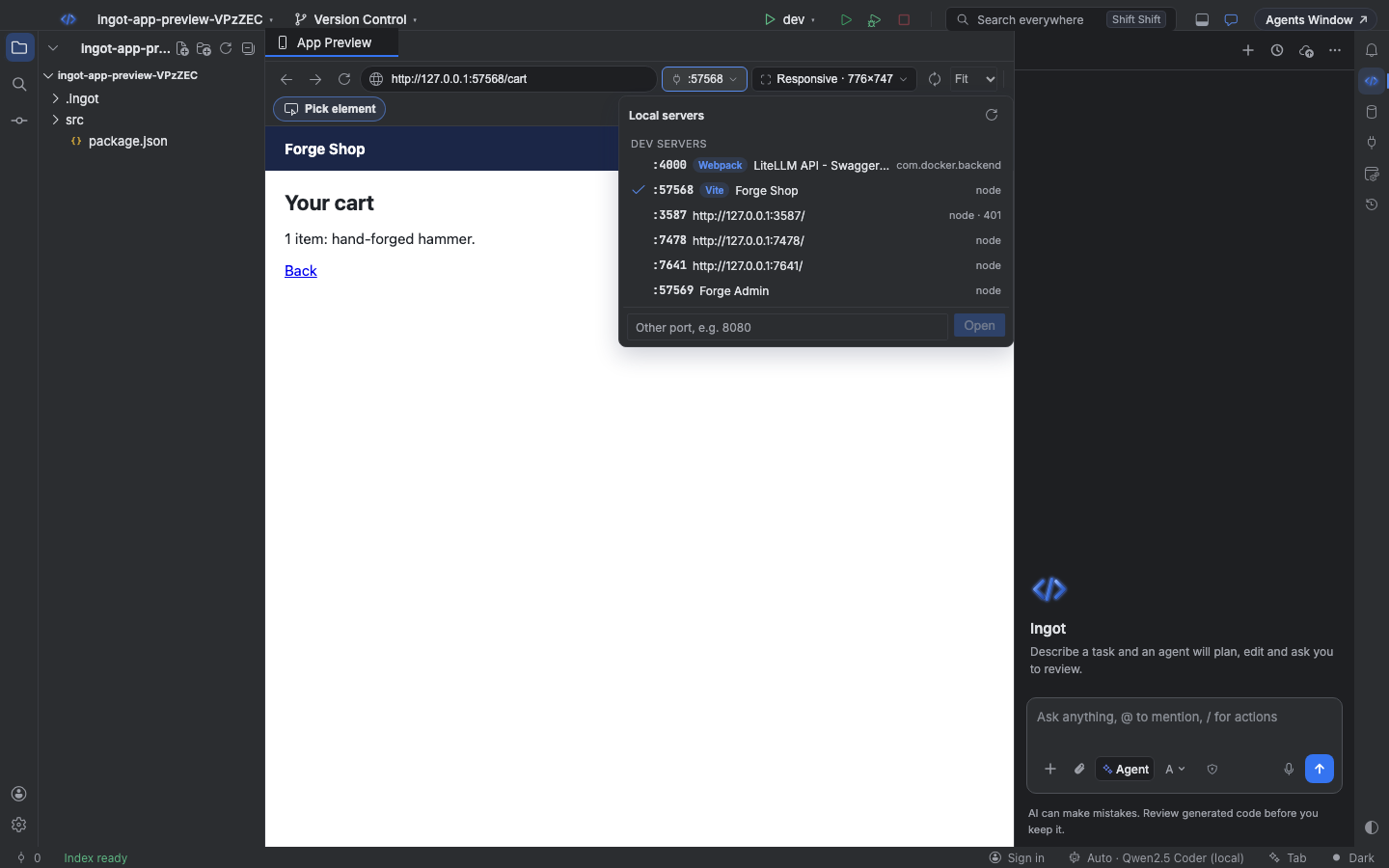
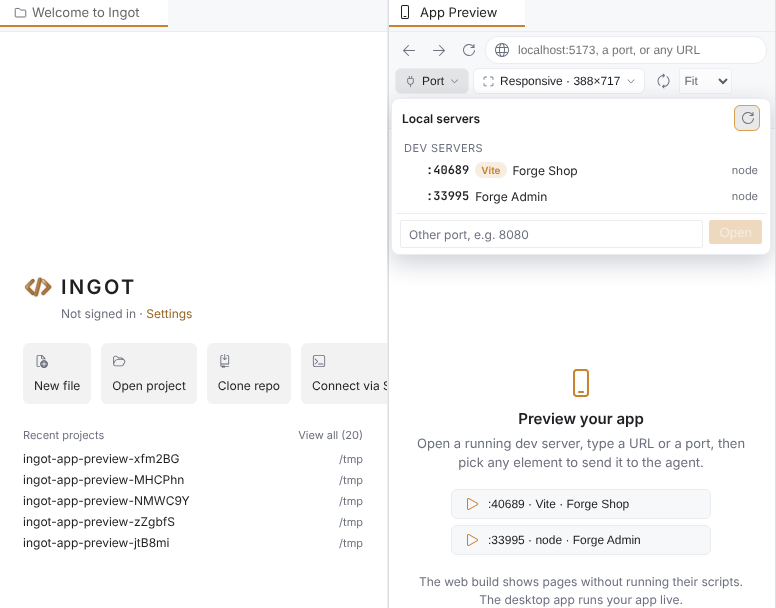
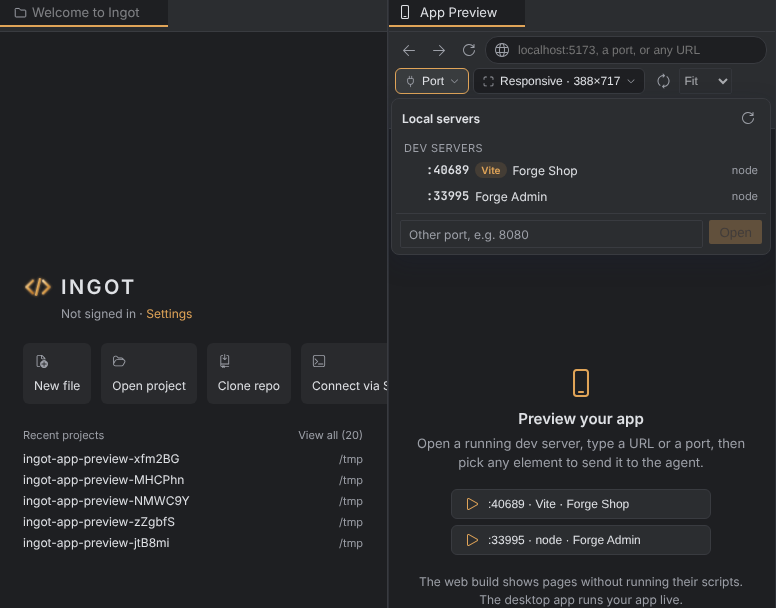
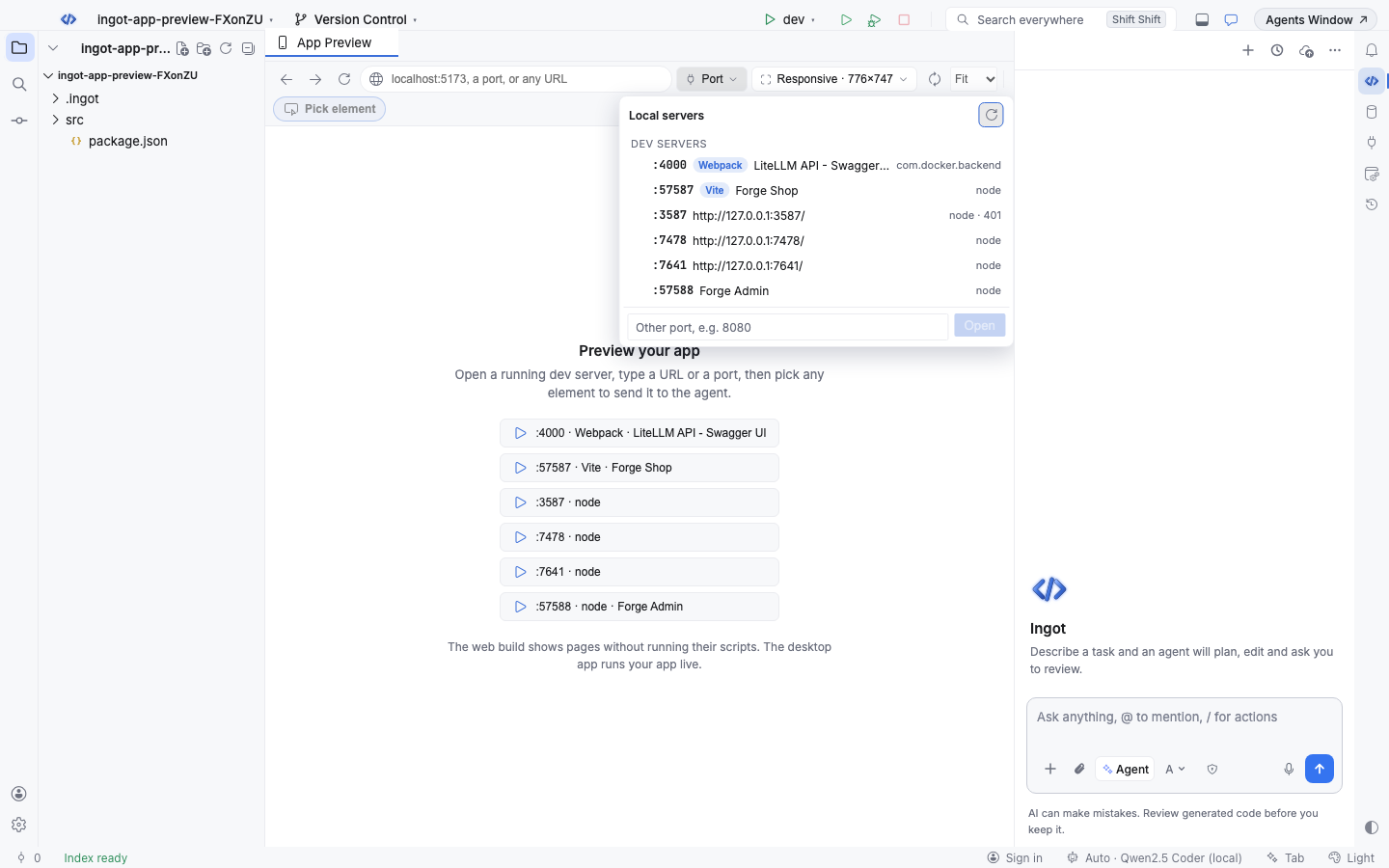
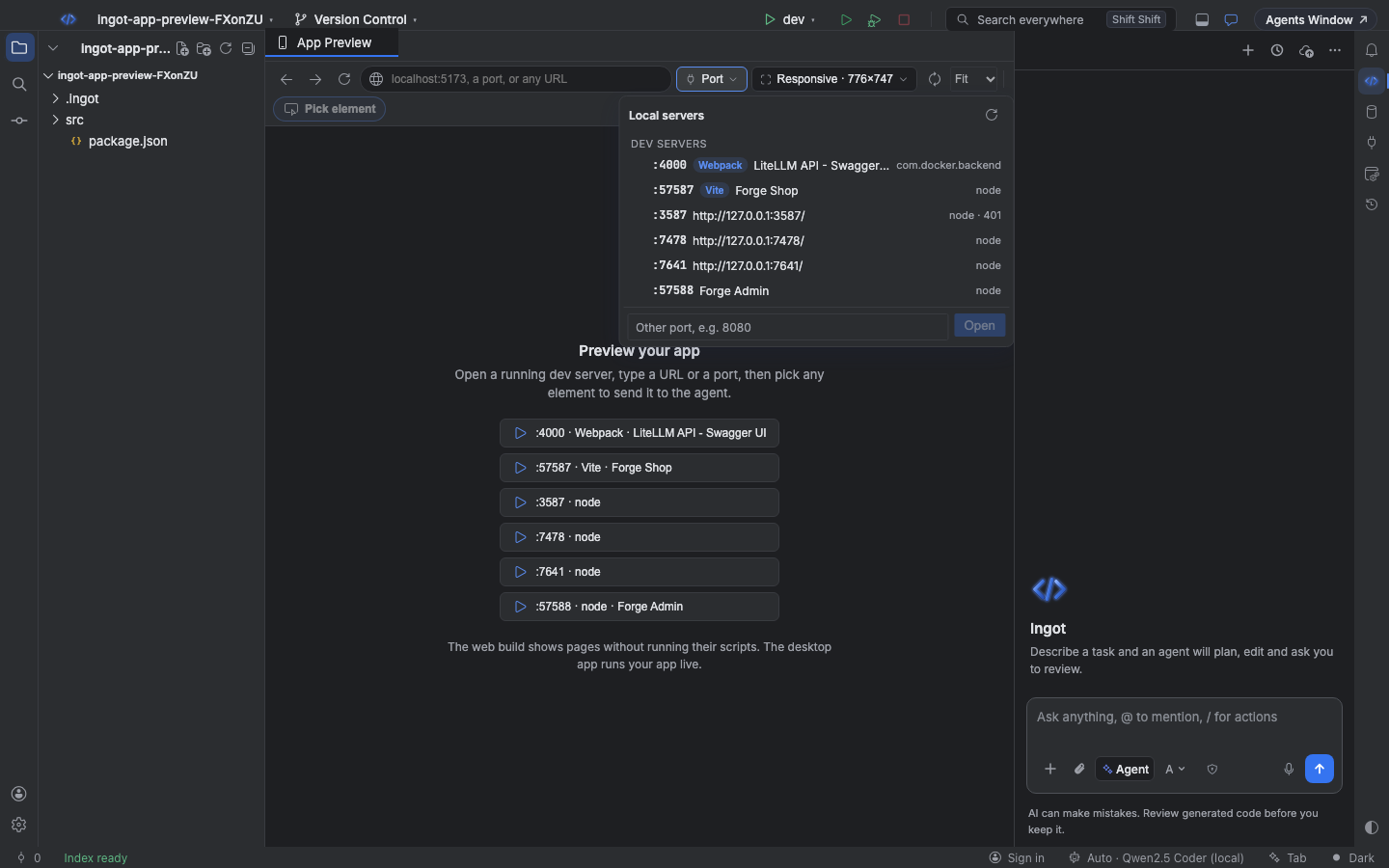
The port chip shows the port you are on. Click it for the dev servers and web pages running on your machine:
| Group | What is in it |
|---|---|
| Dev servers | Ports served by a dev framework (Vite, Next.js, Nuxt, SvelteKit, Astro, Remix, Storybook, Gatsby, Expo, Angular, Webpack) or an app runtime (node, bun, deno, python, ruby, php, …), with the page title |
| Other web pages | Other local ports that serve an HTML page, such as an app published from a Docker container, with the process that owns it |
Switching ports keeps the page you are on: localhost:5173/cart?step=2 becomes localhost:5174/cart?step=2. Type a port in the menu to open one that is not listed. The list refreshes while the menu is open. Switch Preview Port… in Find Action does the same from the keyboard.
Which ports are listed
The port menu and the empty tab only offer ports that can be your app. A port is listed when it answers HTTP and either:
- the process that owns it is a dev server or app runtime: node, bun, deno, vite, next, webpack, python, uvicorn, ruby, rails, php, java, go, and similar, or
- it serves an HTML page (status below 400).
These are never listed:
| Left out | Examples |
|---|---|
| Ingot's own ports | Ingot's server (INGOT_PORT, 3100 in the web build), the automations receiver (7391 by default), and any port held by the Ingot window itself |
| Other Ingot windows | Another Ingot, for example the web build running on :3100, and the local helpers of every other Ingot window (each answers with an x-ingot-service header, so it is never mistaken for a dev server) |
| OS services and desktop apps | AirPlay (ControlCenter), rapportd, app helpers such as Discord Helper or Slack Helper, IDE language servers, Spotify, Postman |
| HTTP services that are not pages | A local JSON API owned by a process that is not a dev server, or an error page |
| Databases and system ports | Ports below 1024, Postgres, MySQL, Redis, MongoDB and the Node inspector |
You can still open any port: type it in the menu or in the address bar.
The port menu and the device menu always stay inside the App Preview panel, even when the panel is narrower than the menu: the menu takes at most the panel's width and starts at its left edge.
Device sizes
The device chip picks the viewport the page is laid out for. The page's own CSS media queries see that width, so you get its real mobile layout.
| Category | Devices |
|---|---|
| Responsive | Fills the panel; the chip shows the live size |
| Phones | iPhone SE (375×667), iPhone 15 Pro (393×852), iPhone 15 Pro Max (430×932), Pixel 8 (412×915), Galaxy S23 (360×780) |
| Tablets | iPad mini (768×1024), iPad Pro 11" (834×1194) |
| Desktops | Laptop (1280×800), Desktop (1440×900), Full HD (1920×1080) |
| Custom | Your own width and height, from 200 to 3840 px |
- Rotate swaps width and height for landscape. Choosing another device starts in portrait again.
- Zoom is Fit by default: a device bigger than the panel is scaled down to fit and the menu shows the scale, for example
Fit (64%). Pick 50%, 75%, 100% or 125% for a fixed size. - In the desktop app, phones and tablets also send their mobile user agent, so apps that serve different pages to phones show their mobile pages.
Choose Preview Device…, Rotate Preview Device and Reload App Preview are in Find Action.
Beta To open the page on iOS Simulators, Android emulators and real phones, with device frames and a QR code, turn on Mobile preview.
Pick an element for the agent
Click Pick element (⌘⇧C, Ctrl+Shift+C while the App Preview has focus). Hover the page: the element under the pointer gets an outline with its tag, classes and size. Click to pick it. The page never gets that click, so links are not followed and buttons do nothing. Press Escape or Cancel to stop.
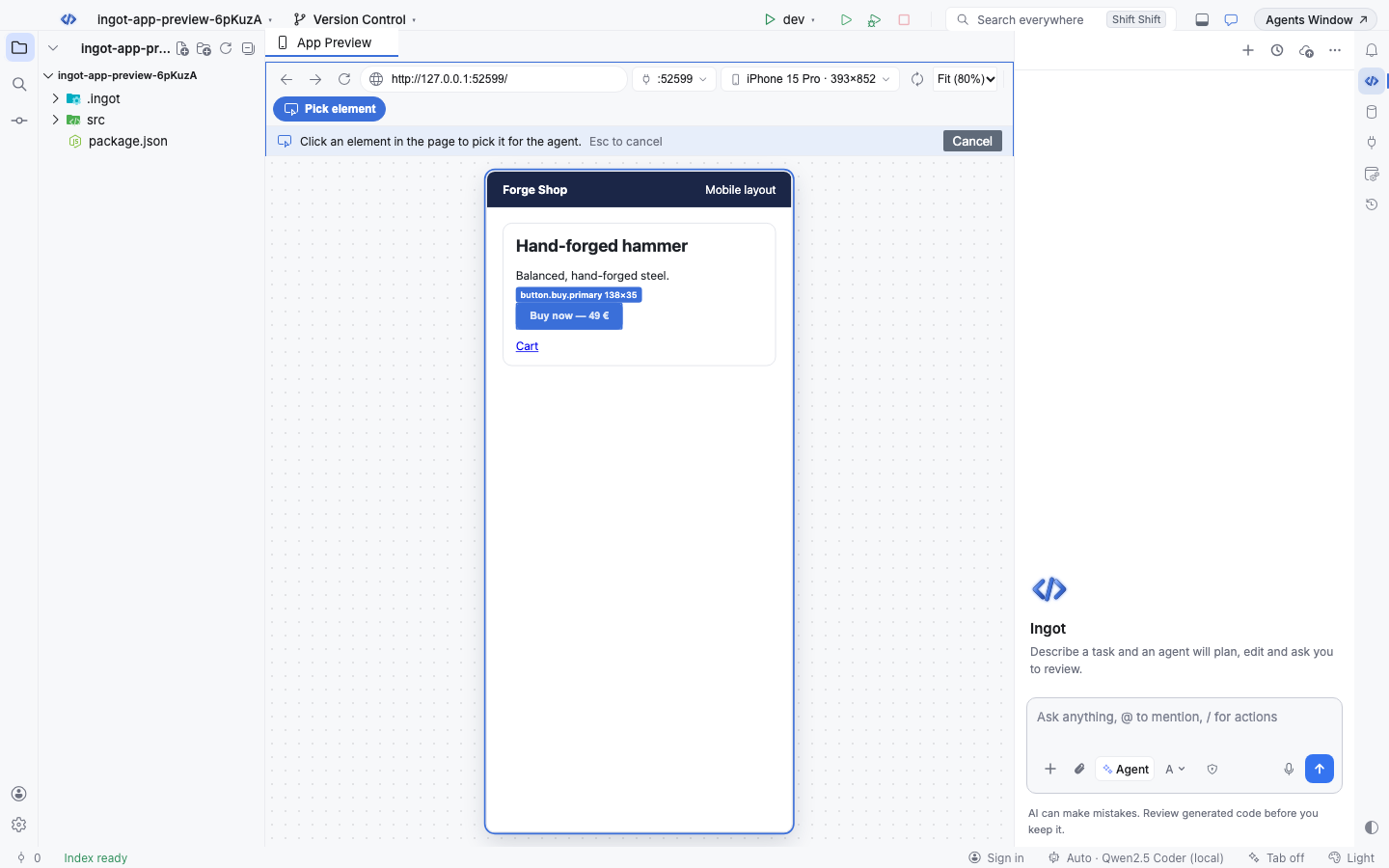
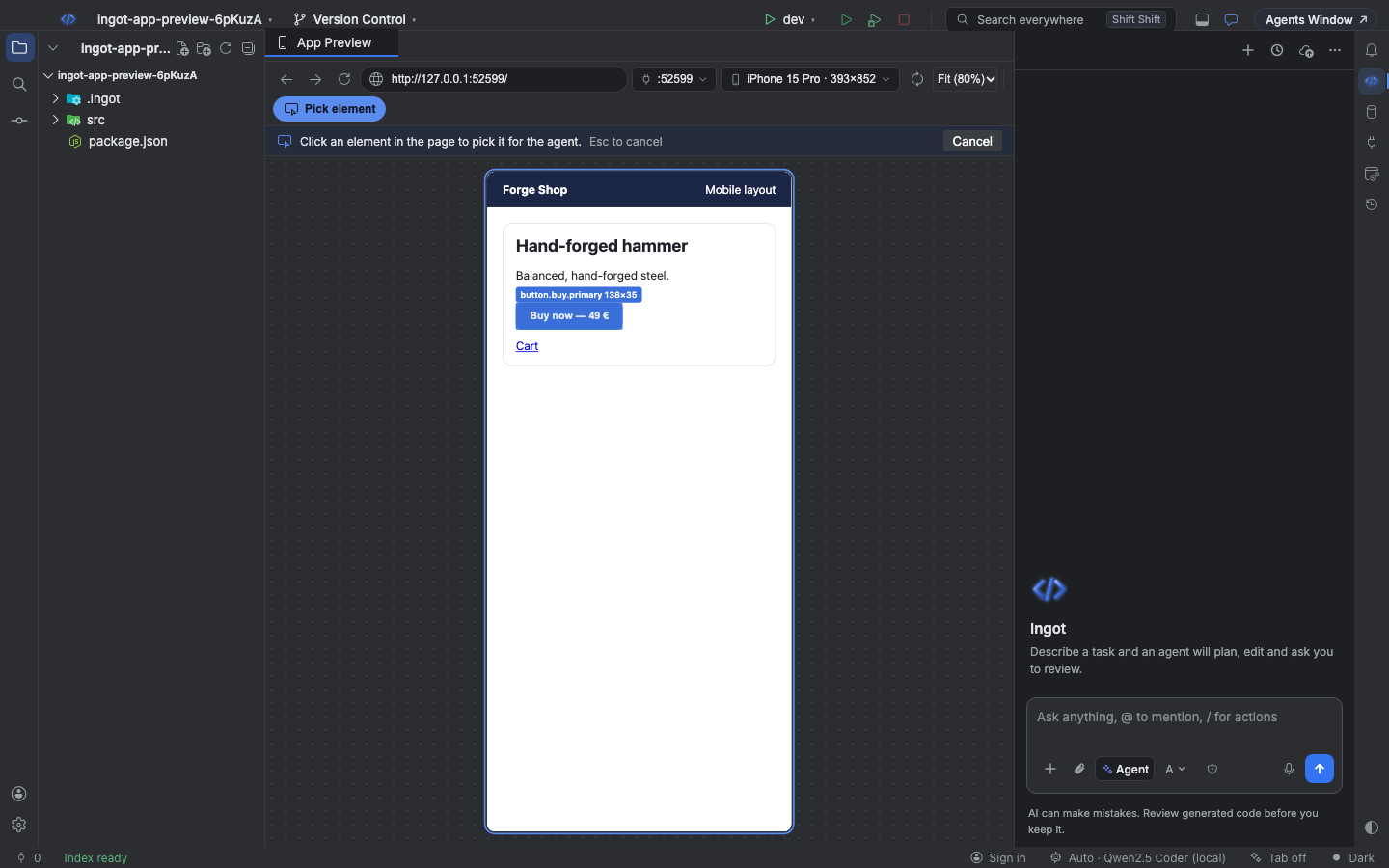
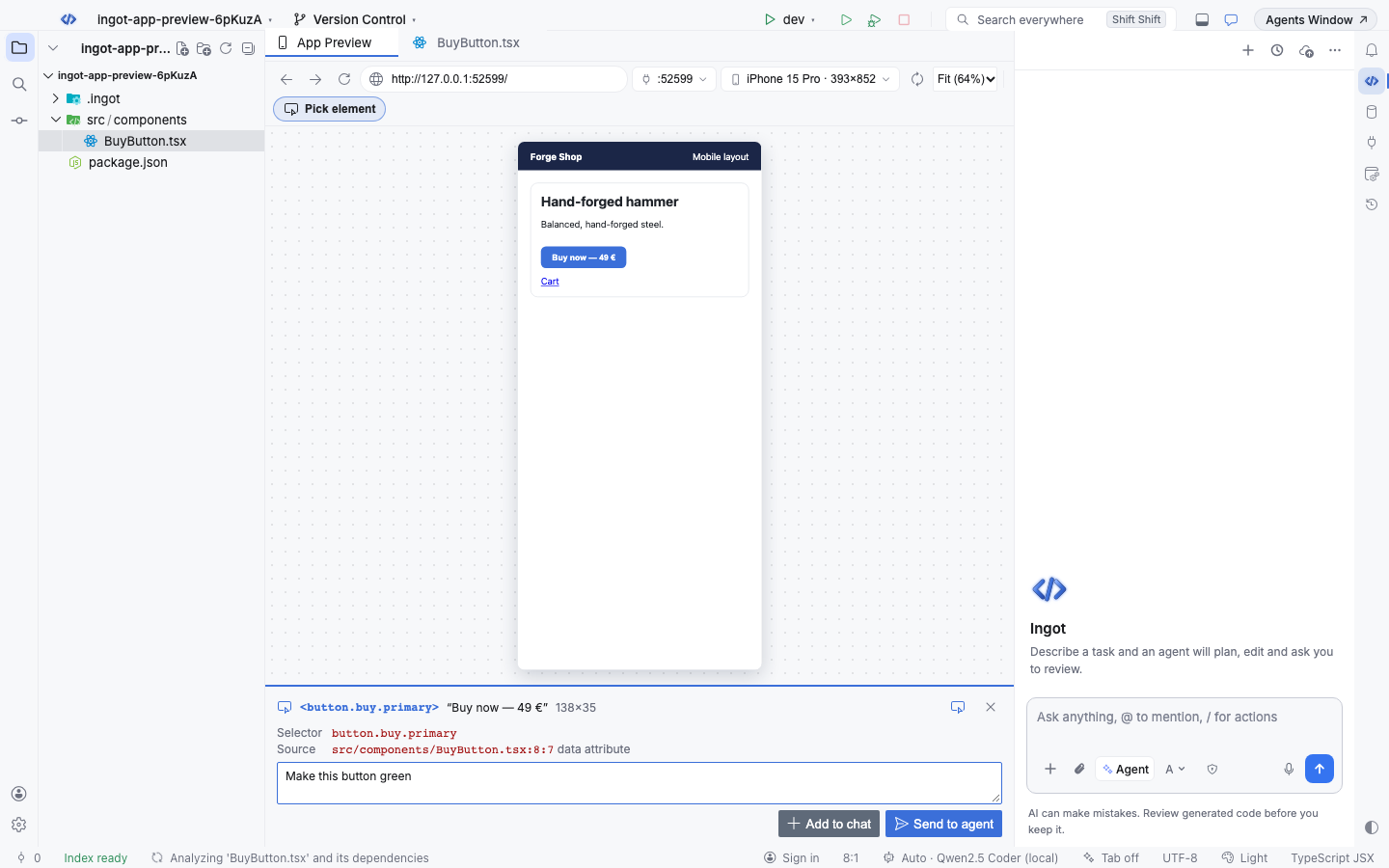
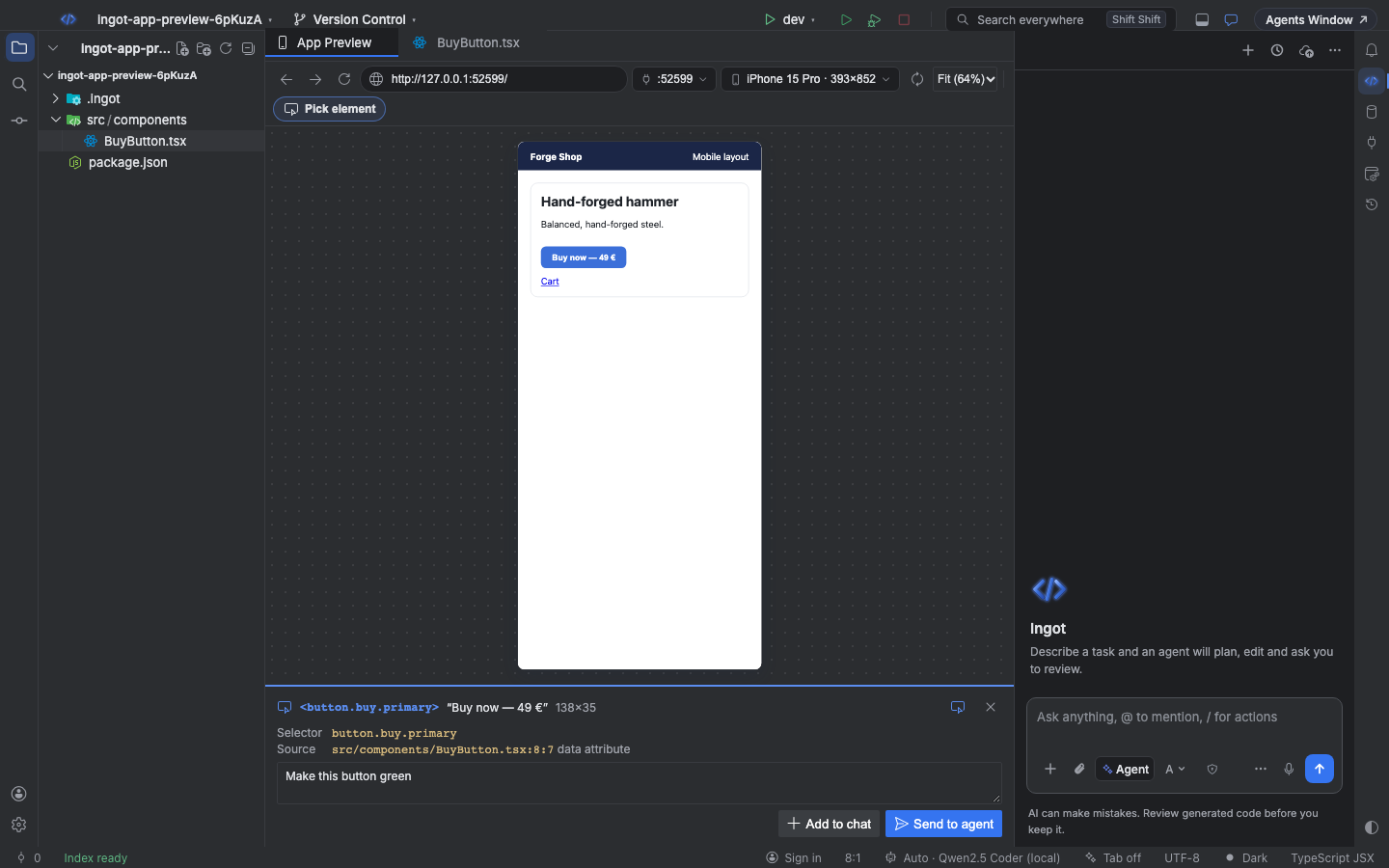
The picked element shows in a card under the page:
| In the card | What it is |
|---|---|
| Label | The tag with its id and classes, its text and its size, for example <button.buy.primary> "Buy now — 49 €" 138×35 |
| Selector | A unique CSS selector: the id, a data-testid, or tags with stable classes |
| Source | The file and line the element comes from, when the app tells: a data-source, data-loc or data-inspector attribute from a source plugin, React's development build, Vue's __file or Svelte's dev metadata |
Type what you want and press Enter or Send to agent: your request and the element go to the agent as one message. Add to chat puts an element chip in the chat input instead, so you can write a longer message or pick more elements. Click the chip to open its source file at the line.
What the agent gets
The element goes with your message as a short block:
Page: Forge Shop (http://localhost:5173/)
Device: iPhone 15 Pro · 393×852
Element: <button.buy.primary> "Buy now — 49 €"
Selector: button.buy.primary
Path: body > main > section.card > button.buy.primary
Source: src/components/BuyButton.tsx:8:7 (data attribute)
Box: 138×35 at (37, 169)
Styles: display: inline-block; background-color: rgb(59, 111, 217); border-radius: 8px; …
Attributes: type="button" class="buy primary"
HTML: <button class="buy primary" type="button">Buy now — 49 €</button>
Only styles that differ from the browser defaults are sent. The HTML, text and attributes are cut to a few hundred characters, so a large element does not fill the prompt. The source path is relative to your project.
Desktop and web
| Desktop app | Web build | |
|---|---|---|
| The page | Your app runs live, scripts and all, in its own session (cookies apart from Ingot and the agent's browser) | Ingot's backend loads the page without running its scripts |
| Device user agent | Sent | Not sent |
| Element picker | Yes | Yes |
Keyboard shortcuts
| Action | macOS | Windows / Linux |
|---|---|---|
| Open App Preview | ⌘⌥⇧9 | Ctrl+Alt+Shift+9 |
| Pick Element for Agent | ⌘⇧C | Ctrl+Shift+C |
| Cancel Element Pick | Esc | Esc |
| Add Picked Element to Agent Chat | ⌘⇧L | Ctrl+L |
| Switch Preview Port… | ⌘⌥P | Ctrl+Alt+P |
| Choose Preview Device… | ⌘⌥G | Ctrl+Alt+G |
| Rotate Preview Device | ⌘⌥J | Ctrl+Alt+J |
| Reload App Preview | ⌘⌥U | Ctrl+Alt+U |
Every shortcut except Open App Preview works while the App Preview has focus. All of them are in Find Action and in the keymap settings.
Privacy
The port list only probes ports on your machine, over loopback. Nothing about your app leaves the machine until you send a picked element to the agent, and then only the block above goes with your message.
From the terminal
ingot preview lists the same servers and device sizes, and checks a port from scripts:
ingot preview servers                       # dev servers first, then other web pages; --dev, --json
ingot preview devices                       # sizes and the ids --device takes
ingot preview check 5173 --wait 30          # waits for a dev server to answer; exits 1 if it does not
ingot preview check localhost:3000/cart --device iphone-15-pro --json
| Command | What it does |
|---|---|
servers | The same ports as the port menu (see Which ports are listed), ranked the same way, with the framework, page title and process. --dev keeps dev servers only; --exclude <port> leaves ports out |
devices | The device sizes and their ids |
check <port|url> | Status, page title and dev framework. Exits 1 when nothing answers or the page is an error. --wait <seconds> keeps trying; --device <id> adds the viewport and user agent |
Every command takes --json. No model is called and no account is needed.