.ingot folder
.ingot is where Ingot keeps everything for a project: rules, core rules, habits, knowledge, agents, skills, commands and workflows. Everything in it is a plain file. The agent reads the files on its own, and it writes new habits and knowledge when it learns something. Each save shows up in the chat with Undo and Open. You can see and change the files from the chat with slash commands, so you never need a Settings page for this.
.ingot is primary
.ingot replaces the existing editor's folder inside Ingot. It is the source of truth, and the agent reads it first. Rules from the existing editor's folder are imported into .ingot on first open and then kept in sync for teams that still use both. Settings › Sync existing editor rules turns the sync off. Ingot never deletes or changes the other folder. It writes back to that folder's format only when you ask.
Automatic and by hand
- Automatic: when you open a project that has no
.ingot, Ingot creates the base tree:core,agents,skills,habits,mcp-flow,workflows,knowledge(withdecisionsanddependencies),context,quality,integrations,telemetry,commandsandrules. You don't have to set anything up. The setting isingot.ingotFolder.createOnOpen. - By hand:
.ingotis a normal, visible folder in the Explorer. Edit, add or delete any file in it. A new rule inrules/or a changed one is used on the next turn, with no reload or registration. - Your edits win: the agent never rewrites a habit or knowledge file you changed, or an entry you wrote. Instead, the chat shows Kept your version.
Slash commands
Type / in the agent chat to see these commands:
| Command | What it does |
|---|---|
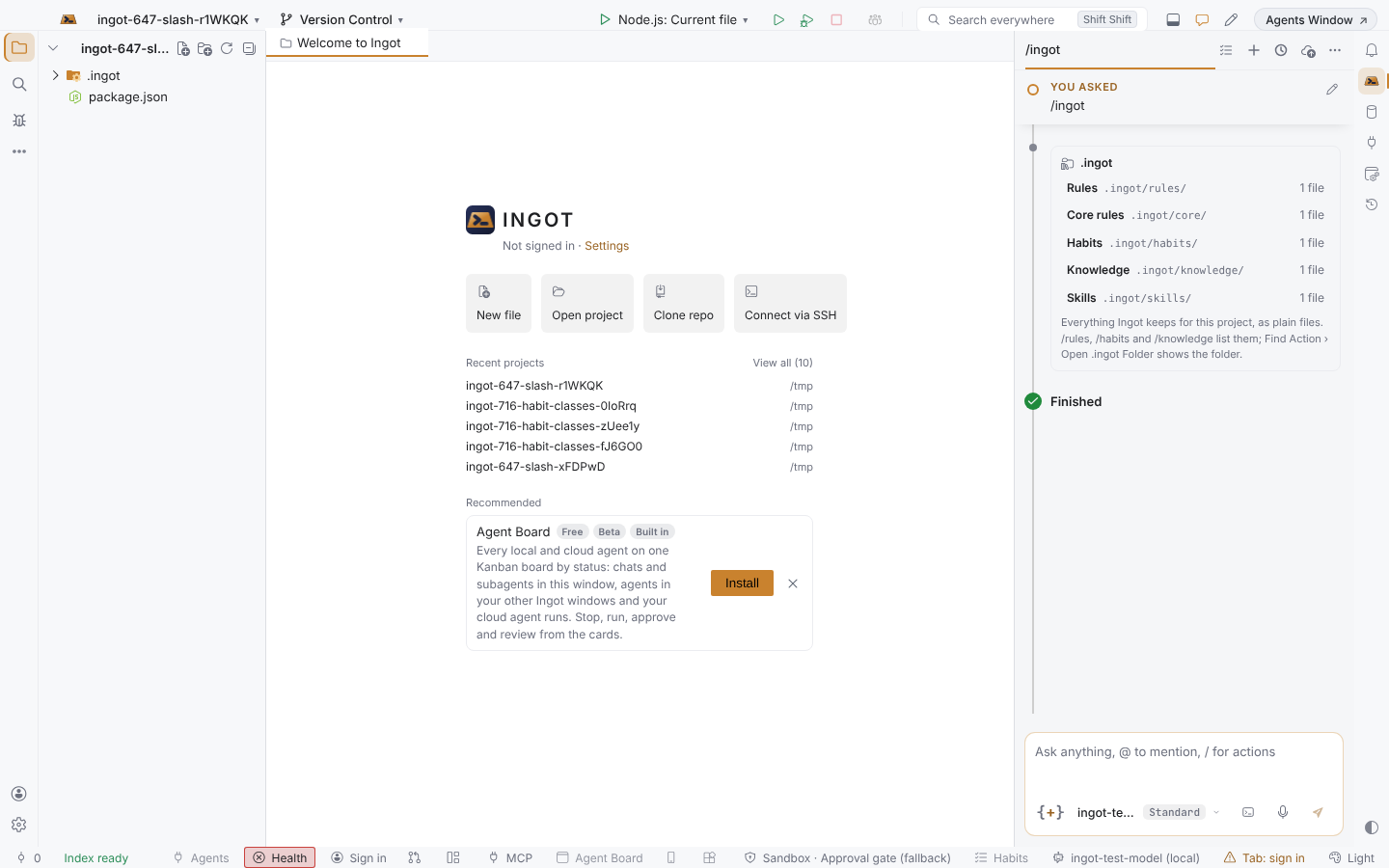
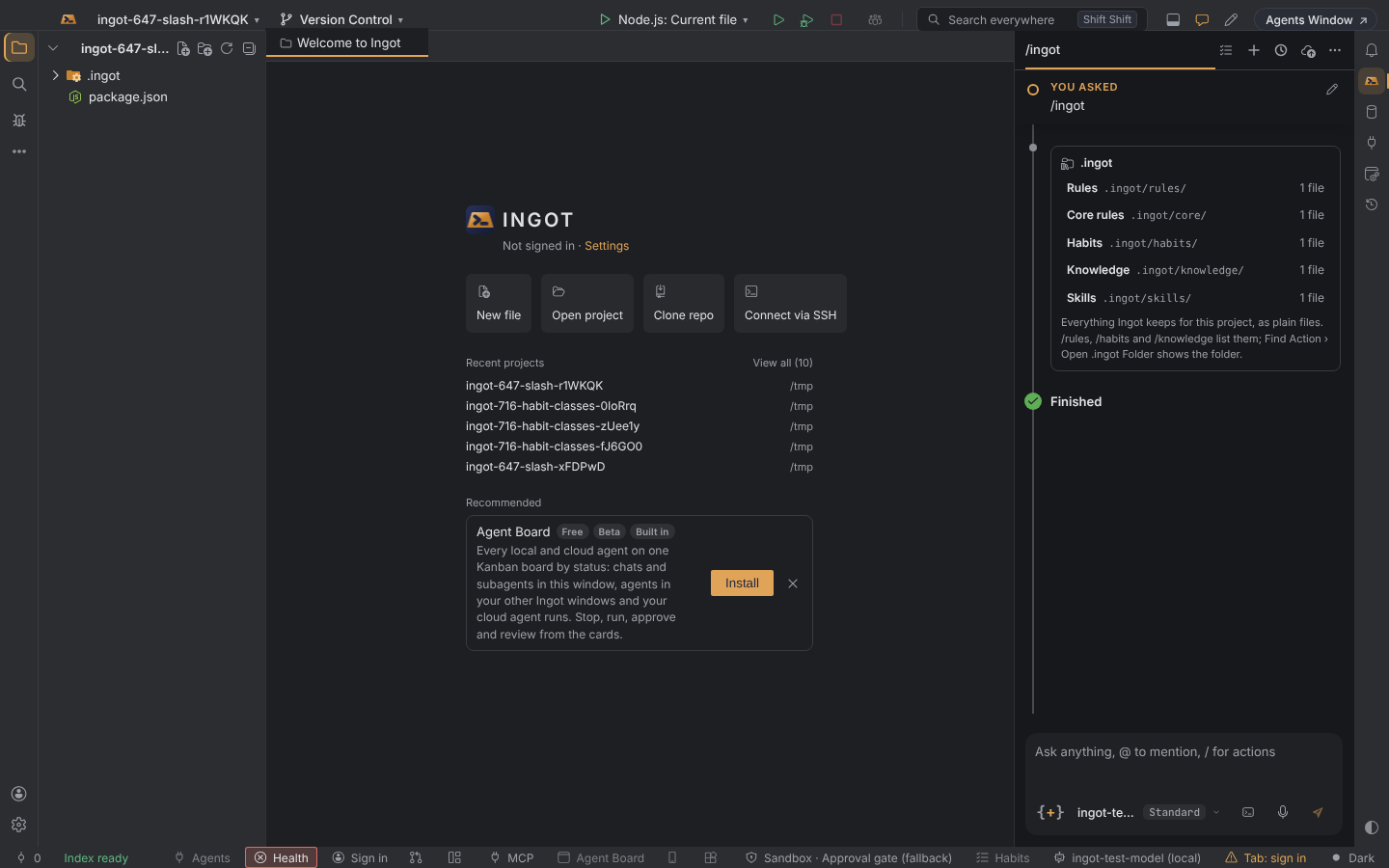
/ingot | An overview: each folder in .ingot that has files, with a count. Click a folder to show it in the Explorer. |
/rules | The rules in .ingot/rules and .ingot/core, with their description. Click one to open it. |
/habits | The habits in .ingot/habits, by folder and class. |
/knowledge [words] | The knowledge entries by kind, with version and confidence. Add words to search. |
/remember <text> | Saves a habit, or a fact (see below). |
/forget <name> | Deletes a habit, knowledge entry or rule by name. Undo brings it back. |
These commands only read and write files. Nothing goes to the model.
Remember and forget
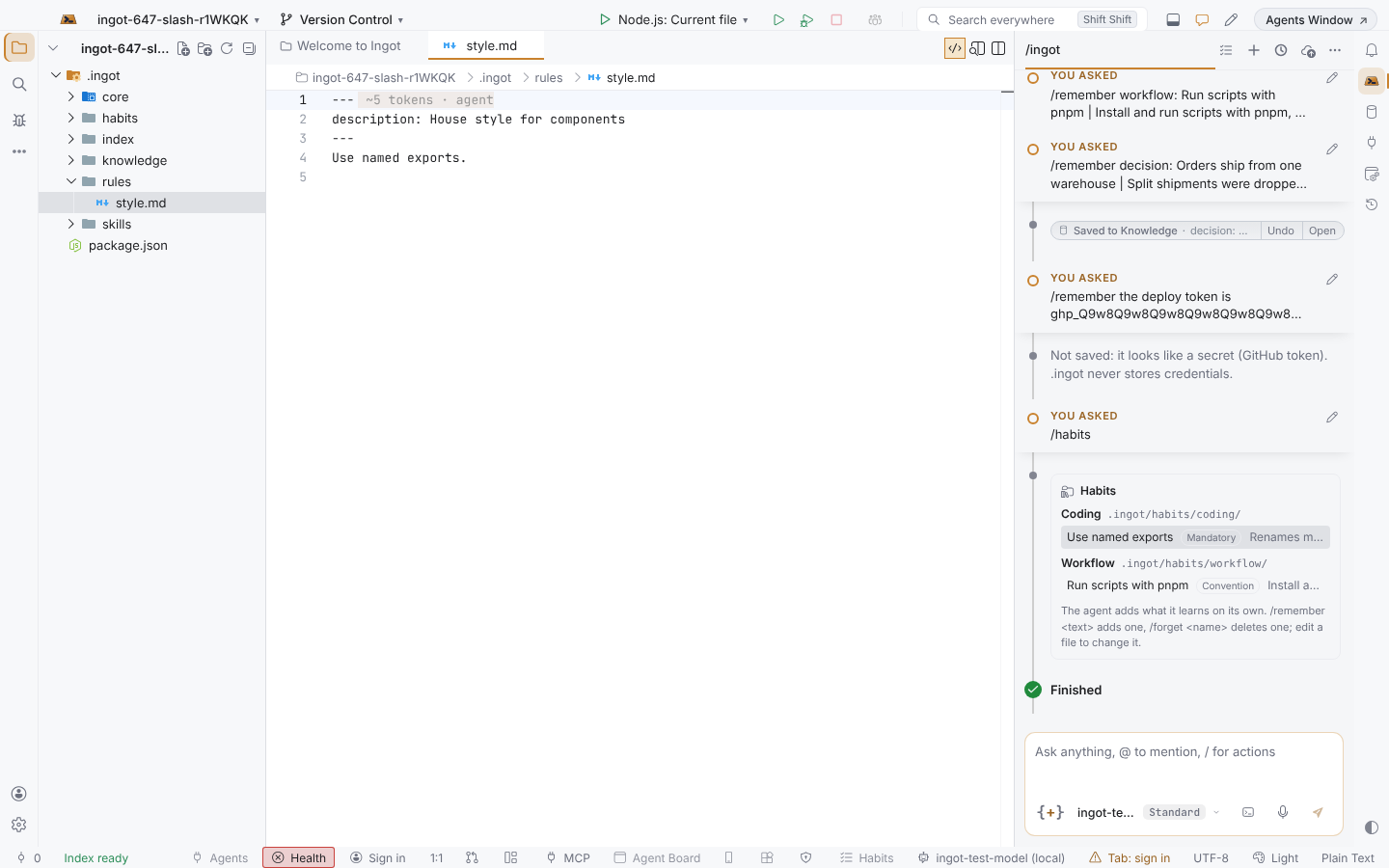
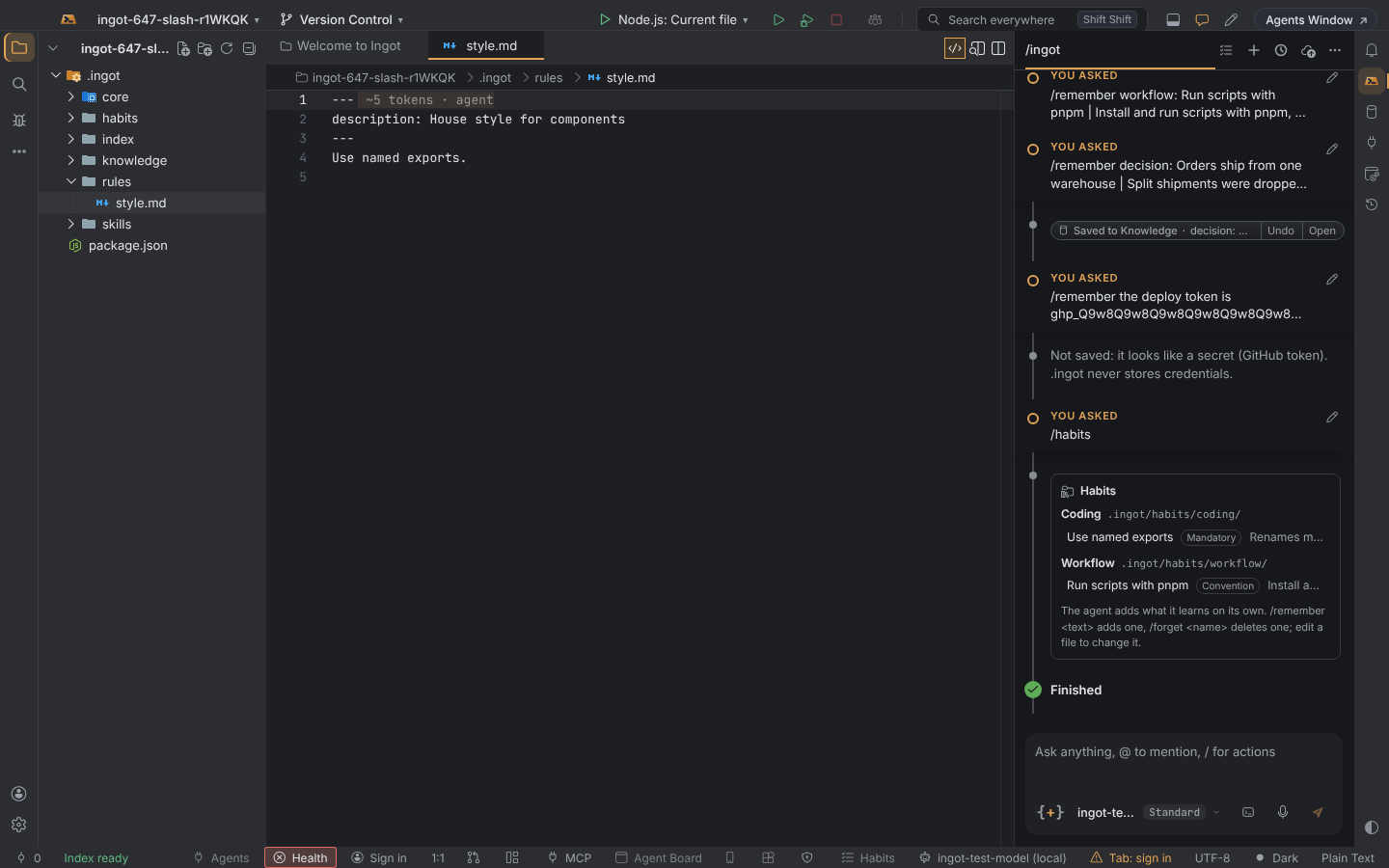
/remember Use named exportssaves a habit in.ingot/habits/coding/as a project convention. The agent follows it from the next turn.- To save the habit in another folder, start with
workflow:orarchitecture:, as in/remember workflow: Run scripts with pnpm. - To save a knowledge entry instead, start with
decision:,dependency:,history:orproject:, as in/remember decision: Totals are kept in cents | Floats broke rounding. The part before|is the title. - Every save is checked for secrets first. A token, a private key or a password is never written.
/forget run scripts with pnpmdeletes the file, and the chat shows Forgot … · Undo.- If more than one thing matches, Ingot lists the matches and asks you to use more of the name.
- If you forget a habit the agent learned, the agent won't learn it again.
Settings
| Setting | Default | Where |
|---|---|---|
ingot.ingotFolder.slashCommands | on | Settings › .ingot Folder, Settings › Features › .ingot slash commands |
Open .ingot Folder (on the same Settings page, or in Find Action) shows the folder in the Explorer. If the project has no .ingot folder yet, it creates one first. When the switch is off, the commands are not listed, and typing one sends it to the agent as plain text.
Commit .ingot to share it with your team. See also Habit classes, Knowledge and Slash commands.