Project tabs
Project tabs split a big project into parts you can switch between in one click. They work for a workspace with several folders and for a project: one folder that holds several projects, such as baby-daily with app/, backend/ and portal/, some of them git repositories of their own.
A tab is a group of projects. Everything starts in the first tab. Give a project a tab of its own, or put several projects in one tab, and the rest stay in the first tab. Agents and chats are shared by every tab.
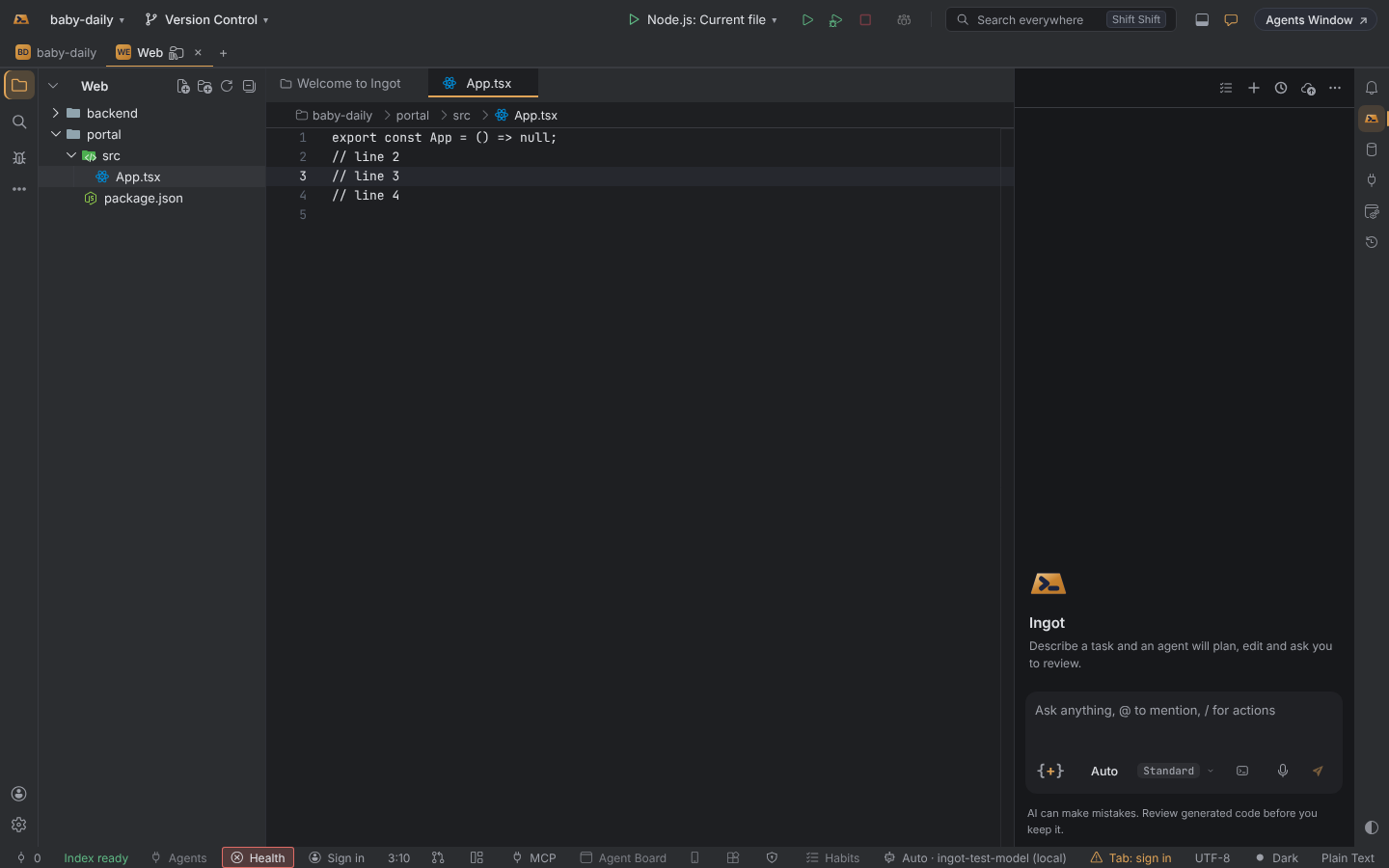
When tabs appear
| You open | Tabs show |
|---|---|
| A workspace with 2 or more folders | each folder is a project |
| One folder with 2 or more projects inside | each direct child folder with a nested .git, package.json, pubspec.yaml, go.mod, Cargo.toml, pyproject.toml, pom.xml, build.gradle, composer.json, Gemfile, *.csproj and the like |
A .ingot-group file | one tab per project, as before |
Use the + at the end of the row to add any other folder inside the project as a project.
New Project Group (project ▾ menu) saves the group as .ingot/groups/<name>.ingot-group inside the current project, with relative folder paths, so you can commit and share it. Group files saved next to the project by older builds still open.
Put projects in tabs
- Right-click a project folder in the Project tree › Move to Tab… › an existing tab, or New Tab… and a name.
- Or drag a project folder from the Project tree onto a tab.
The first tab is named after the workspace or folder. It holds every project no other tab holds, and with sub-projects it also keeps the folder's own files (docker-compose.yml and the like). Close a tab (×) and its projects go back to the first tab. Nothing changes on disk or in your workspace file.
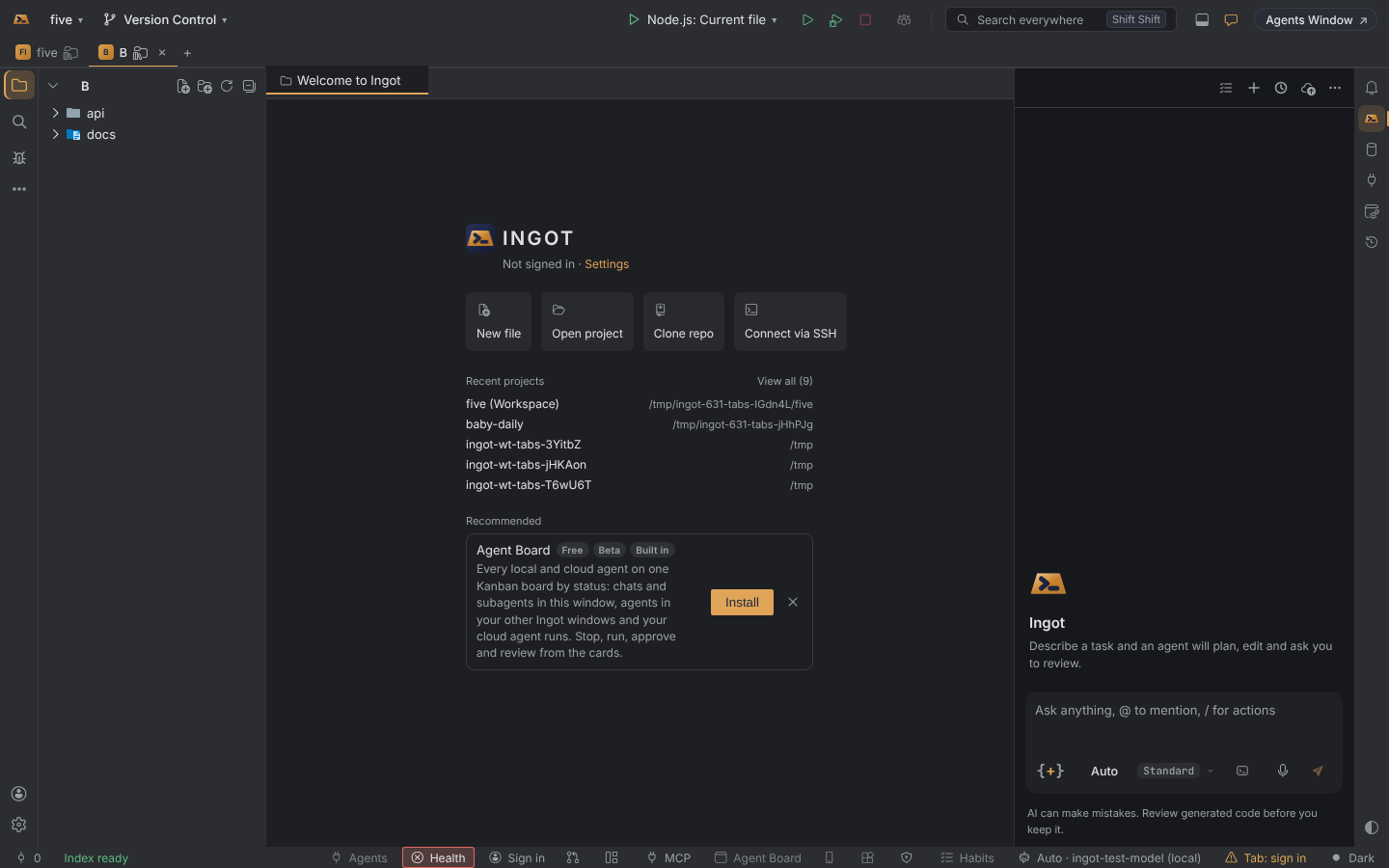
Switching keeps your place
Agents and chats are shared by every tab. A tab only saves its pointer: where you were, and what you had open. When you switch tabs:
| Part | What happens |
|---|---|
| Project tree | shows the tab's projects: one project as its own tree, several as folders under the tab's name |
| Editors | the tab's editors come back, the last one active, with the selection and the typing position where they were; unsaved files get the usual Save / Don't Save / Cancel |
| Tree | the folders you had expanded open again |
| Rules | the rule files you had open come back |
| Terminals | new terminals start in the tab's first project; running terminals keep running |
| Agents | the same agents and chats; the agent is told which tab you are in, its folders, your open file and its rules |
Open a file that belongs to another tab (Go to File, search, or a click on a file an agent edited in the chat, a step or the review tray) and Ingot switches to that tab and shows the file there.
See where agents are working
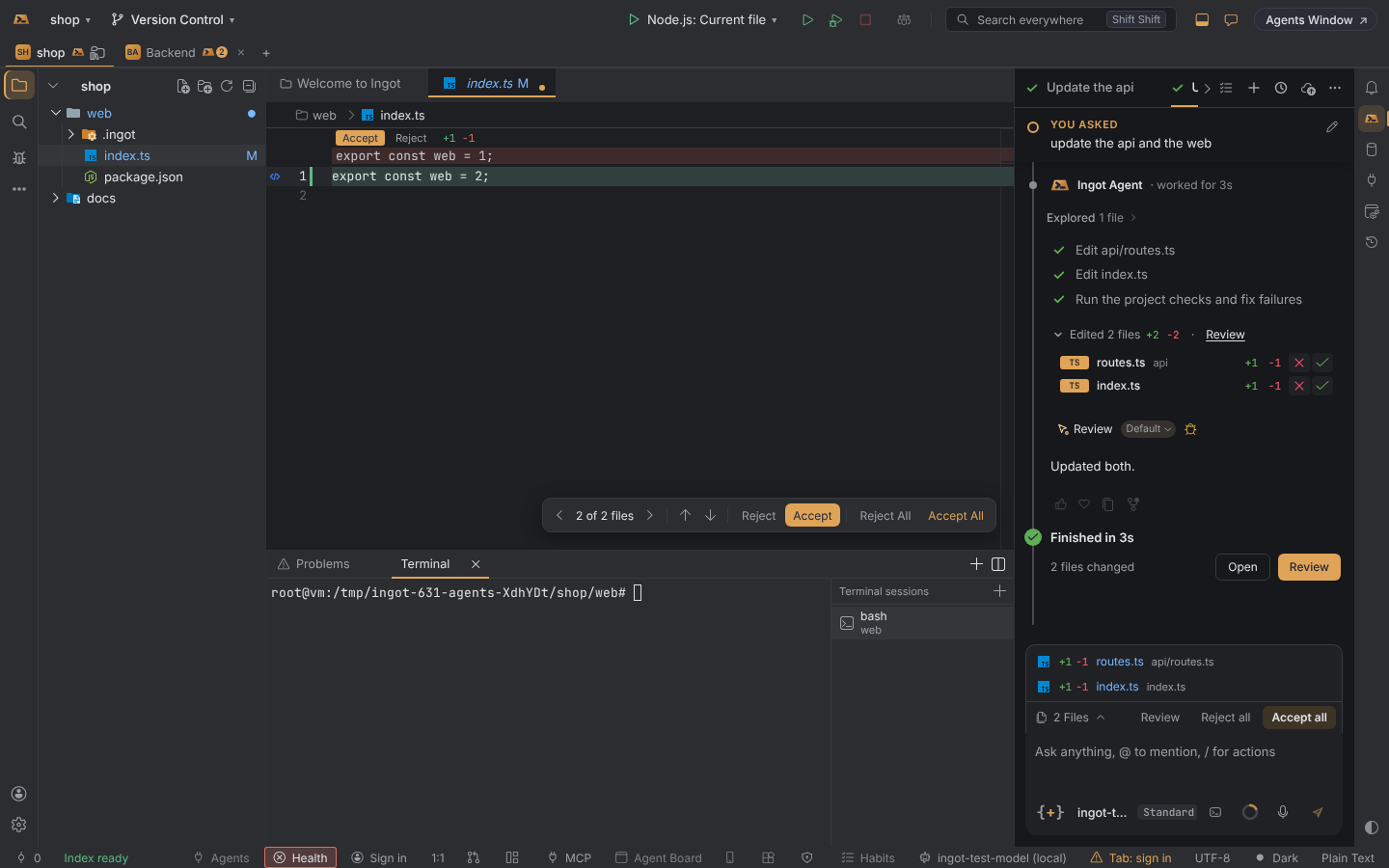
The tab that holds a project an agent is editing shows the Ingot agent icon. It shows while the agent is working there or its edits there wait for review. With several agents the icon has a count, and its tooltip names them. An agent editing another tab never pulls you there: you stay where you are, and a click on its edited file takes you to that tab.
The tab menu
Right-click a tab:
| Item | Does |
|---|---|
| Rename… | names the tab (or double-click its name) |
| Icon… | an icon in place of the initials |
| Colour… | a colour for the tab's badge |
| Move Left / Move Right | moves the tab one place |
| Position: Top / Position: Left | a row on top, or a rail on the left |
| Show as Folders | back to one plain tree; Show as Tabs on a folder in the tree turns tabs on again |
| Close | its projects go back to the first tab |
Drag a tab before or after another to reorder it. A line shows where it will land.
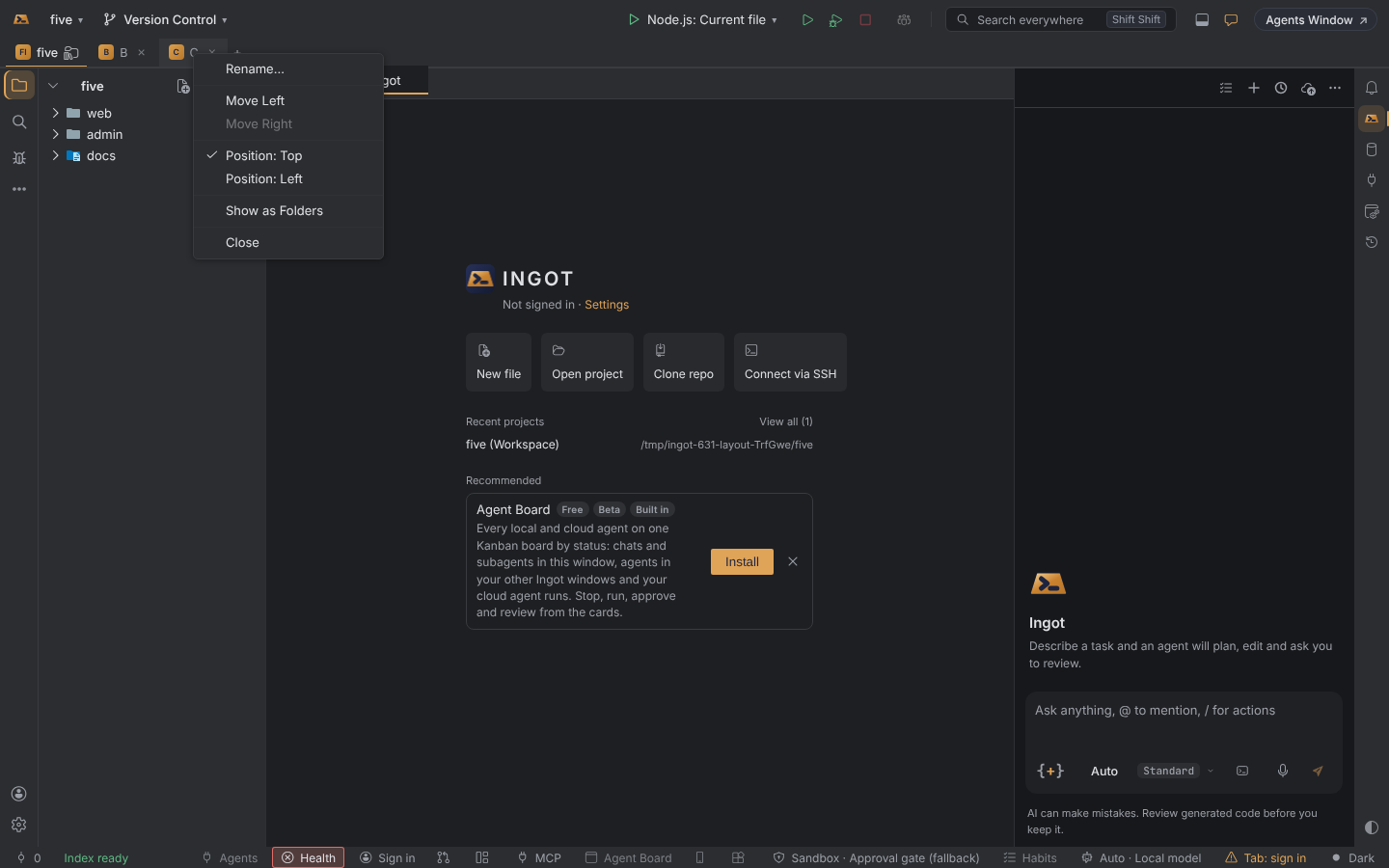
Tabs on the left
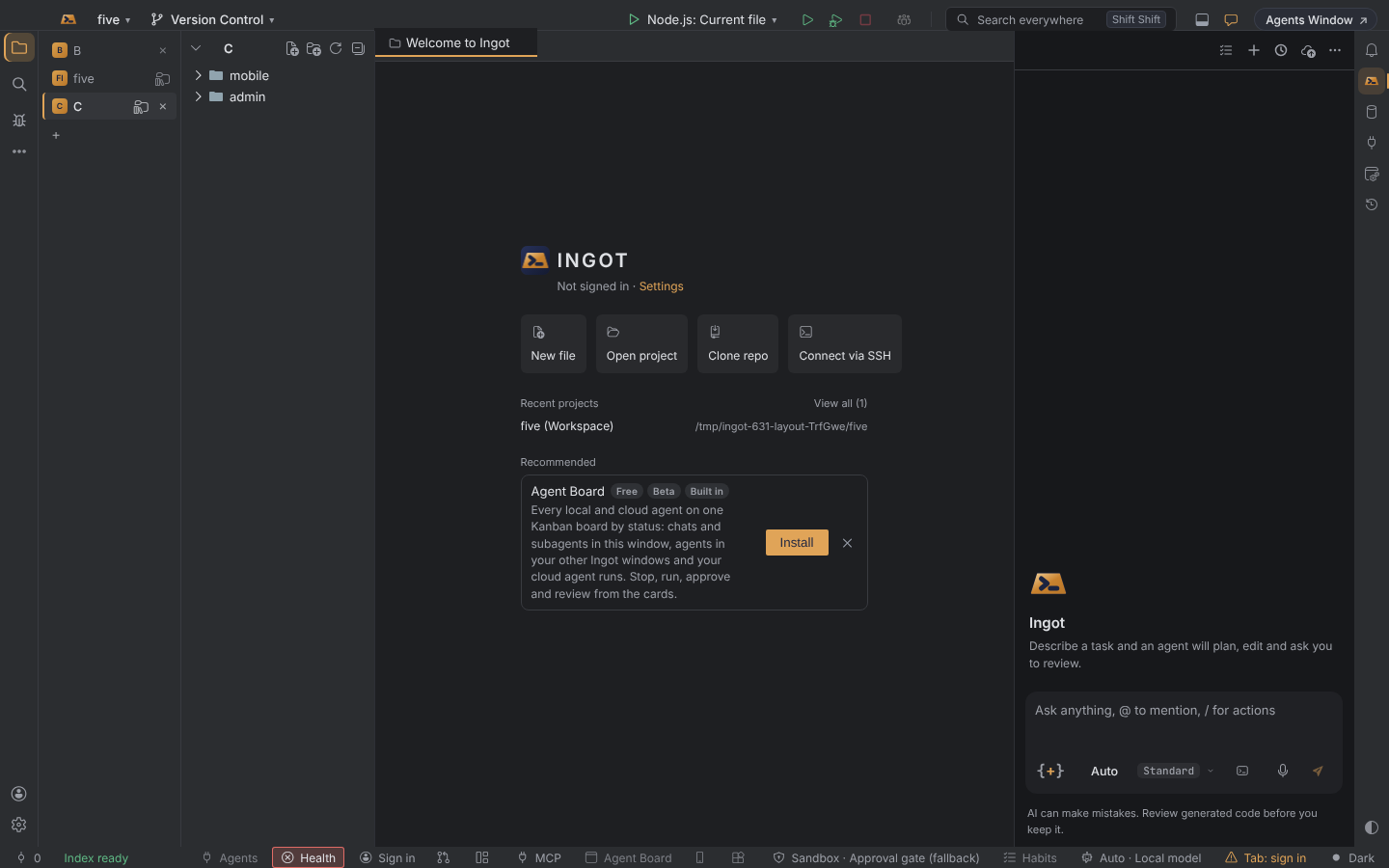
Position: Left turns the row into a vertical rail between the tool window stripe and the Project tree. Long names and many tabs fit better there, and the editor keeps its full height. The rail stays when the Project panel is collapsed.
Icons and colours
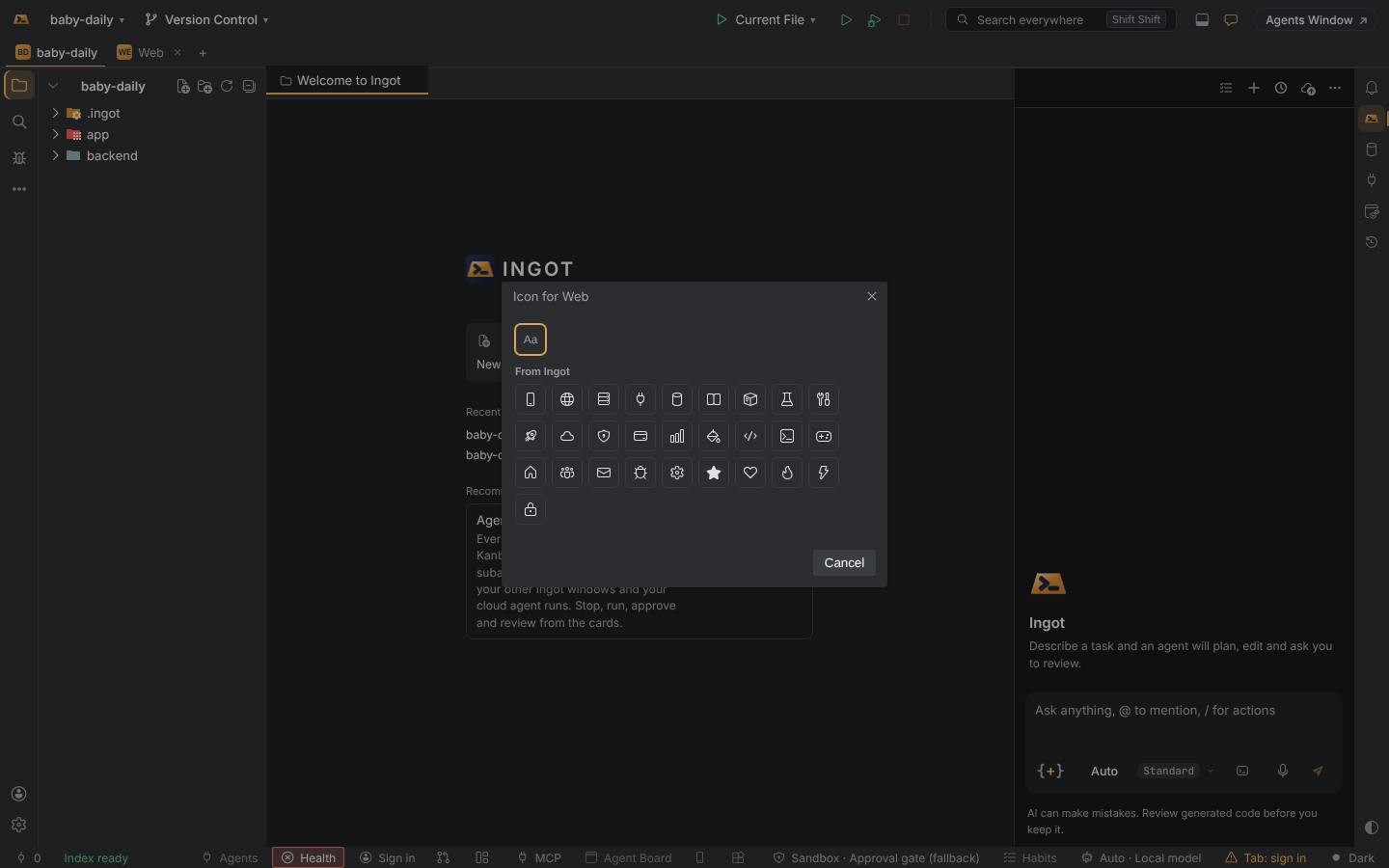
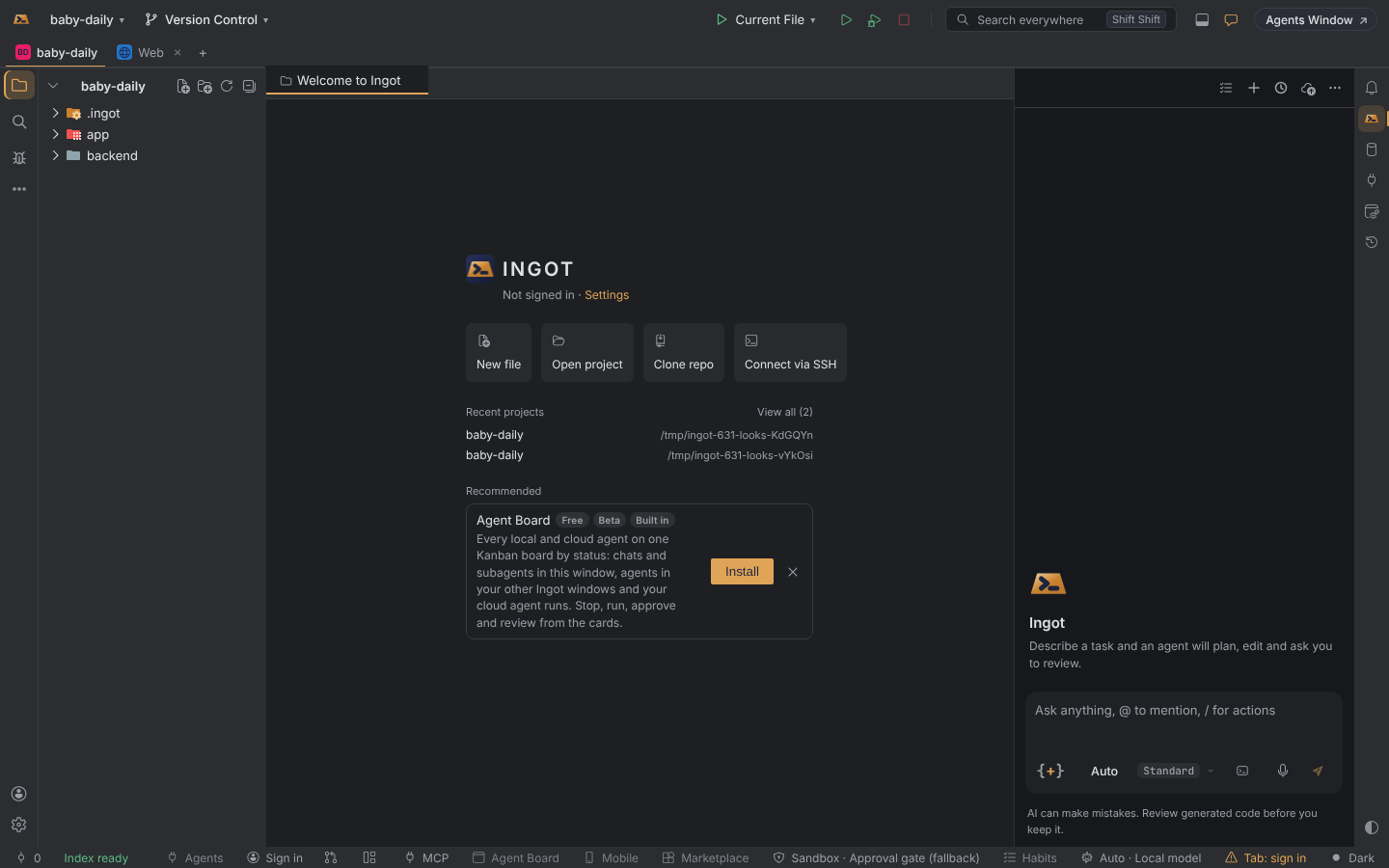
- Icon… offers None (the initials), Ingot's built-in set (mobile app, web, server, API, database, docs, tests, deploy, cloud, payments and more), and the icons of your icon pack, so an icon pack from the marketplace adds its icons here.
- Colour… offers None, eight swatches that fit both the light and the dark theme, and Custom… for any colour.
Extensions can bring more icon sets: an extension binds ProjectTabIconSetContribution and registers a set with registerSet({ id, label, icons }), where each icon is a codicon name or an SVG.
Remembered
Per workspace, in Ingot's own storage and never in your files: tabs or folders, the tabs, their names, projects, order, icons and colours, the active tab and each tab's pointer. The position (top or left) is a user setting.
Settings
All of them are in Settings › Appearance › Layout and in Settings › Features.
| Setting | Default | Does |
|---|---|---|
ingot.projectTabs.enabled | on | a workspace with several folders shows project tabs |
ingot.projectTabs.subProjects | on | a folder with several projects shows project tabs |
ingot.projectTabs.agentBadges | on | the agent icon on tabs |
ingot.projectTabs.position | top | top (a row) or left (a rail) |
ingot.projectTabs.looks | on | tab icons and colours |
Find Action (⌘⇧A, Ctrl+Shift+A): Move to Tab…, Rename Project Tab…, Close Project Tab, Show as Tabs, Show as Folders, Move Tab Left / Right, Project Tabs on Top / on the Left, Project Tab Icon…, Project Tab Colour…, and Next / Previous Project Tab (Ctrl+Alt+] and Ctrl+Alt+[; on macOS, ⌘ and ⌘⇧ with the backtick key).
See also Multi-folder workspaces and Worktree tabs.