Processes, browser and subagents in the chat
What the agent started in this chat shows as compact rows in the tray right above the chat box: its processes, Ingot's browser and its subagents, above the changed files. Click a process row to open its terminal. Type / in the chat box for agent actions such as /run, /debug and /test.
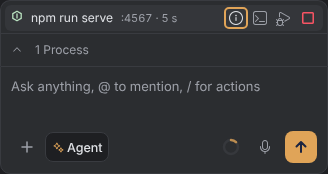
The tray rows
| Row | Shows |
|---|---|
| Process | an icon for its kind (Node/npm, Python, test runner, Docker, Go, Cargo, shell), the command, then its port and uptime such as :4567 · 2 min. A red dot means it crashed. |
| Browser | the page Ingot's browser is on and its console errors |
| Subagent | its name, status, elapsed time and steps, and a red ? while it waits for you. See Subagents. |
The footer counts them, for example 1 Process · Browser · 2 Subagents; click it to fold the list to one line. More than 6 process rows fold behind +N more. ↑ ↓, Home and End move between rows, and Esc closes an open card.
Work with a process
| To | Do this |
|---|---|
| see its output | click the row: the Terminal tab opens with the command's row selected in its session list and mirrors the output live |
| stop it | Stop on the row, or Ctrl+C in its terminal |
| see the last output, port and who started it | Details on the row |
| debug it | Debug on the row |
| open its port | the port link in Details opens it in Ingot's browser |
Debug stops the process and starts the same command under the debugger. The Debug view opens with the session attached, and a new row with a debugger badge shows up (debugger · 12 s); Stop on it ends the session. Node and Python commands can be debugged; for others Ingot says Debugging isn't available for this command and offers Open in Terminal.
Test runs open the Test Explorer.
A command that keeps running has no output card in the chat. The agent's turn shows one line, such as ✓ Started npm run serve in a terminal · :4567, and the output lives in the terminal tab and in Details.
Dev servers and watchers start in the background on their own: npm run dev, start, serve, watch or preview, vite, next dev, anything with --watch, uvicorn, flask run, manage.py runserver and docker compose up without -d.
Subagents
When the agent opens subagents (with the task tool in a regular chat, or in Multi-agent mode), you see them in two places: one quiet line in the conversation, and one row each in the tray above the chat box.
In the conversation
Like the Thinking… row, the conversation shows one line such as ⟳ 3 subagents working · 1 ?. Hover it for the list; click it or press Enter to keep the list open. Each line shows a subagent's status, name, task and time.
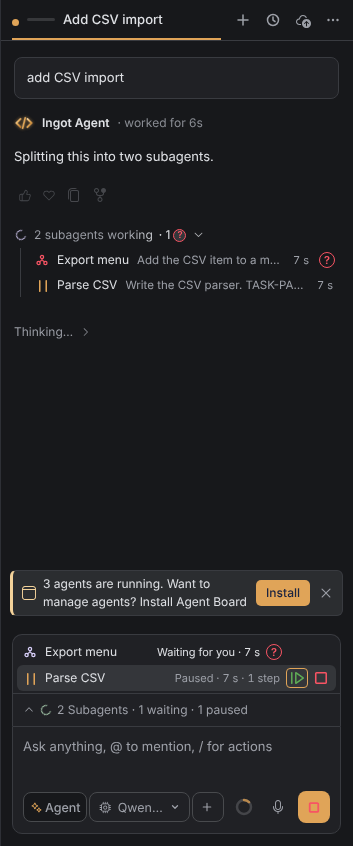
A small red ? means a subagent asked a question or waits for your approval. Hover the ? to answer it right there: pick a quick answer, type in the reply field and click Send, or choose Allow or Deny. Click the ? to open that subagent's chat instead.
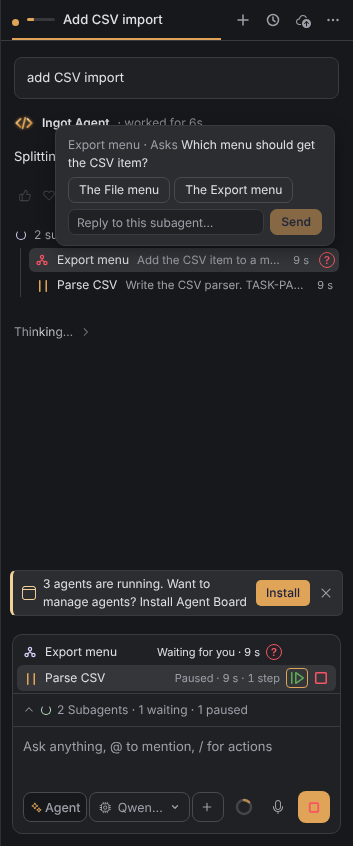
In the tray
The tray above the chat box shows one row per subagent, like the changed files: its status, elapsed time and steps, and the red ? while it waits. Hover a row for its buttons:
| Button | Key | What it does |
|---|---|---|
| Accept | A | allows the action the subagent waits on |
| Pause / Resume | P | the subagent stops before its next step; the main chat keeps going |
| Stop | Delete | ends the subagent |
Allow all in the tray footer allows every action your subagents wait on. Questions still need your answer.
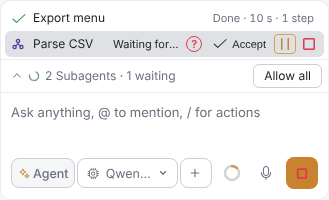
Open a subagent as its own chat
Click a subagent in the list or in the tray to open it as its own chat tab: its whole thinking, every step, its changes and its own message box. While it runs, a message you send reaches it on its next step. From: at the top names the main chat and takes you back to it. The main chat stays as it was, and the subagent's result still goes back to the main agent.
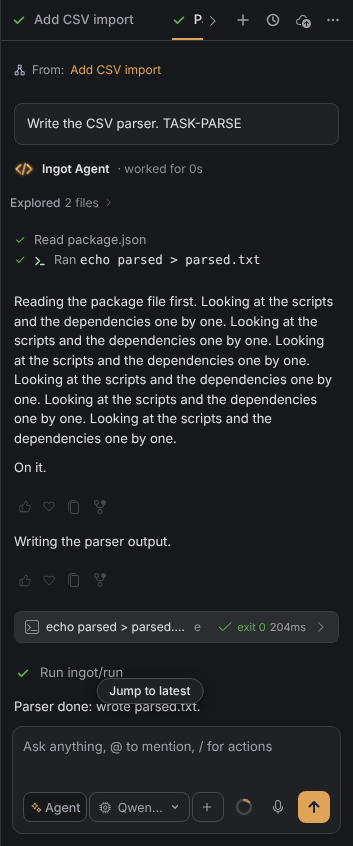
There is no separate setting: the subagent line and rows are part of Chat activity row in Settings › Features, in the modern chat layout. The desktop app and the browser edition behave the same.
The browser row
Click it for the page, the console error count, and Show page, Console and Steps (N). See Built-in browser.
Agent actions with /
Type / in the chat box. The Agent actions group lists:
| Action | What it does |
|---|---|
/run | runs a script: package.json scripts, Makefile targets, pyproject scripts, Cargo and Go. It starts in a terminal and shows as a row. |
/debug | Debug mode first, then the tests and scripts, started under the debugger |
/test | runs the tests with the detected runner and opens the Test Explorer |
/env | lists .env files and their variables, with values masked after 3 characters; pick one to open the file |
/ports | lists the ports the started processes listen on; pick one to open it in Ingot's browser |
/browser | opens a URL in Ingot's browser, for example /browser localhost:3000 |
Hover the Agent pill for what this agent can do: edit files, run scripts, debug, open ports, use the browser, run tests and start subagents. Each item links to its action.
Classic layout
In the classic chat layout, or with the tray rows turned off, the old Processes list and the Subagents strip come back.
Settings
Find them in Settings › AI & Zaprex › Chat activity, Settings › Features and the first-run setup.
| Setting | Values | Default |
|---|---|---|
ingot.chat.activity.enabled | true, false | true |
ingot.chat.capabilities.enabled | true, false | true |
ingot.chat.layout | modern, classic | modern |
ingot.chat.activity.enabled turns the process, browser and subagent rows, their cards and the one-line step summary on or off (Chat activity row in Settings › Features). ingot.chat.capabilities.enabled turns the / agent actions and the "This agent can" list on or off (Agent actions in the chat box).
The desktop app and the browser edition behave the same, except that the browser's console messages need the desktop app.