Worktree tabs
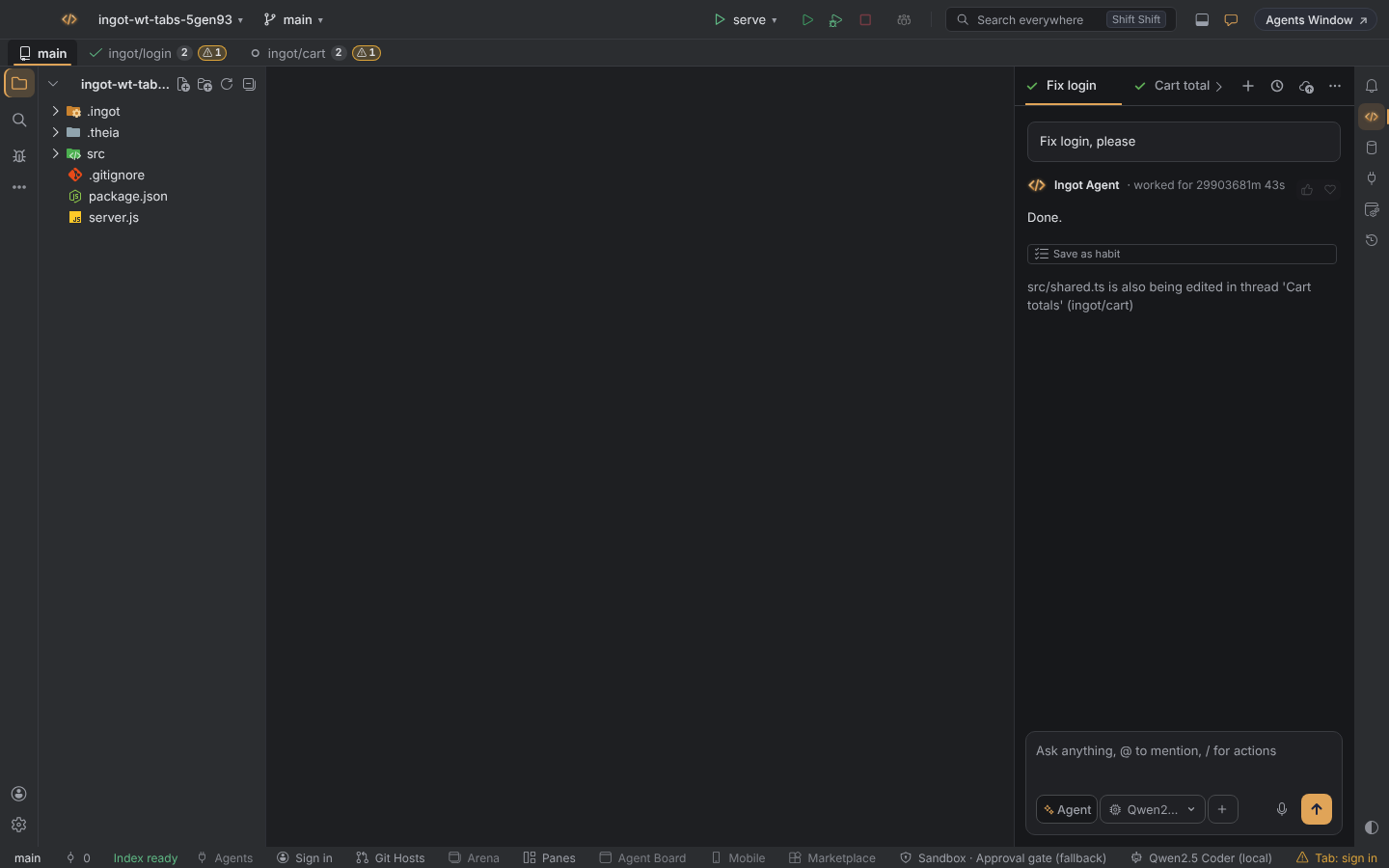
When agents work in parallel git worktrees, worktree tabs show each one as a tab under the title bar. Click a tab and the Project tree, Local Changes, new terminals and the chat all follow that checkout. Agents in worktrees also know what the others are doing, so two threads don't quietly edit the same file.
Worktrees come from threads in a git worktree, Arena and task subagents with "worktree": true.
Turn them on
Worktree tabs are off by default; worktrees stay in the Branches popup as before. Turn them on in any of these places:
- Settings › Version Control › Worktrees › Worktree view: Tabs under the title bar
- the Worktree tabs switch in Settings › Features, or in the first-run setup (Help › Set Up Ingot…)
- Find Action (⌘⇧A, Ctrl+Shift+A) › Show Worktrees as Tabs (and Show Worktrees in the Branches Popup to go back)
| Setting | Values | Default |
|---|---|---|
ingot.worktrees.view | popup (in the Branches popup), tabs (tabs under the title bar) | popup |
What a tab shows
A slim strip (28 px) appears under the title bar. The first tab is the project folder with its real branch. After it comes one tab per worktree thread, in the order the threads were opened. Each tab shows:
- a state dot in the Threads colours: running, waiting for you, done, error or idle
- the thread's branch, such as
ingot/login - the number of uncommitted files in that worktree, from
git status, refreshed every few seconds - ⚠ n when n of the files this thread edited were also edited in another worktree
- a Finish button on hover: merge, apply or discard, the same as Threads › Finish
Click a tab to switch
Clicking a tab points the IDE at that checkout:
| Part | Shows |
|---|---|
| Project tree | the worktree folder |
| Local Changes (Commit panel) | the worktree's changes; commits go there |
| Terminal | new terminals start in the worktree folder |
| Agents | that thread's chat |
The project tab points everything back at the project folder. Your workspace itself does not change: there is no extra workspace root and no untitled workspace file, the Project tree is re-rooted in place. Want a worktree side by side with your project? Open in New Window gives it a window of its own.
Back where you left off
Ingot remembers the active worktree tab. Reload the window or restart Ingot and you are back on the tab you left: the Project tree, Local Changes, new terminals and the Agents panel point at that worktree again. The tab is stored per project folder in workspace storage, so nothing is written into the repository. If that worktree no longer exists (it was finished, its chat was closed, or its folder was removed with git worktree remove), Ingot opens on the project tab without a message.
The Project header names the worktree
While a worktree tab is active, the side bar header reads <project> · ⎇ ingot/login. Click the branch to open Switch to Worktree…. On the project tab the header shows only the project name. In a narrow side bar the project name shortens first, and the full text is in the tooltip.
Right-click menu
| Item | Does |
|---|---|
| Finish… | merge, apply or discard the worktree |
| Open in New Window | opens the worktree in its own window |
| Reveal in Finder / Explorer | shows the folder in your file manager |
| Copy Path | copies the worktree folder's path |
Keyboard
The cycle keys work only while the strip shows.
| Action | macOS | Windows / Linux |
|---|---|---|
| Next worktree tab | ⌃⌥] | Ctrl+Alt+Shift+PageDown |
| Previous worktree tab | ⌃⌥[ | Ctrl+Alt+Shift+PageUp |
With a tab focused, ← and → move between tabs, Enter opens one and Shift+F10 opens its menu. Find Action › Switch to Worktree… lists them all. Every shortcut can be changed in Keymap.
Team awareness
Agents working in worktrees are told about each other. This is on by default, with or without tabs.
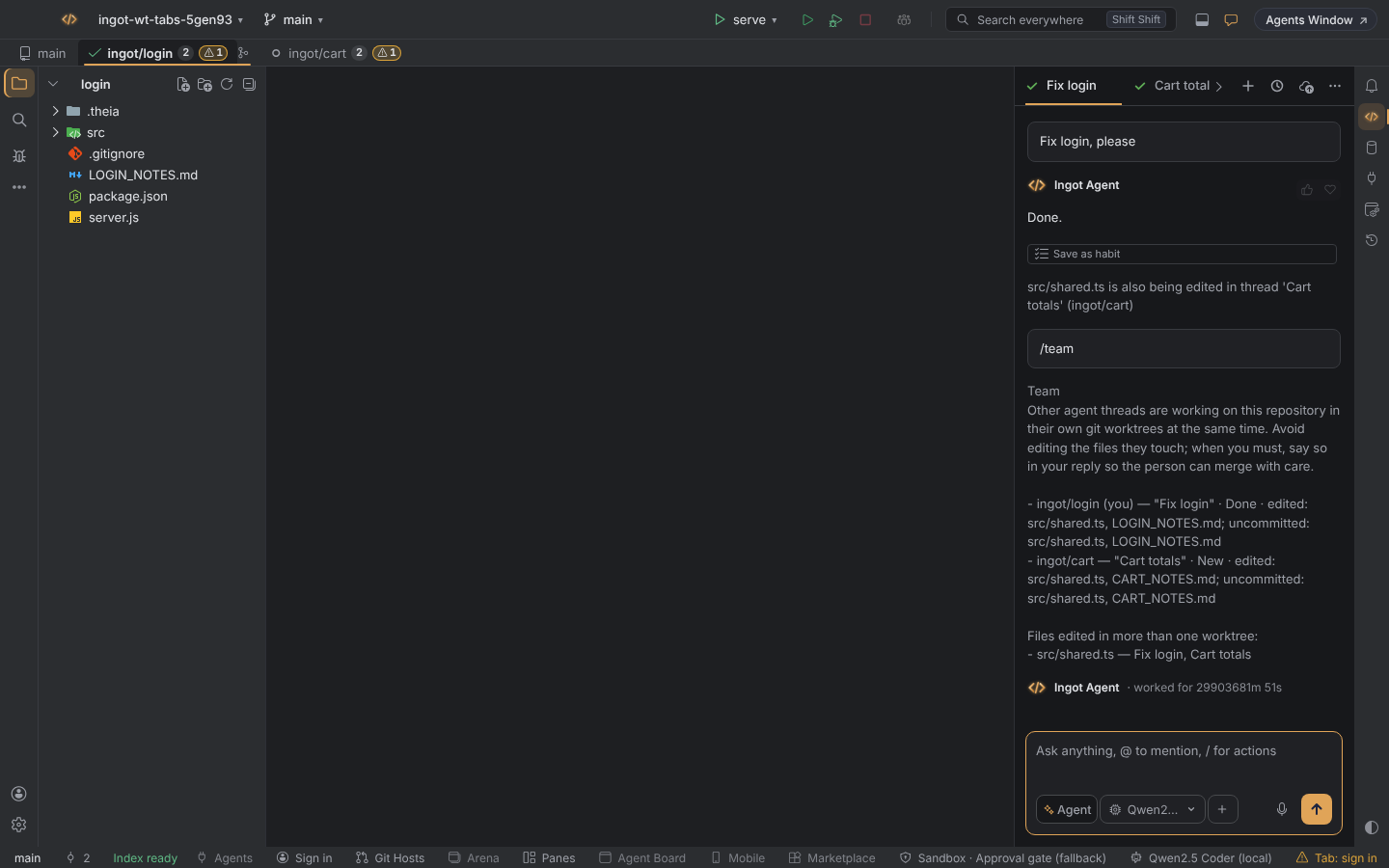
- Team block. Every run of an agent in a git worktree gets a Team block in its instructions: the other worktree threads with their branch, task title and status, the files they touched in their last turn, their uncommitted files, and the files more than one thread edited. The agent is asked to avoid those files, or to say so in its reply when it must touch one.
/team. Type/teamin the chat box to print the same block in the chat, or run Find Action › Show Worktree Team in Chat.- Shared-file warning. When two worktree threads edit the same path, both chats get one line, for example
src/shared.ts is also being edited in thread 'Cart totals' (ingot/cart). It shows once per file per thread, and both tabs show the ⚠ count.
Turn it off in Settings › Version Control › Worktrees, or with the Worktree team awareness switch in Settings › Features and the first-run setup. Off removes the block and the warnings; the ⚠ badges on the tabs stay while tabs are on.
| Setting | Default | Effect |
|---|---|---|
ingot.agents.teamAwareness | true | tell each worktree agent about the other threads, and warn about shared files |
Desktop and browser
Worktree tabs work the same in the desktop app and the browser edition, with two differences:
- Reveal in Finder / Explorer needs the desktop app. In the browser it copies the path and says so.
- Open in New Window opens a new browser tab in the browser edition.
See also Threads, Branches popup and Git.