Drag, paste & @ files
Add files to a chat message by dragging them from the project tree or your desktop, by pasting, or by typing @ to pick any file in the project. Each one becomes a chip in your message, and its content goes to the agent with that message only.
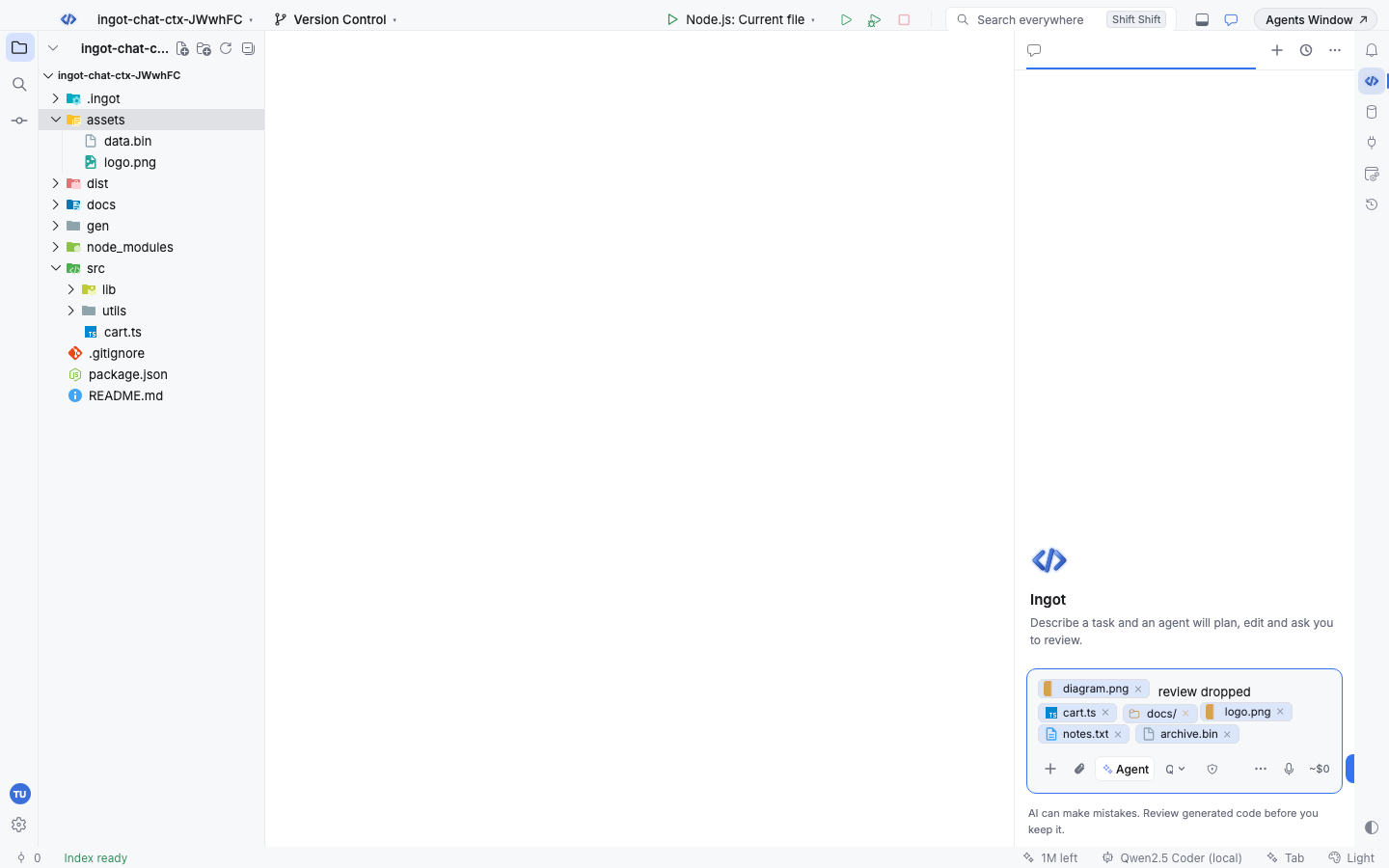
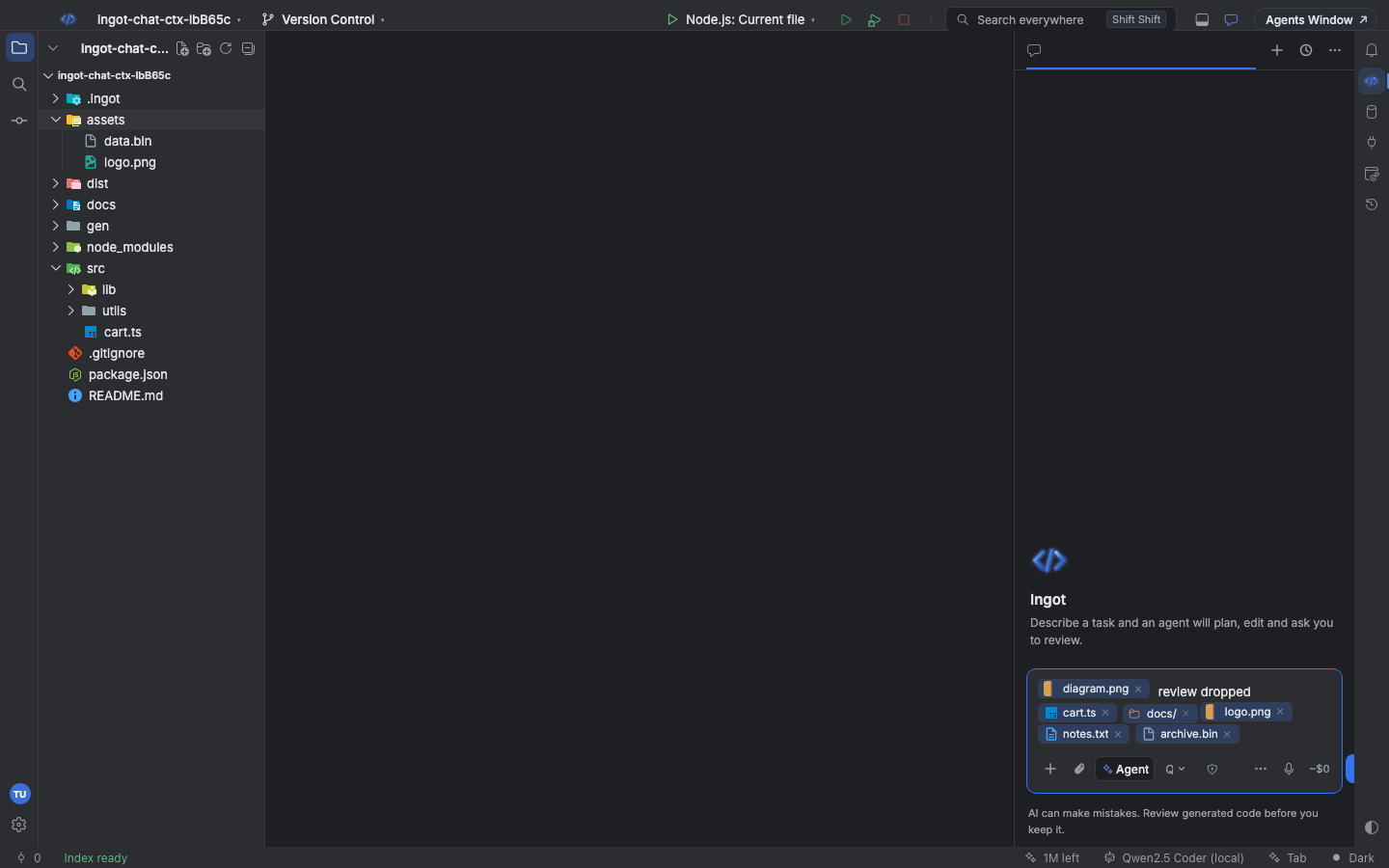
Drag files into the chat
Drag a file or folder from the Explorer onto the chat input (or anywhere on the chat). The chip appears where you drop it, so you can place it in the middle of a sentence. Drop several files at once to get several chips.
You can also drag files from Finder, Explorer or your file manager:
| You drop | Chip | What is sent |
|---|---|---|
| A text or code file | cart.ts | the file's content |
| A folder from the project tree | docs/ | the folder's entries (up to 200 names), not their content |
| An image (PNG, JPEG, GIF, WebP) | the image name with a preview | the image, for models that read images |
| Any other binary file | archive.bin | a short note such as (binary file, 5 B; not attached), never the bytes |
Text files are read up to 1 MB. Hover a chip to preview what will be sent. Backspace or Delete removes a chip as a whole, and the arrow keys step over it.
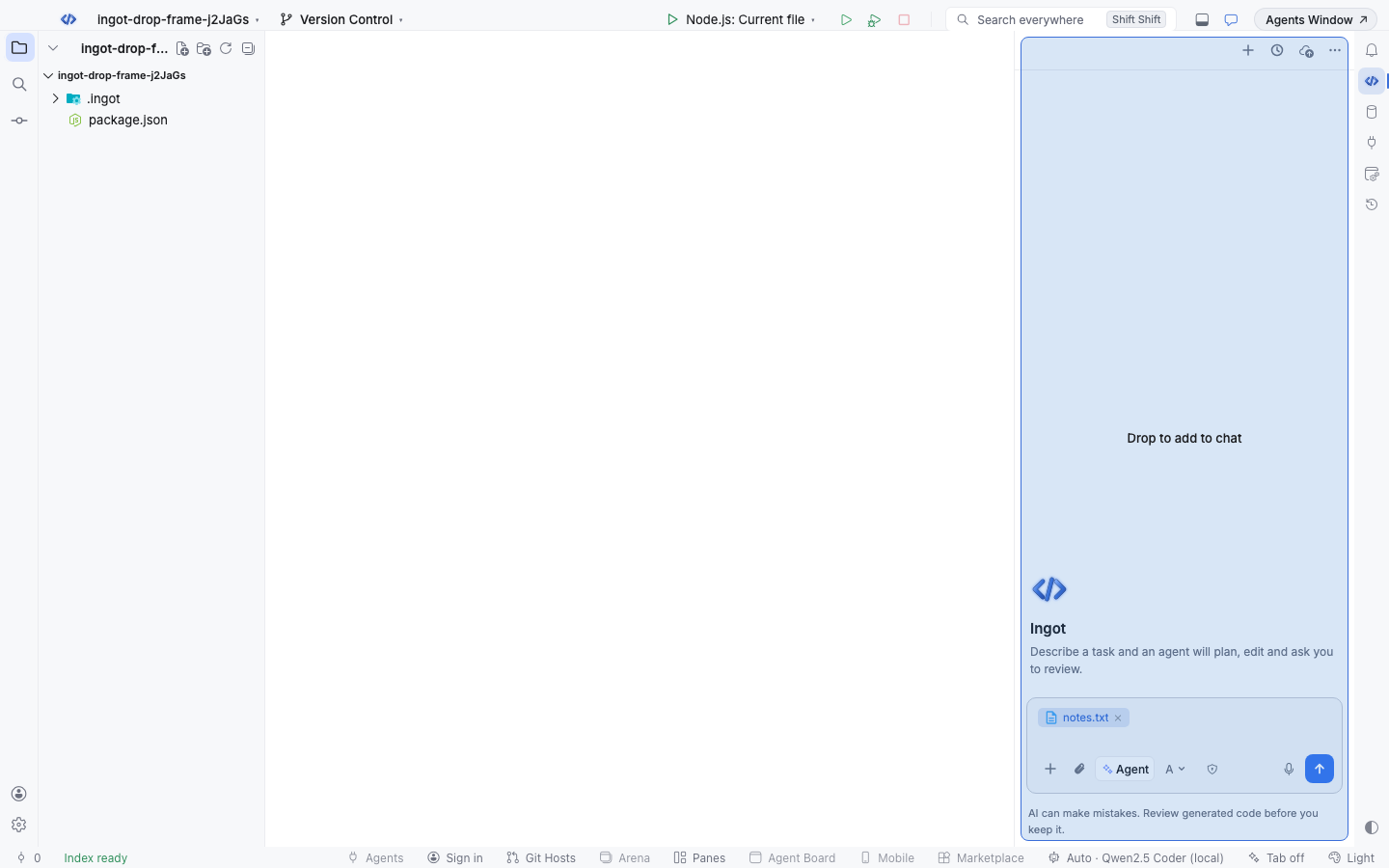
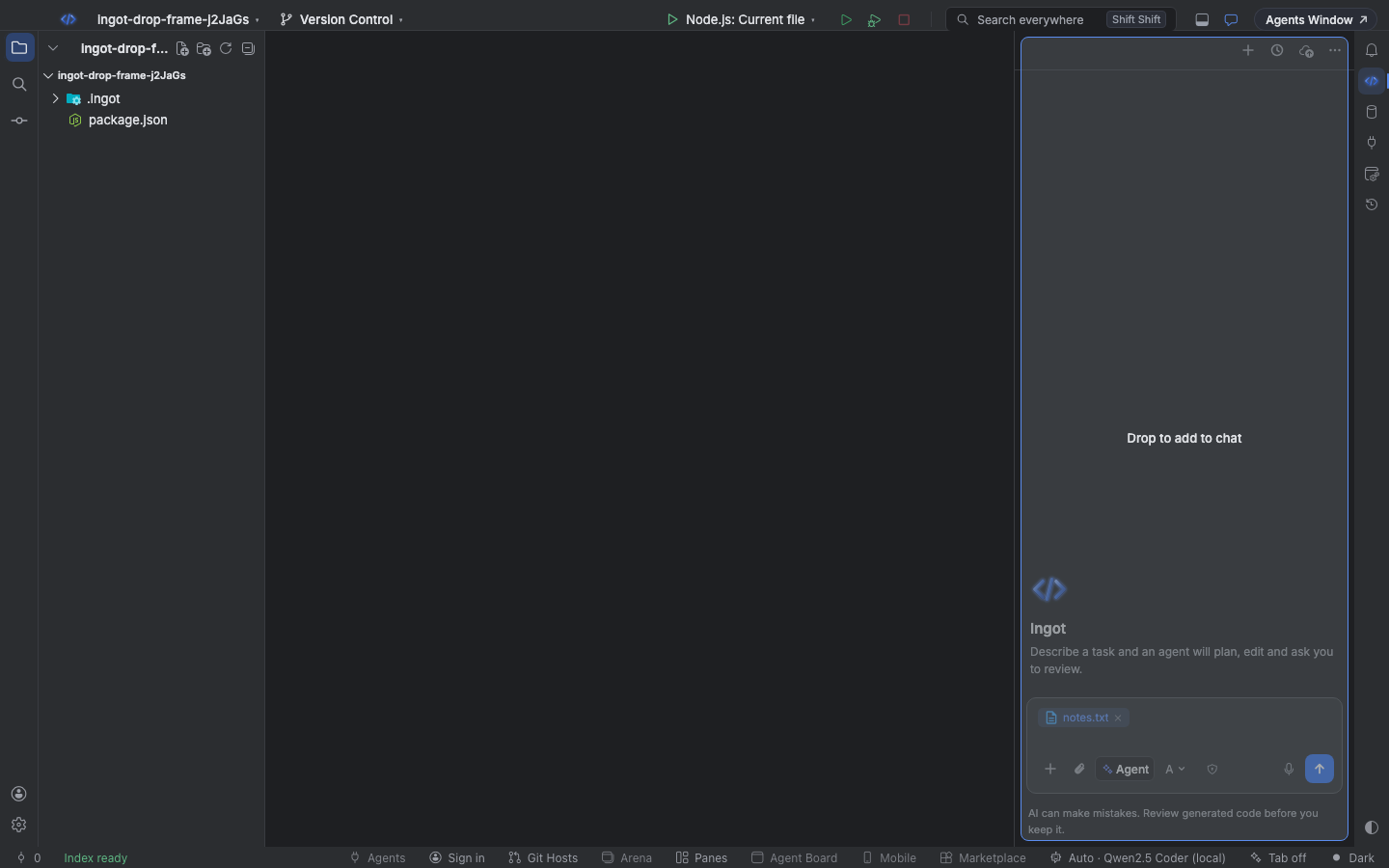
While you drag files over the chat, a Drop to add to chat frame shows in your theme's drop colour. It goes away as soon as you drop, drag the files back out or cancel the drag. When nothing is being dragged, the chat has no frame or dashed outline.
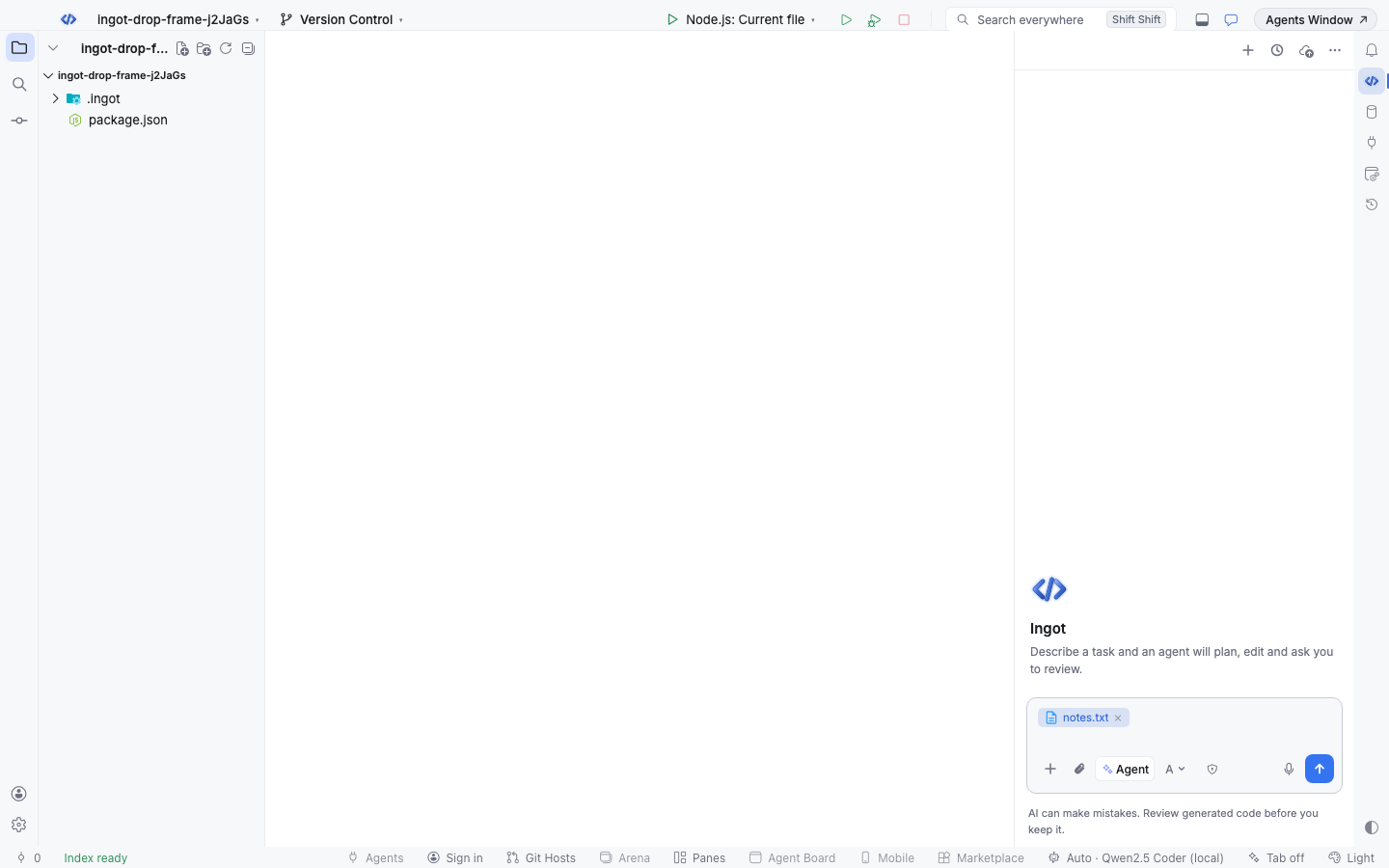
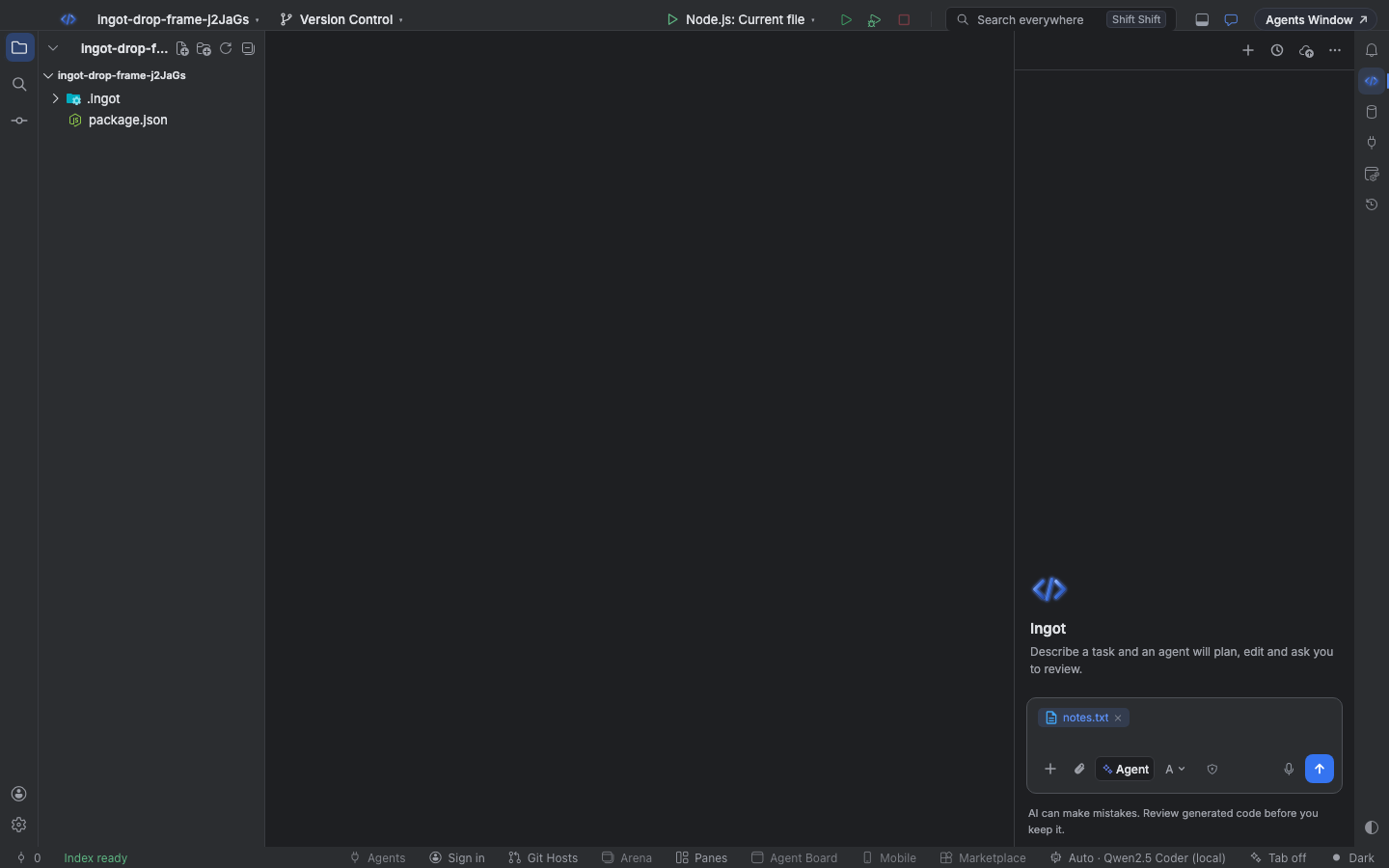
Paste files, images and code
Paste (⌘V, Ctrl+V) in the chat input and Ingot decides what the clipboard holds:
| You copied | Chip | What is sent |
|---|---|---|
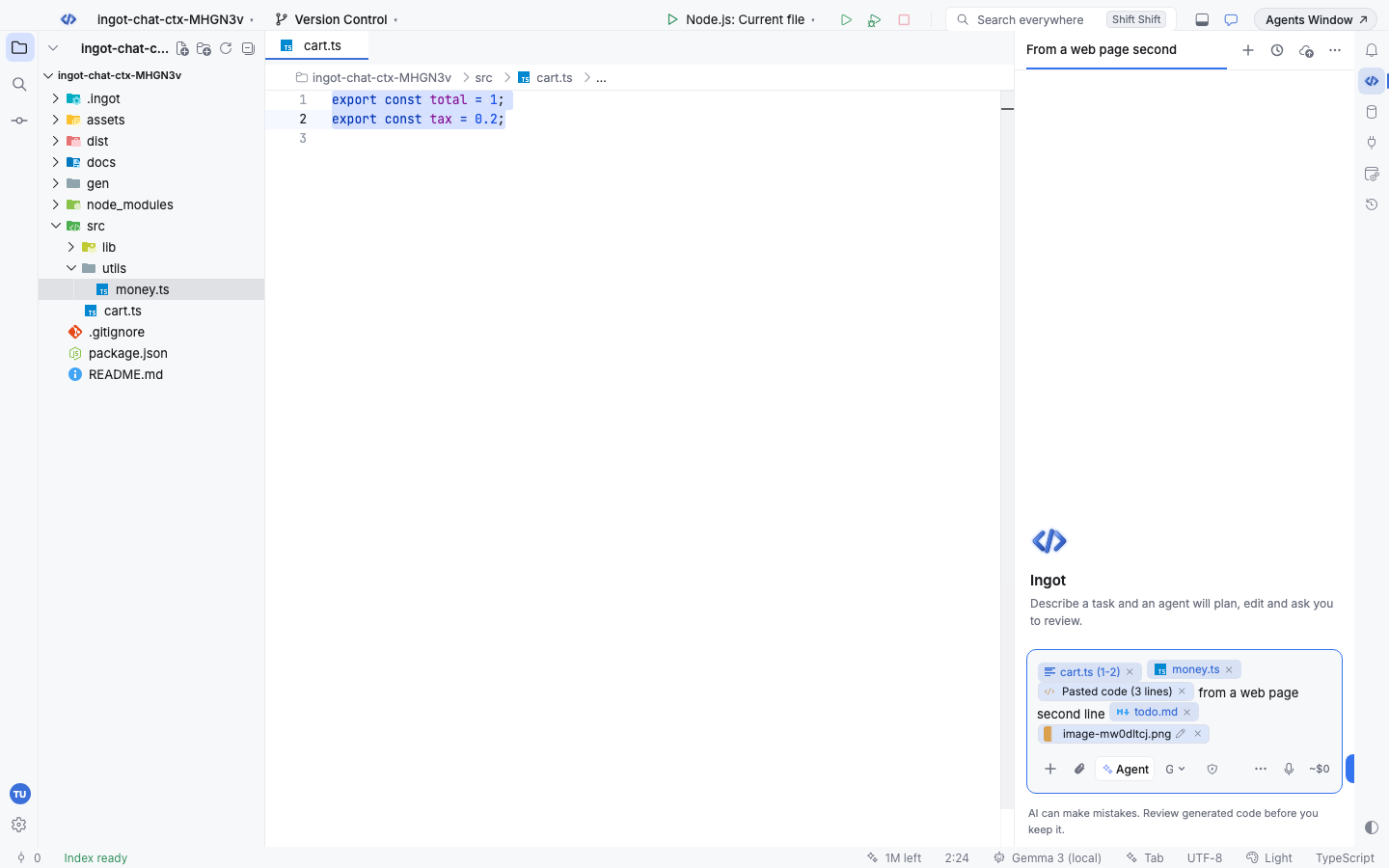
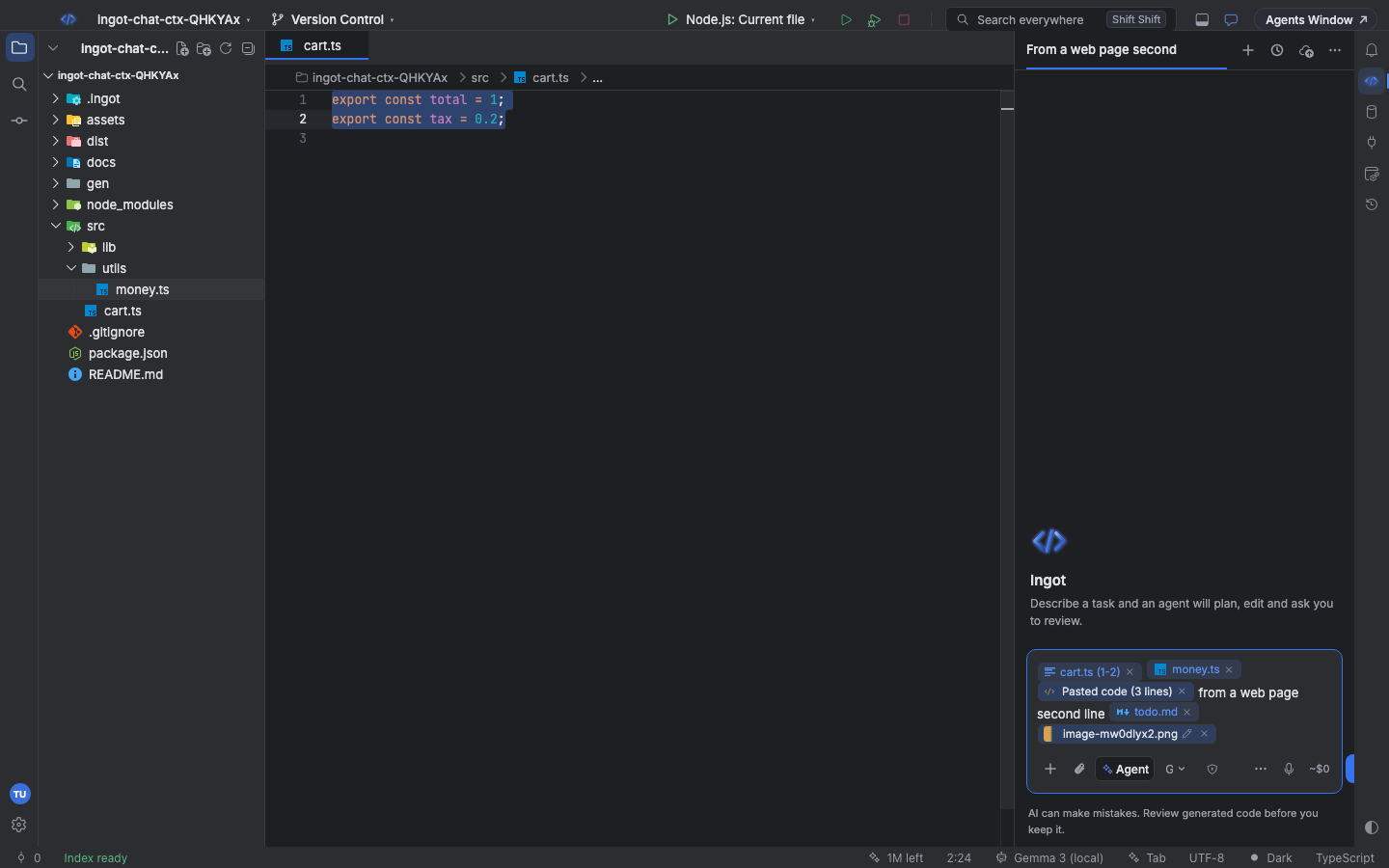
| Lines of code in the editor | cart.ts (1-2) (file and lines) | the selected lines, with the file path and line numbers |
| Files in the project tree (right-click › Copy) | money.ts | each file's content |
| Files in Finder or Explorer | the file name | the content, or a note for binary files |
| A screenshot or an image | image-….png with a preview | the image |
| Two or more lines that look like code (from a browser, a terminal…) | Pasted code (3 lines) | the code as a block |
| Plain text | none: it is typed in | the text, as part of your message |
Pasted screenshots get a unique name, so two screenshots in one message never collide.
Mention any project file
Type @ in the chat input to open the file picker. It lists every file in the project, not only the ones you opened: the first 100 show at once and the rest load as you scroll. Files and folders in .gitignore are left out, as are .git, node_modules, __pycache__ and .venv.
Keep typing to filter. The filter is fuzzy, so @crt finds src/cart.ts and @utmo finds src/utils/money.ts.
| Key | Action |
|---|---|
| ↑ ↓ | Move through the list |
| Enter or Tab | Insert the file as a chip where you typed @ |
| Esc | Close the picker and keep what you typed |
You can also click a row. The chip replaces the @query you typed and the rest of your message stays as it is.
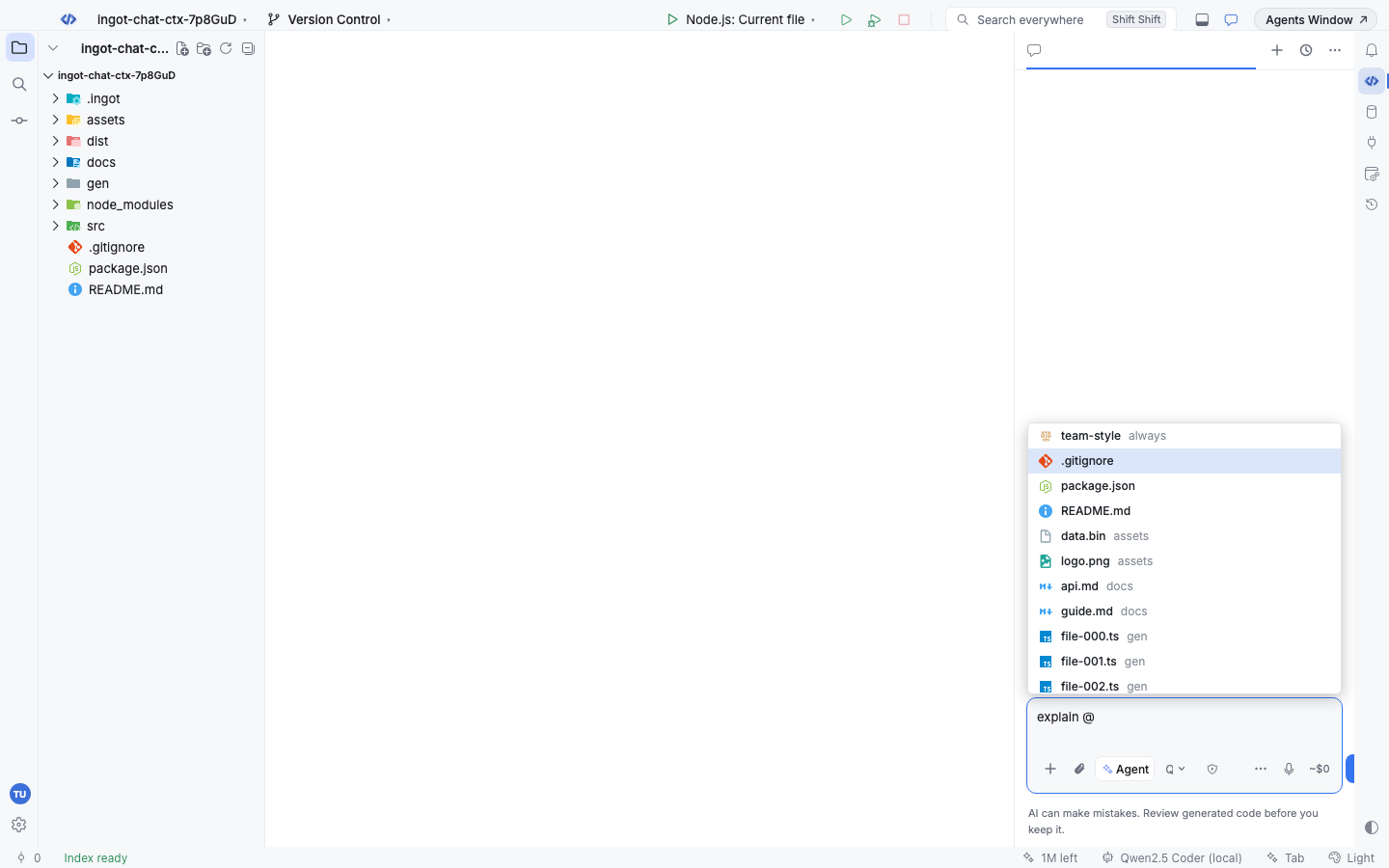
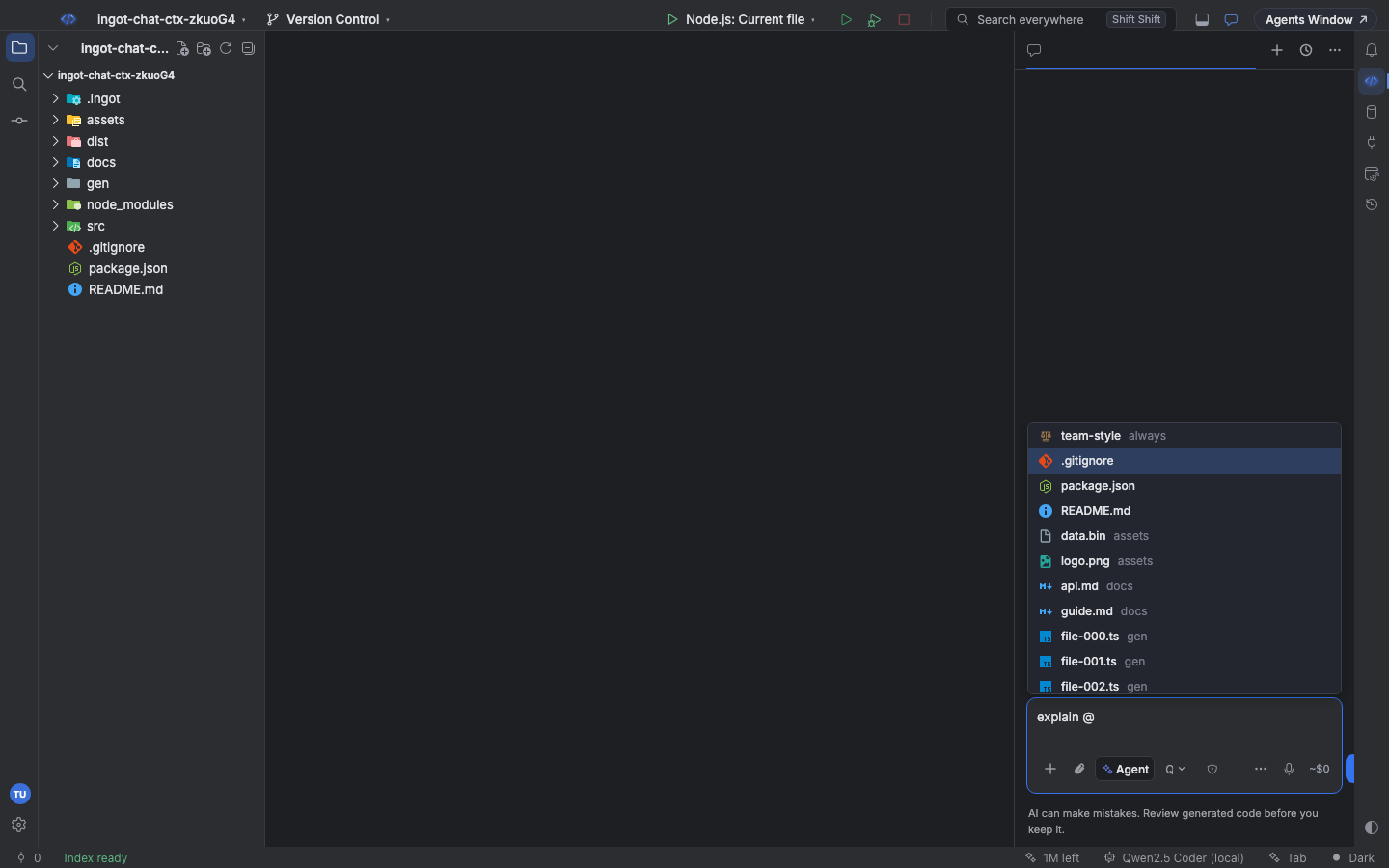
The file list is refreshed every 30 seconds, so new files show up while you work. In a workspace with several folders, the picker lists files from all of them.
What is sent
A chip sends its content with the message it is in and nowhere else: the agent sees File src/utils/money.ts followed by the content, or Selected code from src/cart.ts (lines 1-2) for editor code. Nothing is attached automatically; see Context & memories. The chips you sent stay visible under your message, so you can see later what the agent got.
From the terminal
ingot context (ingot CLI) lists and prints the same context without opening the IDE. No model is called.
ingot context files            # every project file, @ picker order (first 100; --limit 0 for all)
ingot context files utmo       # fuzzy: src/utils/money.ts
ingot context attach src/cart.ts:1-2 src/utils/money.ts docs assets/logo.png
attach prints the blocks the chat sends, one per chip: [cart.ts (1-2)] Selected code from src/cart.ts (lines 1-2), [money.ts] File src/utils/money.ts, [docs/] Folder docs (its entries), a note for binary files and [image 1: logo.png] for images. Add --json for scripts.
@cart.ts:20-21), messages over several lines and recent files in the @ picker are covered in Inline chips in the chat.