@opens, @pins, / rules & /projects
Shortcuts for the chat input that tag the files and rules you care about right now: @opens/ lists your open editors, @pins/ your pinned tabs, / shows every rule next to your commands, and /projects/ picks a file from any project you have worked on.
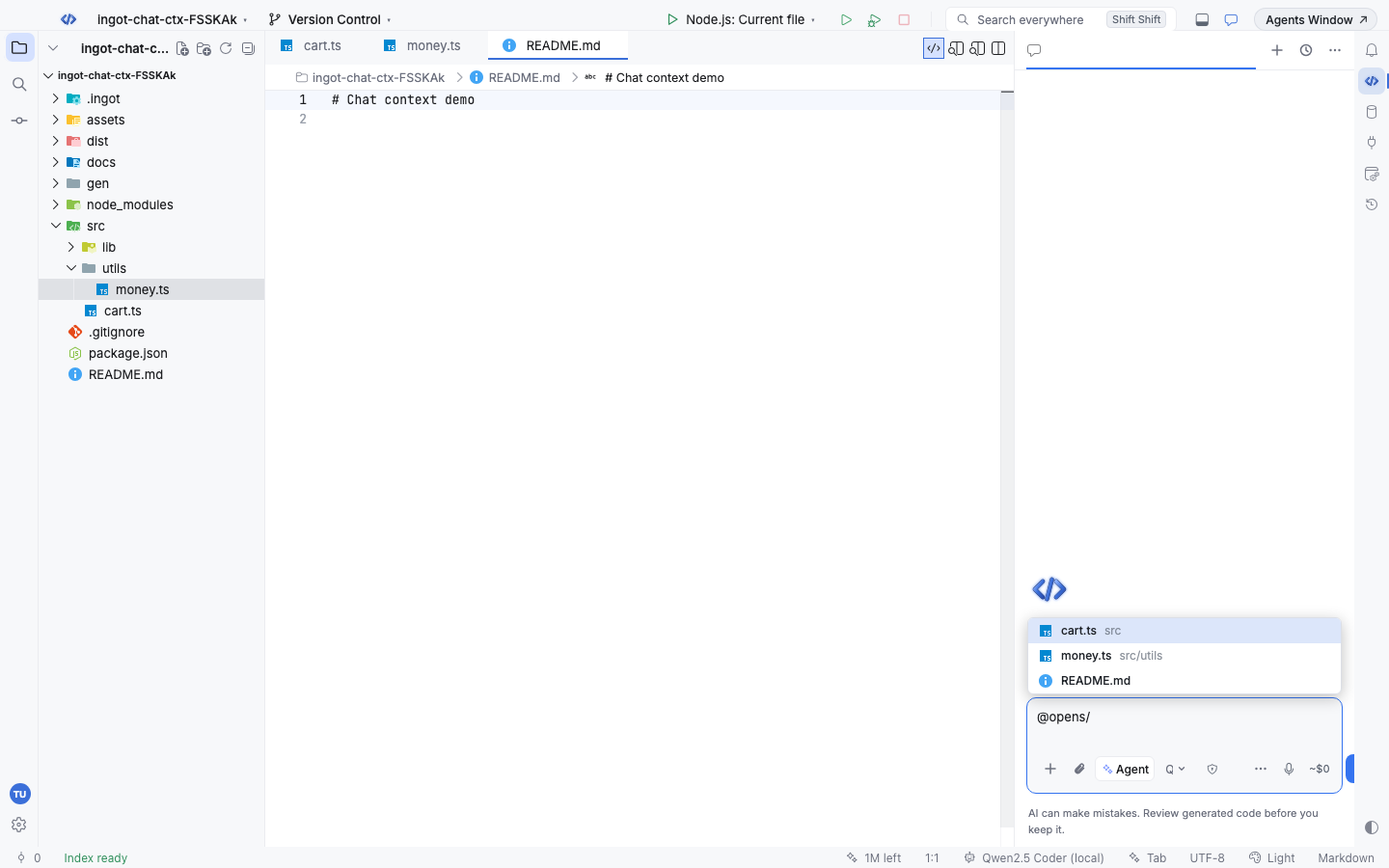
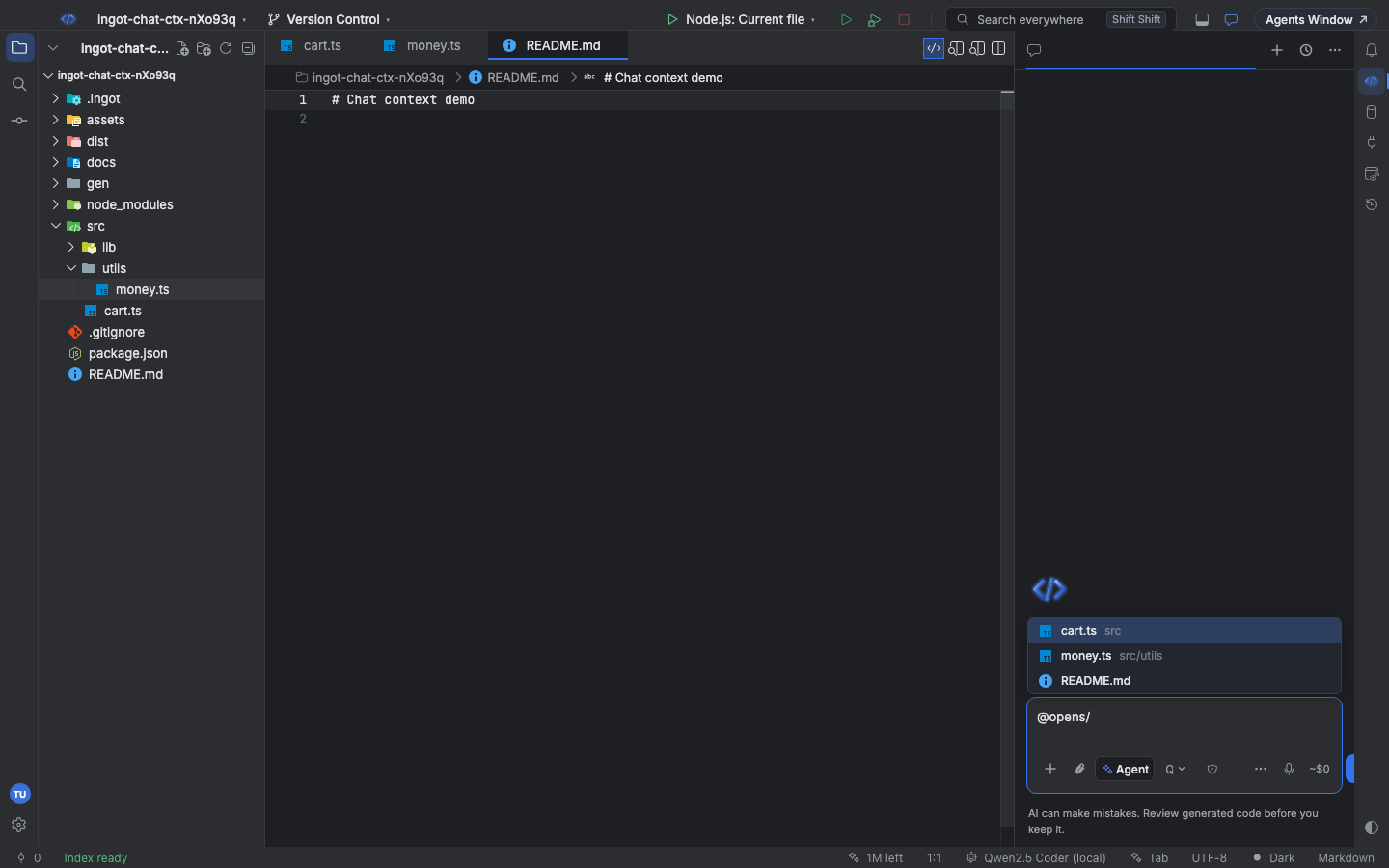
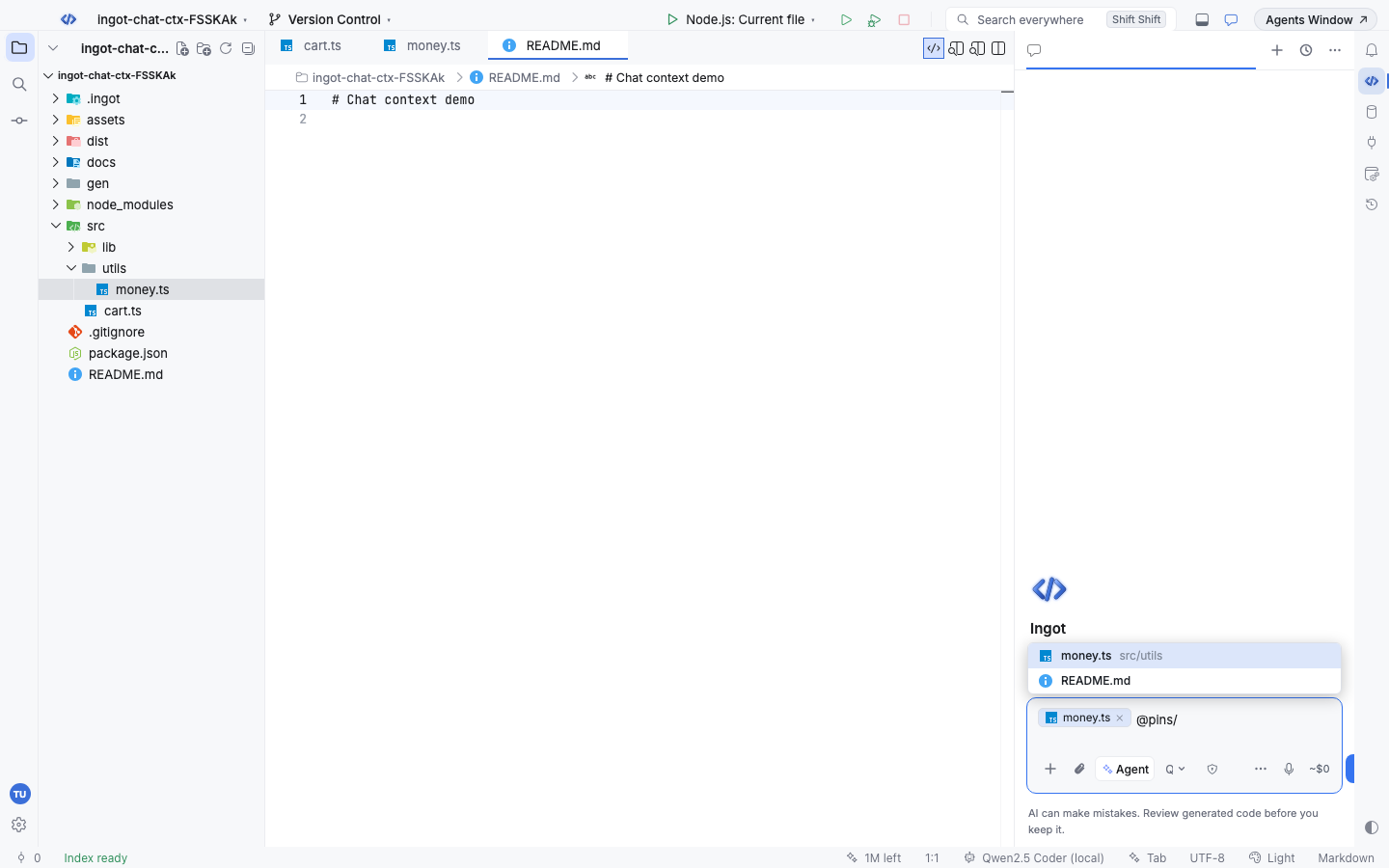
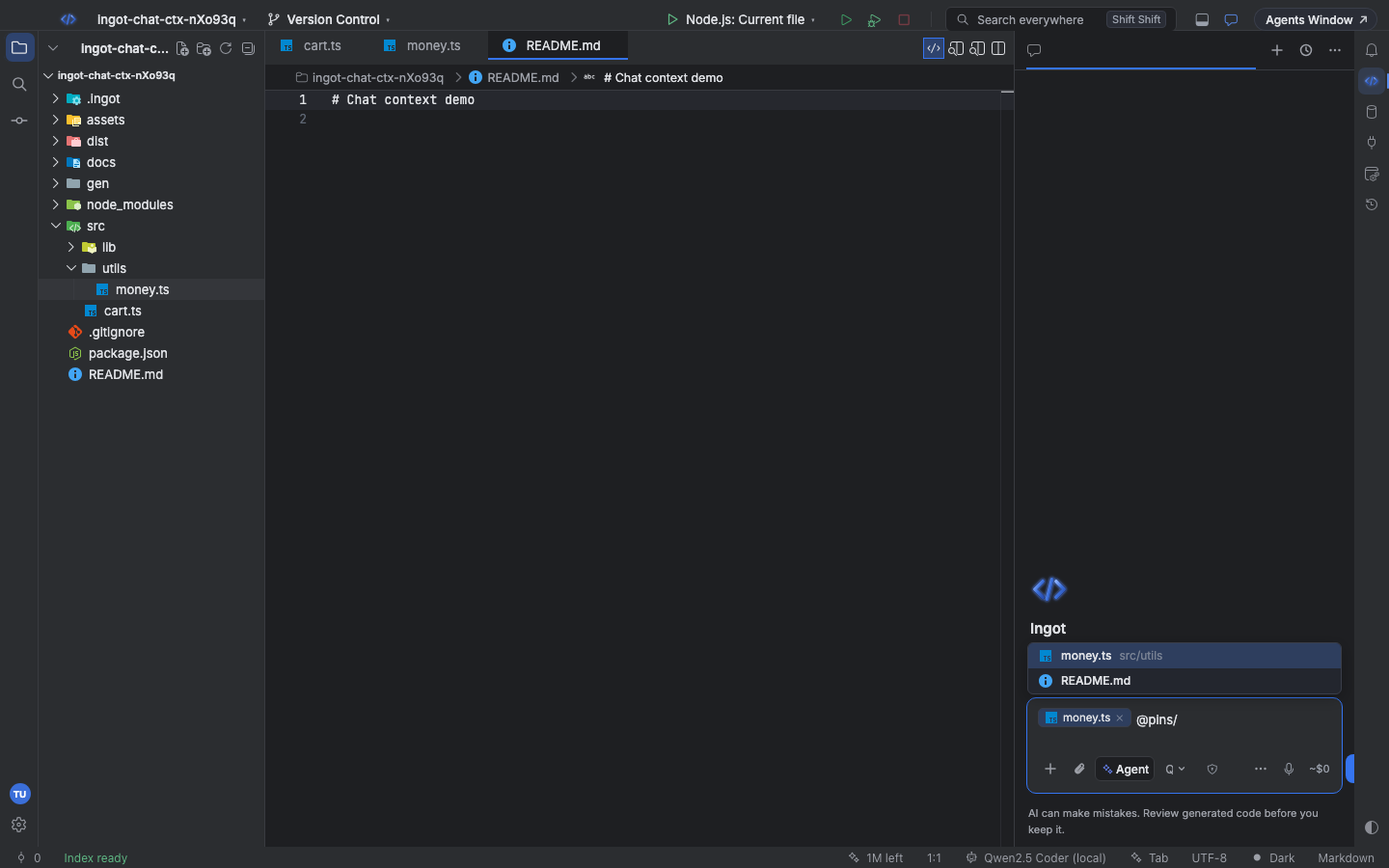
@opens/ and @pins/
Type @ and the picker shows two scopes above the project files, each with a count:
| Scope | Lists | Order |
|---|---|---|
@opens/ | every open editor, in all editor groups | tab order |
@pins/ | pinned tabs only | tab order |
Choose a scope (or type @opens/ or @pins/ yourself) and the picker shows only those files. Type after the slash to filter, for example @opens/mon for money.ts. Enter or Tab inserts the file as a chip, just like a normal @ mention.
To pin a tab, right-click it and choose Pin. With no pinned tabs, @pins/ tells you so.
Rules in the slash menu
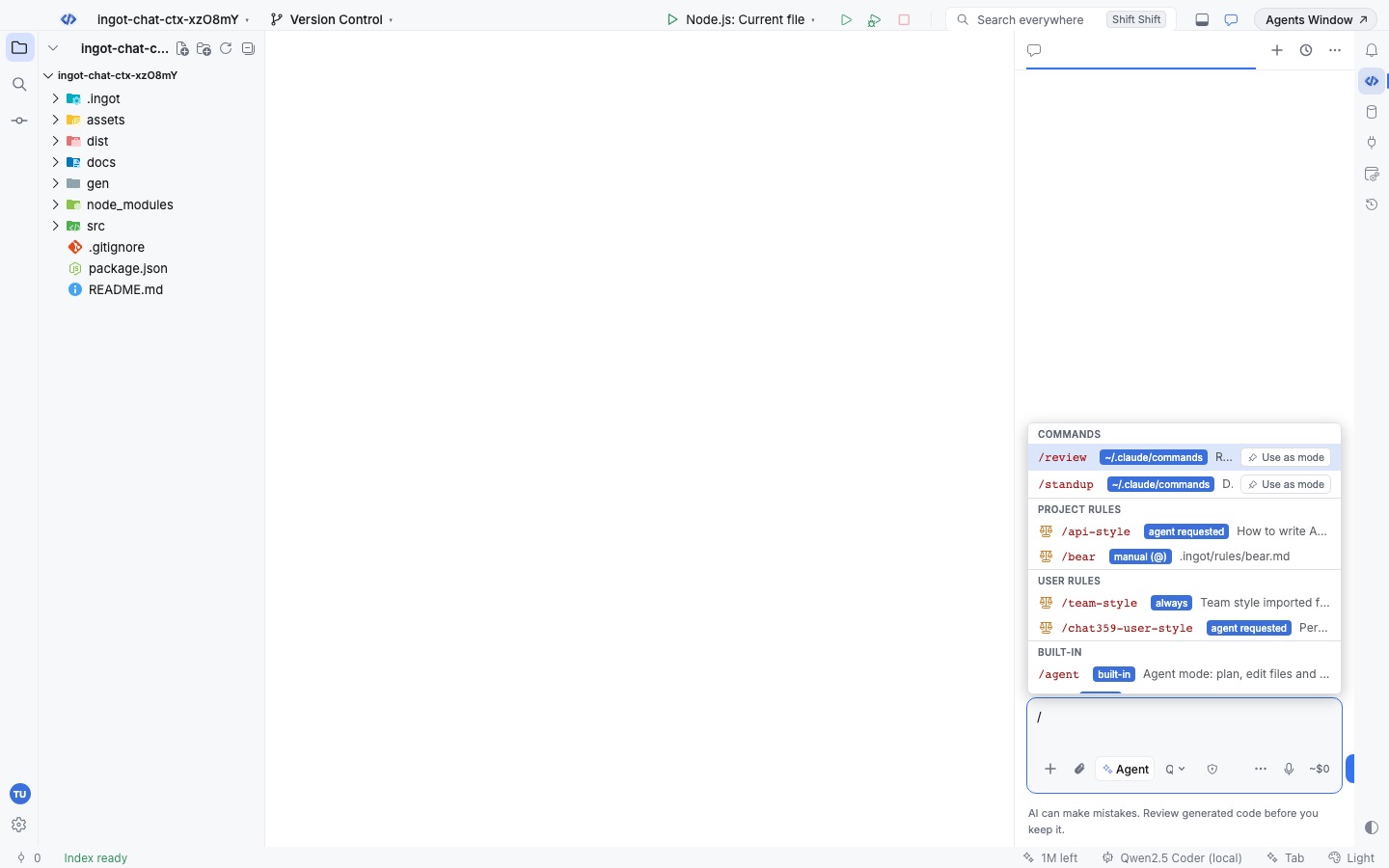
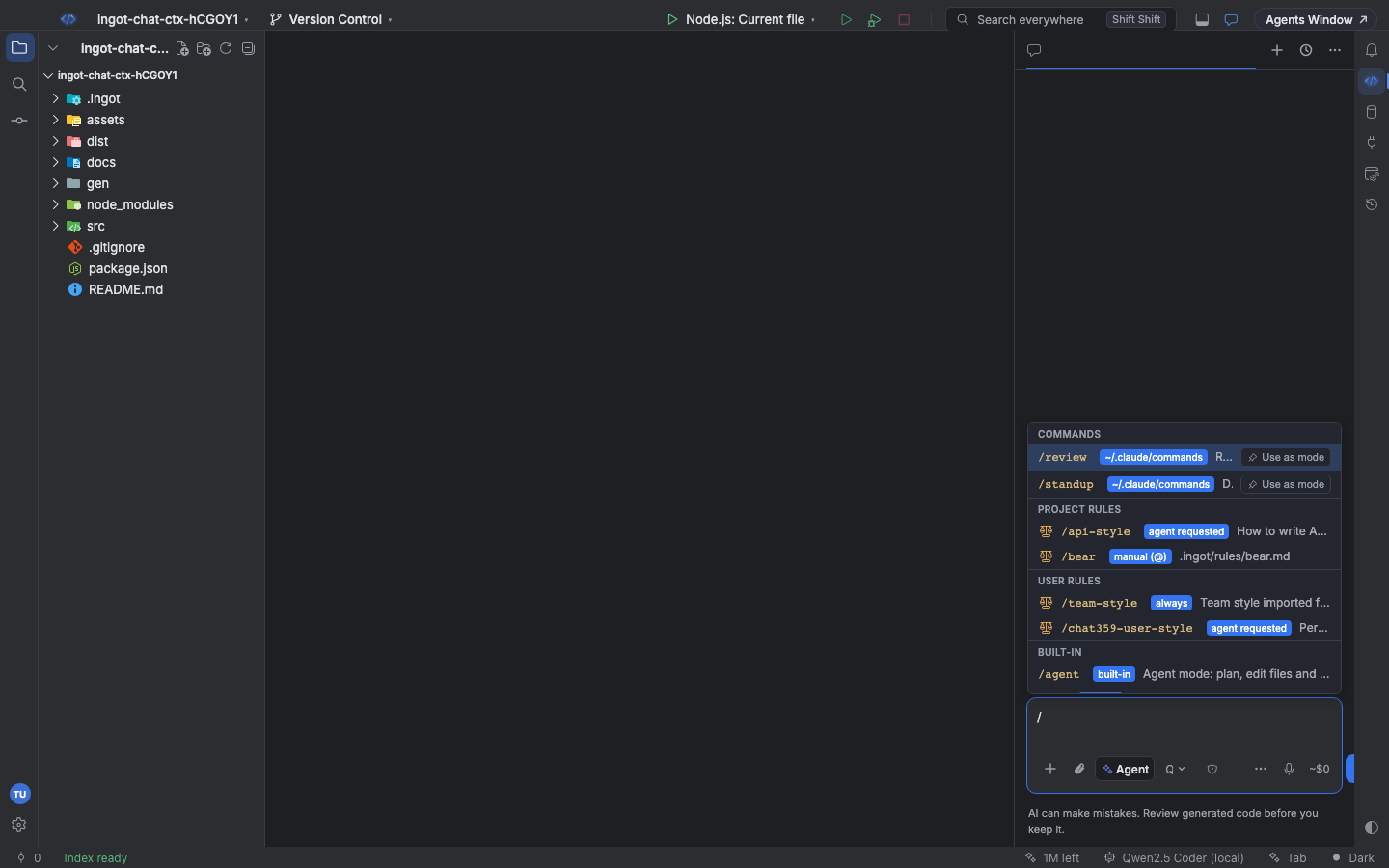
Type / at the start of a message (or after a chip) to see commands, skills, rules and built-in commands in one menu, grouped under headers:
| Group | What is in it |
|---|---|
| Commands | your commands from .ingot/commands/ |
| Skills | your skills |
| Project rules | every rule in .ingot/rules/ and the other rule folders Ingot reads |
| User rules | your own rules from ~/.ingot/rules/, for all projects |
| Team rules | rules shared by your team |
| Built-in | Ingot's own commands, such as /projects/ |
Keep typing to filter by name or description. Choosing a rule adds it to the message as a chip (@api-style), and its text goes to the agent with that message, even if the rule would not apply on its own. Add as many rules as you want. Commands and skills still offer Use as mode to make them the chat mode.
/projects/: files from other projects
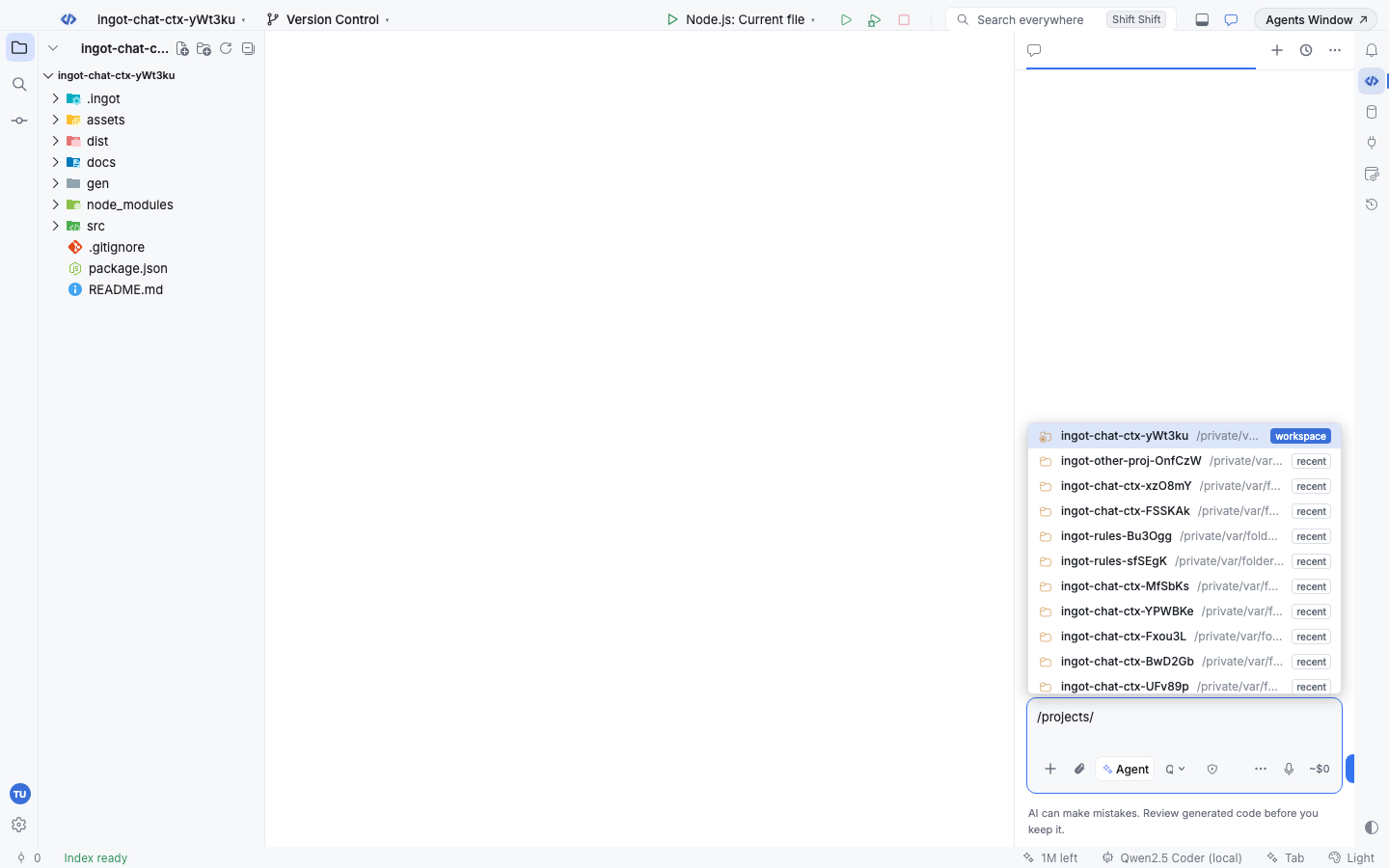
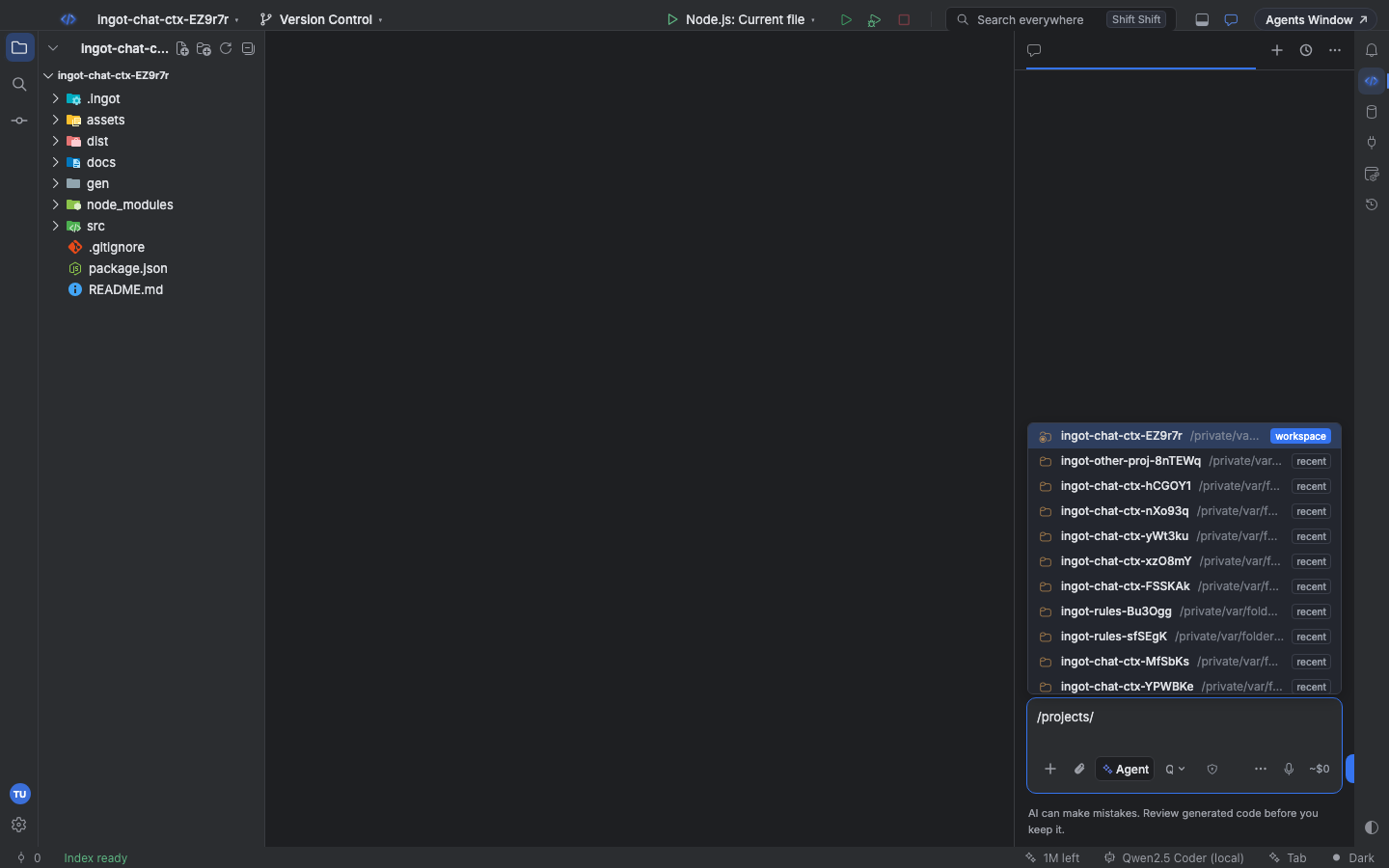
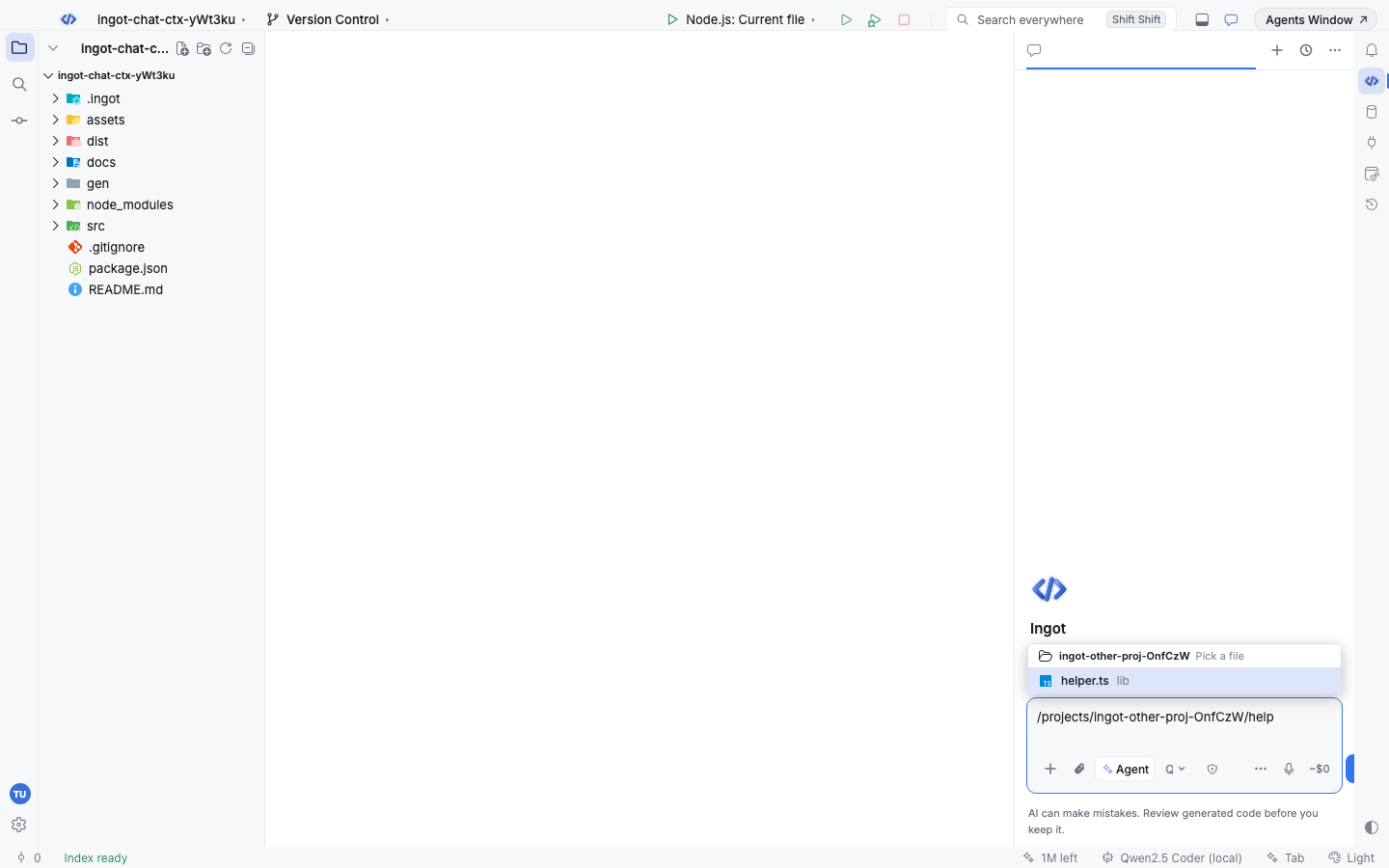
Type /projects/ (or choose it in the / menu) to see the projects Ingot knows:
| Badge | Projects |
|---|---|
| the workspace name | the folders open in this window |
recent | projects you opened before (from File › Open Recent), with multi-folder workspaces listed folder by folder |
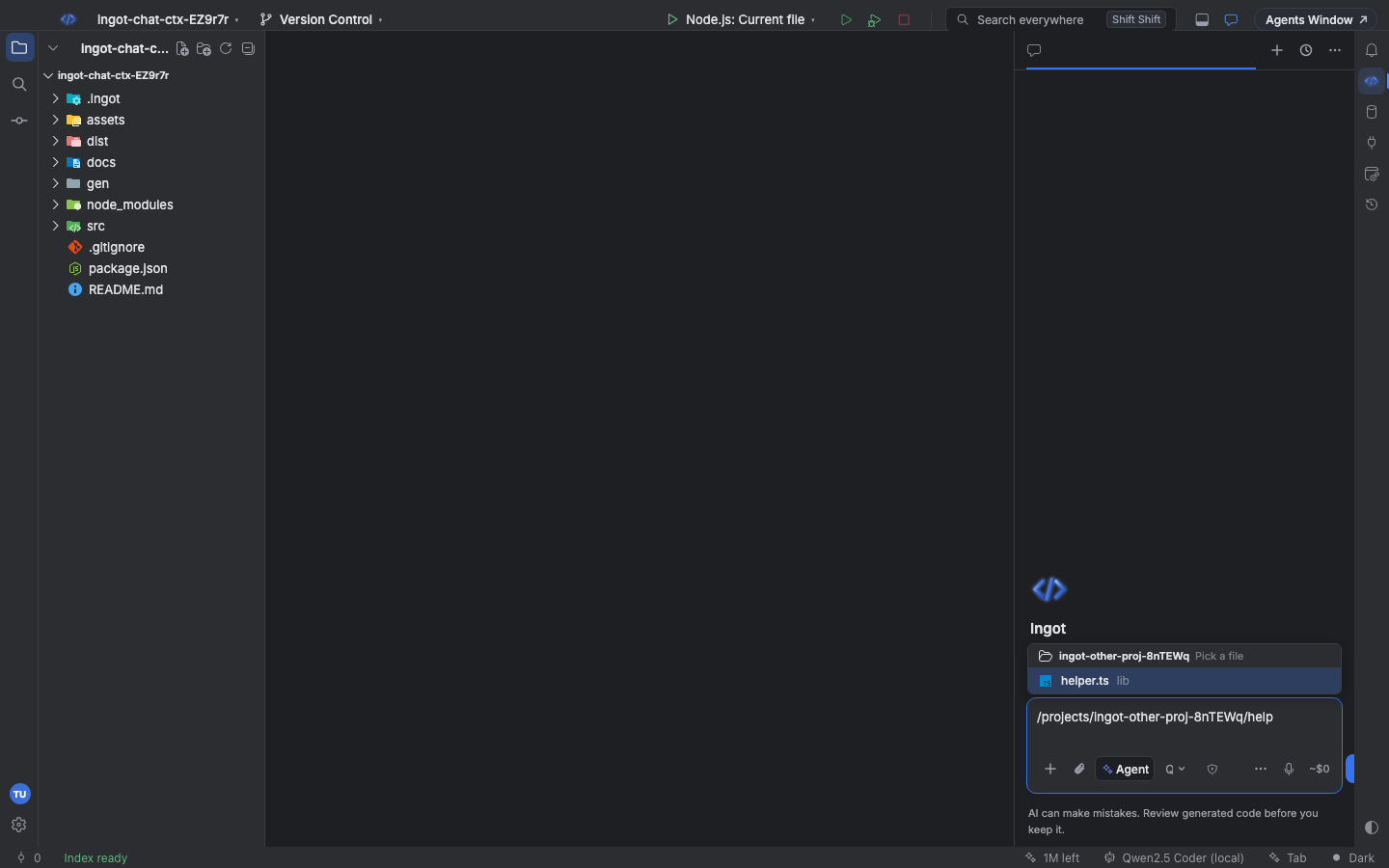
Type to filter by name or path, then press Enter. The picker now lists every file in that project, with the same fuzzy filter as @. Press Enter on a file to insert a chip with its absolute path, so the agent knows exactly which project the file comes from. The file's content is sent with the message, just like a file from your own project.
From the terminal
ingot context (ingot CLI) shows the same lists outside the IDE. @opens/ and @pins/ need the IDE's open tabs, so they have no terminal version.
ingot context rules                    # Project rules, then User rules, like the / menu
ingot context attach @api-style        # the rule's block, as when you pick it in the / menu
ingot context projects                 # this folder (workspace), then recent projects
ingot context files helper --project other-app       # absolute paths, like /projects/
ingot context attach lib/helper.ts --project other-app
--project takes a project name from ingot context projects or a folder path.
@ mentions are covered in Drag, paste & @ files.