Rex app tools: logos, the Allow card and per-app permissions
Rex, the Zaprex agent, works with every app you connect through MCP the way a good client does: catalog apps, git hosts such as Bitbucket and GitLab, and any custom server you add by URL. Each step shows the app it uses, writes wait on a compact Allow card, and every app has its own permissions. The same works in the Zaprex web, desktop and phone apps. For the Ingot agent, see App tools in Ingot.
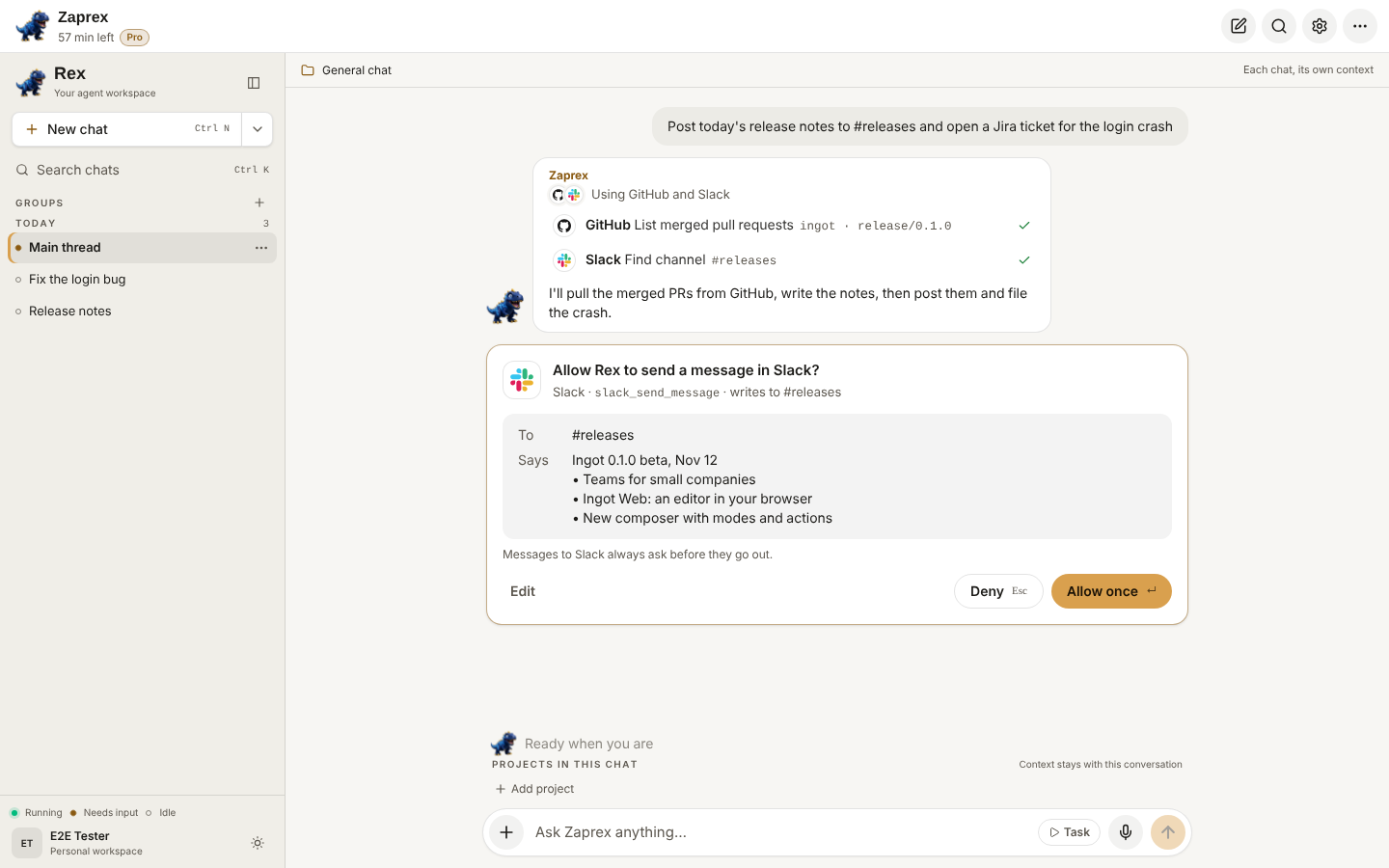
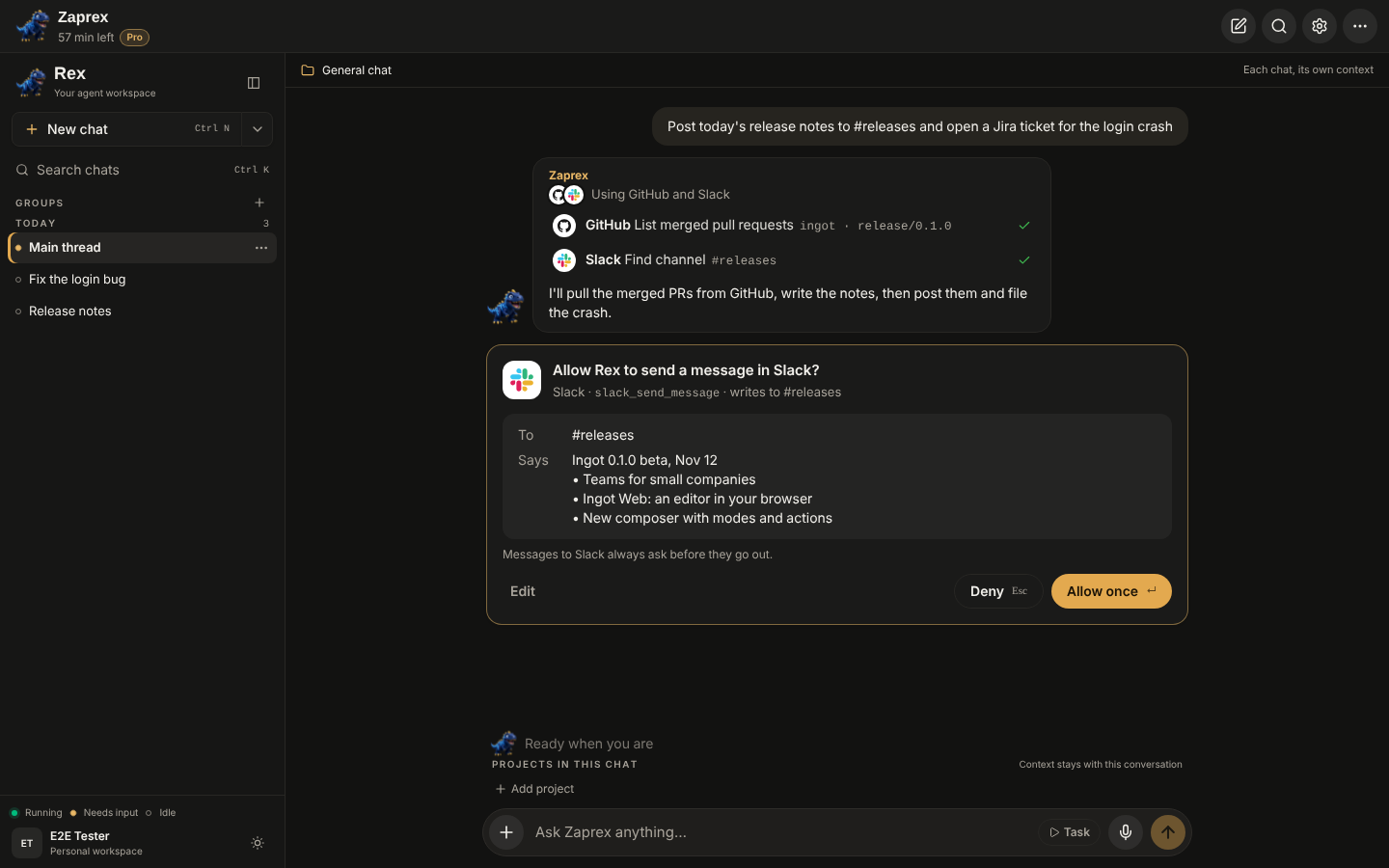
Every step shows the app
Each call is one row: the app's logo, its name in bold, the action and its target, such as Slack Find channel #releases. The reply starts with Using Slack, Jira and GitHub and the apps' logos stacked. A failed step opens to show why.
- Catalog apps use their real brand logo.
- A custom server shows the icon it declares in MCP (
serverInfo.icons, with its dark version in dark mode), or a monogram of its name when it has none. - A call to a repository on Bitbucket, GitLab, Gitea or Forgejo shows that host's logo and name.
- Notion (
mcp.notion.com) shows the Notion logo:notion-searchandnotion-fetchare reads,notion-create-pagesandnotion-update-pageare writes.
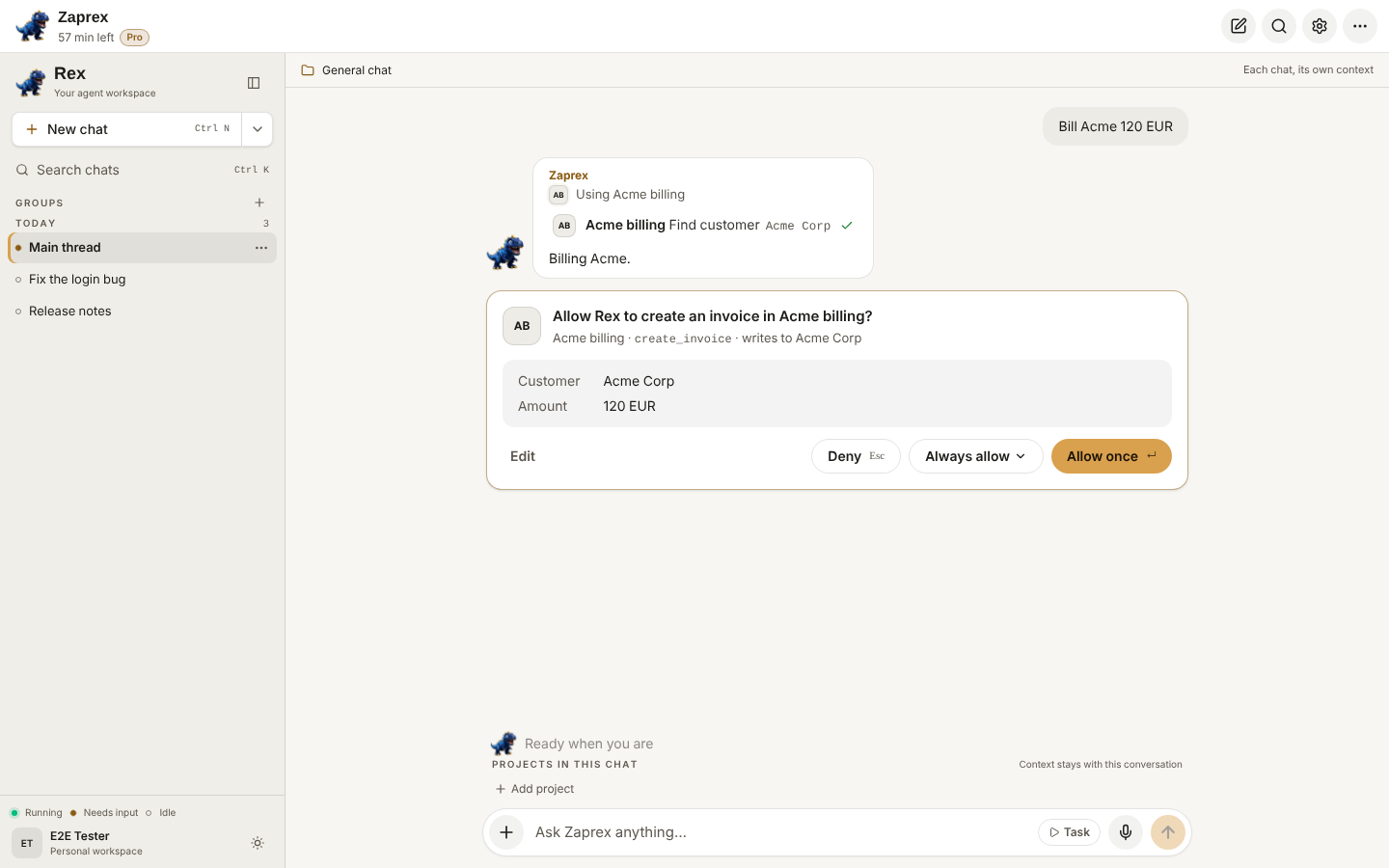
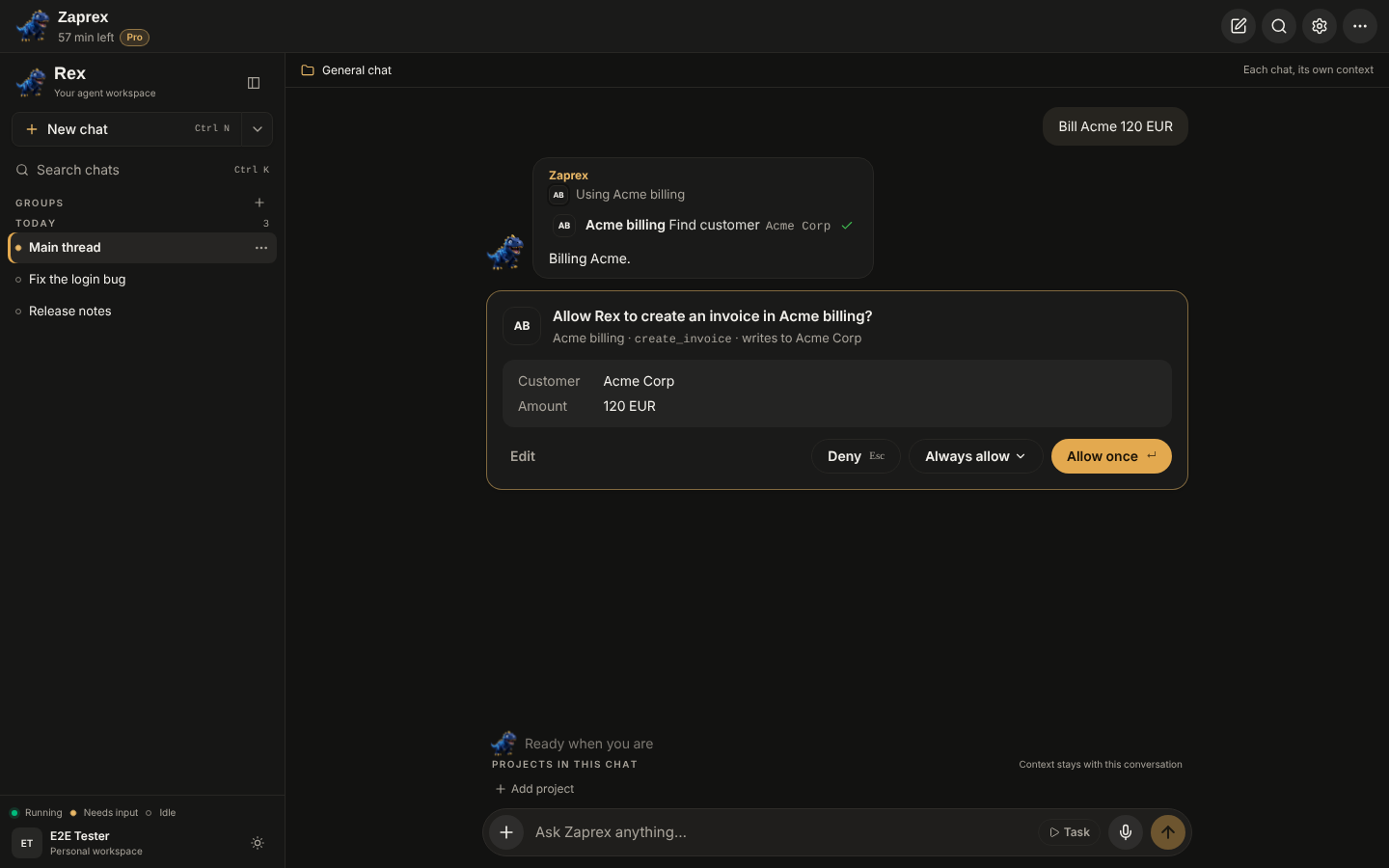
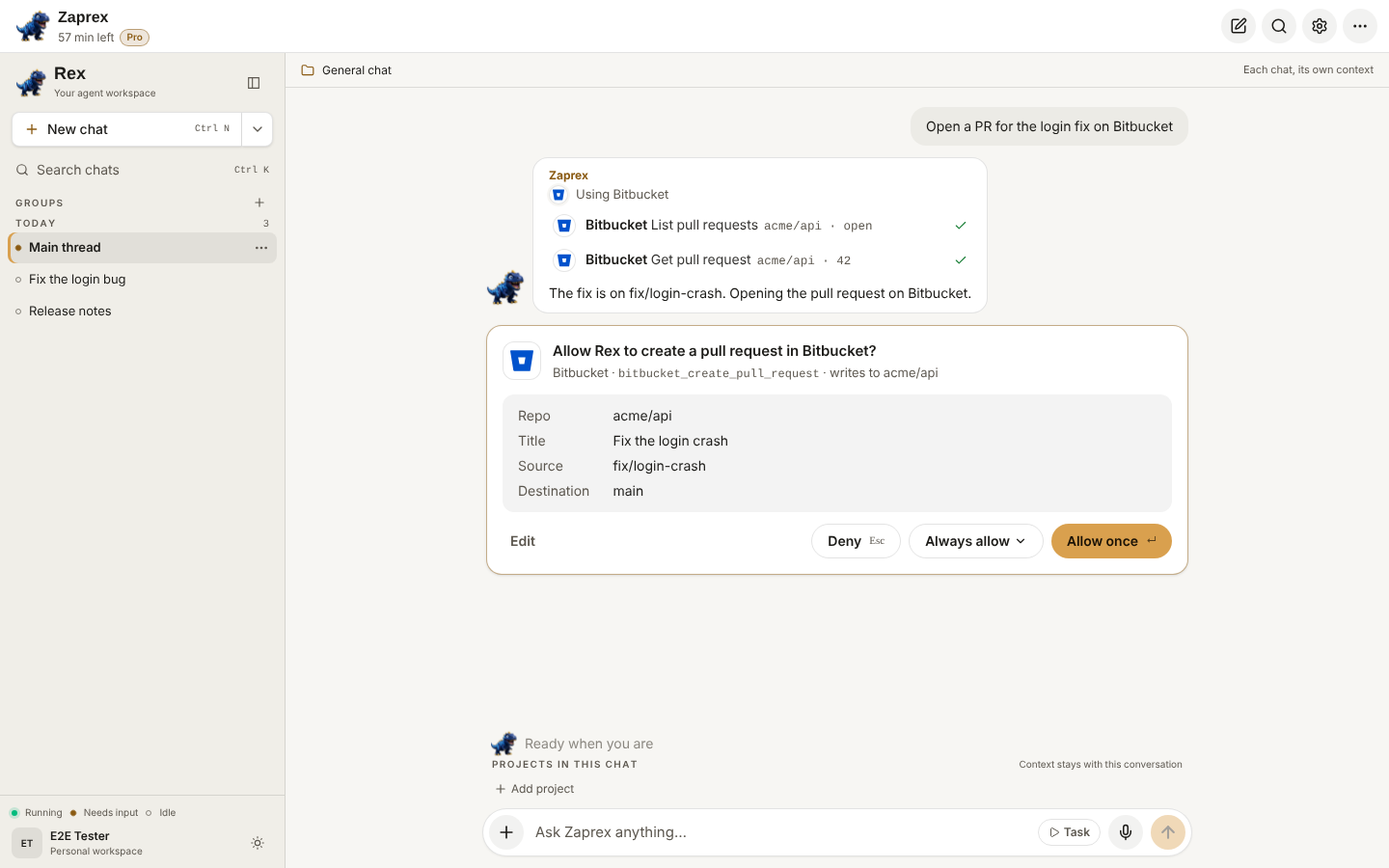
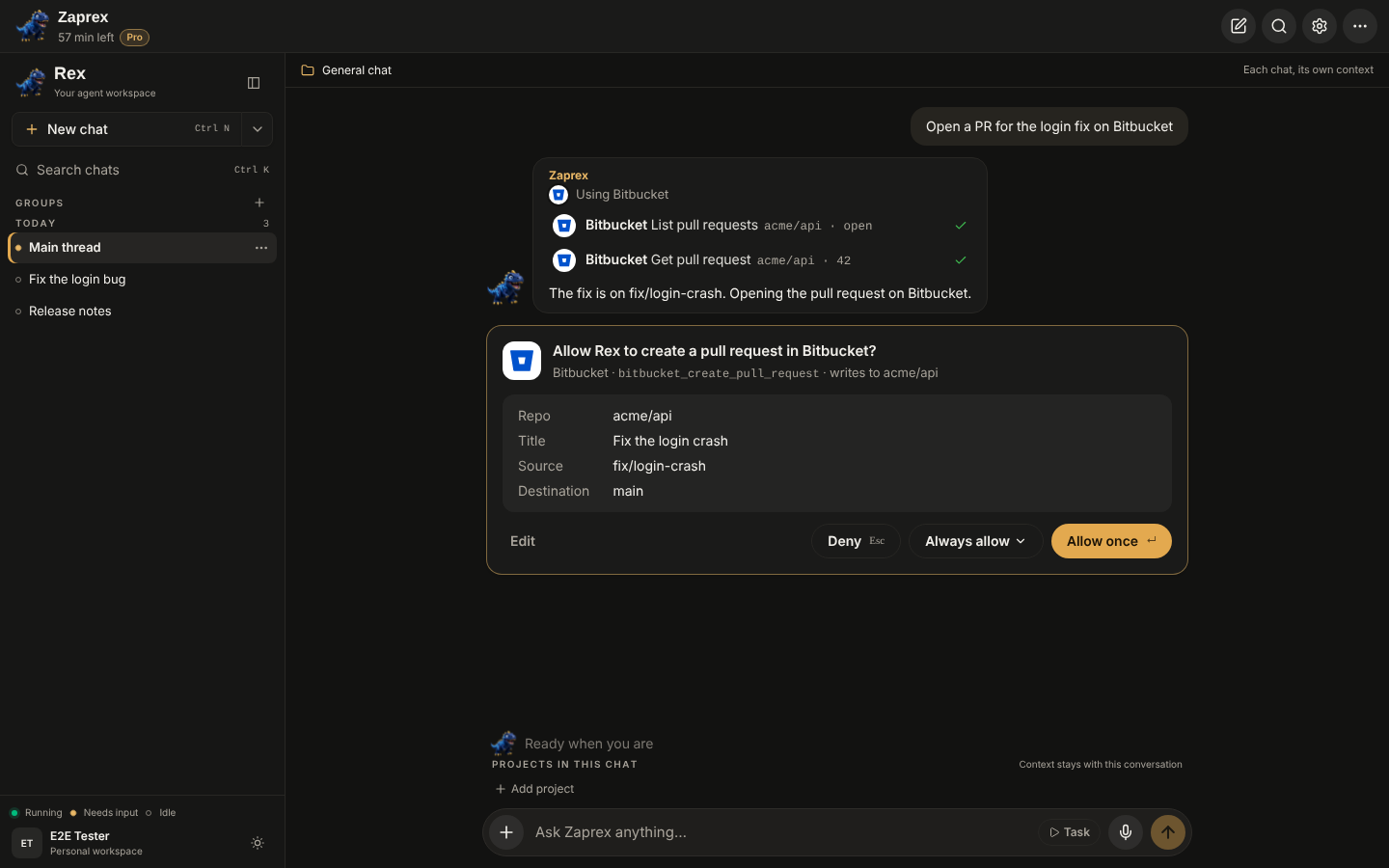
Reads and writes
Rex reads each tool's MCP annotations (readOnlyHint, destructiveHint) and its name. A tool whose name sends, creates, updates or deletes is never treated as a read, whatever the server says. Tools that delete or overwrite always ask.
The Allow card
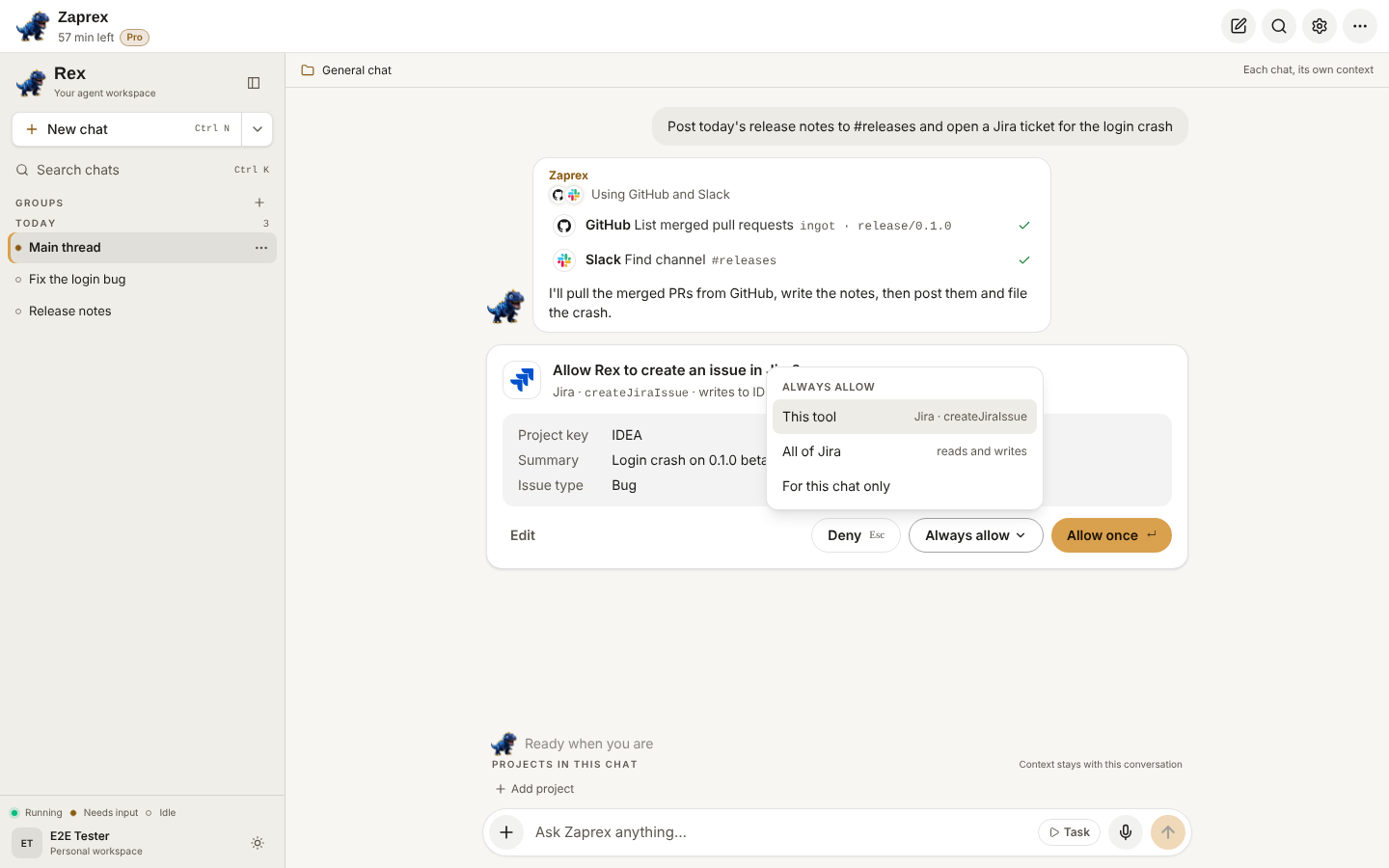
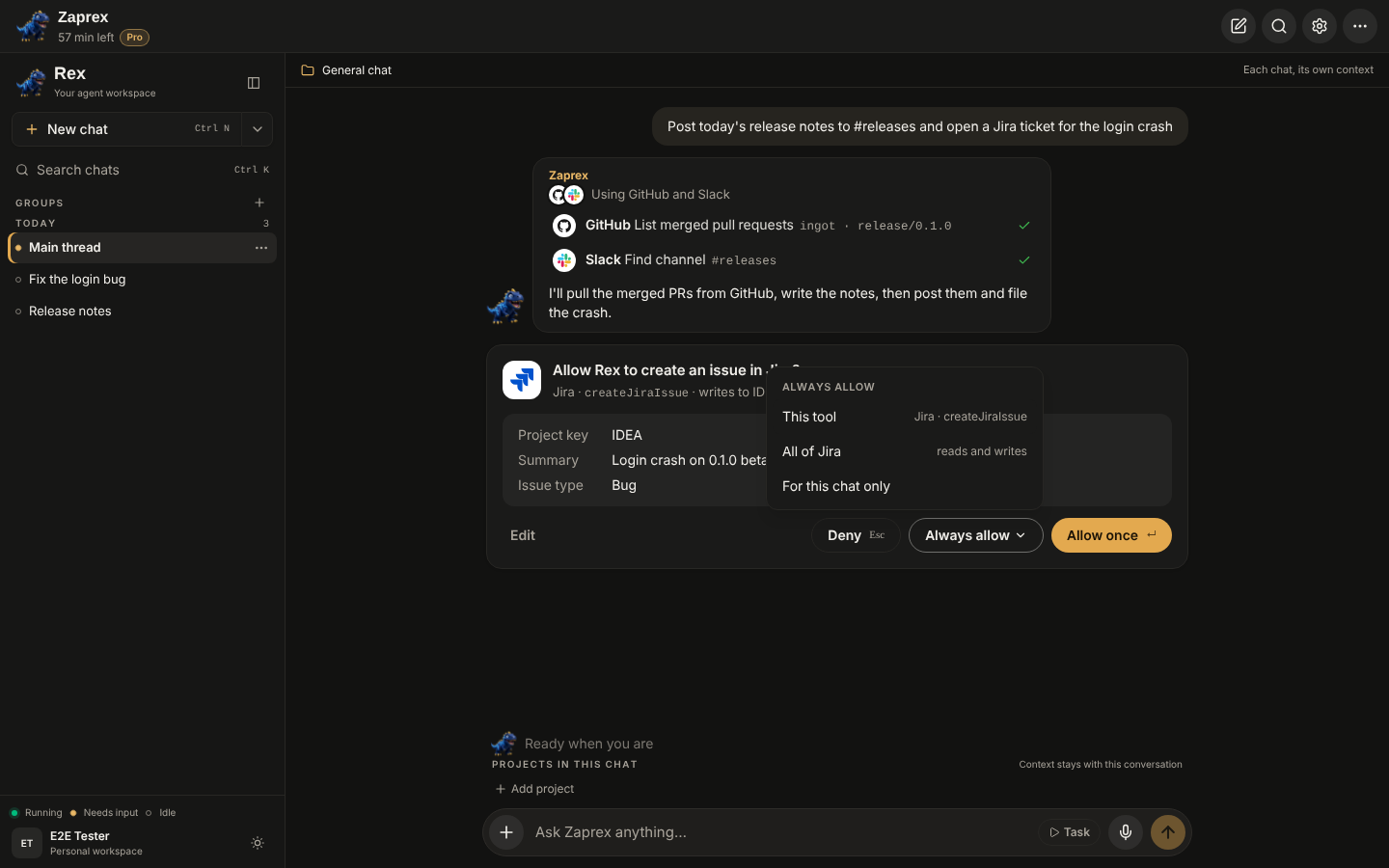
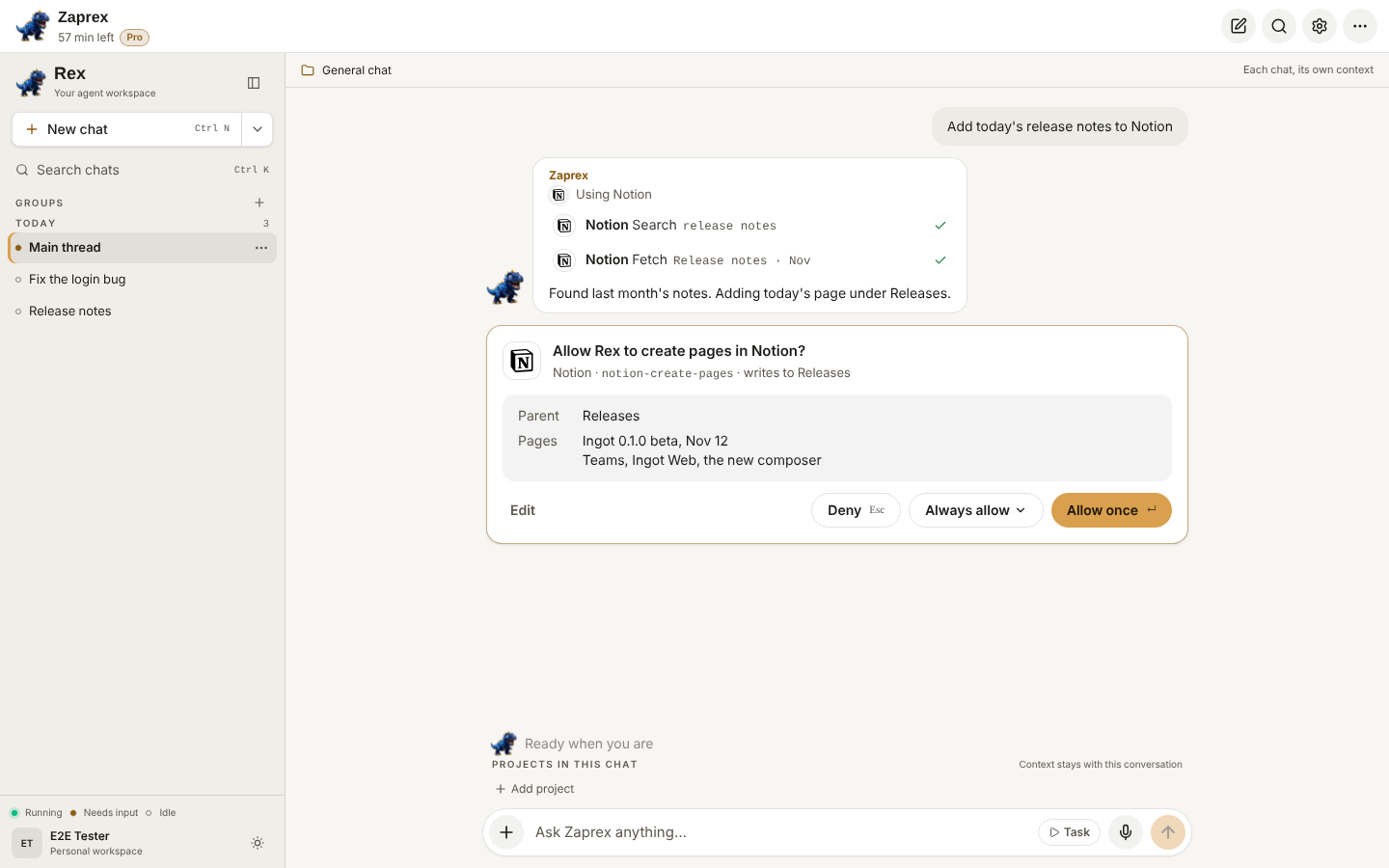
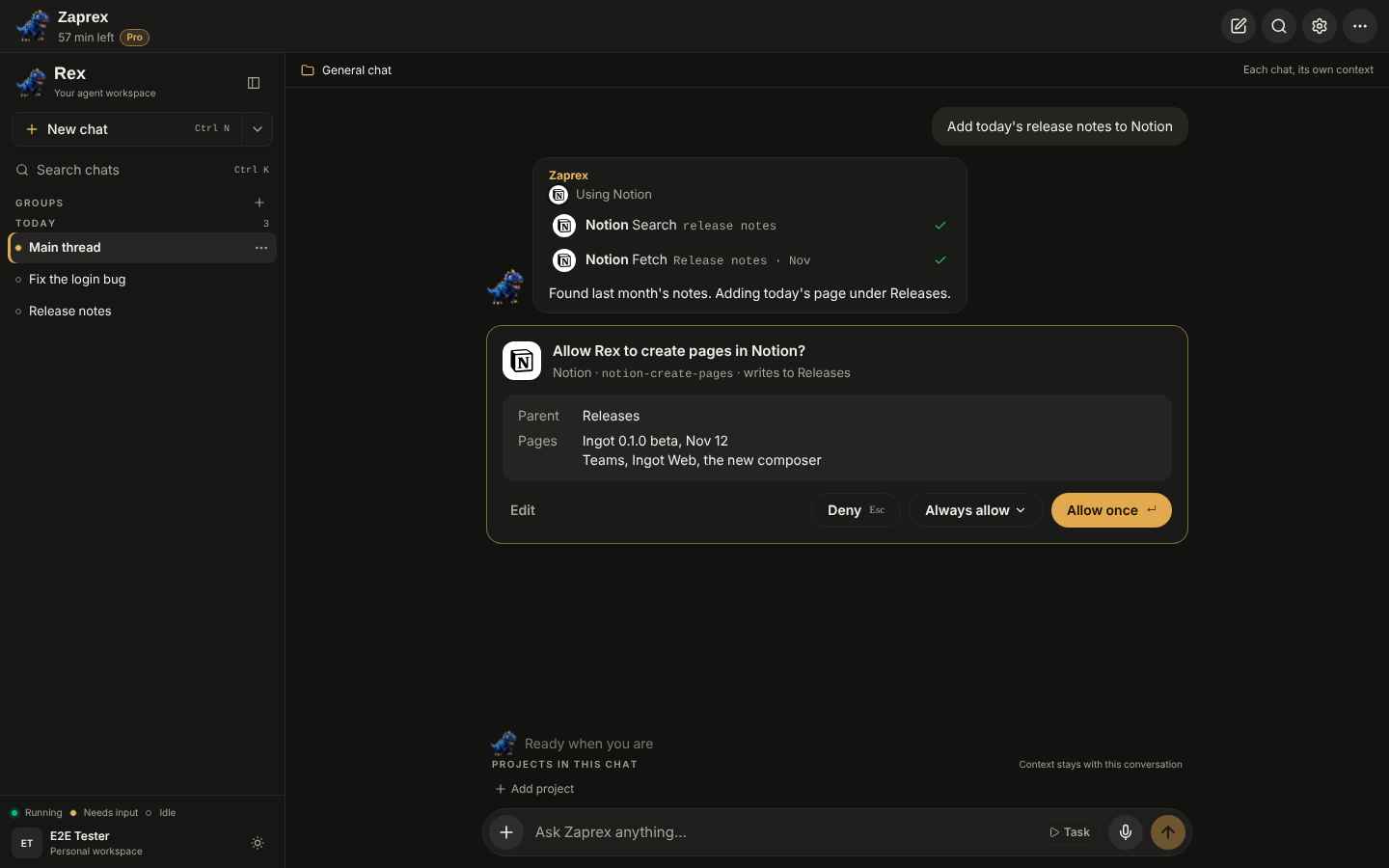
Before a write, the reply pauses on a compact card: the app's logo, a plain question such as Allow Rex to send a message in Slack?, the tool, and exactly what goes out (To, Says and the other fields).
| Button | What it does |
|---|---|
| Allow once (Enter) | Runs it this once. |
| Deny (Esc) | Sends nothing. Rex is told and asks what you want instead. |
| Always allow ▾ | This tool, All of the app (reads and writes), or For this chat only. |
| Edit | Changes the arguments (JSON) before it runs. |
Messages to Slack and tools that delete or overwrite always ask, and never offer Always allow.
Permissions per app
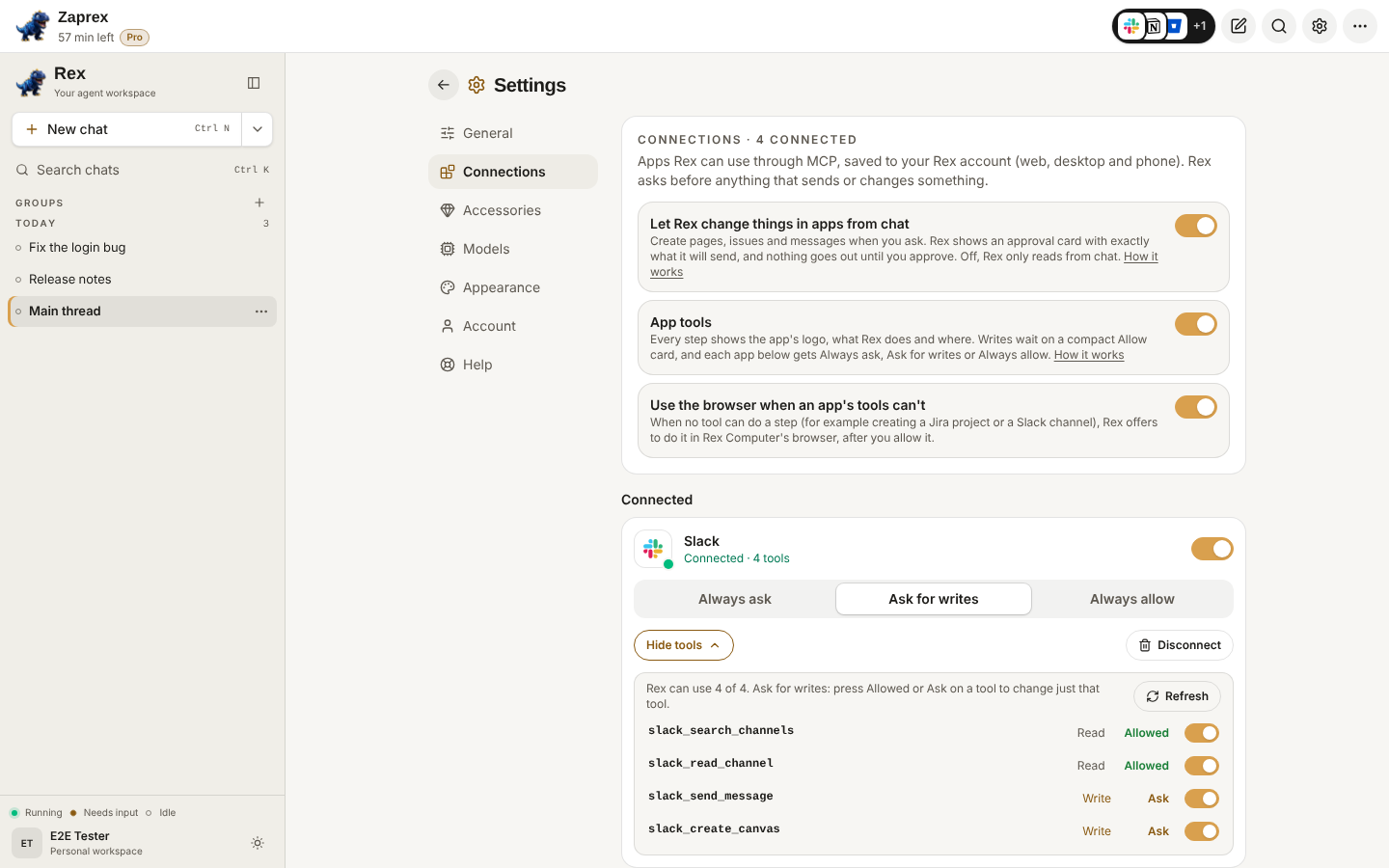
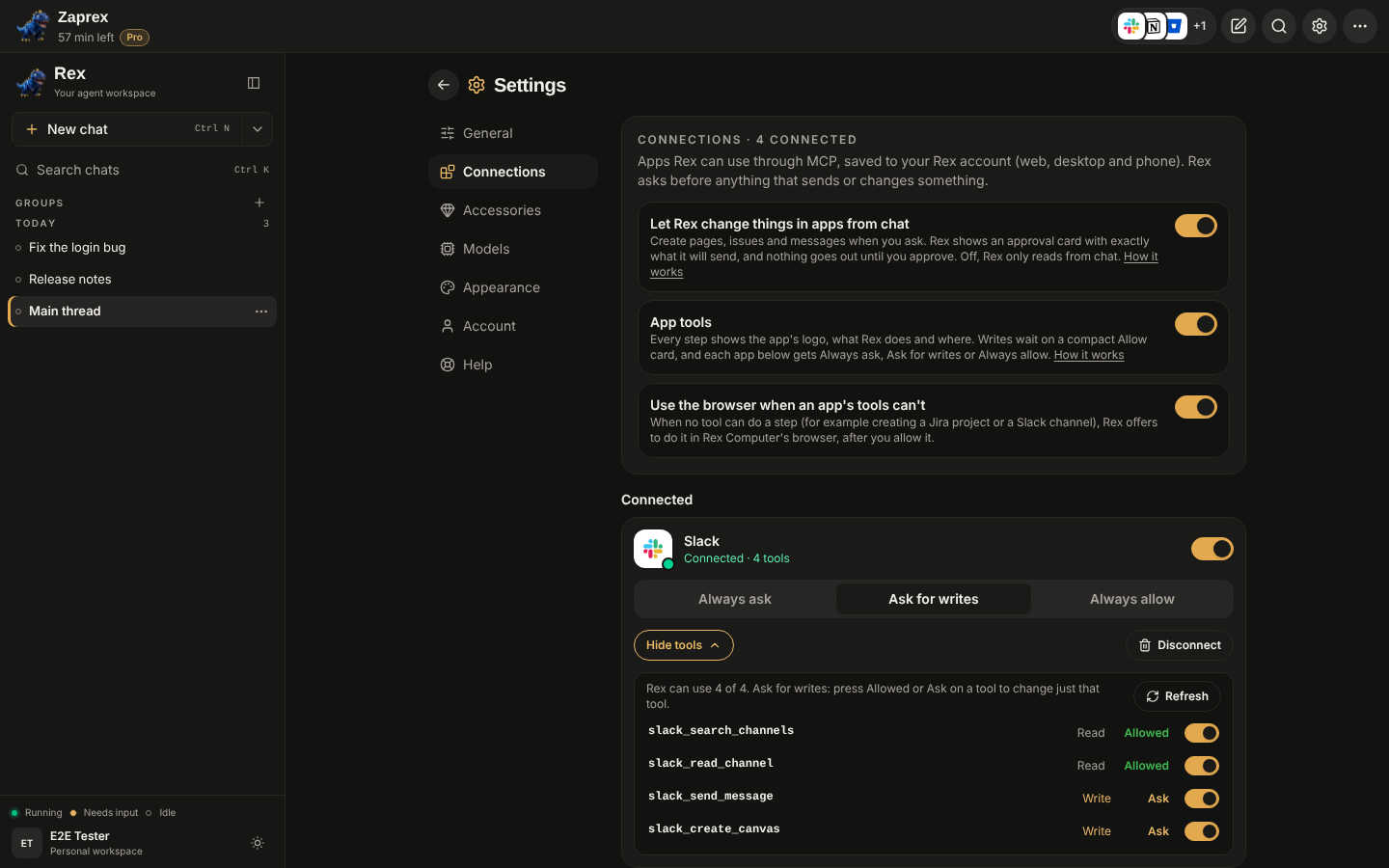
In Settings › Connections, each connected app has Always ask, Ask for writes (the default) or Always allow. Its tool list shows Read, Write or Deletes, and Allowed or Ask under that policy. Press Allowed or Ask on a tool to change just that tool.
When an app's tools can't
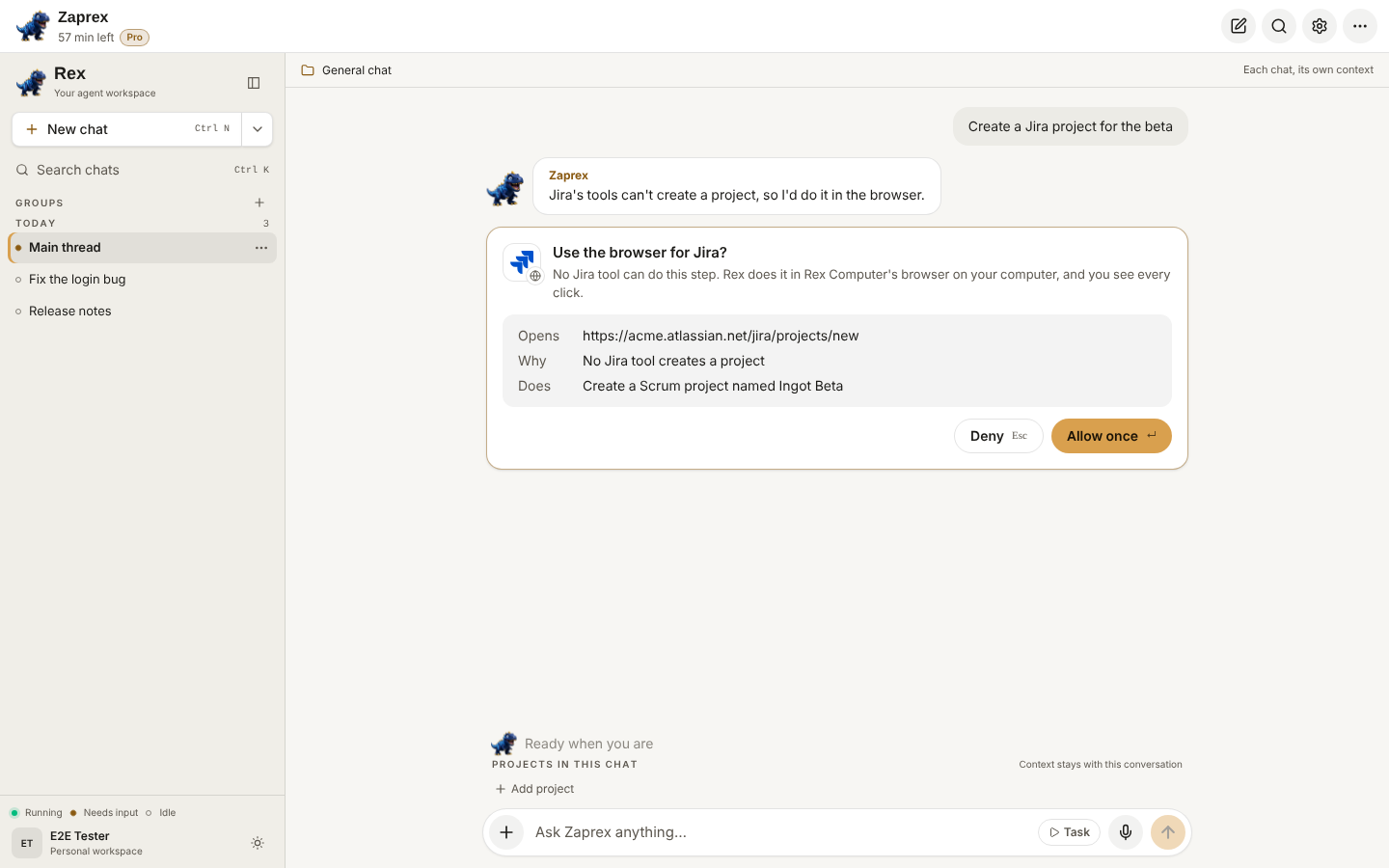
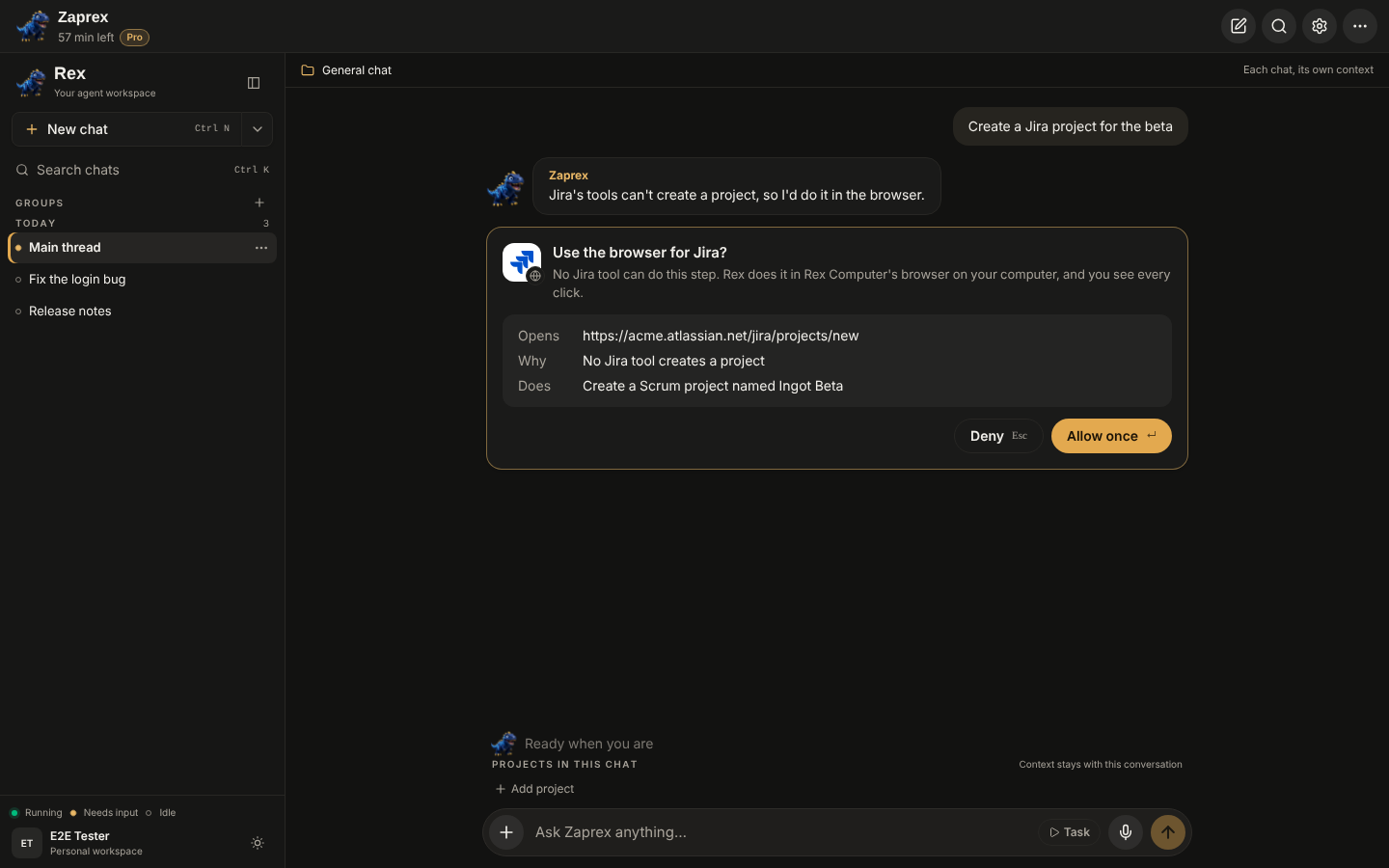
Some steps have no tool, such as creating a Jira project or a Slack channel. Rex then offers to do it in Rex Computer's browser, behind the same card: Use the browser for Jira?, with the page it opens and why. It needs a paired computer, and the computer still asks before anything that sends, pays, deletes or publishes.
Settings
| Setting (Settings › Connections) | Default |
|---|---|
| App tools | on. Off: the classic approval card, reads run and writes ask |
| Use the browser when an app's tools can't | on (needs App tools) |