Ingot Together
Ingot Together lets you share your project live with your teammates. You edit the same files at the same time, and each of you sees where the others are working. You can talk in the session chat, ask Ingot, draw over the code and share images. With team agents turned on, your agents can work together too: they post to a shared team channel, ask each other questions, hand tasks to a teammate and claim files so two agents don't change the same file.
Ingot Together is off by default, and so are team agents.
Turn it on
Turn on Ingot Together in Settings › Features, or in the first-run setup. Once it is on, you get the Together icon in the top bar and the Ingot Together commands in Find Action. Turn it off and they disappear again. Turning it off also ends any session that is running.
Start a session
- Open a project folder and sign in to Ingot.
- Run Ingot Together: Start Session (⌥⇧⌘F2 on macOS, Ctrl+Alt+Shift+F2 on Windows and Linux), or click the Together icon in the top bar and pick Start session.
- Ingot copies an invite link such as
https://www.ingotide.com/together/<room>to your clipboard. Send it to your teammates. - When someone asks to join, Ingot shows their name and you choose Allow or Deny. Nobody gets in without your OK.
Run Ingot Together: Copy Invite Link (⌥⇧⌘F4 / Ctrl+Alt+Shift+F4) to copy the link again. Run Ingot Together: Leave Session (⌥⇧⌘F6 / Ctrl+Alt+Shift+F6) to end the session; everyone else is disconnected.
The Together icon
The Together icon (a people glyph) sits in the top bar, right after the run, debug and stop controls. It shows only while Settings › Features › Ingot Together (ingot.together.enabled) is on. A green dot marks a live session. In a session, the icon also shows the initials of the people in it (up to three, then +N), each on their own colour.
Click it for the Together popover:
- With no session: Start session, Invite teammate… and Join….
- In a session: the people in the session with the file each one is in ("editing session.ts"), Invite teammate…, Copy invite link, Follow host (for guests) and End session or Leave session.
- Open Team panel, while team agents are on.
- In the footer, your Ingot user id with Copy, so teammates can invite you by id as well as by email.
Invite a teammate
Instead of sending a link, you can invite a teammate directly:
- Click Invite teammate… in the Together popover, or run Ingot Together: Invite Teammate… (⌥⇧⌘F5 on macOS, Ctrl+Alt+Shift+F5 on Windows and Linux).
- Type their email or their Ingot user id. Team members and people you worked with recently are suggested as you type.
- Add a message if you like, then click Send.
If no session is live, Ingot starts one first. Only the host can invite.
The teammate gets a notification: "Name wants to work with you on folder", with your message, and Accept, Decline and Block.
- Accept joins the session and follows the host's current file, so they see the host's changes live. The host doesn't have to approve them again. Opening another file stops following; Follow host in the popover turns it back on.
- Decline tells the host "Name declined".
- Block (after a confirmation) stops invites from that person. Ingot Together: Unblock Inviter… undoes it.
An invite expires after 10 minutes, and you can send 10 invites per hour. Ingot answers the same way whether or not the email or id has an account, so an invite doesn't reveal who uses Ingot.
Invite links (Copy invite link, or ingot://together/ followed by the room) still work as before.
Join a session
In Ingot on your computer
- Open the invite link and click Open in Ingot, or
- run Ingot Together: Join Session… (⌥⇧⌘F3 / Ctrl+Alt+Shift+F3) and paste the invite link or the room code. The invite page shows the room code with a Copy button.
Once the host lets you in, their project opens in your window and you edit together. Leave Session disconnects you and opens your own project again.
In the browser or the Ingot app for Android
You can also follow a session without Ingot, from any browser or from the Ingot app on your phone:
- Open the invite link (
https://www.ingotide.com/together/<room>). On Android with the Ingot app installed, the link opens in the app. - Choose Join in the browser and sign in with your Ingot account if asked.
- Wait for the host to let you in. They see your name in Ingot, as with any other teammate.
In the browser you see:
- People: everyone in the session, with the host marked.
- Host's file: the file the host is working in, with line numbers and the line the host is on highlighted. It updates live as the host types and follows them when they switch files.
- Team channel: the session's messages, questions, hand-offs and claimed files. You can post to everyone.
The browser view is read-only. Editing, answering a teammate agent's question and accepting a hand-off work in Ingot on your computer. If a teammate's agent asks you a question or hands you a task while you are in the browser, it gets an immediate "can't answer" reply (a hand-off is declined), the same as from a teammate who has team agents off, so it doesn't wait.
See who is here
- Names on the editor. Everyone's caret and selection show in the editor in their own colour, with their name on a small flag. A person keeps the same colour in everyone's window, the same as their initials in the top bar.
- Who is in which file. The Together popover and the Team panel show the file each person has open, for example "Bob Cohen · editing session.ts".
- Joins and leaves. A short notification tells you when someone joins or leaves the session. When someone leaves, their caret goes at once.
- Follow. A guest can follow the host: their editor opens whatever file the host opens. Opening another file yourself stops following.
Edit or read-only
Everyone the host lets in can edit. The host can make a guest read-only at any time: open the Together popover and click can edit next to their name (it changes to read-only). The guest is told, their editors stop accepting typing, and the host's Ingot refuses their saves, new files, renames and deletes. Click read-only to let them edit again. The choice holds for that person until the session ends, also if they leave and join again.
Chat in the session
Open the session chat from the top bar: Together icon › Chat, or Find Action › Show Together Chat (⌥⇧⌘F1 on macOS, Ctrl+Alt+Shift+F1 on Windows and Linux, while a session is live). The Together panel opens on its Chat tab. Each message shows the person's name, colour and initials, the same colour as their caret in the editor.
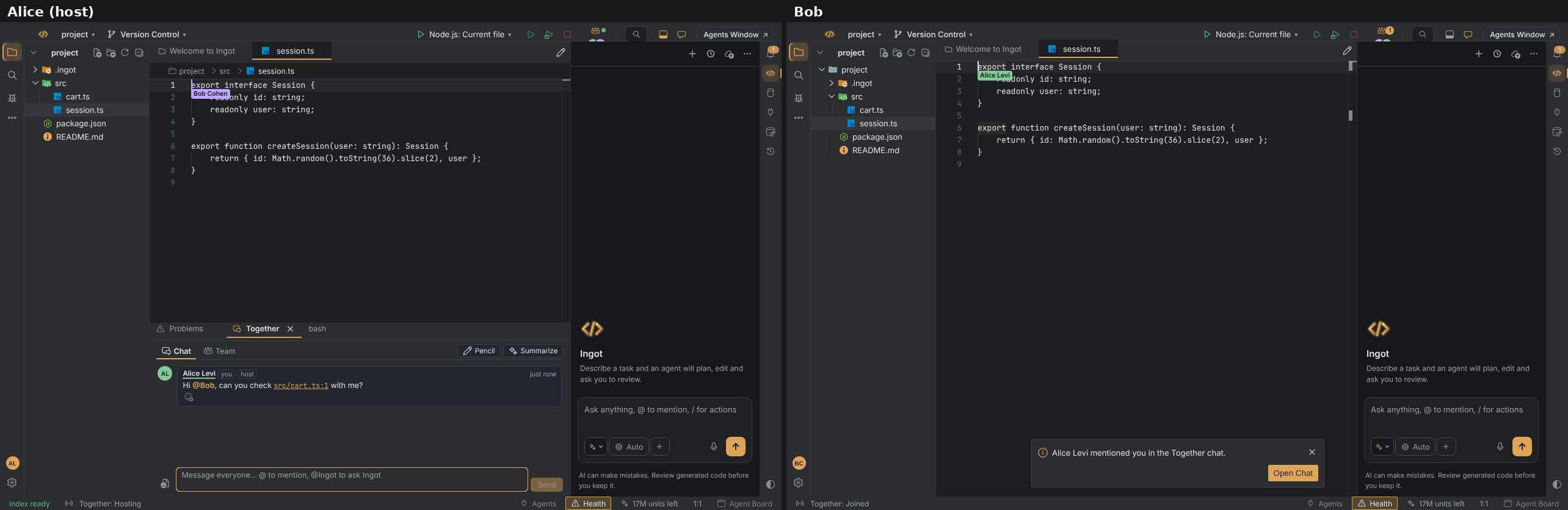
- @mentions. Type
@to pick someone. They get a toast, such as "Alice mentioned you in the Together chat", with Open Chat. Unread messages show as a number on the Together button. - Reactions. React to any message with 👍 🎉 ❤️ 😄 👀 or ✅.
- Code links. Write a path and line such as
src/session.ts:42(orfile.ts:42:7with a column) and it becomes a link. Whoever clicks it jumps to that line in their own window. - Late joiners. People who join later get the chat so far, and recent images, from the host.
Nothing of the chat is stored on the server. It is gone when the session ends.
Ask Ingot in the session
Write @Ingot and a question, and the host's Ingot answers in the chat for everyone. It uses the host's model, plan and privacy mode, and it only reads the project: no edits and no commands. The host can open an answer in their own agent chat with Continue in My Chat to make the change there, with their usual approvals.
Summarize and Save as Note
Summarize in the Together panel posts a summary of the session so far: who changed which files, the decisions from the chat, open questions and next steps. A guest's Summarize asks the host's Ingot for it.
The host can click Save as Note under the summary. It is saved to .ingot/notes/together-<date>.md in the host's project; a second session on the same day adds a section to the same note. When the host ends the session, Ingot offers the summary first.
Draw over the code: the pencil
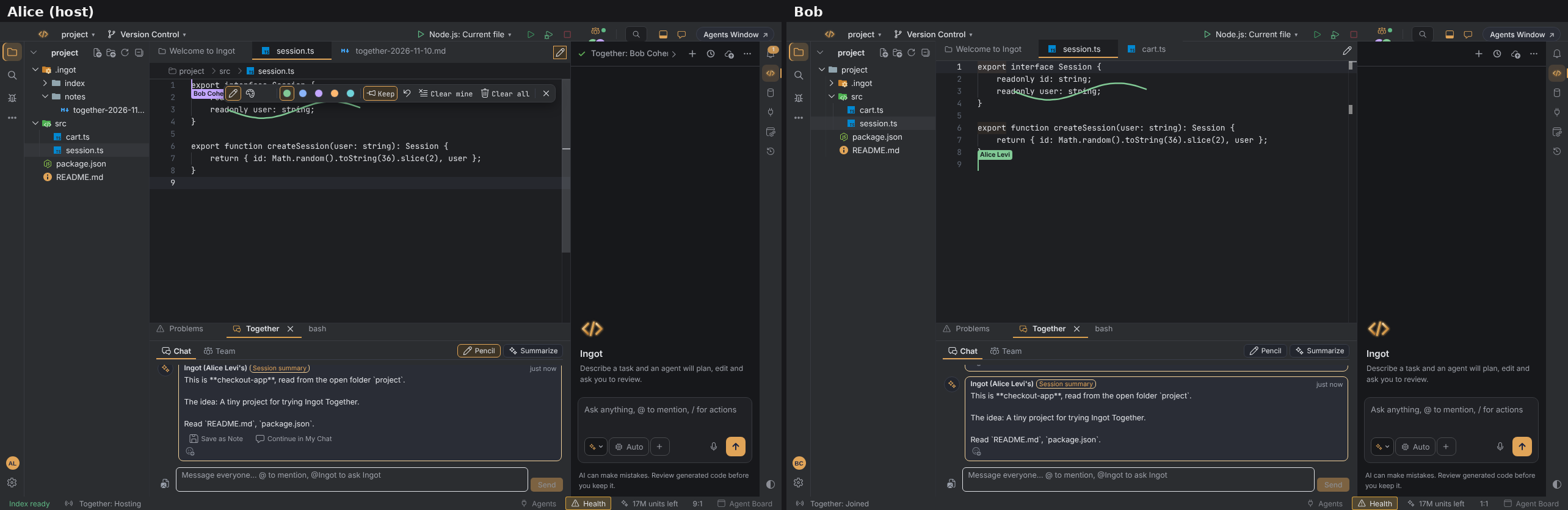
Turn on the pencil with the Pencil button in the editor tab bar or the Together panel, or with ⌥⇧⌘F8 (Ctrl+Alt+Shift+F8) in a live session. Then draw over the code:
- Tools: a pen, a highlighter or an arrow.
- Colours: your own colour or one of five participant colours.
- Everyone sees it live, on the same lines, even after they scroll, type above it or use another font size.
- Strokes fade after 8 seconds unless Keep is on.
- Undo and Clear mine remove your strokes; the host also has Clear all.
Esc turns the pencil off. While it is off, it never gets in the way of typing.
Share images
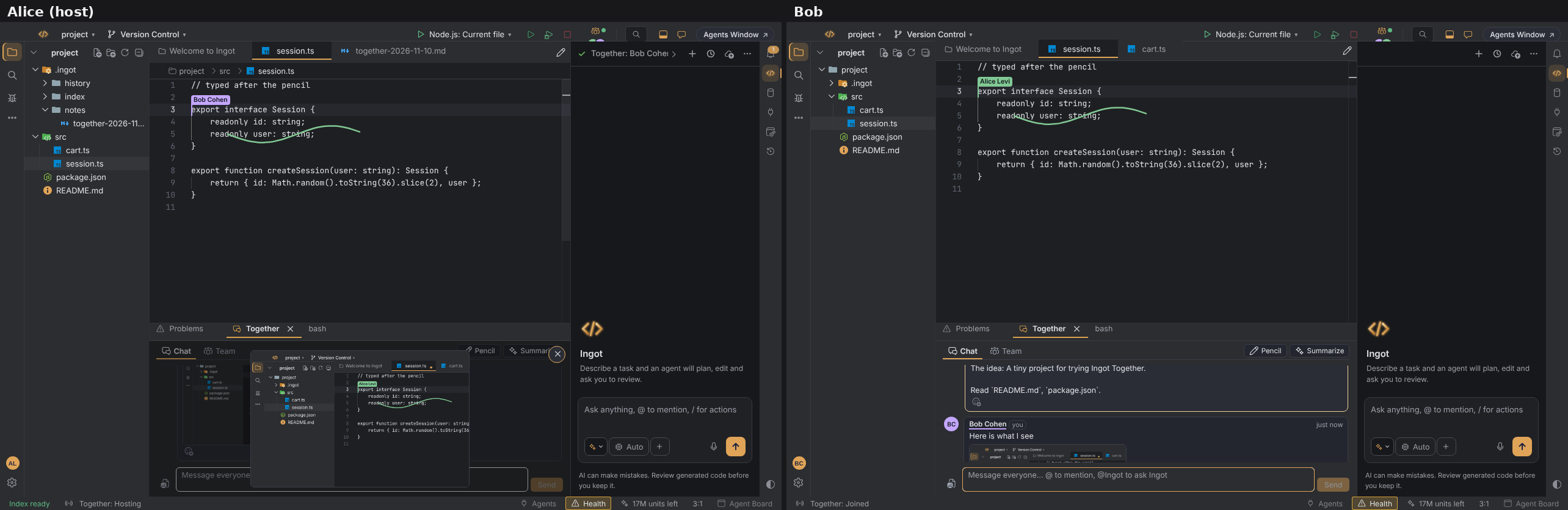
Paste, drop or attach a PNG, JPEG, GIF or WebP image in the chat, up to 5 MB. Large screenshots are scaled down to 1920 px wide. The image shows as a thumbnail; click it to open it large.
Images go from person to person through the session. The server only relays them and never stores them.
Host controls
In the Together popover, under Guests can, the host chooses what guests may do: Chat, Draw and Ask Ingot. Turning one off applies to every guest at once; with Chat off, a guest's message box is turned off.
Team agents
Team agents let the agents of everyone in a live session coordinate through the session itself.
Turn them on
- Turn on Ingot Together in Settings › Features.
- Turn on Team agents (Together) in the same place.
- Start or join a session from the Together icon in the top bar.
Open the Team panel with Ingot Together: Show Team Panel (⌥⇧⌘F7 on macOS, Ctrl+Alt+Shift+F7 on Windows and Linux), or with Open Team panel in the Together popover.
What your agent can do
| Tool | What it does |
|---|---|
team_post | Posts a message to the session channel. Everyone sees it. |
team_ask | Asks a named teammate's agent a question. Your agent waits up to 2 minutes for the answer. |
team_handoff | Gives a task (with context) to a teammate. They choose Accept or Decline. |
team_claim | Claims files or folders for 15 minutes so other agents leave them alone. A path ending in / claims a folder. |
team_release | Releases your claims when you're done. |
Your agent can use these tools only during a live session with team agents turned on. Ask and Plan mode never use them.
If a teammate's agent has claimed a file, your agent won't edit or delete it. Instead, it tells you who holds the claim and until when. A claim ends after 15 minutes, when it is released, or when that teammate leaves the session.
The Team panel
The Team panel shows who is in the session, which files are claimed, and every message, question, answer and hand-off. You can type into the panel to talk to everyone yourself. When there are new messages, a counter appears on the Together status bar item.
You stay in control
- Questions wait for you. When a teammate's agent asks yours something, you see "Alex's agent asks: …" with Allow, Decline and Always allow in this session. "Always allow" applies only to that teammate and ends with the session.
- Answers are read-only. If you allow a question, your agent answers in Ask mode in its own chat tab. It can read your project, but it never runs commands or changes files. Workspace trust and your approval settings still apply.
- Hand-offs wait for you. When a teammate hands you a task, you choose Accept or Decline. If you accept, a new chat opens with the task. Nothing runs until you send a message.
- Teammates' text is treated as information, not instructions. Your agent won't follow commands hidden in a teammate's message. The website shows teammates' messages as plain text only.
- Each team message can be up to 8,000 characters.
Limits
| Limit | Value |
|---|---|
| People in one room | 8 |
| Open rooms per person | 3 |
| A room closes | 30 minutes after the last person leaves |
| Team message size | 8,000 characters |
| File claims | 15 minutes, unless claimed again |
| An invite expires | after 10 minutes |
| An image in the chat | 5 MB, scaled to 1920 px wide |
| Invites you can send | 10 per hour |
Privacy
- Session traffic, including your code and team messages, goes only through Ingot's own Together server. It never goes through a public third-party server, and there is no extra server or cost for team agents.
- Sessions are end-to-end encrypted: the server relays them but can't read your code or messages. In the browser, the encryption runs in the page, which needs an up-to-date browser over https.
- The session chat and its images travel through the session like your code. The server relays them and stores nothing; the chat is gone when the session ends.
- Invites: your IDE sign-in stays in the Ingot backend, and the window never holds it. The server keeps invites, block lists and recent collaborators in memory only and never logs message text. Personal access tokens can't send or answer invites.
- Ingot uses your Ingot sign-in to let you into the server. In Ingot, your sign-in stays in Ingot and your system keychain and is sent only to Ingot servers. On the website, your site sign-in is used the same way and never leaves Ingot's servers.
Settings
| Setting | What it does | Default |
|---|---|---|
ingot.together.enabled | Turns Ingot Together on or off (Settings › Features › Ingot Together). | off |
ingot.together.teamAgents | Turns team agents on or off (Settings › Features › Team agents (Together)). | off |
ingot.together.serverUrl | The Together server (Settings › Tools › Ingot Together). If you point it at a non-Ingot server, that server uses its own login and never receives your Ingot sign-in. | https://ingot-server.fly.dev/oct |
The session chat, the pencil and Ingot in the session are on by default, and they only work while Ingot Together is on. Turn them off in Settings › Features or in the first-run setup:
| Setting | What it does | Default |
|---|---|---|
ingot.together.chat | The session chat. | on |
ingot.together.pencil | The pencil. | on |
ingot.together.aiInSession | When you host, people in the session can ask your Ingot (@Ingot) and use Summarize. | on |
The desktop app and the browser behave the same.
ingot.together.enabled, ingot.together.teamAgents and ingot.together.serverUrl can be set only in your user settings, not in a project's settings, so opening a repository can't start sharing or point your sign-in somewhere else.