Diff viewer & smart merge
The Ingot diff viewer applies or reverts each change with gutter arrows, accepts or rejects a whole file, and smart-merges conflicts in a three-way view.
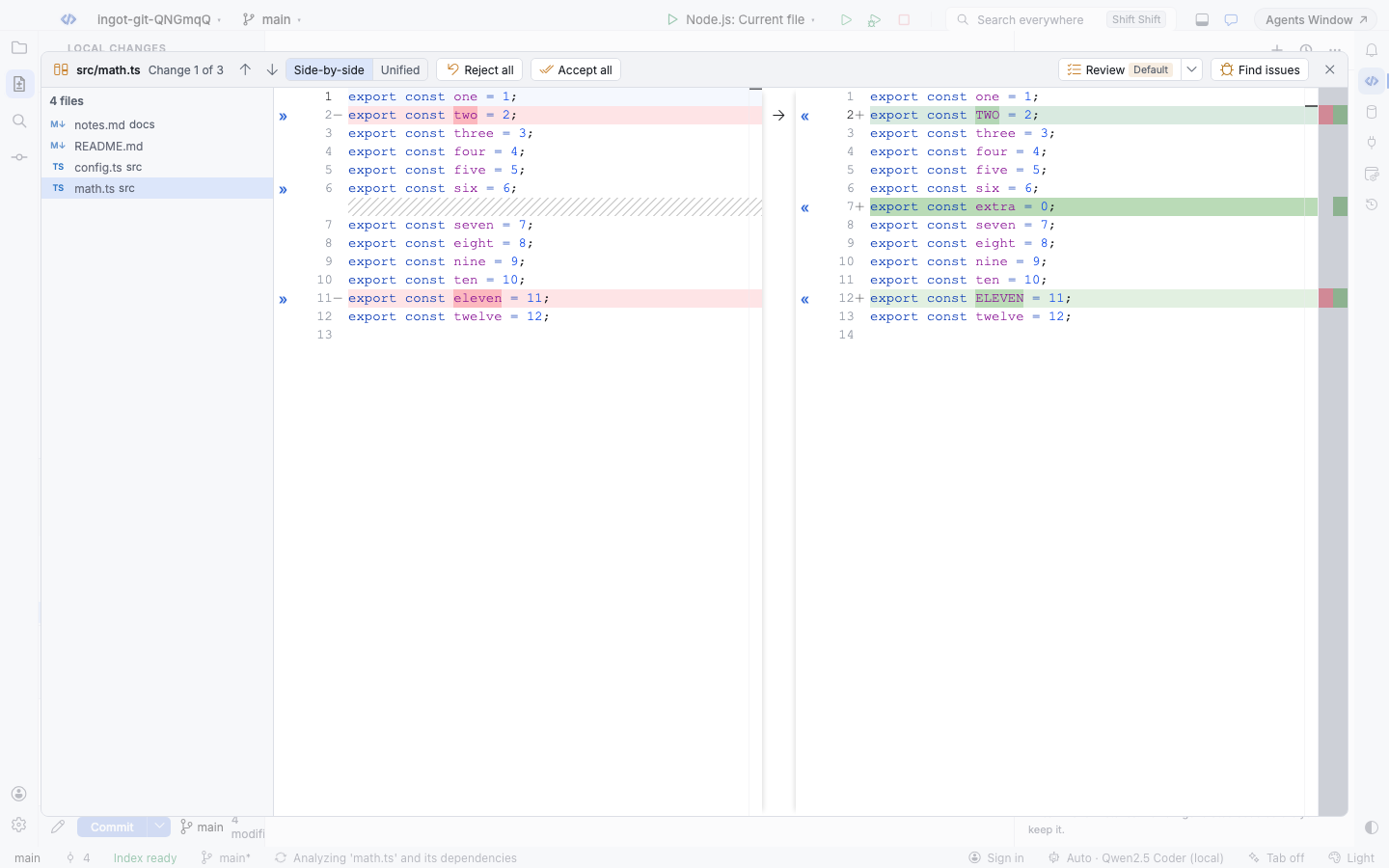
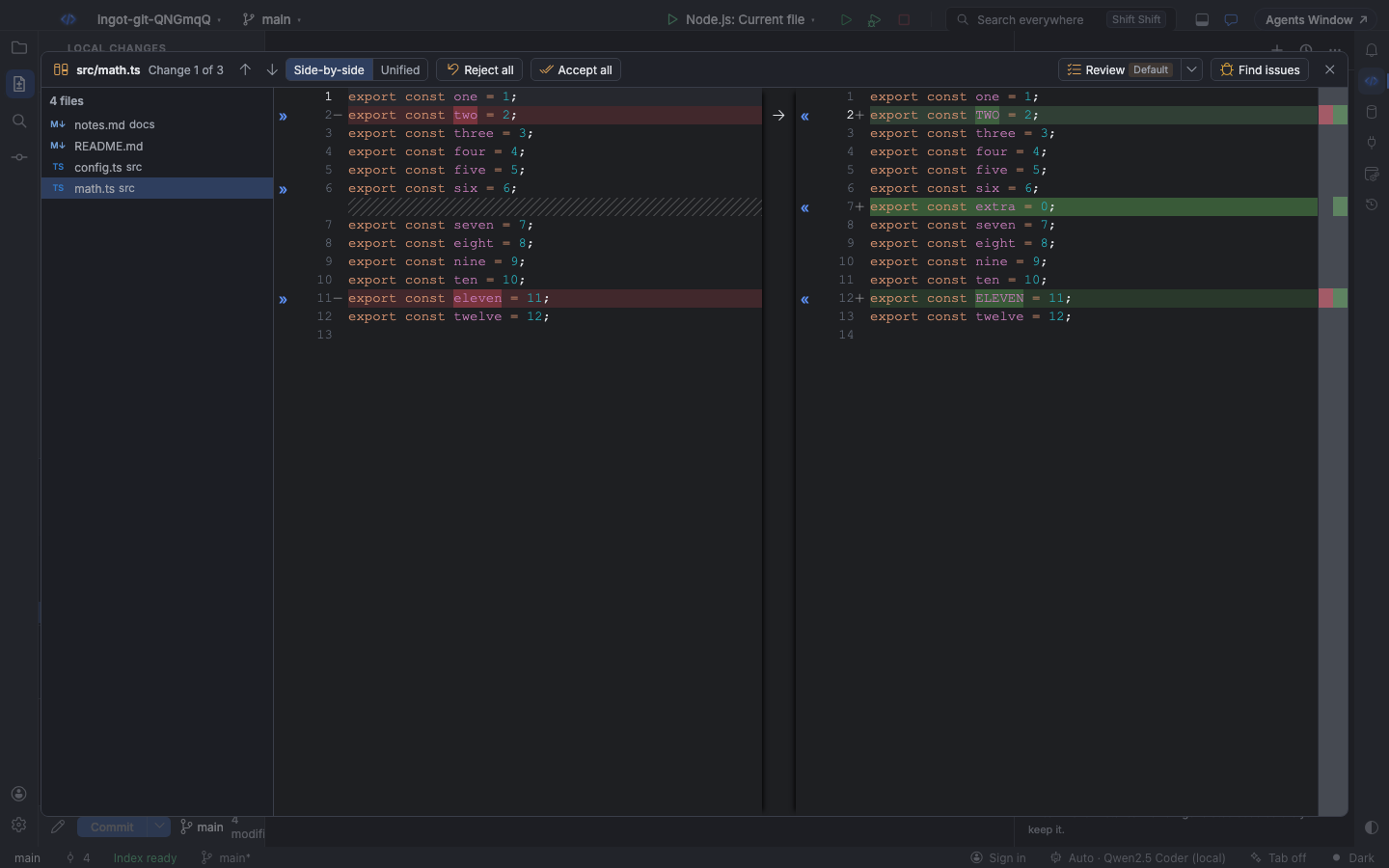
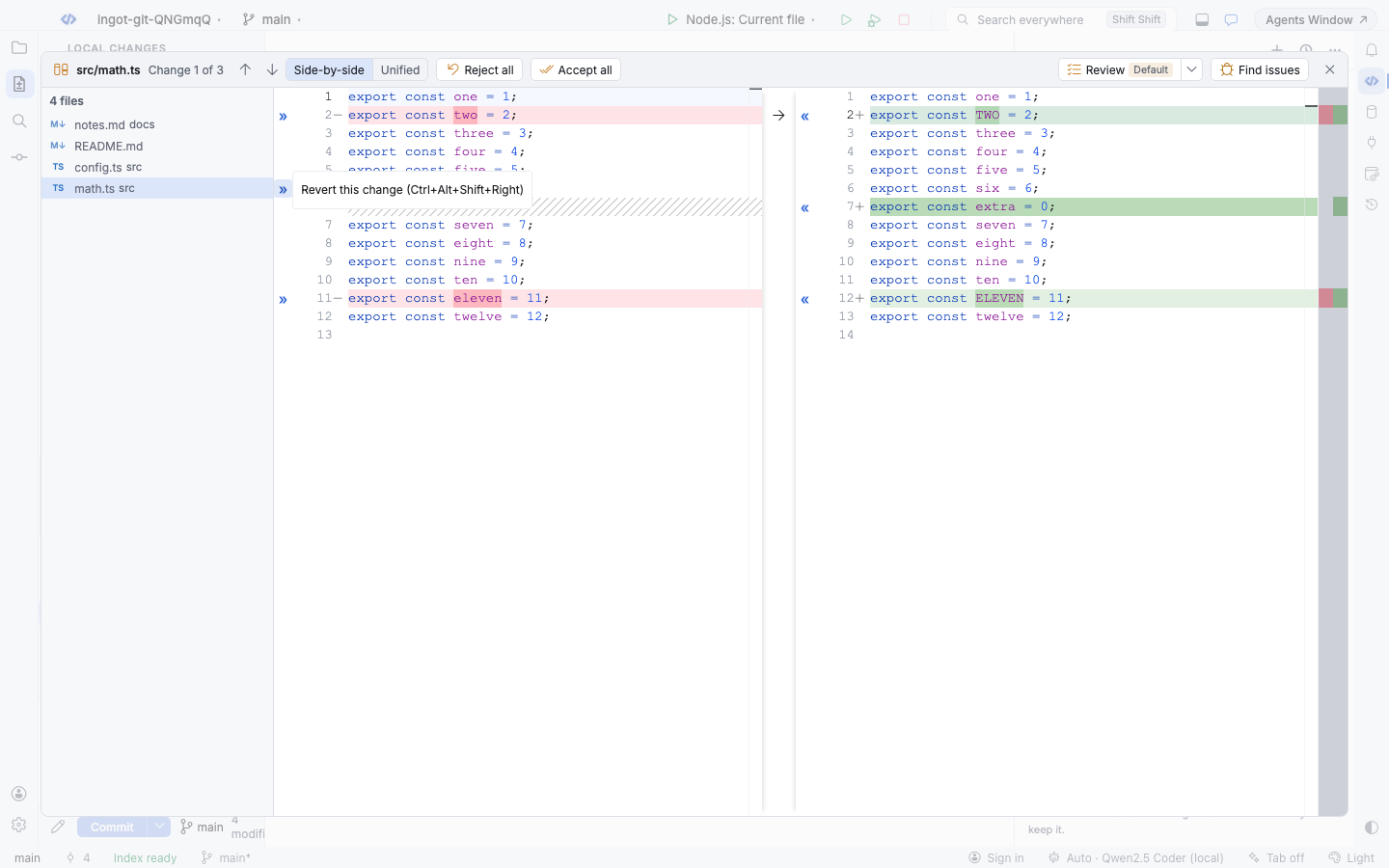
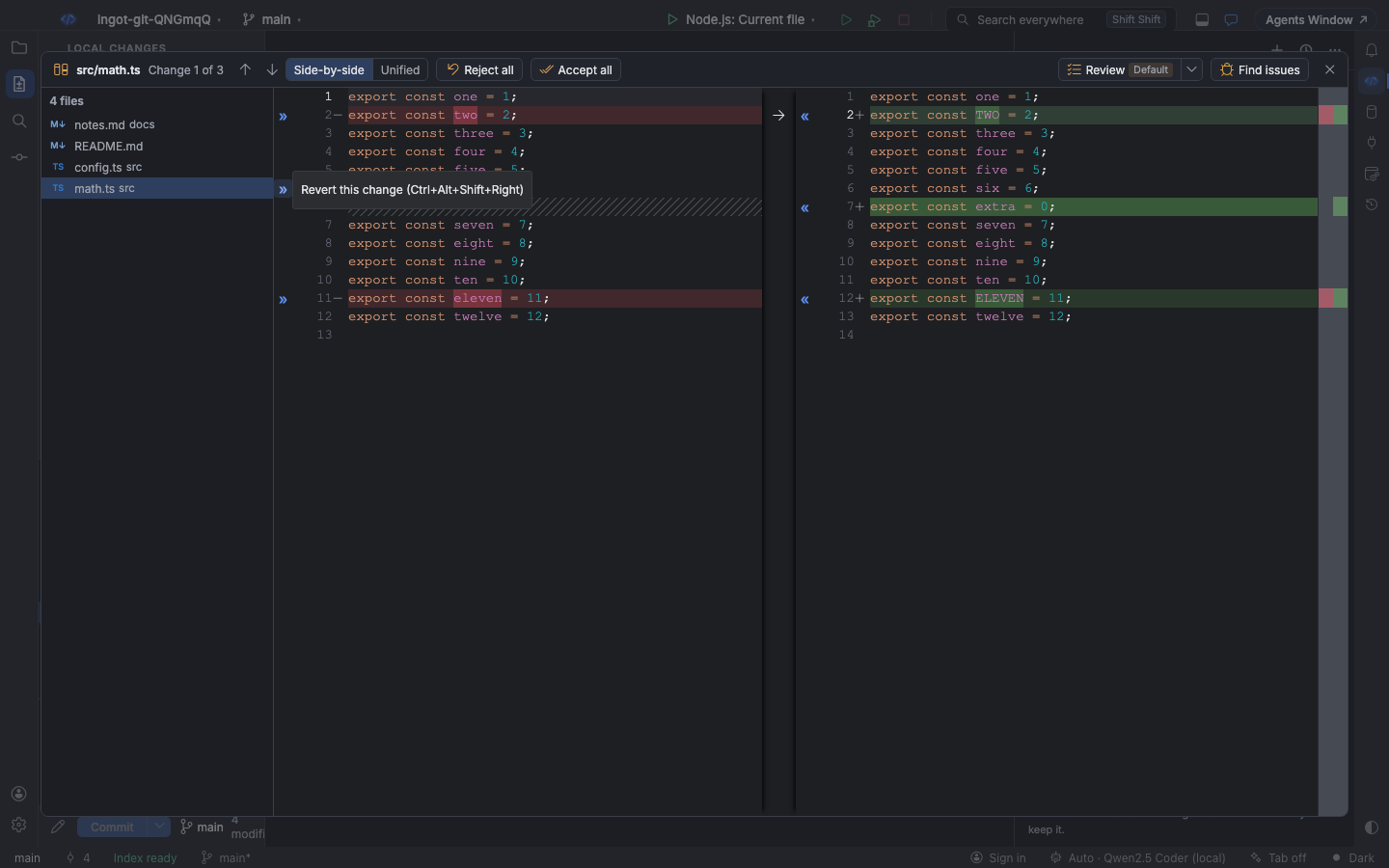
Every action has a shortcut. Open the viewer by double-clicking a file under Local Changes (⌘K, Ctrl+K), in the Commit window, or in the Agent review block under an agent run in the chat. The header counts Change 1 of 3, and the changed files are listed on the side.
Apply or revert each change
Every change gets two arrows in the gutter, like the diff viewer of a desktop IDE:
| Arrow | Where | What it does |
|---|---|---|
| » | left gutter | Revert this change: the old text goes back into your file, which is saved. Undo works as usual (⌘Z, Ctrl+Z). |
| « | right gutter | Apply this change: you keep it. The change leaves the list and stays applied when you open the viewer again. |
In Unified mode both arrows sit in the one gutter. The counter updates as you go, and when nothing is left it says No changes.
For an agent run's edits in the chat, « also accepts the agent's edit for those lines, and » puts the lines back the way they were before the run.
Accept all or reject all
Accept all keeps every change in the file, and Reject all reverts every change in the file. Both are in the header and act on the file you are looking at; pick another file on the side to go on.
Edit the file side
The right side is your file. Type in it to fix something while you review: the change list follows your edits, and they are saved when you switch files or close the viewer.
Smart merge for conflicted files
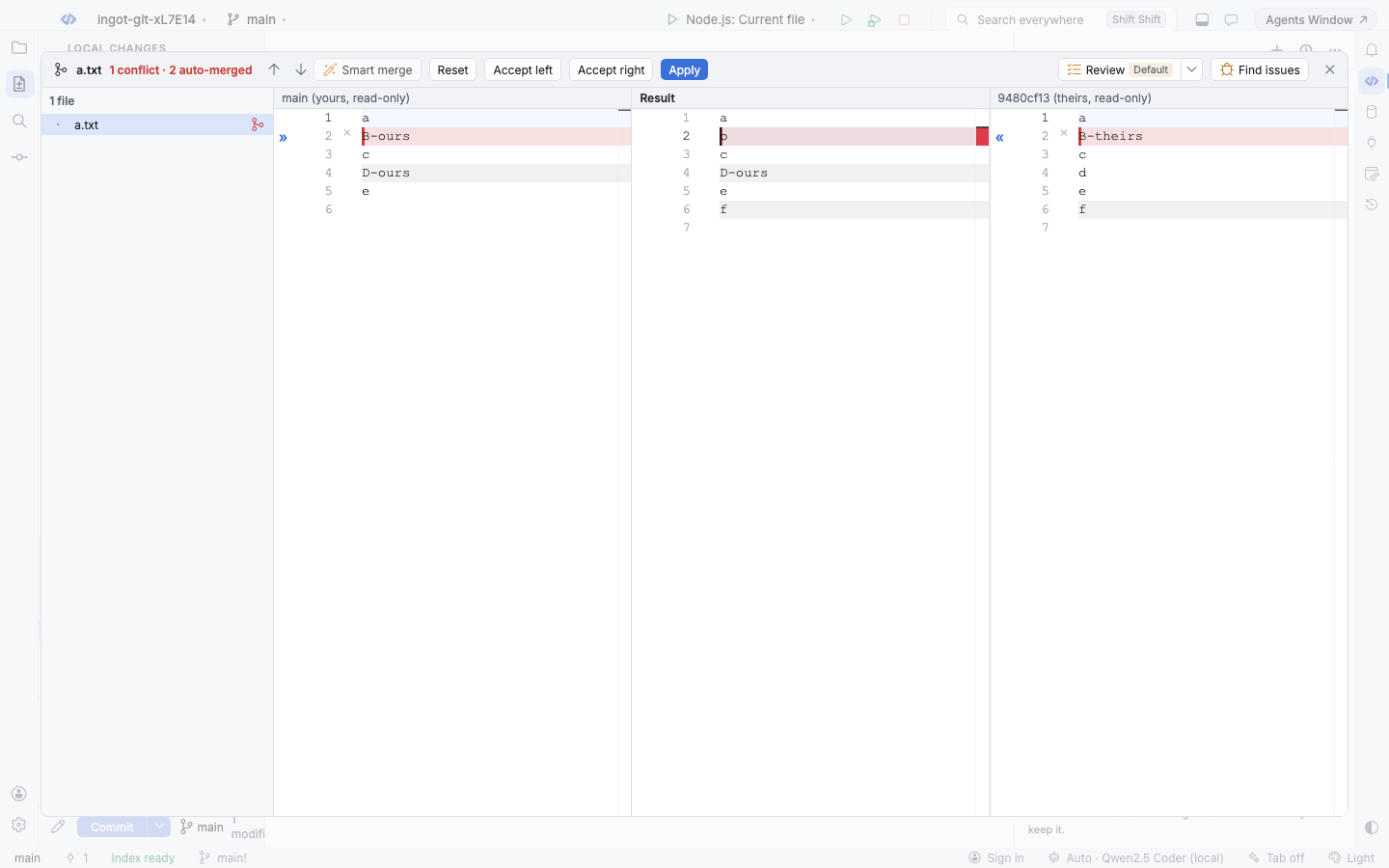
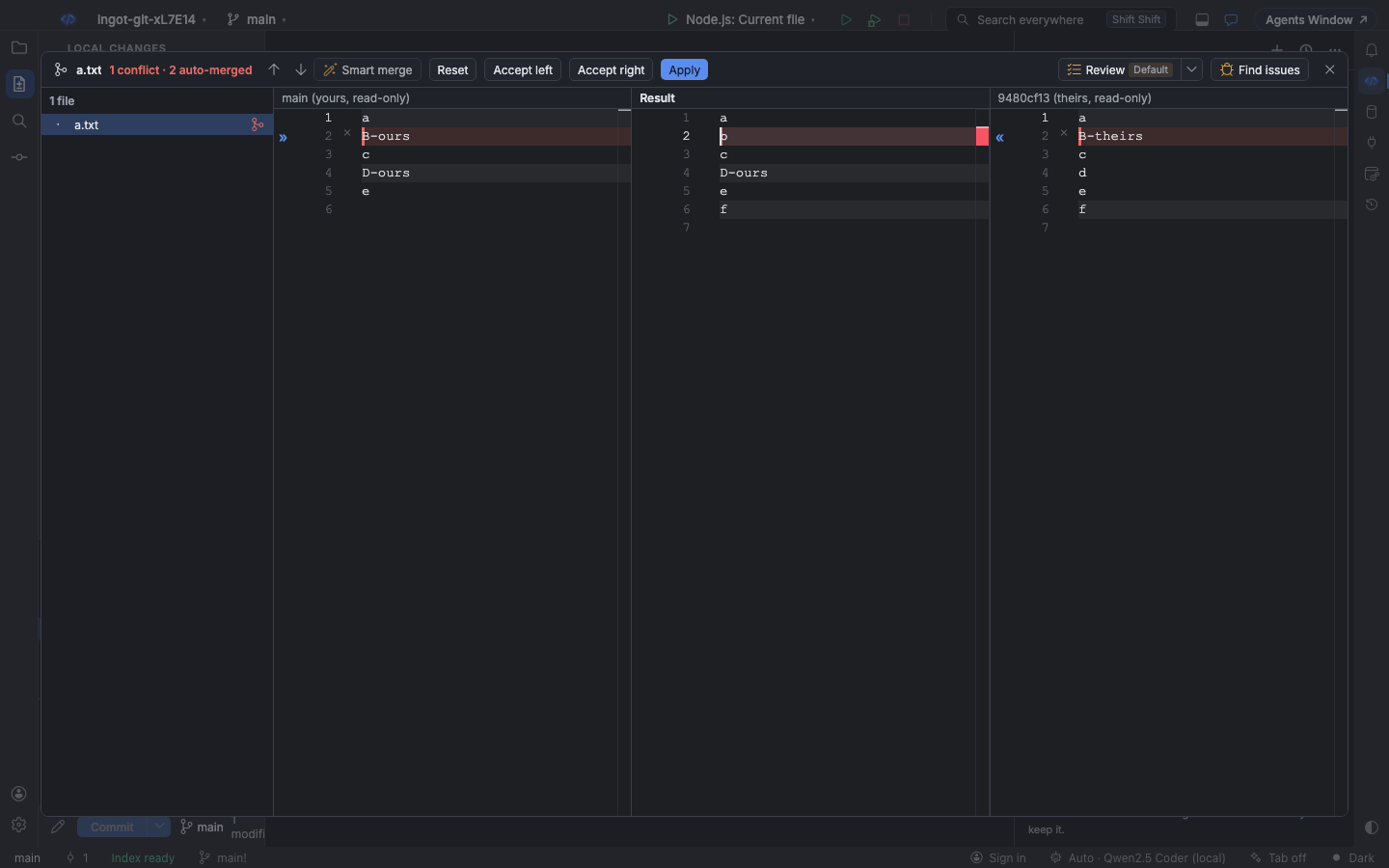
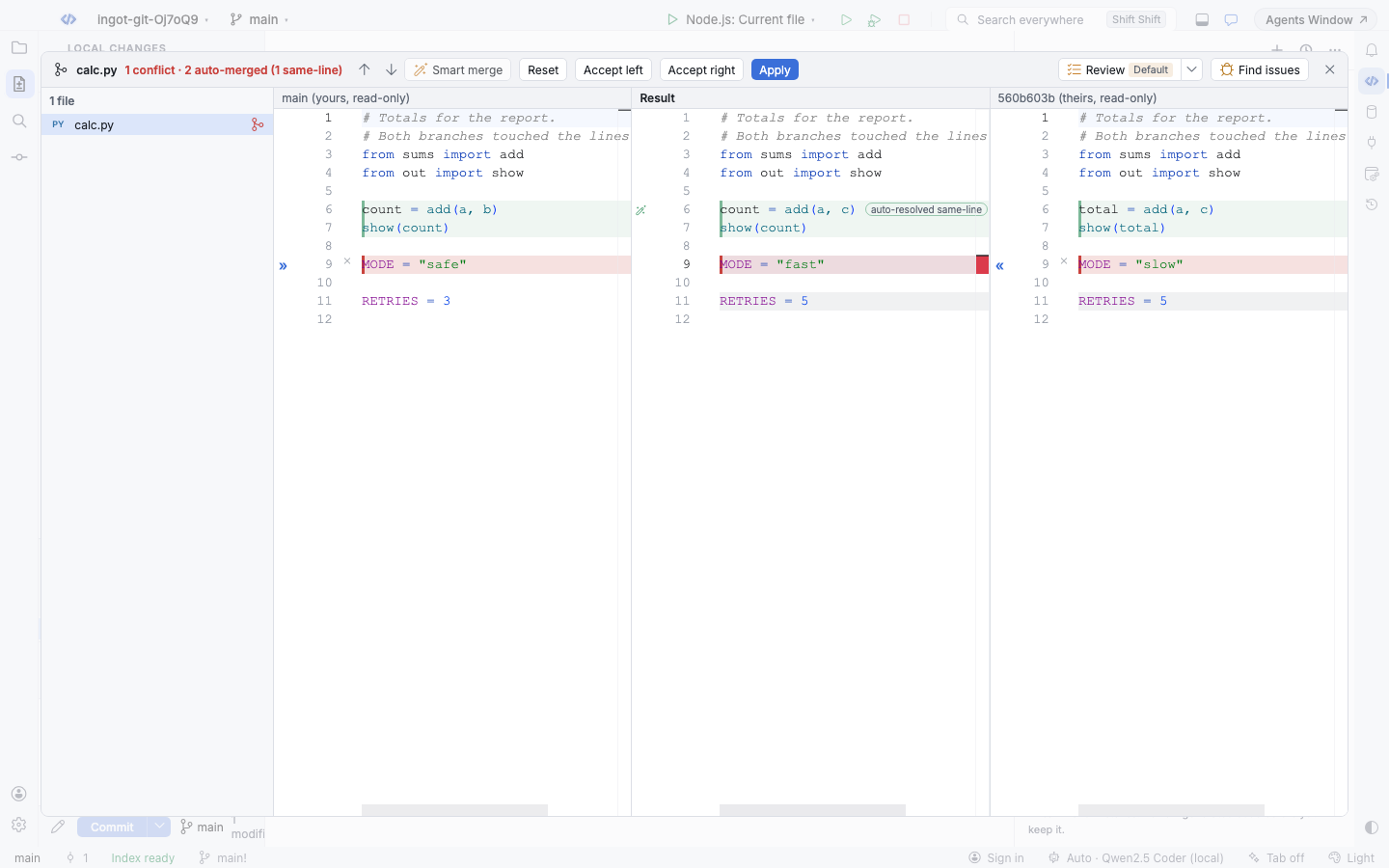
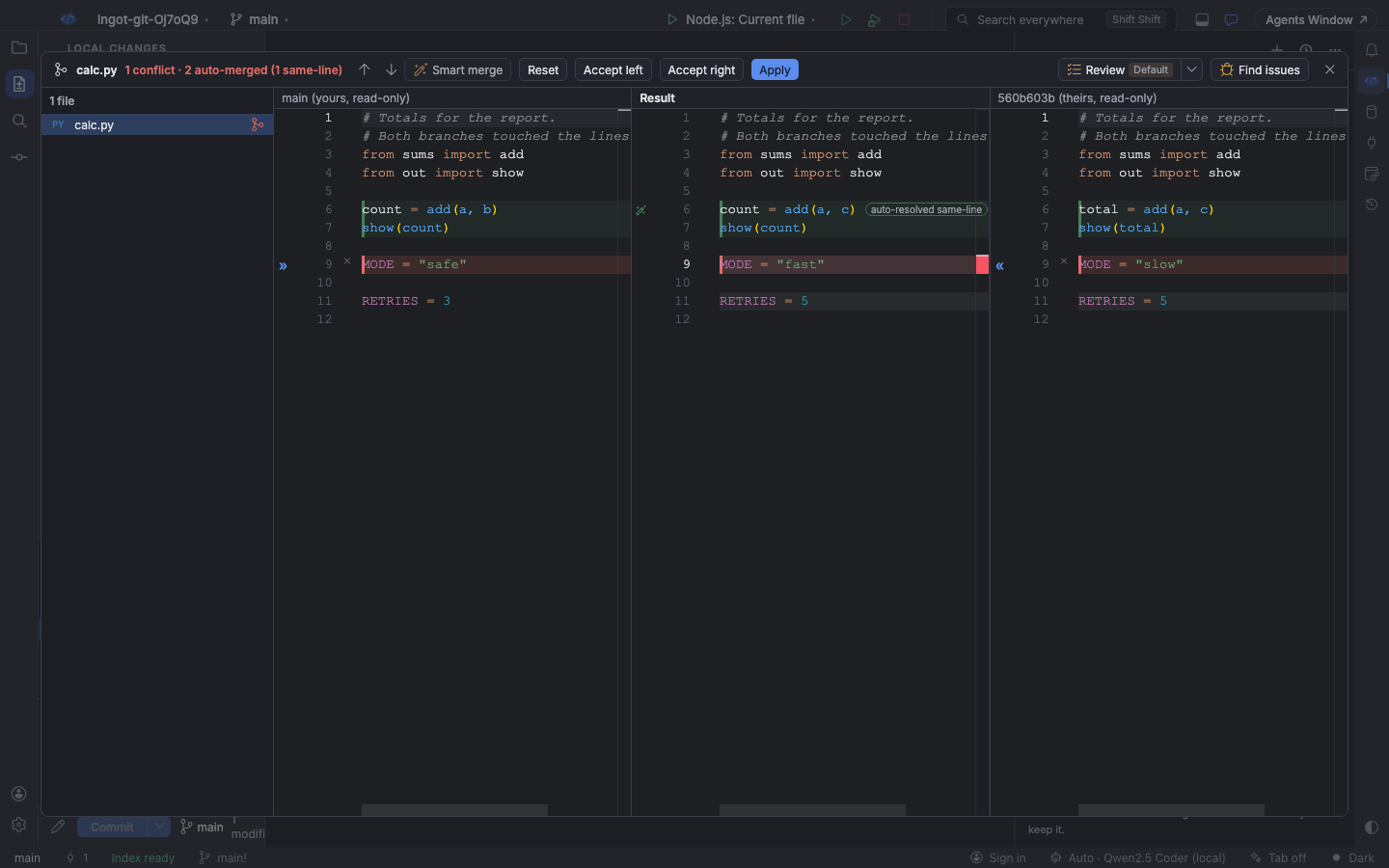
A file with a merge conflict (after git merge, git rebase or git cherry-pick) shows a merge icon in the file list and opens in the three-way view. Smart merge runs on its own when the file opens: every change that only one side made, or both sides made the same way, goes into the result. What is left are the real conflicts, where both sides changed the same lines differently. They are highlighted, and the header says 1 conflict · 2 auto-merged.
Same-line edits
Smart merge also looks inside a line both sides edited. It splits the line into tokens (names, numbers, strings, punctuation and spaces) and merges them: if you renamed total to count and they changed add(a, b) to add(a, c), the result is count = add(a, c). The same works for two different arguments, or one side adding a prefix and the other a suffix. A change both sides made the same way is taken once. When a chunk has a line added or removed, the lines are matched up first, and each edited line is merged on its own.
These lines are marked auto-resolved same-line in the result, with a wand in the gutter, and the header counts them: 1 conflict · 2 auto-merged (1 same-line). Hover the badge or the line to see why it was merged. », « and × still take a side or the base, and Smart merge brings the merged line back.
It stays a conflict when both sides changed the same token differently (for example MODE = "safe" and MODE = "slow"), or when both inserted different text at the same place.
The three-way view
The three panes scroll together:
| Pane | What it shows |
|---|---|
| Left | Yours: your branch (for example main (yours, read-only)) |
| Middle | Result: what will be written. You can type in it. |
| Right | Theirs: the commit being merged in (MERGE_HEAD, or REBASE_HEAD during a rebase) |
| Action | What it does |
|---|---|
| » on the left | Puts your change into the result. On a conflict you can take both sides: the result gets yours, then theirs. |
| « on the right | Puts their change into the result. |
| × | Ignores the change: the result keeps the base text there. |
| Smart merge | Applies every non-conflicting change again. |
| Reset | Goes back to the base text. |
| Accept left / Accept right | Takes one whole side. |
| Apply | Writes the result, stages it and marks the file resolved. It is disabled until every conflict is resolved or ignored. |
When every conflict is resolved, the header says All conflicts resolved. After Apply the file is a normal change again and shows in the two-way view.
Keyboard shortcuts
Every shortcut works while the viewer is open and is shown in the tooltip of its arrow or button. Every action is also in Find Action (⌘⇧A, Ctrl+Shift+A) under Diff Viewer.
| Action | macOS | Windows and Linux |
|---|---|---|
| Next change | F7 | F7 |
| Previous change | ⇧F7 | Shift+F7 |
| Apply change («, or take theirs in three-way) | ⌘⌥⇧← | Ctrl+Alt+Shift+← |
| Revert change (», or take yours in three-way) | ⌘⌥⇧→ | Ctrl+Alt+Shift+→ |
| Accept all (Smart merge in three-way) | ⌘⇧Enter | Ctrl+Shift+Enter |
| Reject all (Reset in three-way) | ⌘⇧⌫ | Ctrl+Shift+Backspace |
| Ignore change (three-way) | ⌘⌥⇧⌫ | Ctrl+Alt+Shift+Backspace |
| Close | Esc | Esc |
Settings
Open Settings › Tools › Agent review before commit, or set the key in your user settings or the project's .ingot/settings.json:
| Setting | Default | What it does |
|---|---|---|
ingot.diffViewer.autoMerge | true | Smart merge conflicted files when they open in the three-way view. Turn it off to start from the base text. |
From the terminal
The ingot CLI runs the same smart merge on three files, in scripts or as a git merge driver:
npx @ingotide/cli merge yours.ts base.ts theirs.ts                   # prints the result; exit 1 while conflicts are left
npx @ingotide/cli merge yours.ts base.ts theirs.ts --output yours.ts # write it in place
npx @ingotide/cli merge yours.ts base.ts theirs.ts --conflicts theirs --json
git config merge.ingot.driver "ingot merge %A %O %B --output %A"
Conflicts are left as diff3-style markers (<<<<<<<, |||||||, =======, >>>>>>>) unless --conflicts yours, theirs or both takes a side. Same-line edits are merged as in the viewer and counted as sameLine in --json; --line-only turns that off and treats any line both sides edited as a conflict, like git. Every option is on the CLI reference.