Tool windows
The left bar keeps only the main tool windows, at most six. Everything else, including the views extensions add, waits behind More ⋯ at the bottom of the bar, one click or one shortcut away.
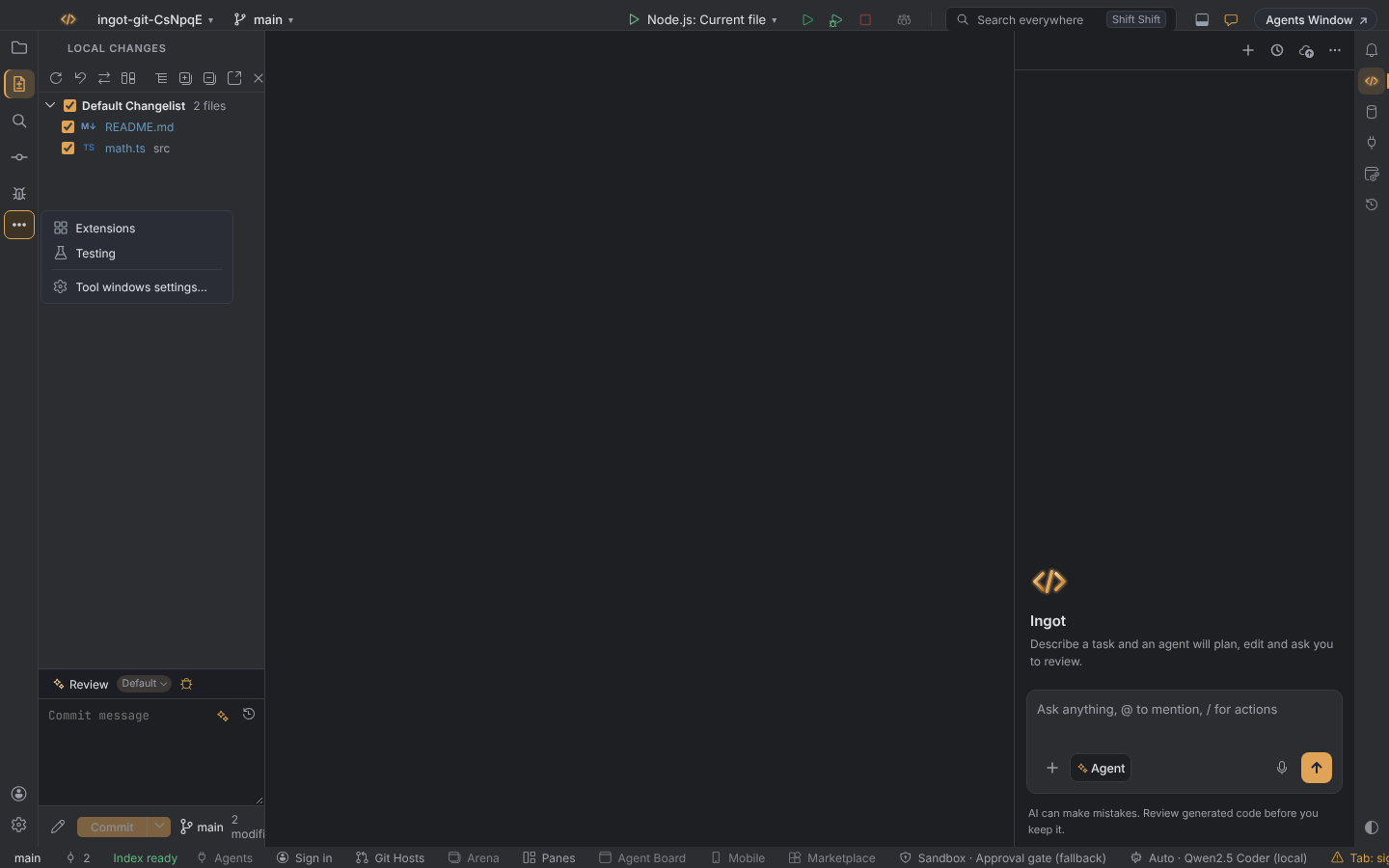
What is on the bar
By default: Project, Commit, Search, Source Control (when it is shown), Debug and Threads.
Behind More ⋯: Extensions, Testing, the Changes side panel view and every extension's view, such as GitLens or a database explorer.
Hide or show an icon
| To | Do this |
|---|---|
| hide an icon | right-click it › Hide from Bar |
| put a hidden view on the bar | right-click it in More ⋯ › Show on Bar |
| open a hidden view | More ⋯, or More Tool Windows… in Find Action |
| see every tool window | Settings › Appearance & Behavior › Tool windows, or Tool windows settings… in More ⋯ |
The settings page lists every tool window with a checkbox. A hidden view's icon shows on the bar while that view is open.
A panel you move to the left bar yourself (Problems, Output and the like) always keeps its icon. The bar only decides about Ingot's own views and the views extensions add.
Shortcuts still work
Hidden views keep their shortcuts and their Find Action entries.
| Tool window | macOS | Windows / Linux |
|---|---|---|
| Project | ⌘1 | Alt+1 |
| Threads | ⌘3 | Alt+3 |
| Debug | ⌘5 | Alt+5 |
| Tests | ⌘8 | Alt+8 |
| Git | ⌘9 | Alt+9 |
| Commit | ⌘0 | Alt+0 |
| Hide all tool windows | ⌘⇧F12 | Ctrl+Shift+F12 |
See Keymap for the rest.
Show every icon again
Turn off Settings › Features › Compact tool window bar (ingot.activityBar.compact). The bar then shows every icon, as before.
Settings
| Setting | Values | Default |
|---|---|---|
ingot.activityBar.compact | true, false | true |
ingot.activityBar.items | tool window ids, one per line | Project, Commit, Search, Source Control, Debug, Threads |
The desktop app and the browser edition behave the same.