Remote MCP servers, OAuth & health
Ingot connects to remote MCP servers over Streamable HTTP (MCP 2025-11-25), signs in to them with OAuth in your browser, checks every server's health, and asks before an agent runs a tool unless you allow that tool. Linear, Atlassian (Jira & Confluence), Notion, Sentry and other hosted servers work without mcp-remote or a token to paste.
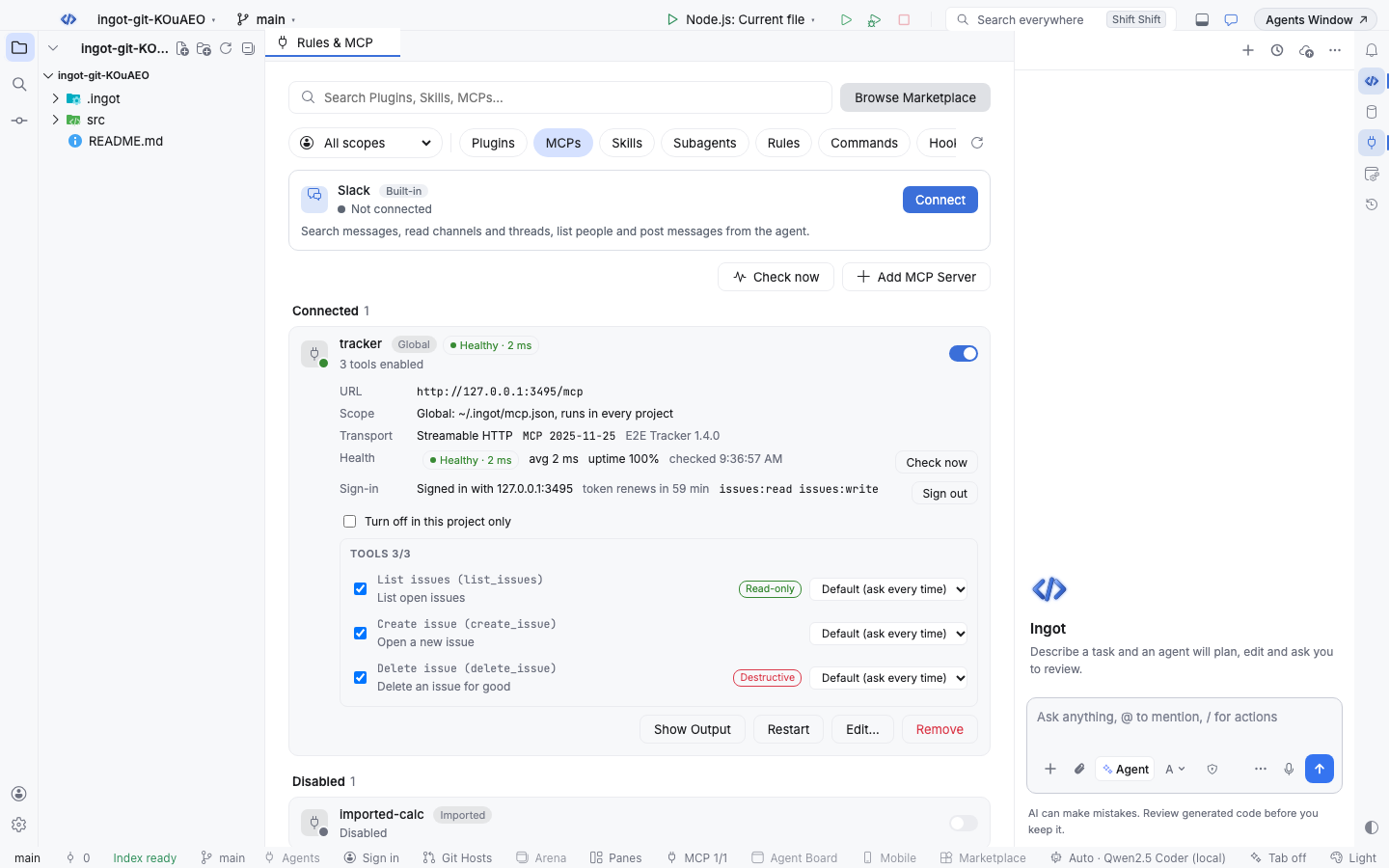
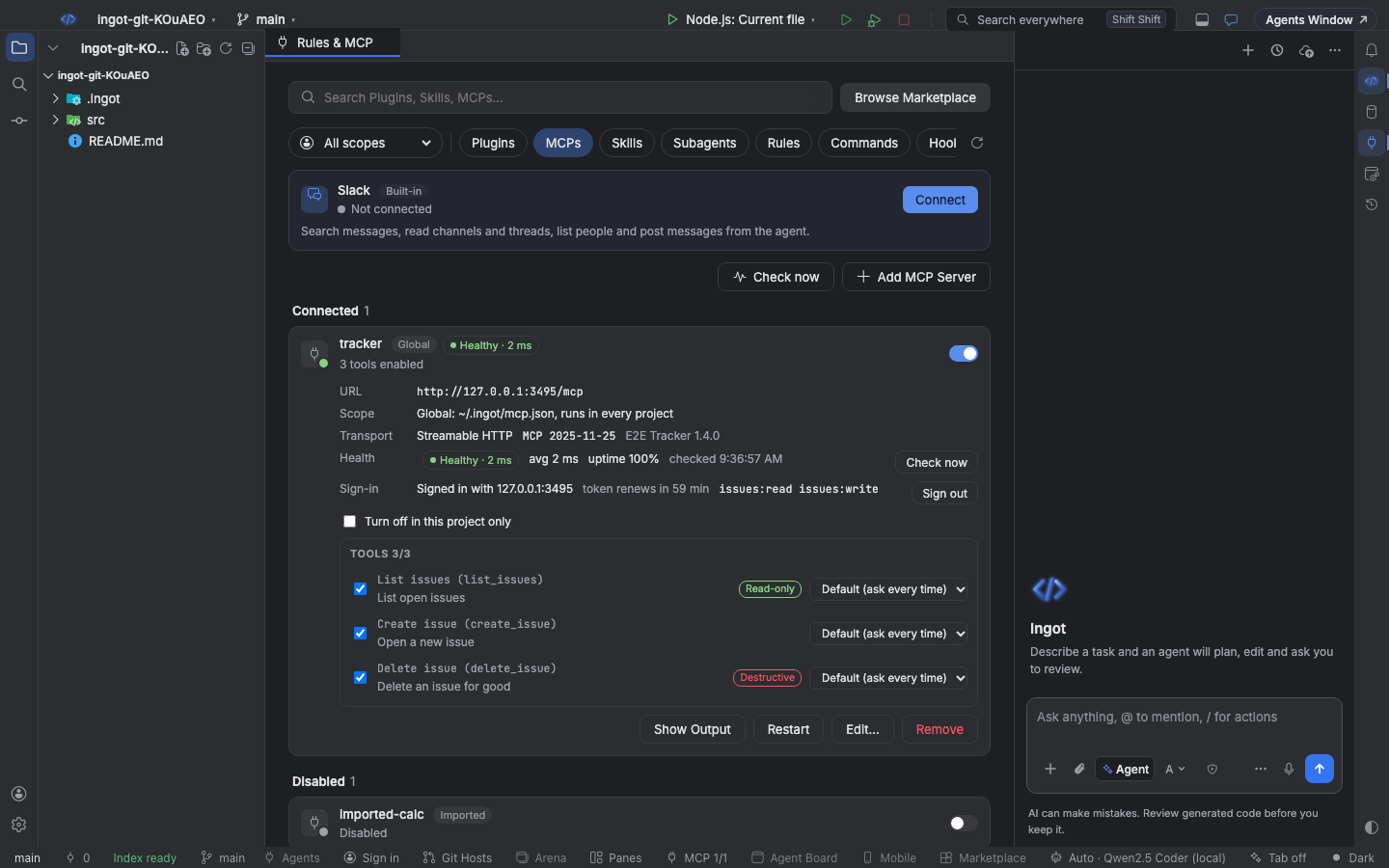
Find it
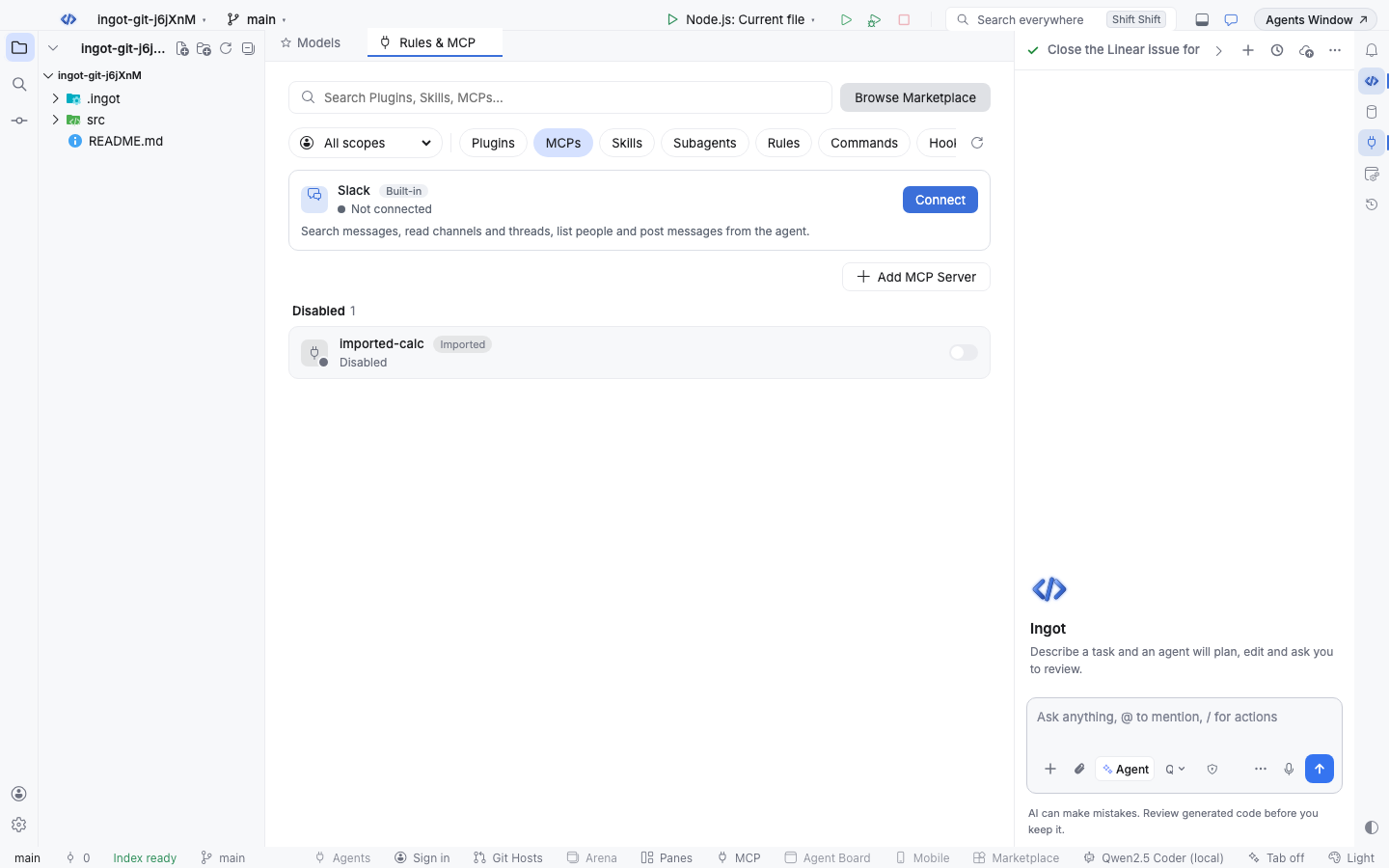
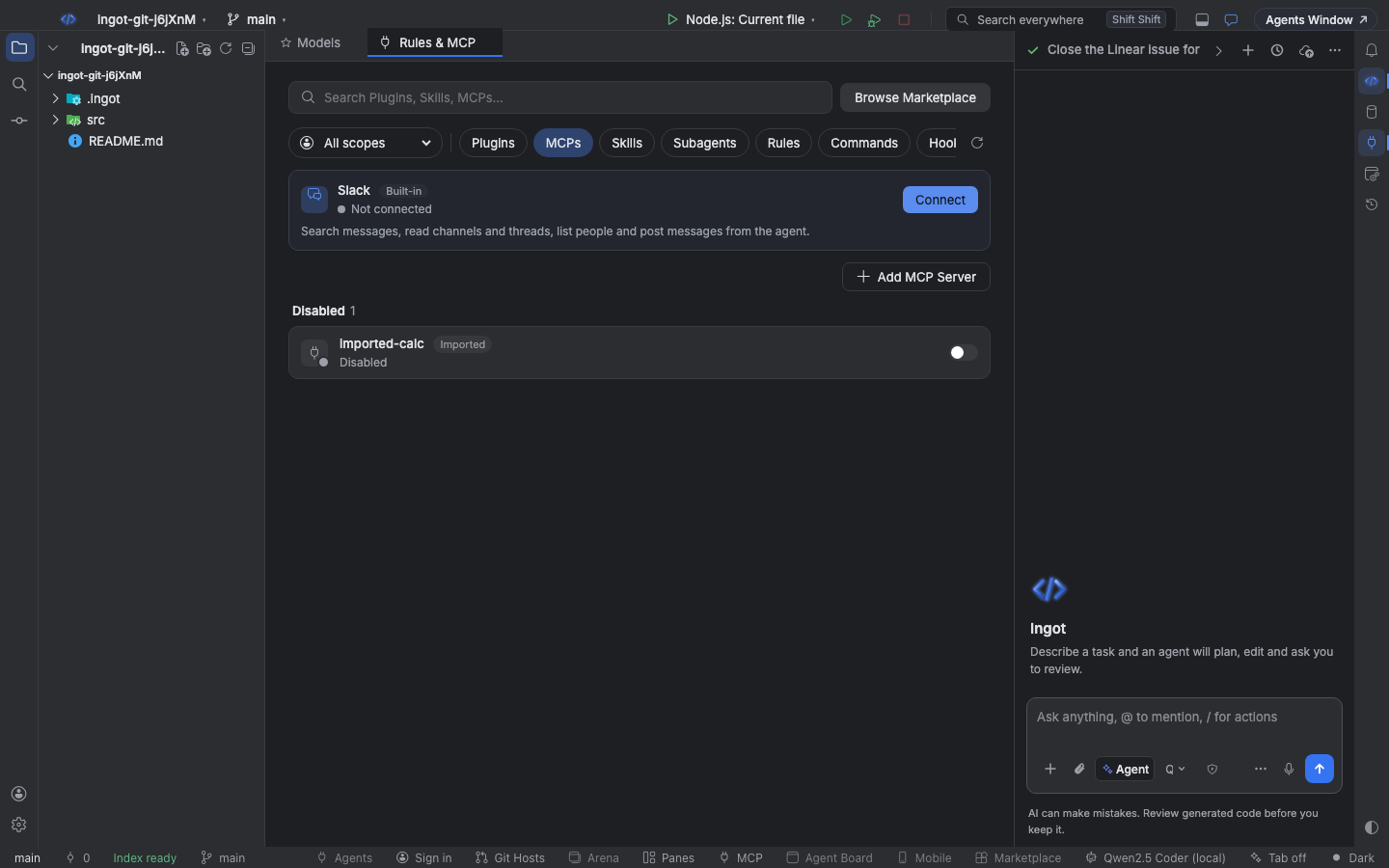
MCP is on by default. There are three ways to it:
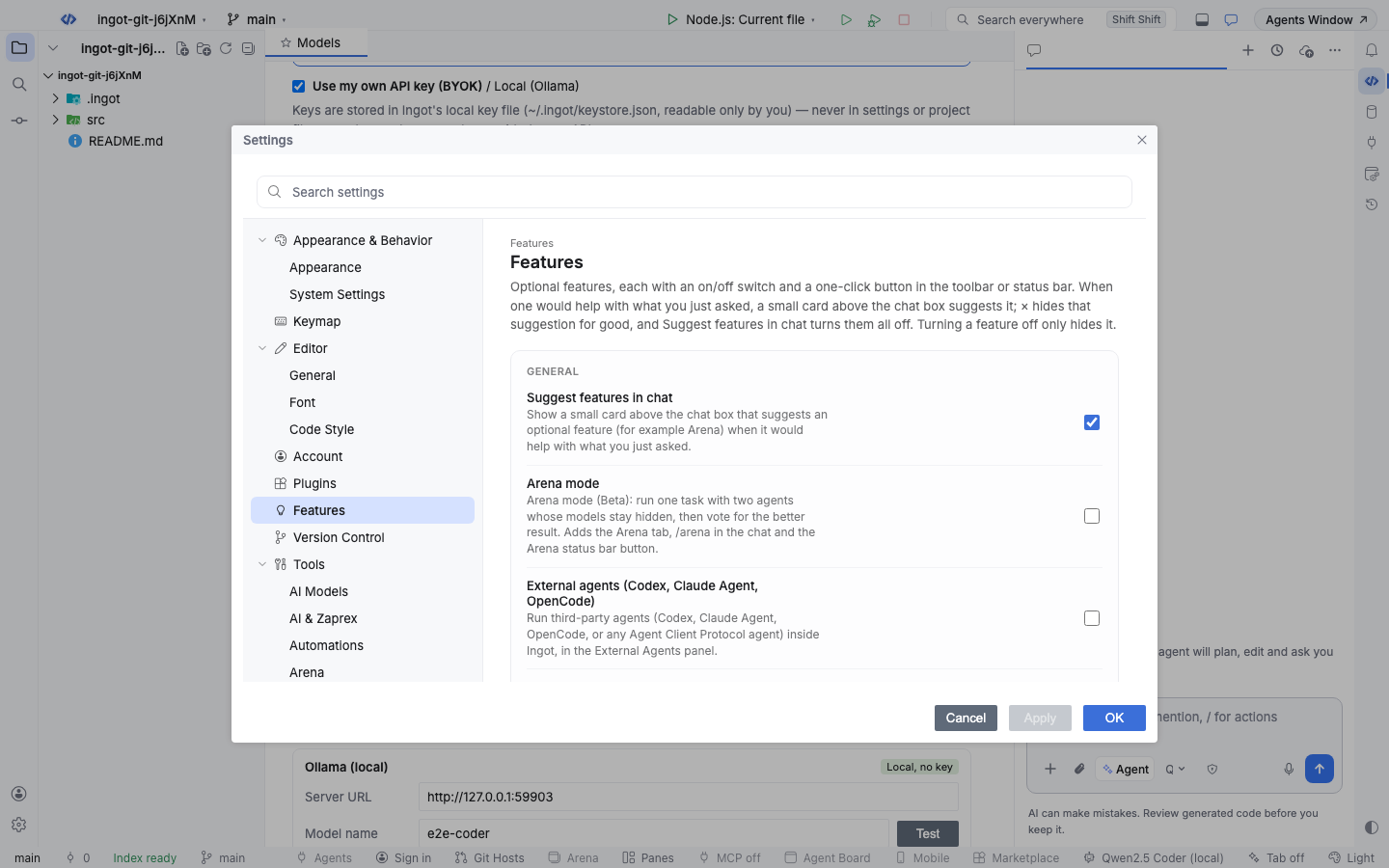
- In the chat: when you name an app that has a remote MCP server, such as Linear or Jira, and it is not connected yet, a small card above the chat box offers Connect Linear. It opens the add form with the server filled in. × closes the card for good, and Suggest features in chat in Settings › Features turns all such cards off. There is no popup.
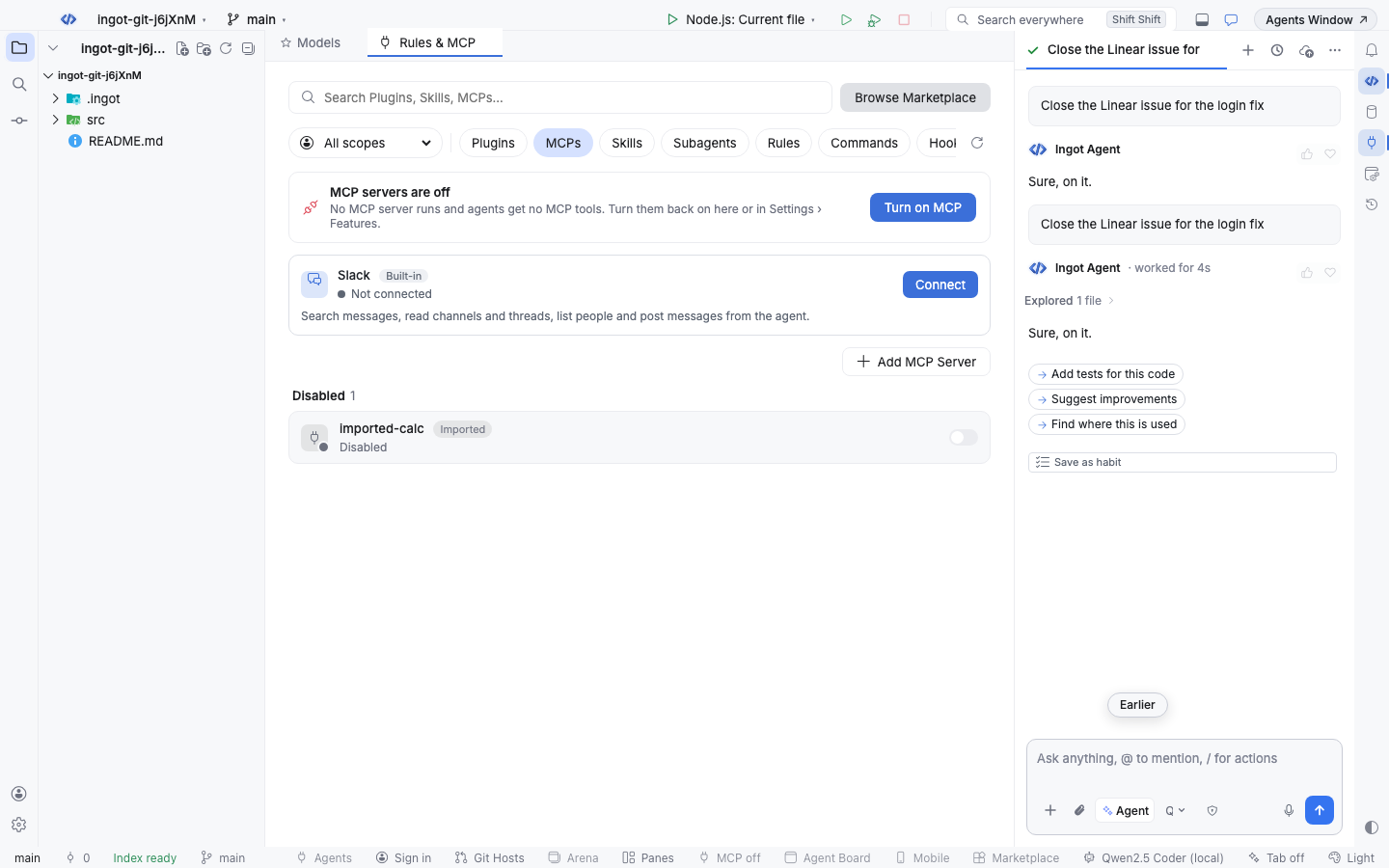
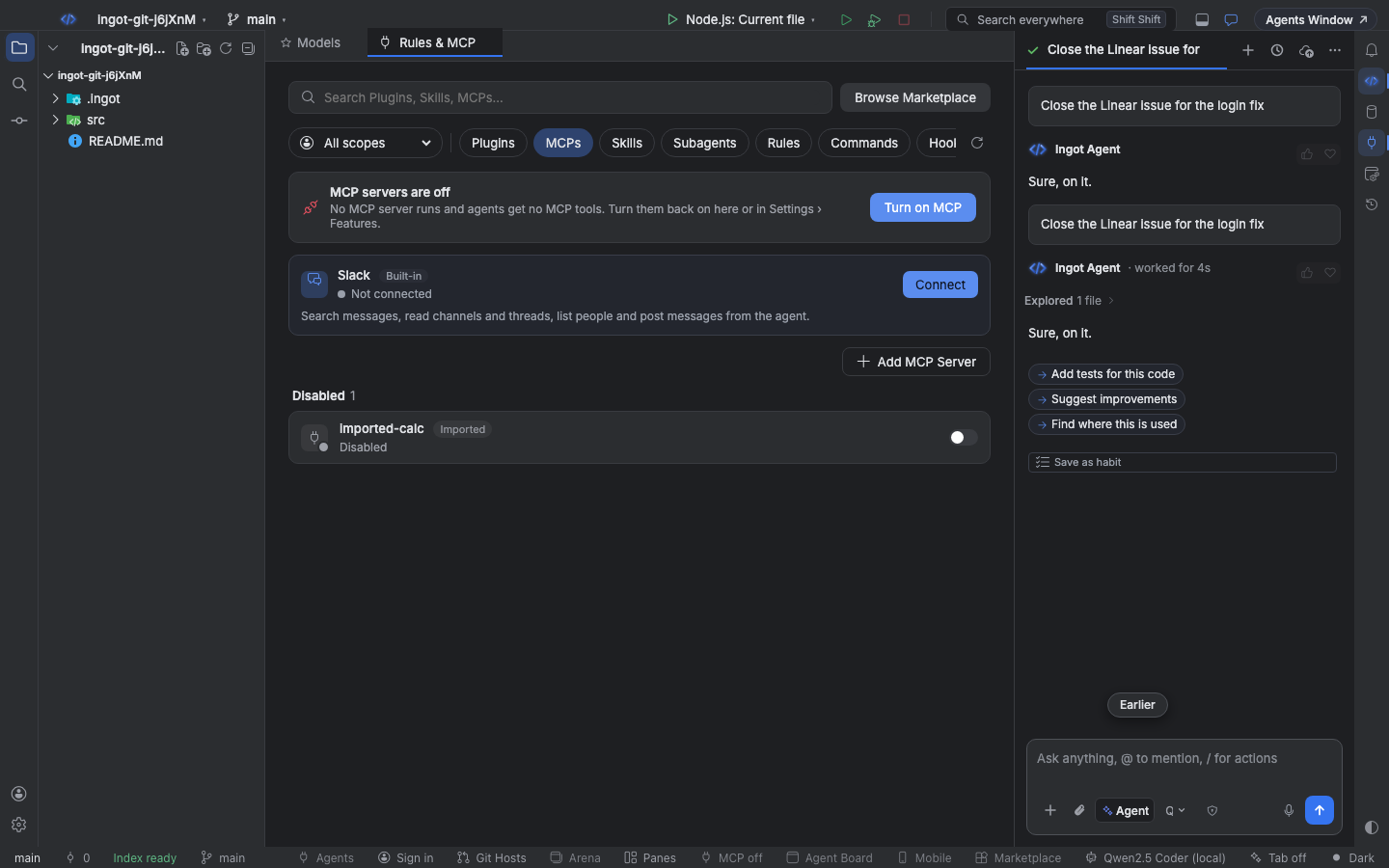
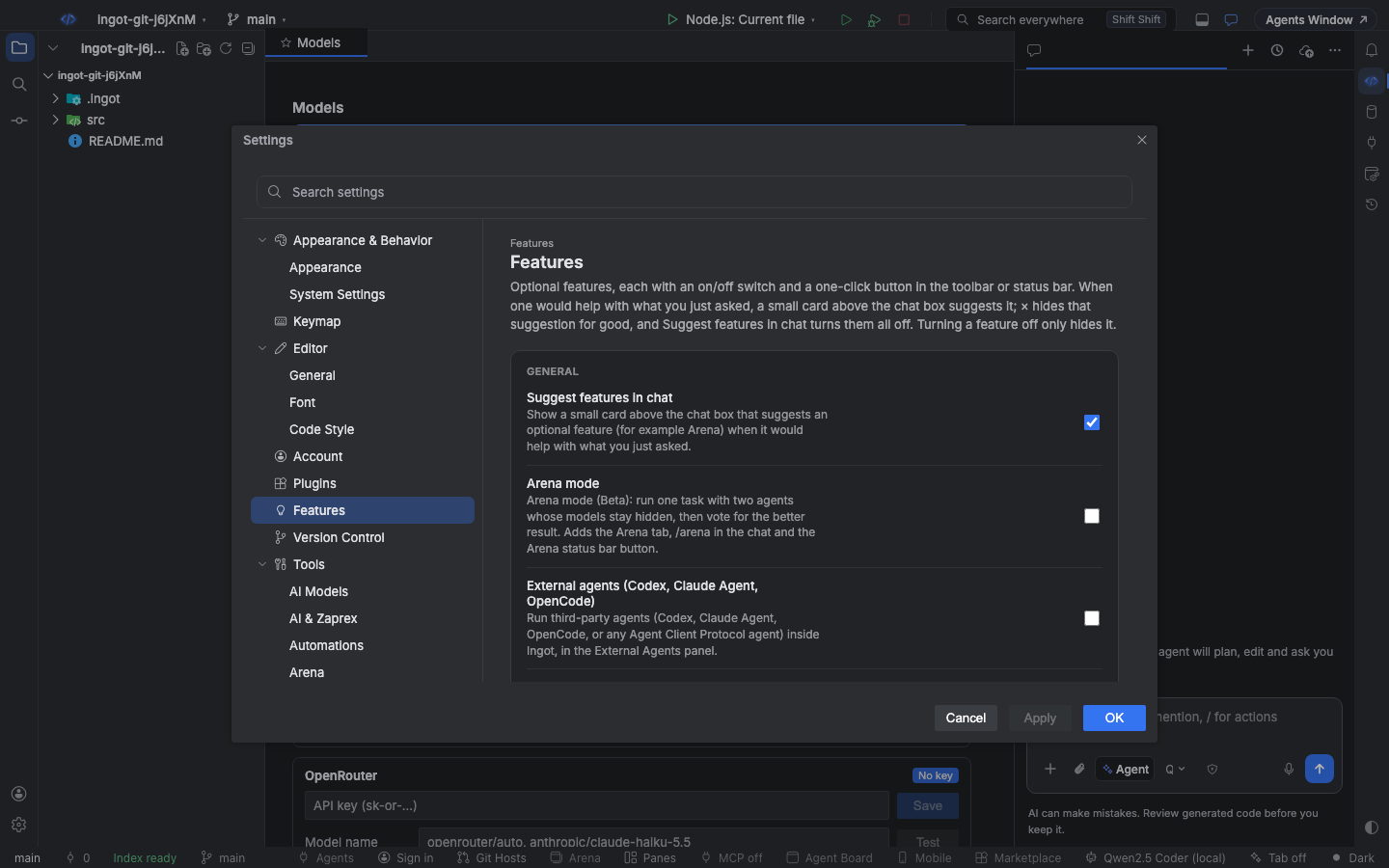
- In Settings: Settings › Features › MCP servers turns every MCP server on or off. Off stops them and agents get no MCP tools; your servers and sign-ins stay.
- In the status bar: the MCP button shows how many servers are connected and opens or hides the MCP page. When MCP is off it reads MCP off, and one click turns it on and opens the page.
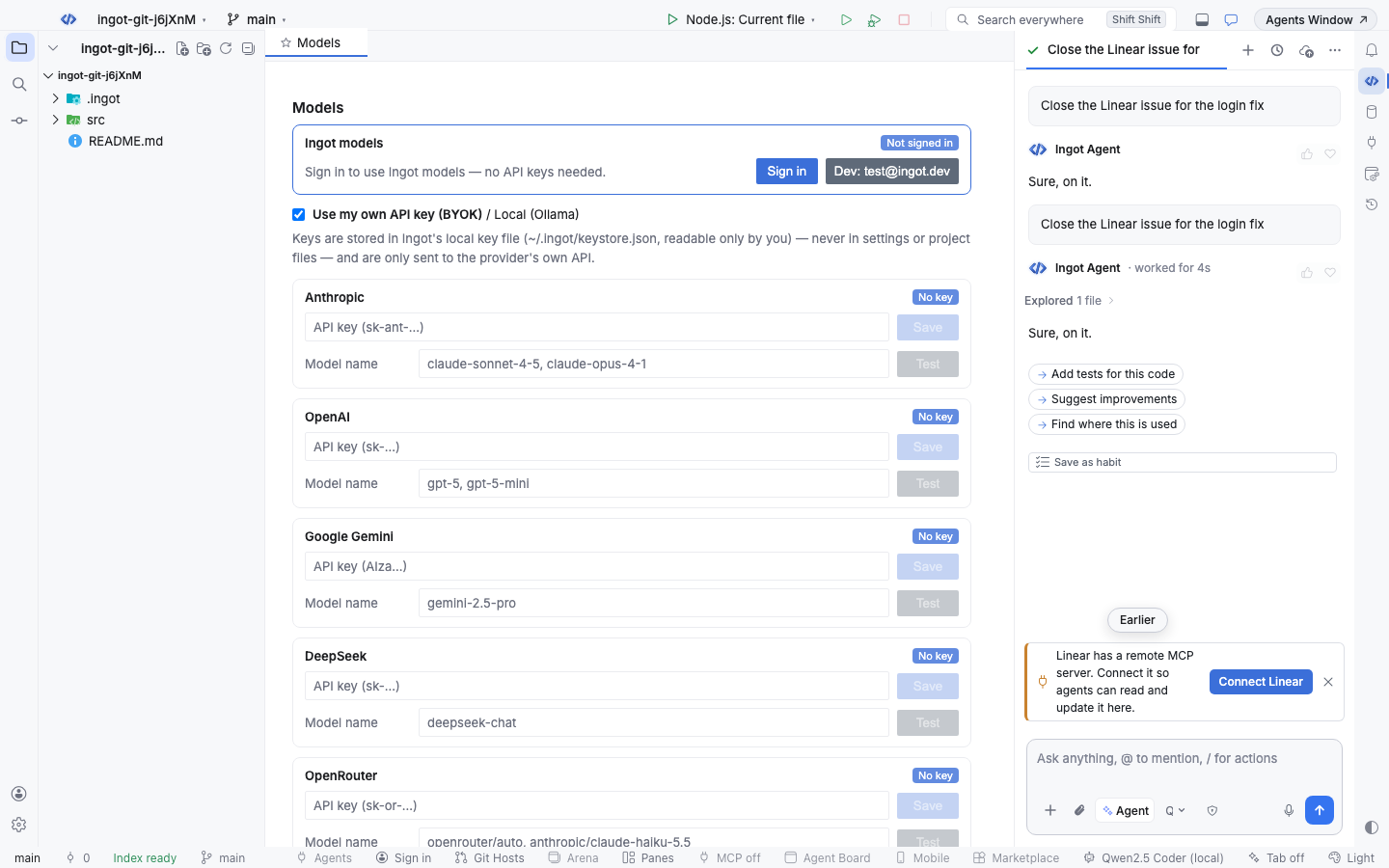
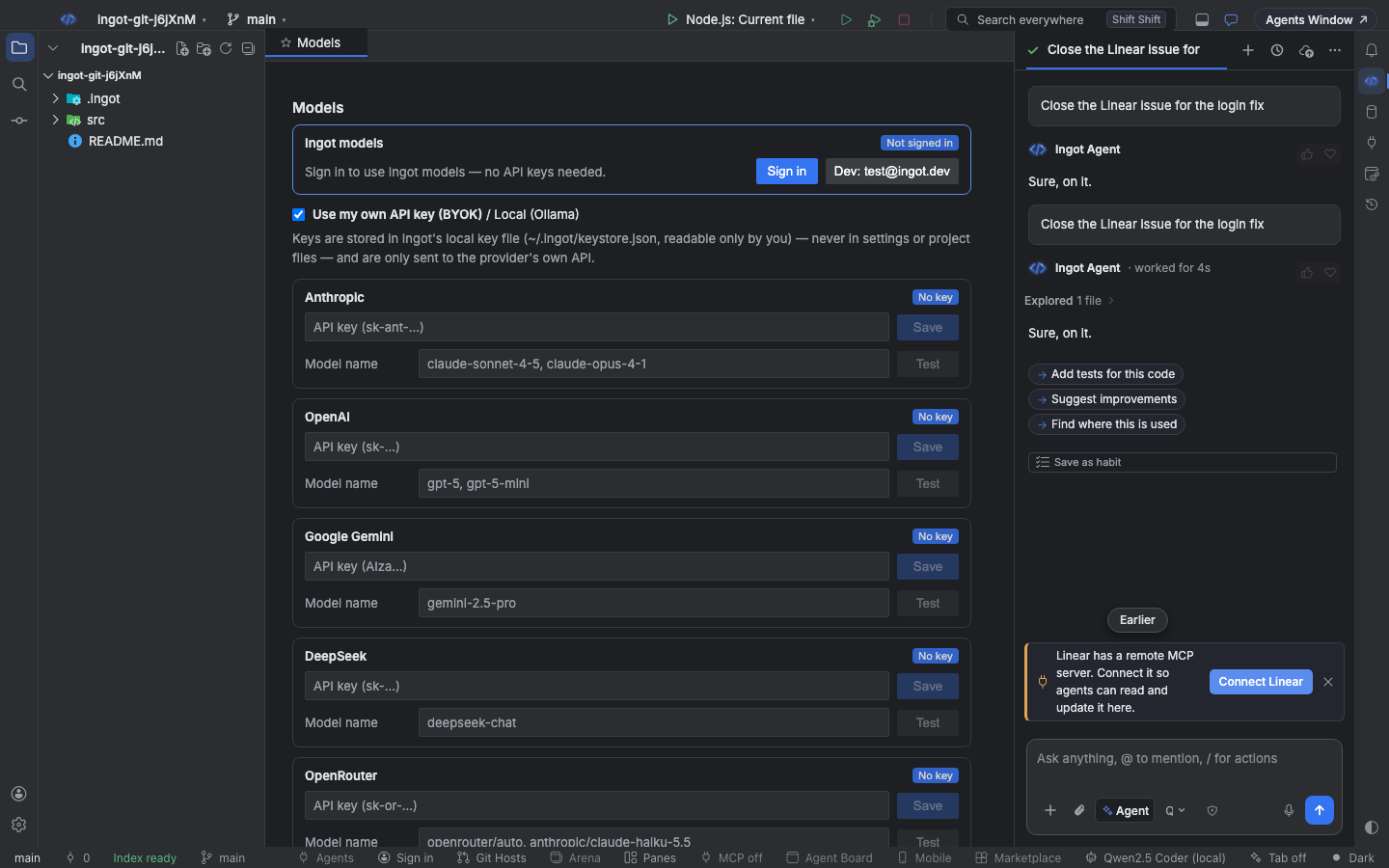
Add a remote server
Run MCP: Add Remote Server (OAuth)… from Find Action, or pick Linear, Atlassian, Notion or another remote entry on the MCP page. Give the server a name and its URL, for example https://mcp.linear.app/mcp, and choose Add. Ingot then opens your browser to sign in.
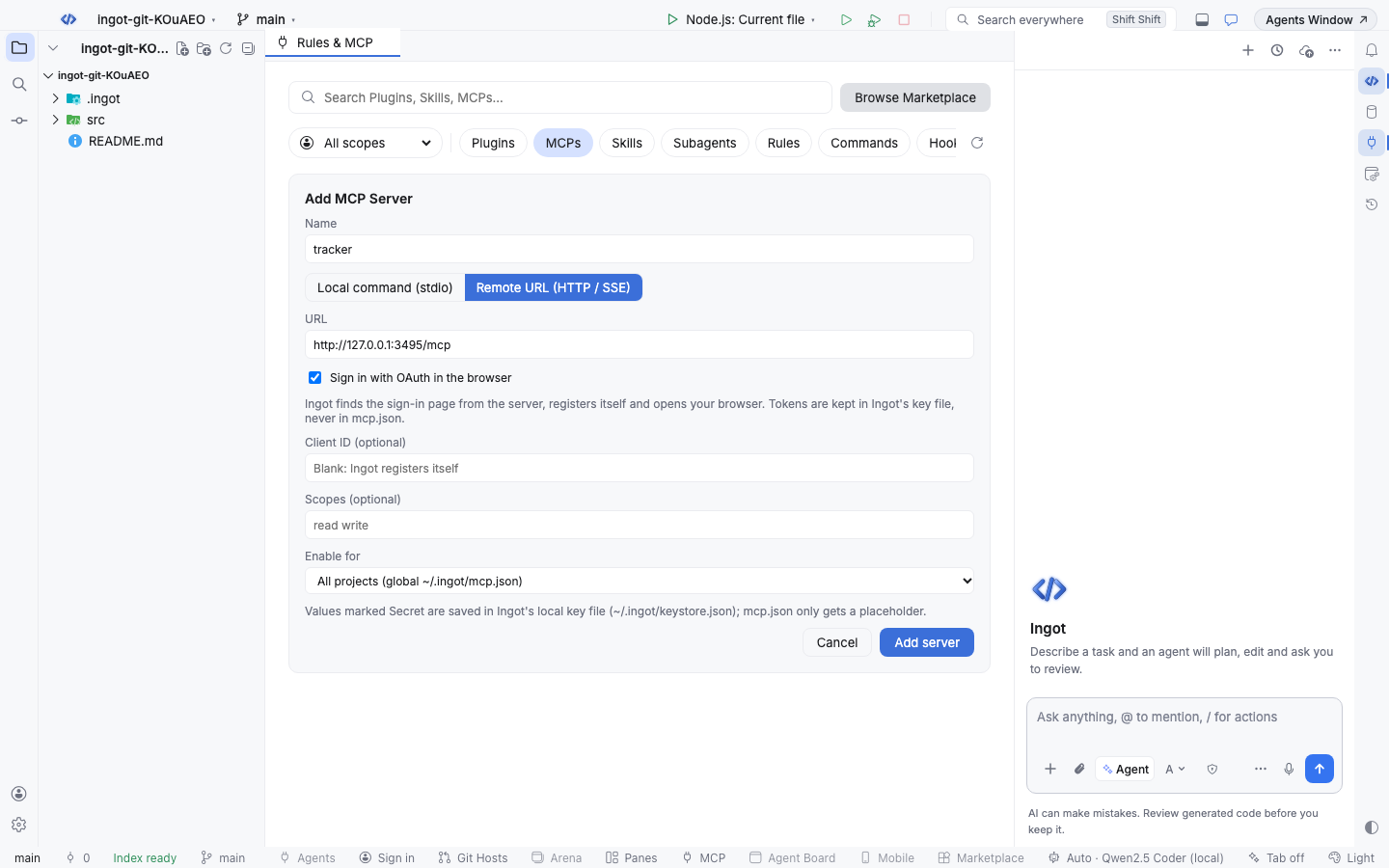
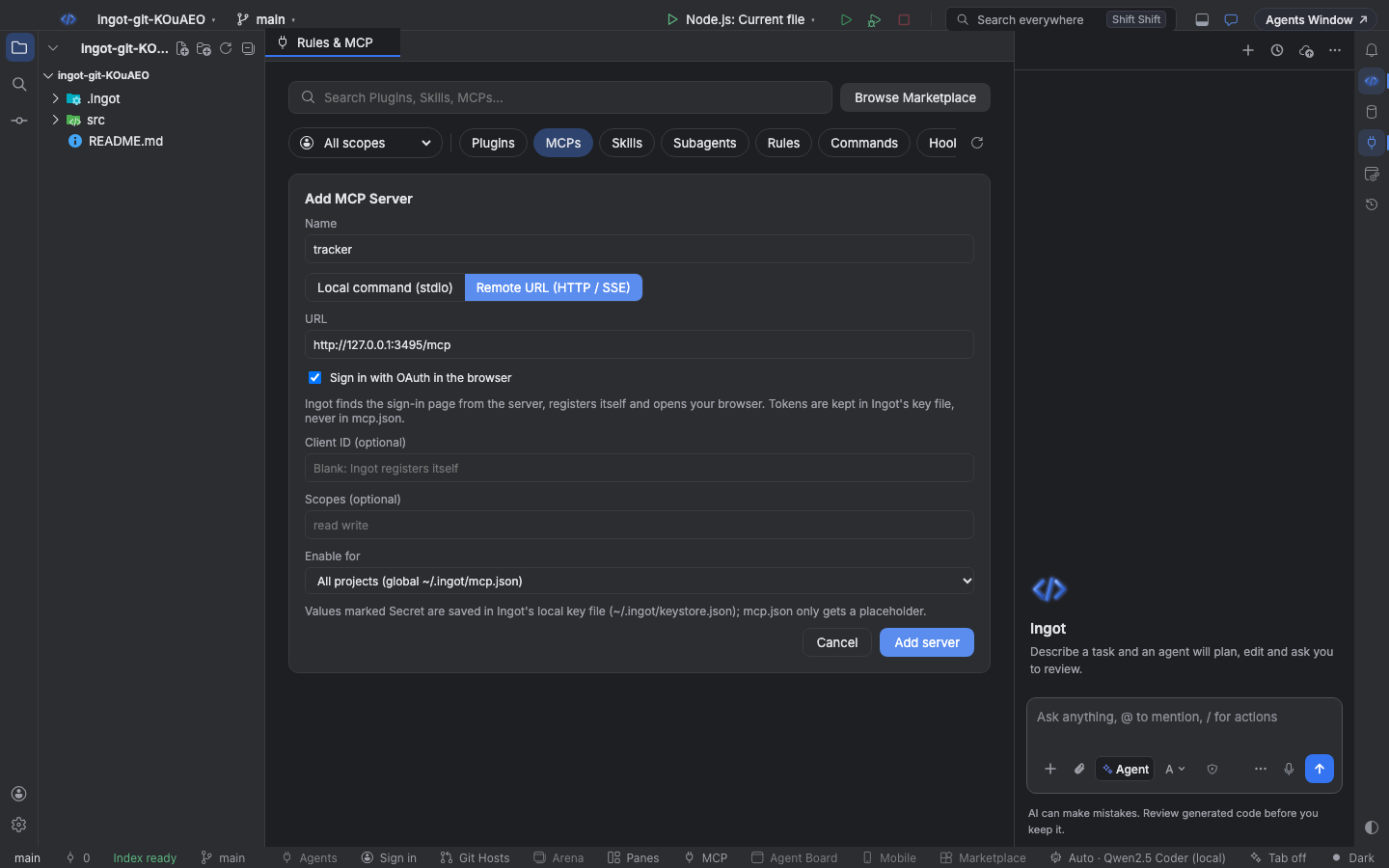
Ingot writes the server to mcp.json in the common MCP format, so other tools can read it too. No token goes in the file:
{
  "mcpServers": {
    "linear": { "url": "https://mcp.linear.app/mcp", "auth": {} }
  }
}
The Client ID and Scopes fields are optional. Leave them blank and Ingot registers itself with the server. Fill in the client ID when your company gave you an OAuth app; a Client secret field then appears for apps that have one. These become "auth": { "CLIENT_ID": "…", "CLIENT_SECRET": "${keychain}", "scopes": ["read"] }, and the secret itself goes to Ingot's key file.
Servers you added earlier through npx mcp-remote <url> keep working. Open one with Edit and save it to switch it to the built-in remote connection.
Sign in
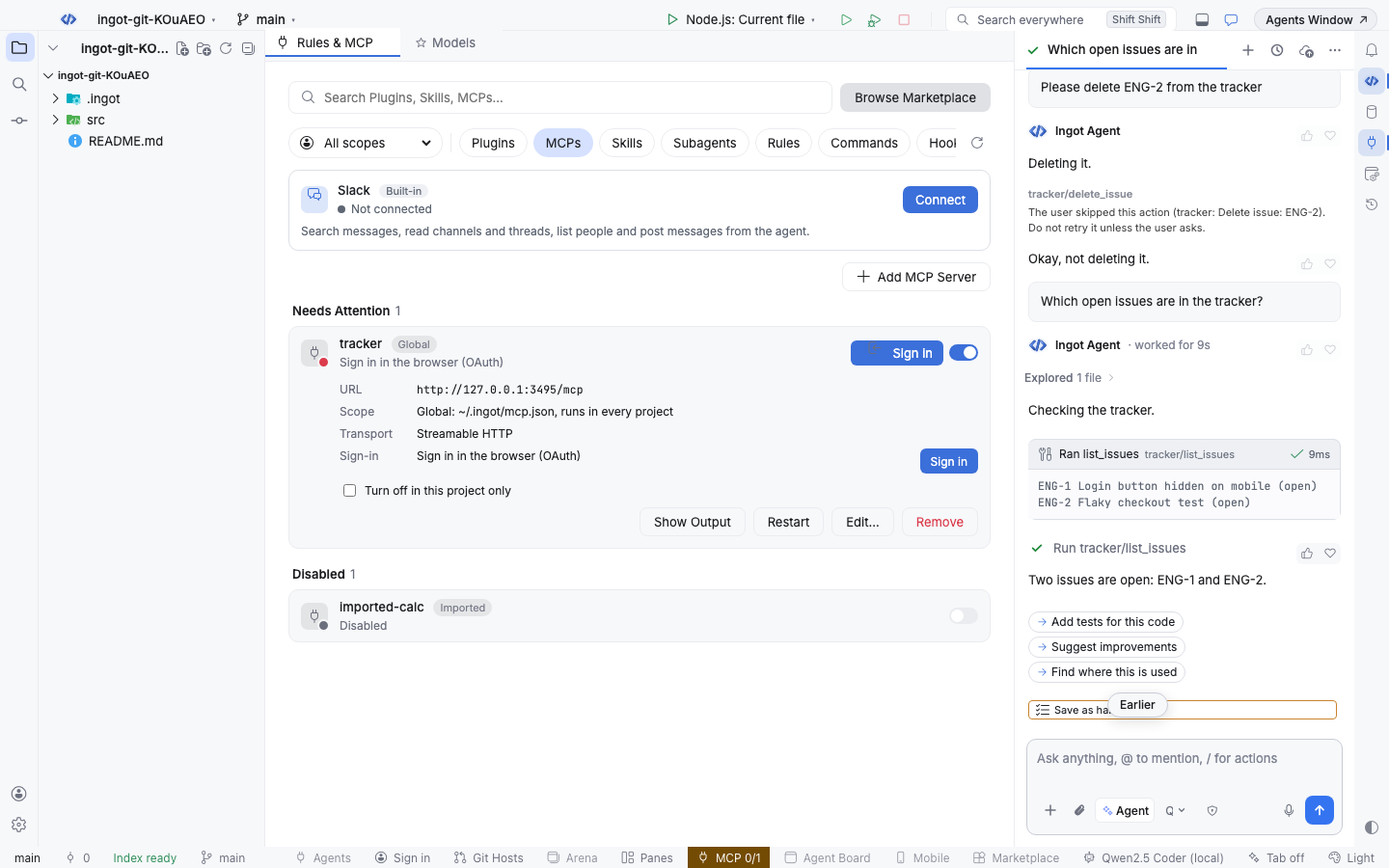
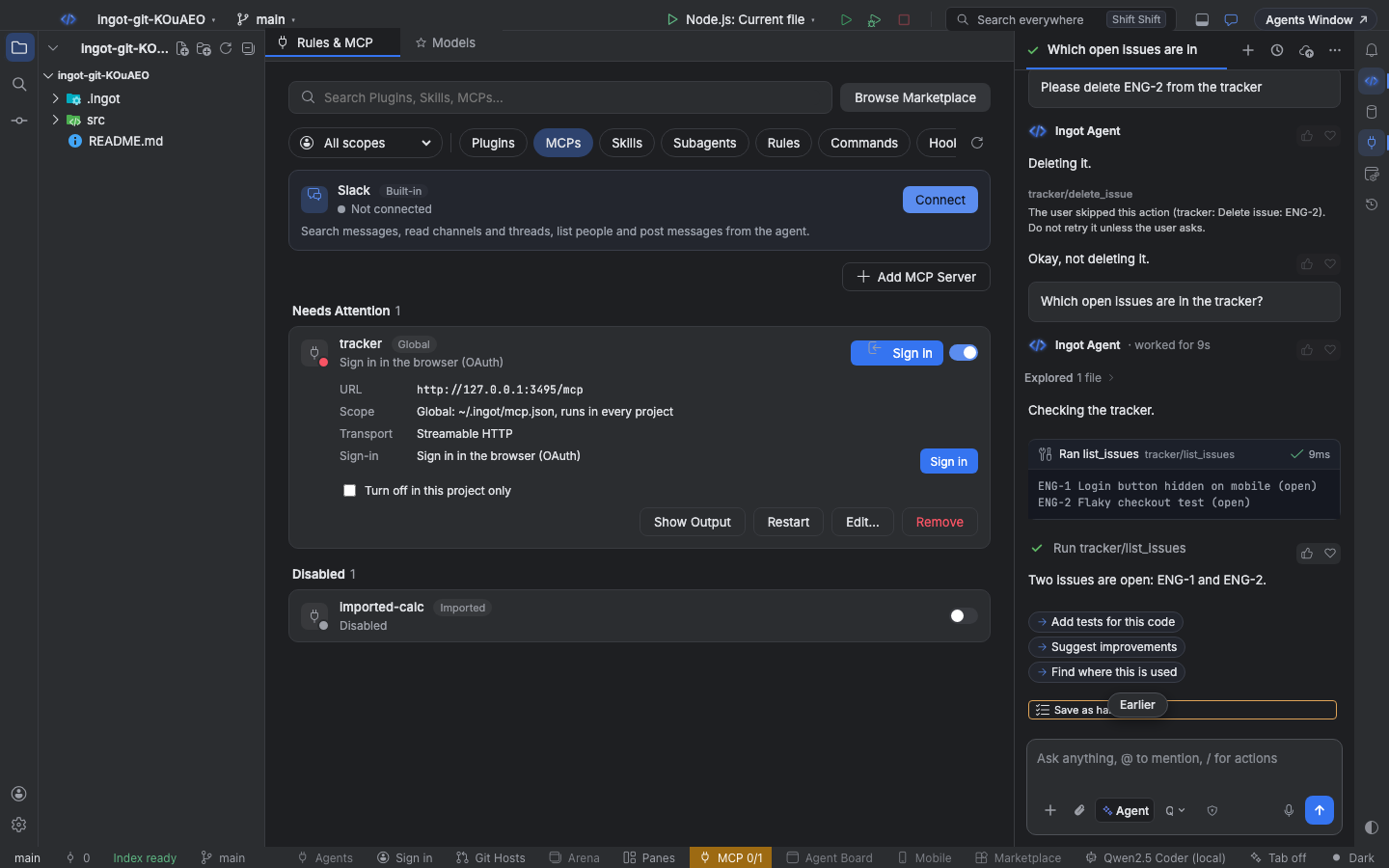
Choose Sign in on the server's row, or run MCP: Sign In to a Remote Server…. Ingot opens the server's sign-in page in your browser. After you allow access, the browser shows "Signed in to linear" and the server connects. Cancel stops a sign-in you do not want to finish.
What happens underneath, following the MCP authorization spec:
- Ingot asks the server where to sign in (OAuth protected resource metadata, RFC 9728), then reads the sign-in server's settings (RFC 8414 or OpenID Connect discovery).
- It uses your client ID if
mcp.jsonhas one, else registers itself (dynamic client registration, RFC 7591), else uses Ingot's client metadata document when the server accepts one. - The browser comes back to a one-time address on your computer,
http://127.0.0.1:<port>/callback. Every sign-in uses PKCE (S256) and names the server it is for (resource, RFC 8707), so a token only works for that server. - Tokens are stored in Ingot's key file,
~/.ingot/keystore.json, which only your user can read. Ingot renews them before they expire.
The row shows who signed you in and when the token renews. Sign out ends the server's session and forgets the tokens.
Health
Ingot pings every running server once a minute and shows the result on its row:
| Health | Means |
|---|---|
| Healthy | answered the last ping |
| Slow | answered, but took longer than 1.5 seconds |
| Degraded | missed one ping |
| Down | missed two pings in a row |
| Not checked | no ping yet |
Open a row for the transport (Streamable HTTP or stdio), the MCP version the server speaks, the latency, the average and the share of recent pings it answered. Check now on a row, the check button at the top of the page, or MCP: Check Server Health pings at once. The status bar button turns to a warning or error color while a server is degraded or down.
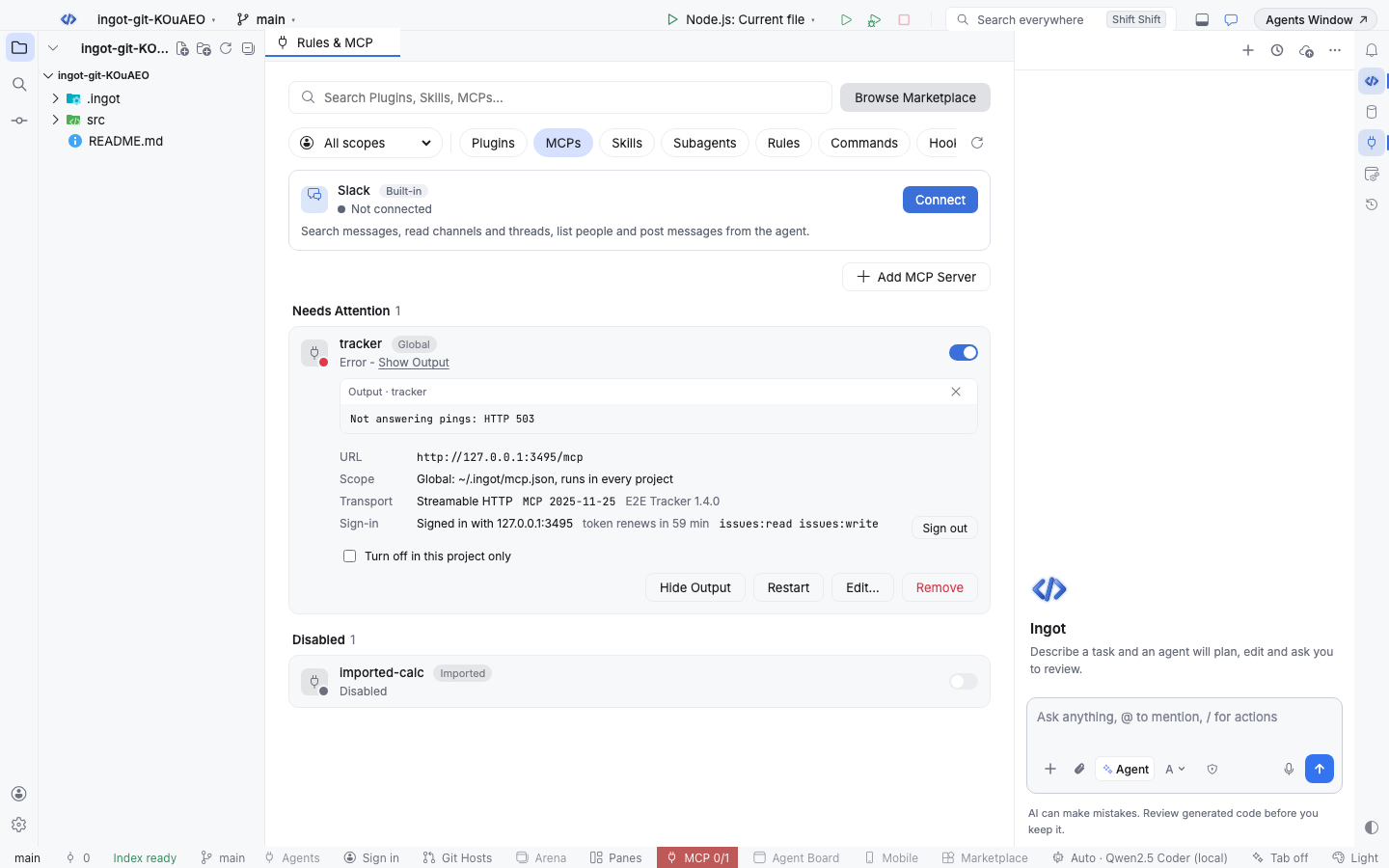
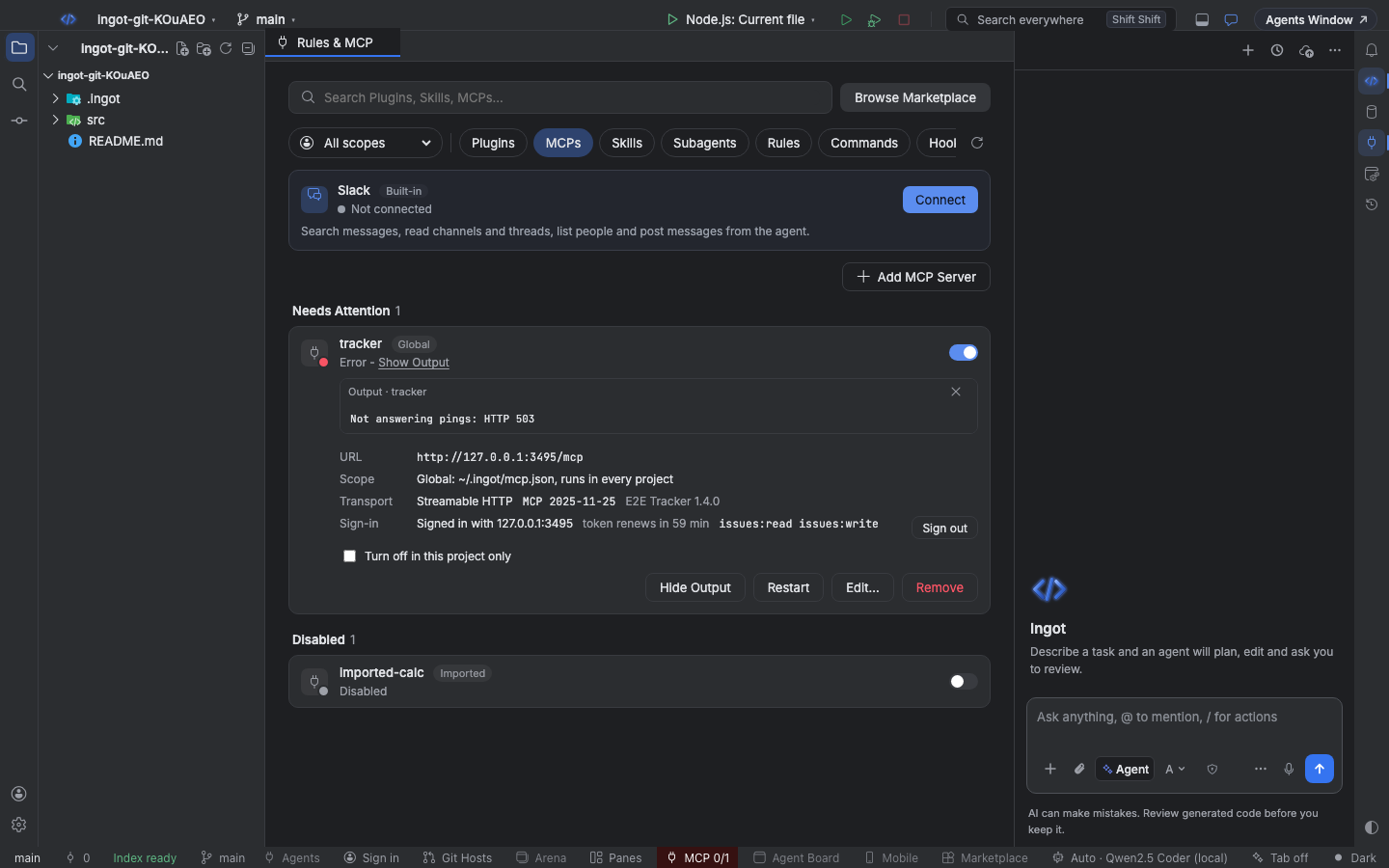
When a server stops answering, Ingot restarts it on the next check and renews its sign-in when needed. With Restart servers that stop answering off, a server that misses two pings is marked as failed with "Not answering pings" until you restart it.
Tool approval
Every MCP tool an agent wants to run shows an approval card first, with the server, the tool and what the tool may do. Ingot reads that from the server's tool annotations:
| Badge | When |
|---|---|
| Read-only | the server marks the tool readOnlyHint |
| Writes | anything else, the default |
| Destructive | the server marks the tool destructiveHint |
| Open world | the tool reaches outside the server, such as the web (openWorldHint) |
Always Allow runs the tool now and every later time without the card. Destructive tools never get Always Allow: they ask every time, and Skip tells the agent you said no.
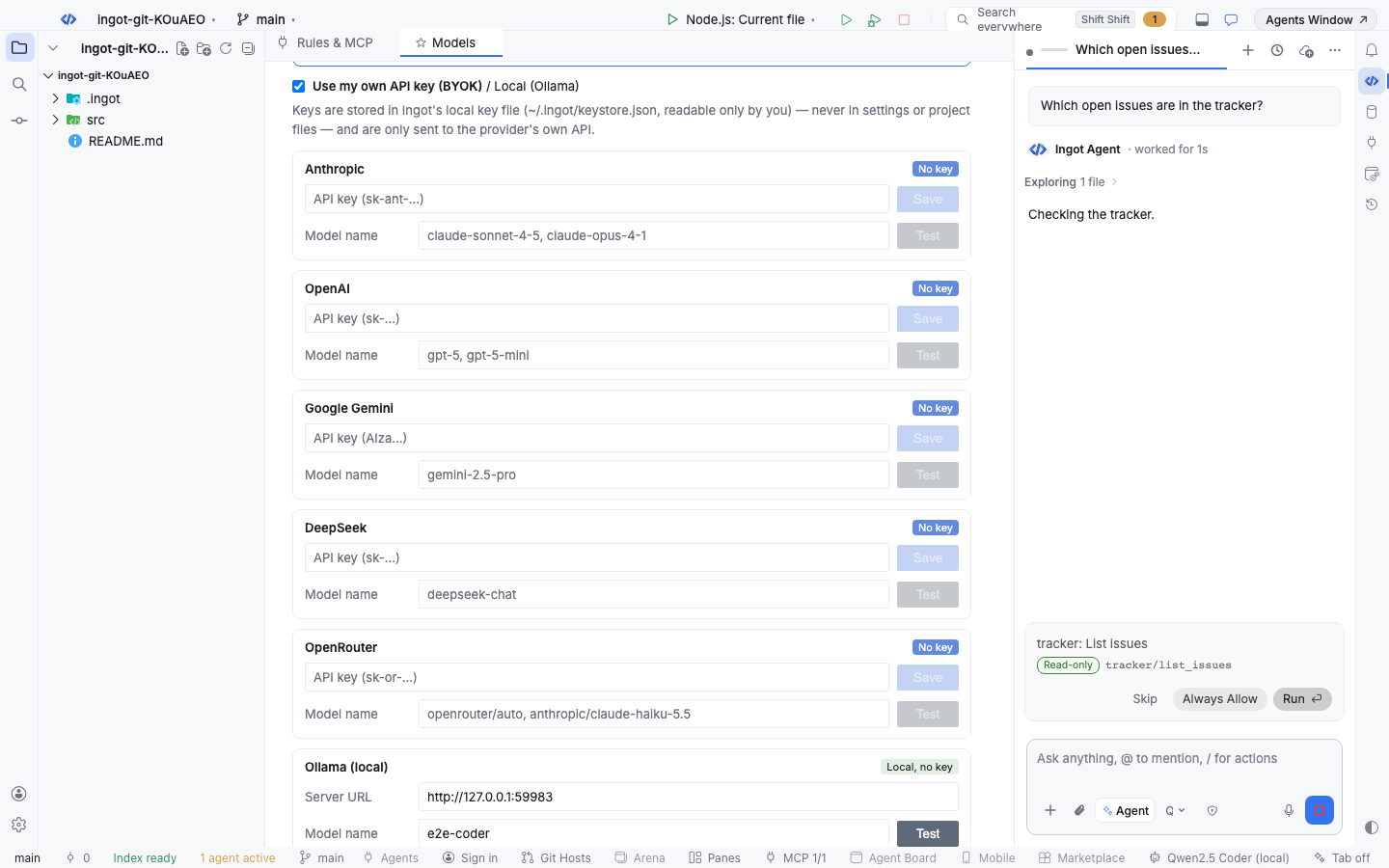
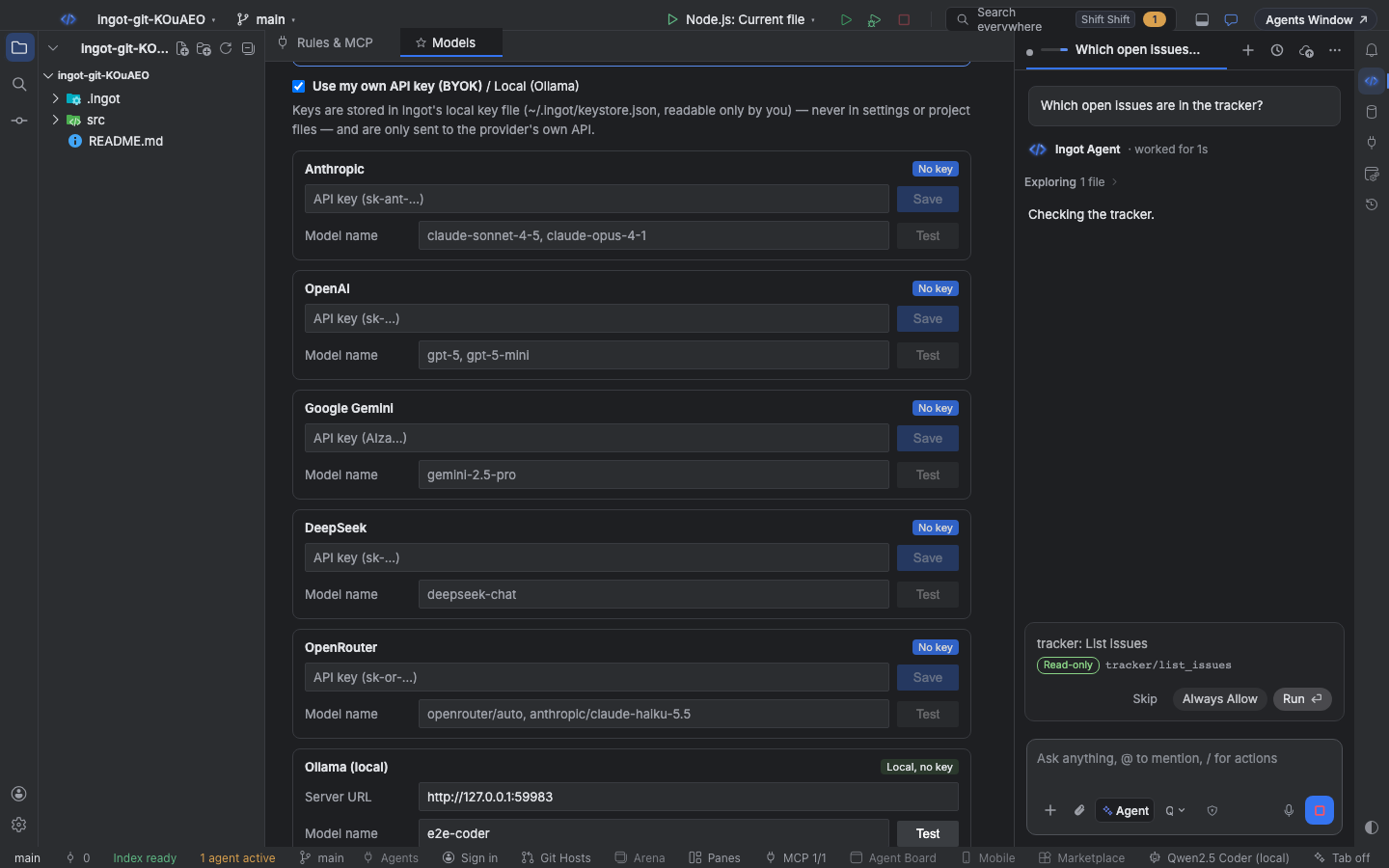
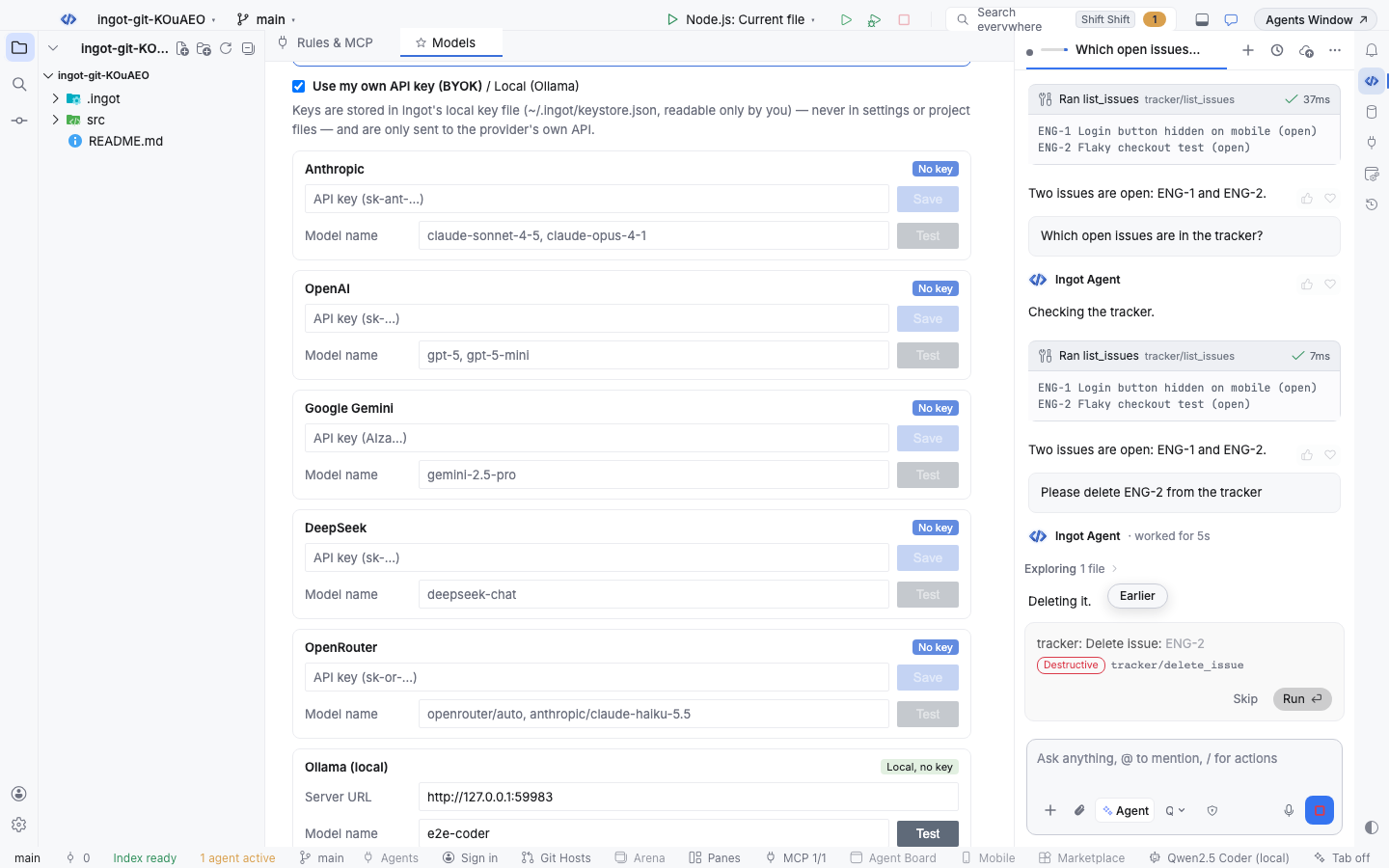
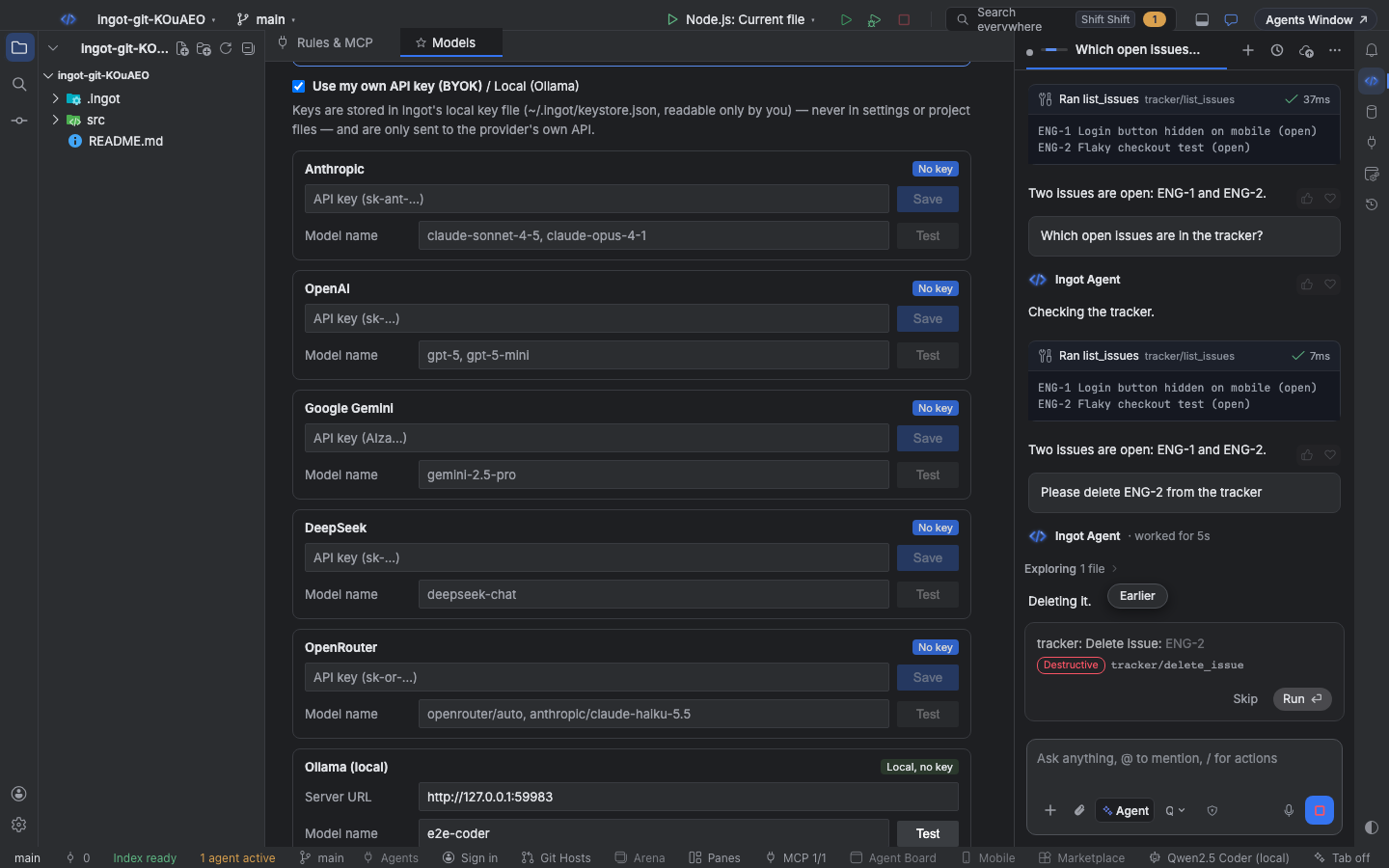
On the MCP page each tool has an Approval choice: Default, Ask every time or Always allow. Your choices are saved per server and tool in ingot.mcp.toolApprovals. Run read-only tools without asking lets tools the server marks read-only skip the card, except those you set to Ask every time. Project policies and hooks that require approval still ask.
Settings
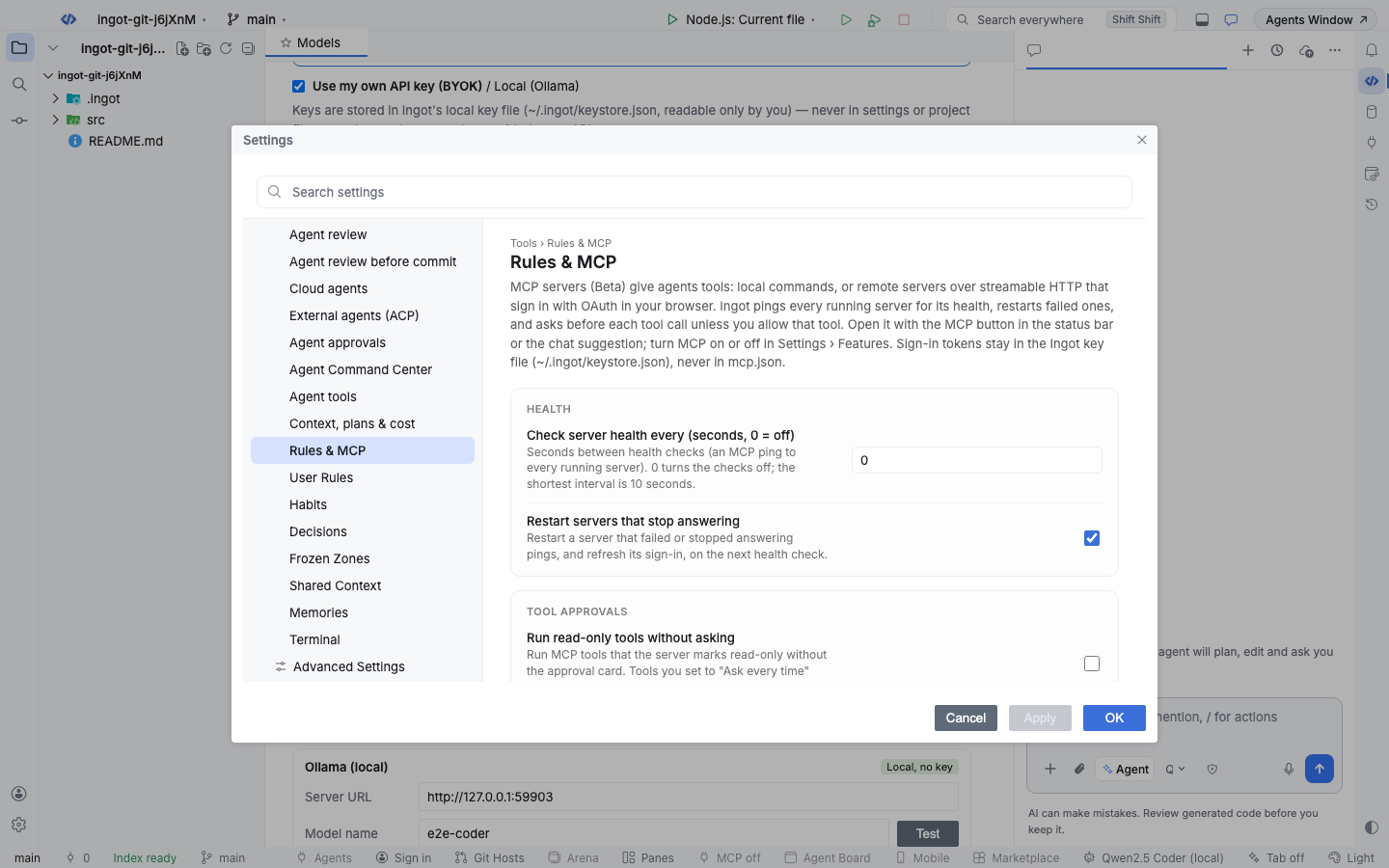
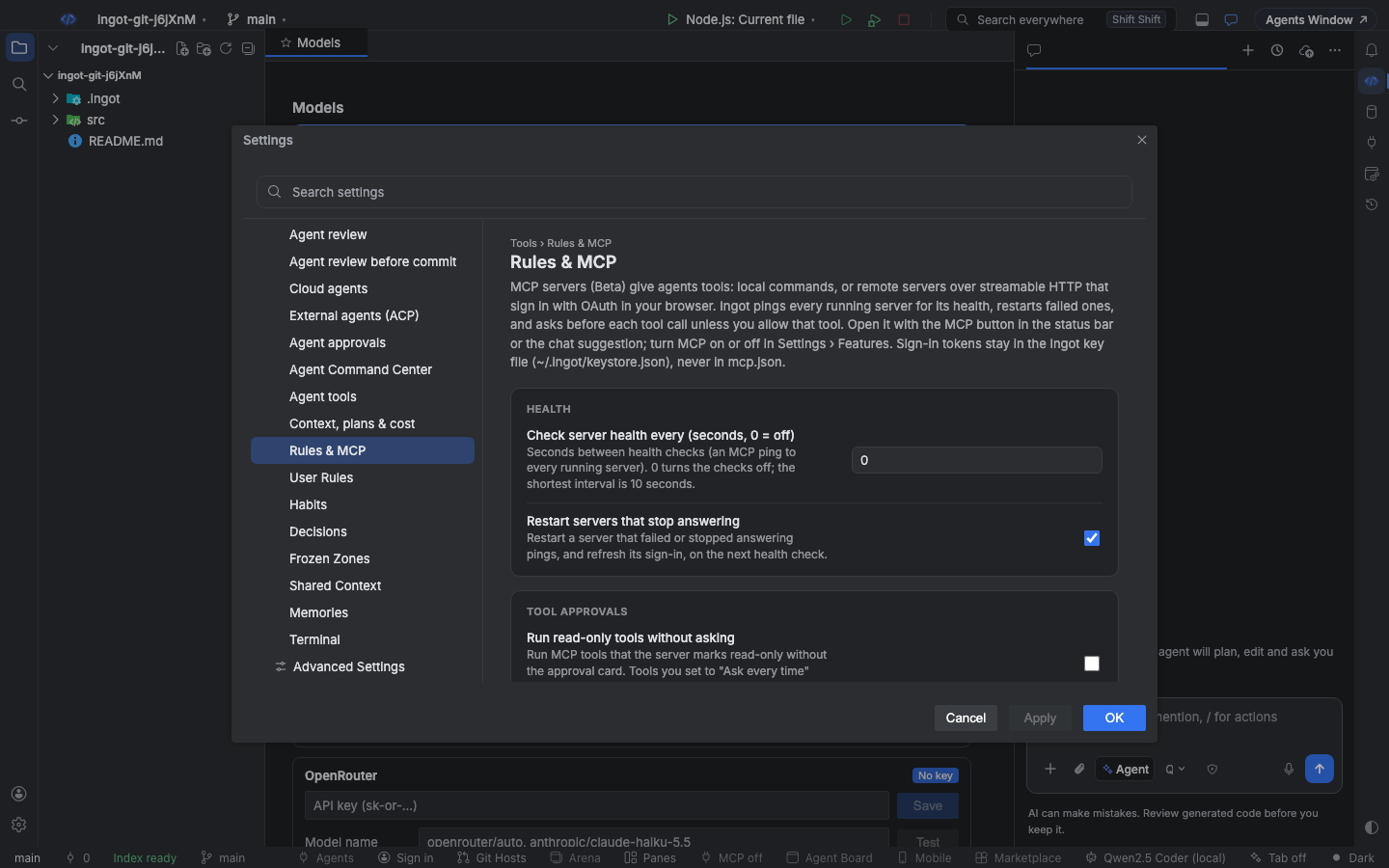
| Setting | Default | What it does |
|---|---|---|
MCP servers (ingot.mcp.enabled) | true | Settings › Features. Off stops every MCP server and agents get no MCP tools; servers and sign-ins stay |
Check server health every (seconds, 0 = off) (ingot.mcp.health.intervalSeconds) | 60 | Settings › Tools › Rules & MCP. Seconds between pings of every running server; 0 turns the checks off, the shortest is 10 |
Restart servers that stop answering (ingot.mcp.health.autoReconnect) | true | Restarts a failed server or one that missed pings, and renews its sign-in, on the next check |
Run read-only tools without asking (ingot.mcp.approval.autoRunReadOnly) | false | Tools the server marks read-only run without the approval card, unless you set them to Ask every time |
Per-tool approvals (ingot.mcp.toolApprovals) | {} | Server name → tool name → "ask" or "allow", set from the MCP page or Always Allow |
Suggest features in chat (ingot.suggestions.enabled) | true | Shows the Connect card when you name an app with a remote MCP server; mcp-remote in ingot.suggestions.dismissed after × |
Commands
| Command | Does |
|---|---|
| MCP: Open Servers | turns MCP on if needed and opens the MCP page |
| MCP: Show / Hide Servers | shows or hides the MCP page (the status bar button) |
| MCP: Add Remote Server (OAuth)… | opens the add form for a remote server |
| MCP: Sign In to a Remote Server… | signs in to a server that needs it |
| MCP: Check Server Health | pings every running server now |
From the terminal
ingot mcp reads the same mcp.json files and speaks the same protocol, for scripts and CI:
npx @ingotide/cli mcp list                       # servers, transport, signed in or not
npx @ingotide/cli mcp login linear               # OAuth in the browser
npx @ingotide/cli mcp check --count 3            # health of every server; exits 1 if one is down
npx @ingotide/cli mcp tools linear               # tools with read-only / write / destructive
npx @ingotide/cli mcp call linear list_issues --args '{"state":"open"}'
npx @ingotide/cli mcp logout linear
The CLI keeps its own tokens in ~/.ingot/cli/mcp-credentials.json (mode 600), so sign in once in each place. Destructive tools need --yes. See the CLI page.
Questions
Do I still need mcp-remote? No. Ingot connects to remote servers itself. Older entries that start npx mcp-remote <url> still work.
Which MCP versions work? Ingot asks for 2025-11-25 and also accepts 2025-06-18, 2025-03-26 and 2024-11-05. Servers that still use the older HTTP+SSE transport work through mcp-remote.
The server says it needs a client ID. It does not allow self-registration. Create an OAuth app on the service, add http://127.0.0.1 as a redirect URI, and enter its client ID (and secret, if it has one) in the server's Edit form.
Where is my token? In ~/.ingot/keystore.json under mcp:<server>:oauth, never in mcp.json. Sign out or removing the server deletes it.
See also MCP for local servers and mcp.json, and Finding optional features.