Rex window layout
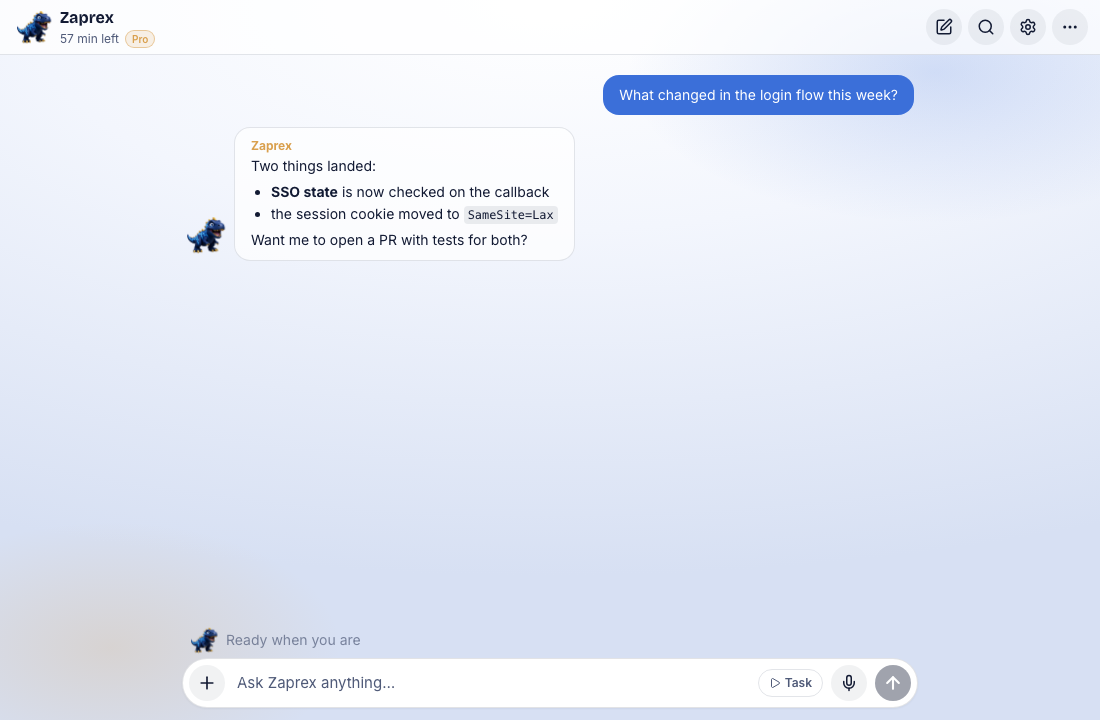
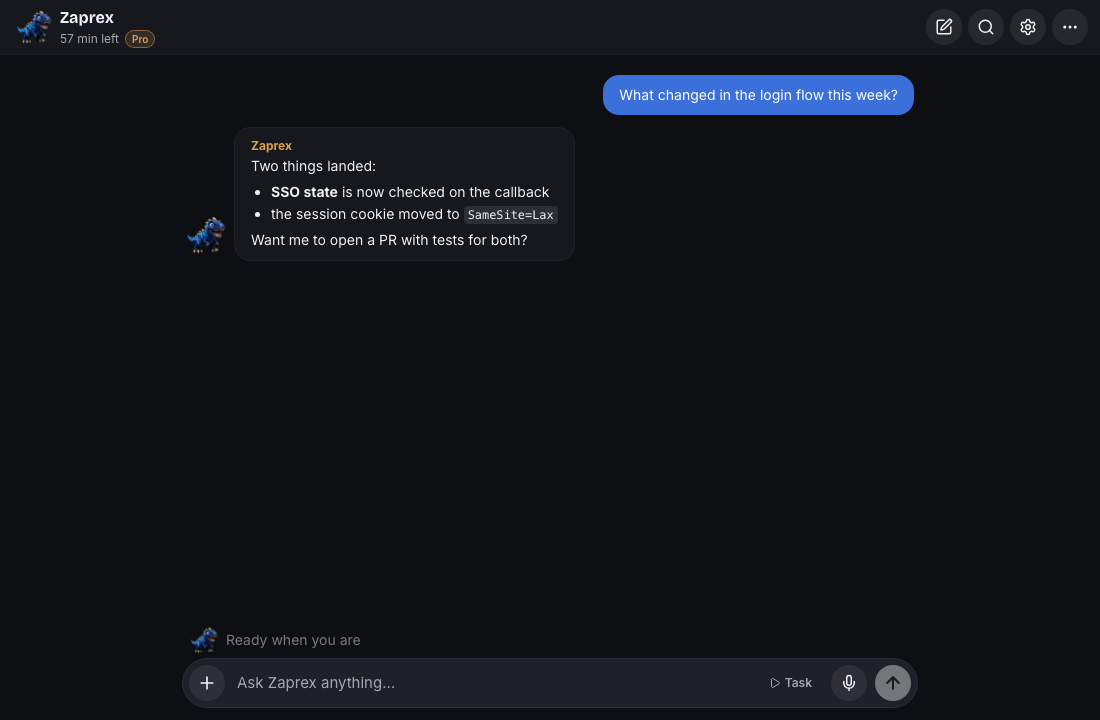
The Zaprex desktop app, the phone apps and zaprex.dev/app show Rex as one compact chat that fills the window. There is no website header and no chat box inside a page. One thin bar sits on top, and everything that is not the chat lives in Settings or the labeled ⋯ menu.
The top bar
On the left:
- The Zaprex logo, which shows what Rex is doing (idle, thinking or talking).
- The name, Zaprex, followed by the chat title when a chat is open.
- Minutes left this month, such as 57 min left. Hover it for the exact numbers, such as "3 of 60 minutes used this month". With no monthly limit it shows the minutes used instead. Your plan and Test mode show next to it when they apply.
On the right:
- New chat starts an empty chat.
- Search opens your chats with a search box.
- Settings opens Settings in the window. Click it again to go back to the chat.
- ⋯ opens the menu below.
There is no Slack button on the bar. Slack is one of your connected apps, like any other.
The More menu
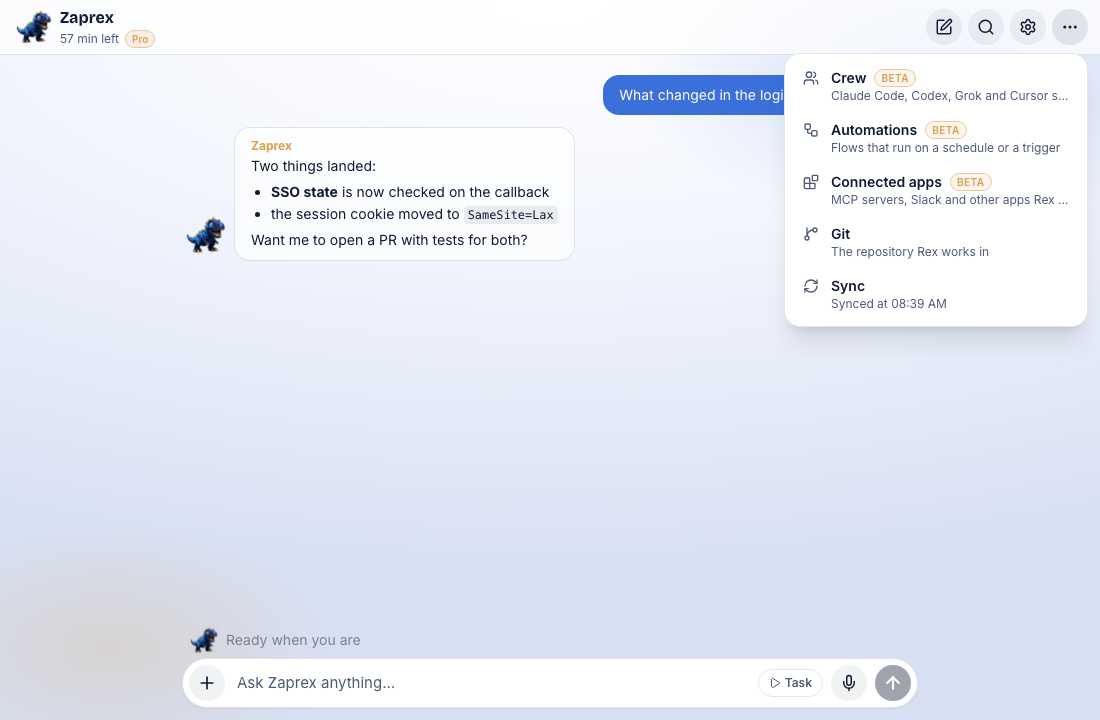
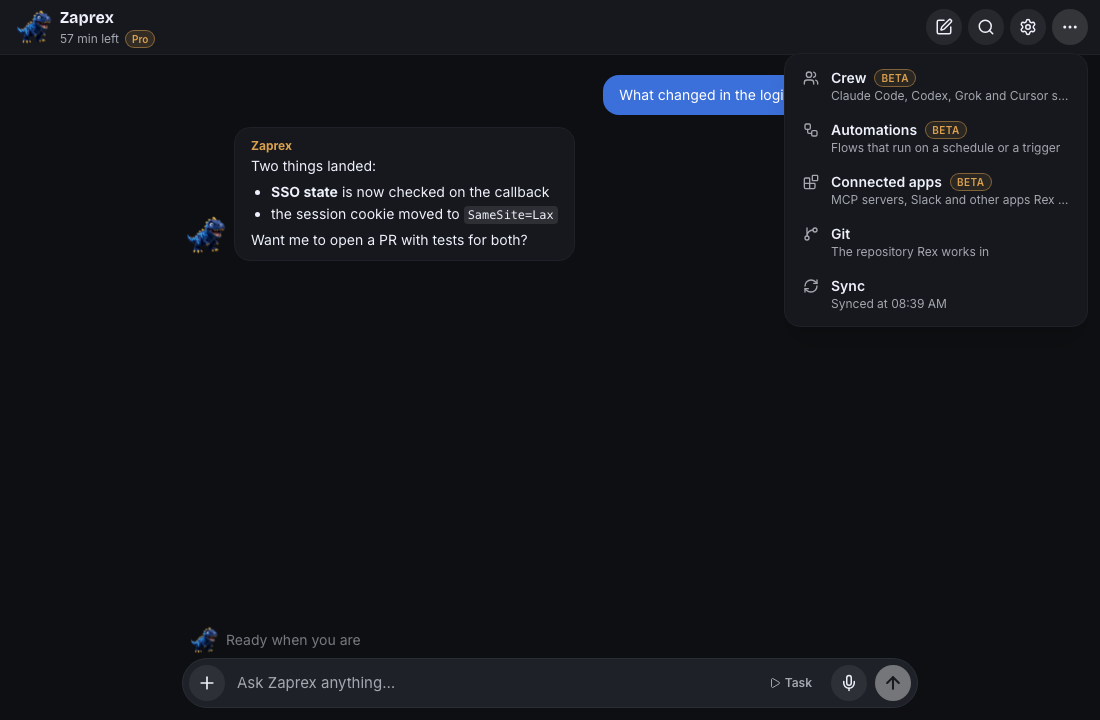
The ⋯ button is labeled: hover it to see More: Crew, Automations, Connected apps, Git, Sync. Each item has a short description under its name.
- Crew (Beta): Rex Crew, with Claude Code, Codex, Grok and
cursor-agentside by side. - Automations (Beta): Rex automations that run on a schedule or a trigger.
- Connected apps (Beta): the MCP servers, Slack and other apps Rex can use. See Rex connect apps.
- Git: pick the repository Rex works in, or No repository for chat only. Add or remove repositories in the Zaprex dashboard.
- Sync: pull the latest chat, runs, approvals and minutes now instead of waiting. The item then shows when it last synced.
Crew, Automations, Connected apps and Git open in the window in place of the chat, with a back arrow to return. New chat also takes you back to the chat.
Use the keyboard too: the up and down arrows move through the menu, Home and End jump to the first and last item, Enter opens one and Escape closes the menu.
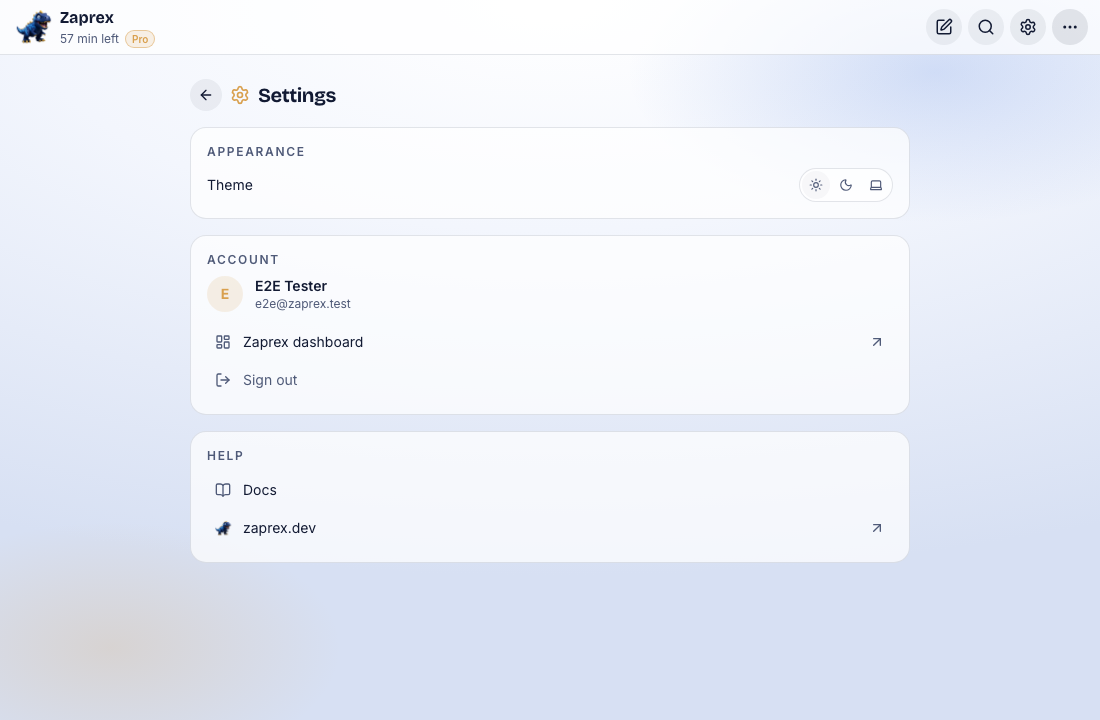
Settings
Settings has what used to be in the website header:
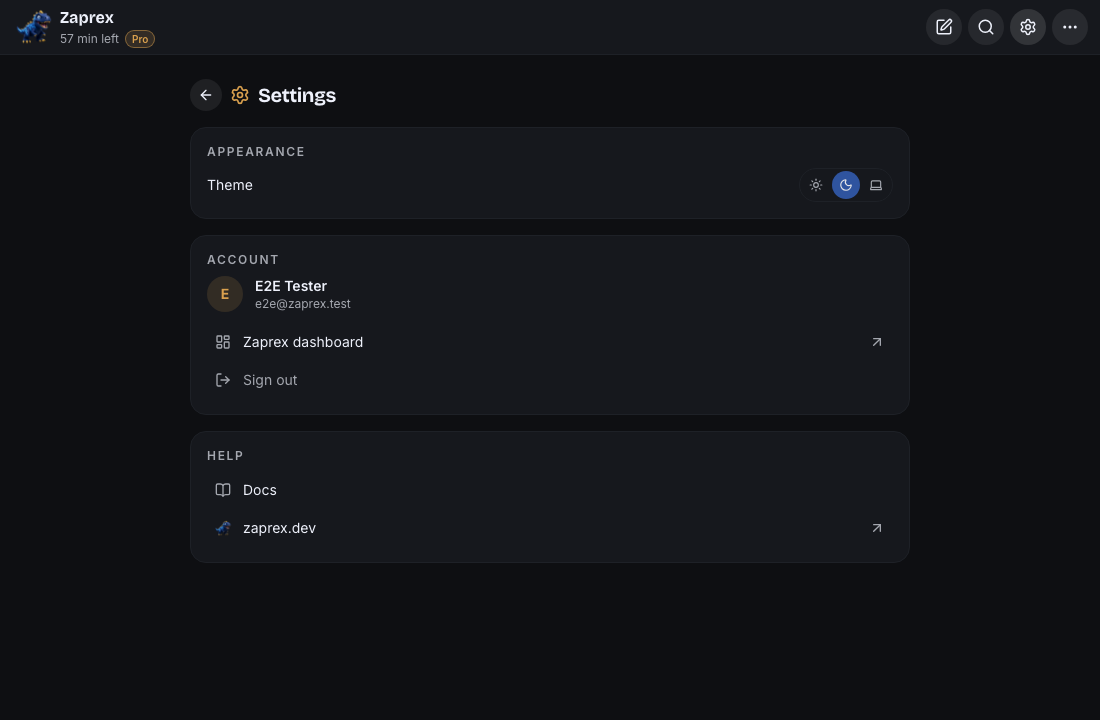
- Appearance: the light and dark theme.
- Account: your name and email, a link to the Zaprex dashboard, and Sign out.
- Help: the docs and the zaprex.dev website.
Connections comes first: every git host and app Rex can use, each with an on/off switch. See Rex Settings.
Where things moved
- Runs: the runs button sits next to the status line above the message box. It shows how many runs are going and opens the run list.
- Repository: the repository picker moved to ⋯ › Git.
- Refresh: now ⋯ › Sync.
- Theme, account and docs: now in Settings.
Links to a view
Every view has its own address, so a reload or a link lands on it:
/app?view=settings/app?view=crew/app?view=automations/app?view=connections/app?view=git
Older links still work: ?connect=apps, ?connect=git, ?automation=list, ?automation=new and ?extension=rex-crew open the matching view. In the desktop app, View › Rex Crew, Automations, Connect Apps and Git Accounts open the matching view in the window.
On phones
The iOS and Android apps use the same bar. On a narrow screen the plan pill hides, and the bar never scrolls sideways.
Signed out
There is nothing to turn on. When you are signed out, /app shows the website bar with Sign in with Ingot. Once you sign in, the chat takes the whole window.
For developers
There is no API change. The menu items, the ?view= address and the minutes-left text live in src/lib/app-menu.ts in the zaprex-site repo. The desktop app opens views through window.zaprexDesktop.crew.onOpen, automations.onOpen and connections.onOpen.
Troubleshooting
- I still see the big header: reload the window, or update the Zaprex desktop app. The new layout ships with the site.
- Where is Slack?: open ⋯ › Connected apps. Slack is a connection there, not a button on the bar.
- Minutes left looks out of date: use ⋯ › Sync.
Beta Tell us what you miss from the old layout on the support page.
See also Rex home & app links and Rex Crew.