Image notes
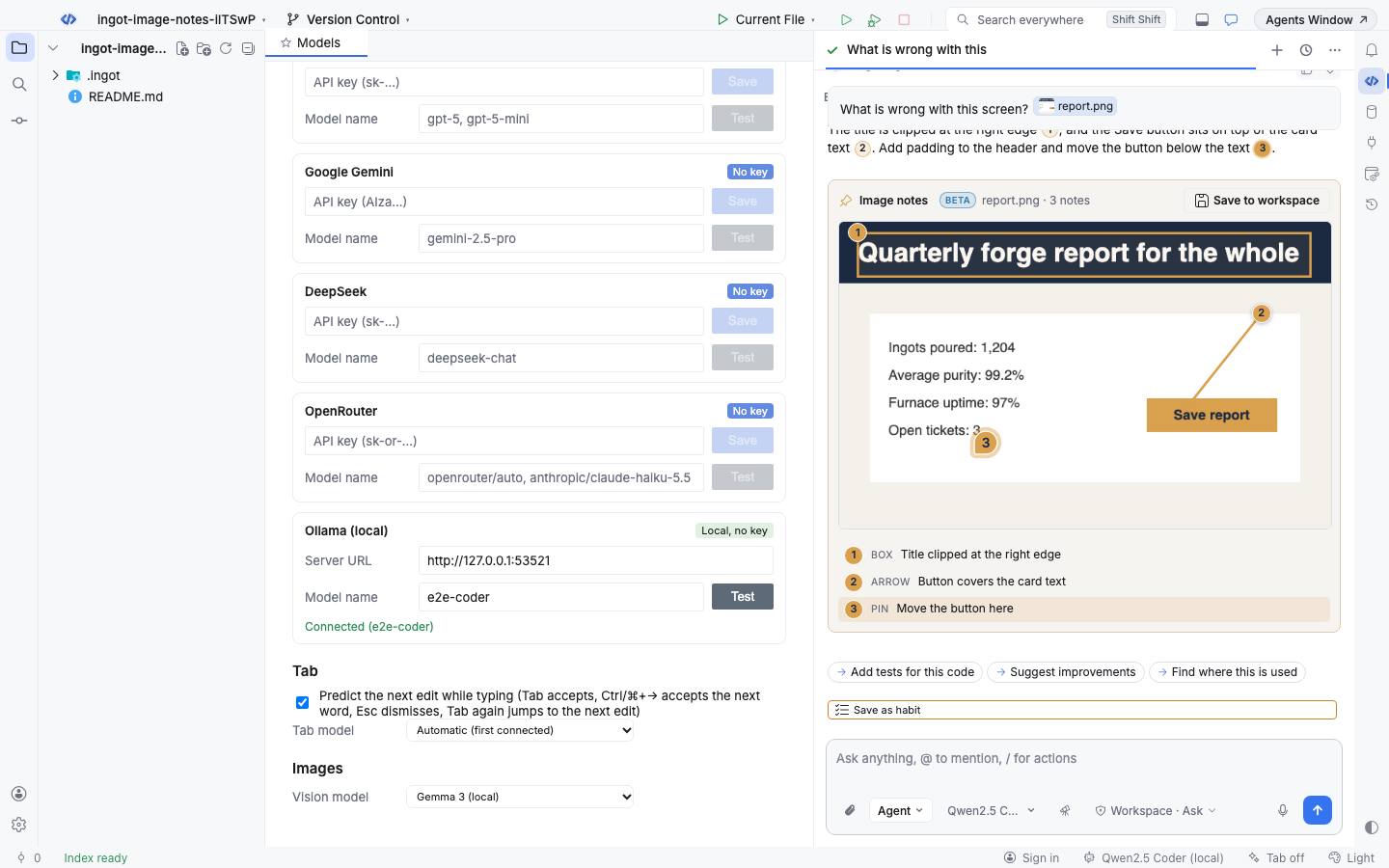
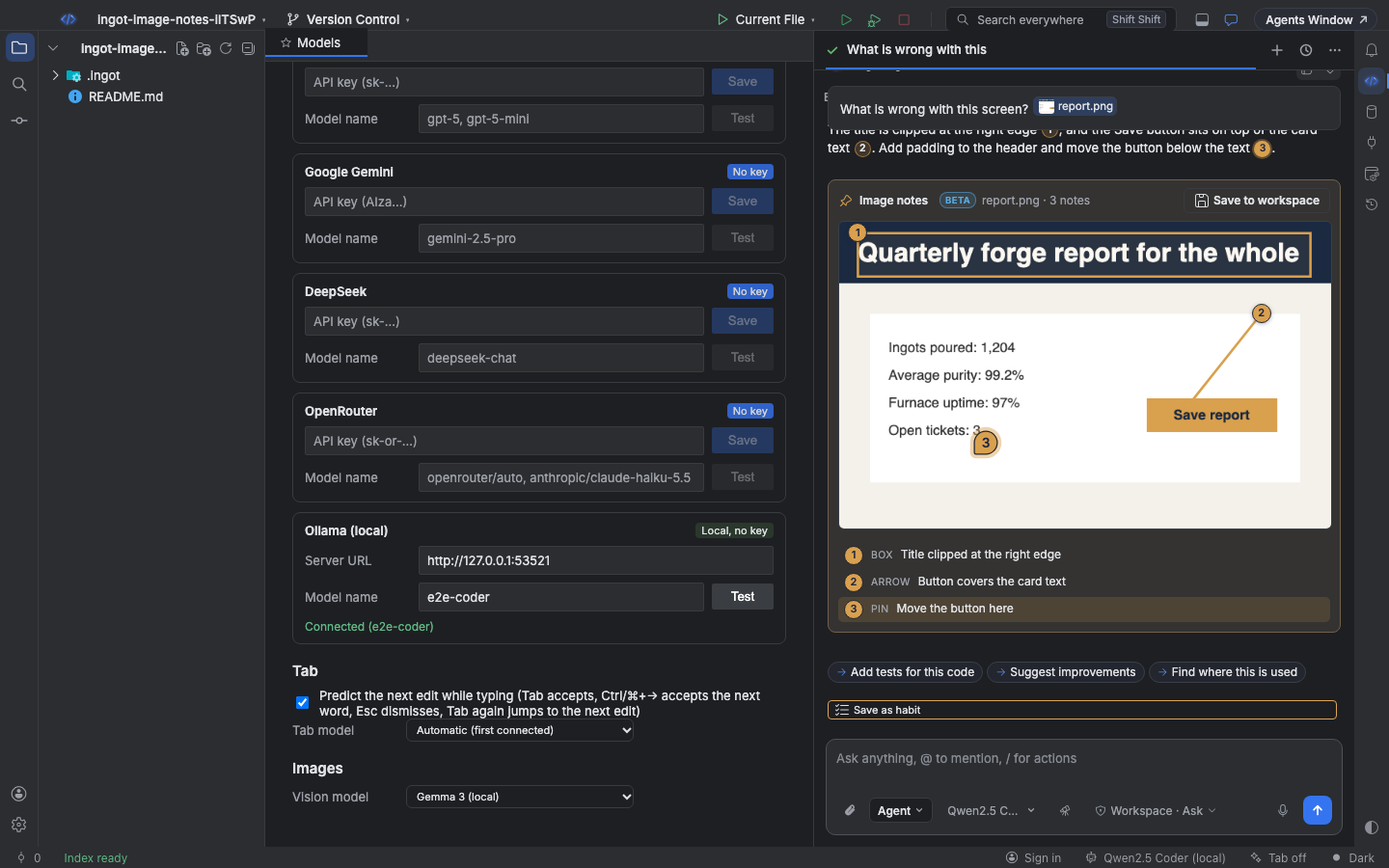
Paste a screenshot into the chat and the agent can point at what it means. Its reply comes with a copy of the image that has numbered boxes, arrows, pins and text notes on it, and every number is linked to the sentence that explains it. You can draw your own notes on an image before you send it, and save the annotated copy to your project.
Ask about an image
Paste an image into the chat input (⌘V, Ctrl+V), drop it on the chat, or click the paperclip to attach PNG, JPEG, GIF or WebP files. Each image becomes a chip in your message. Then ask, for example: What is wrong with this screen?
When the chat has images, the agent is told how to point at them. Its notes are fractions of the image width and height, so they stay in place at any size. Image data stays in memory for the session only. It is not written to your saved chat history.
Numbered notes linked to the reply
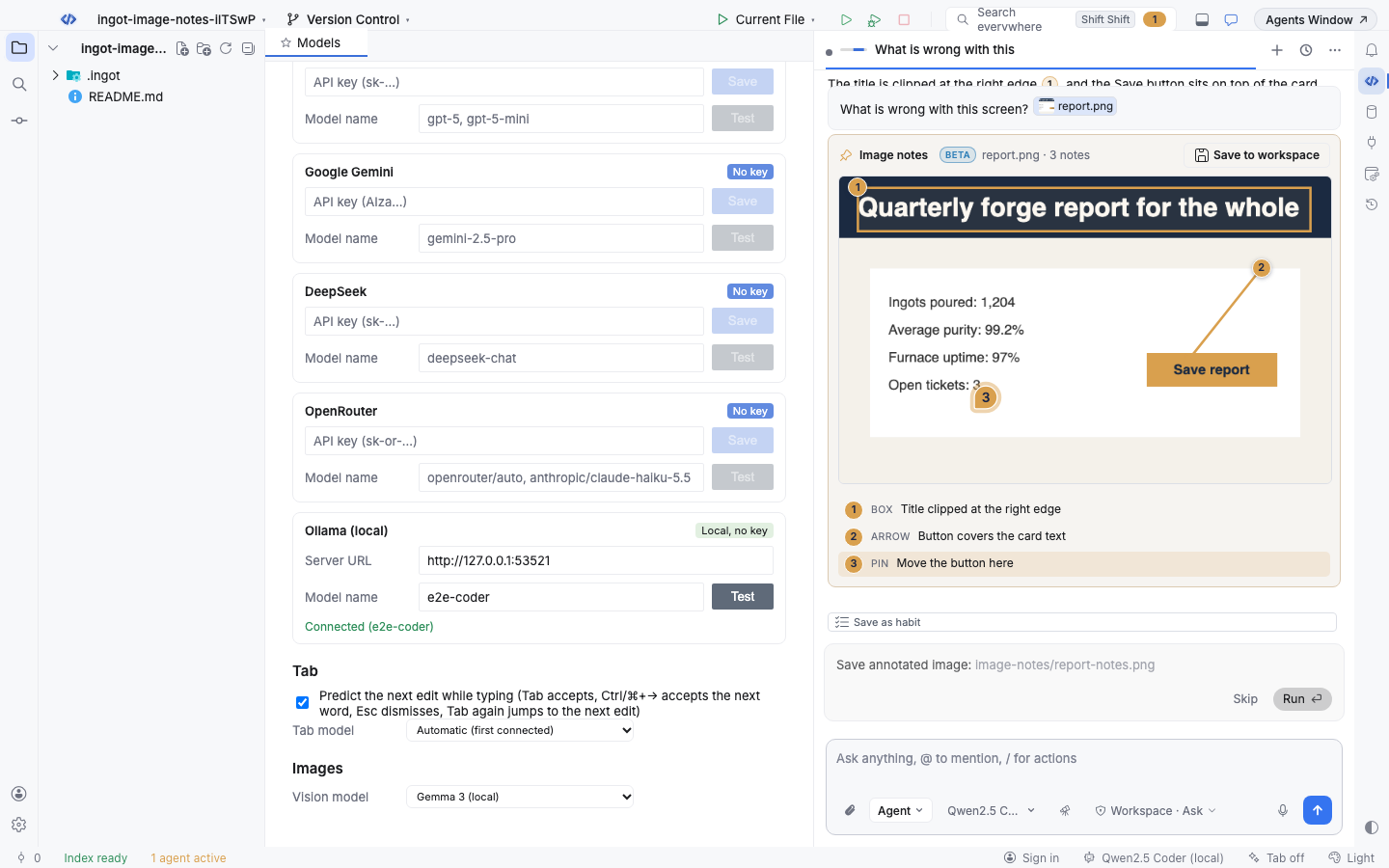
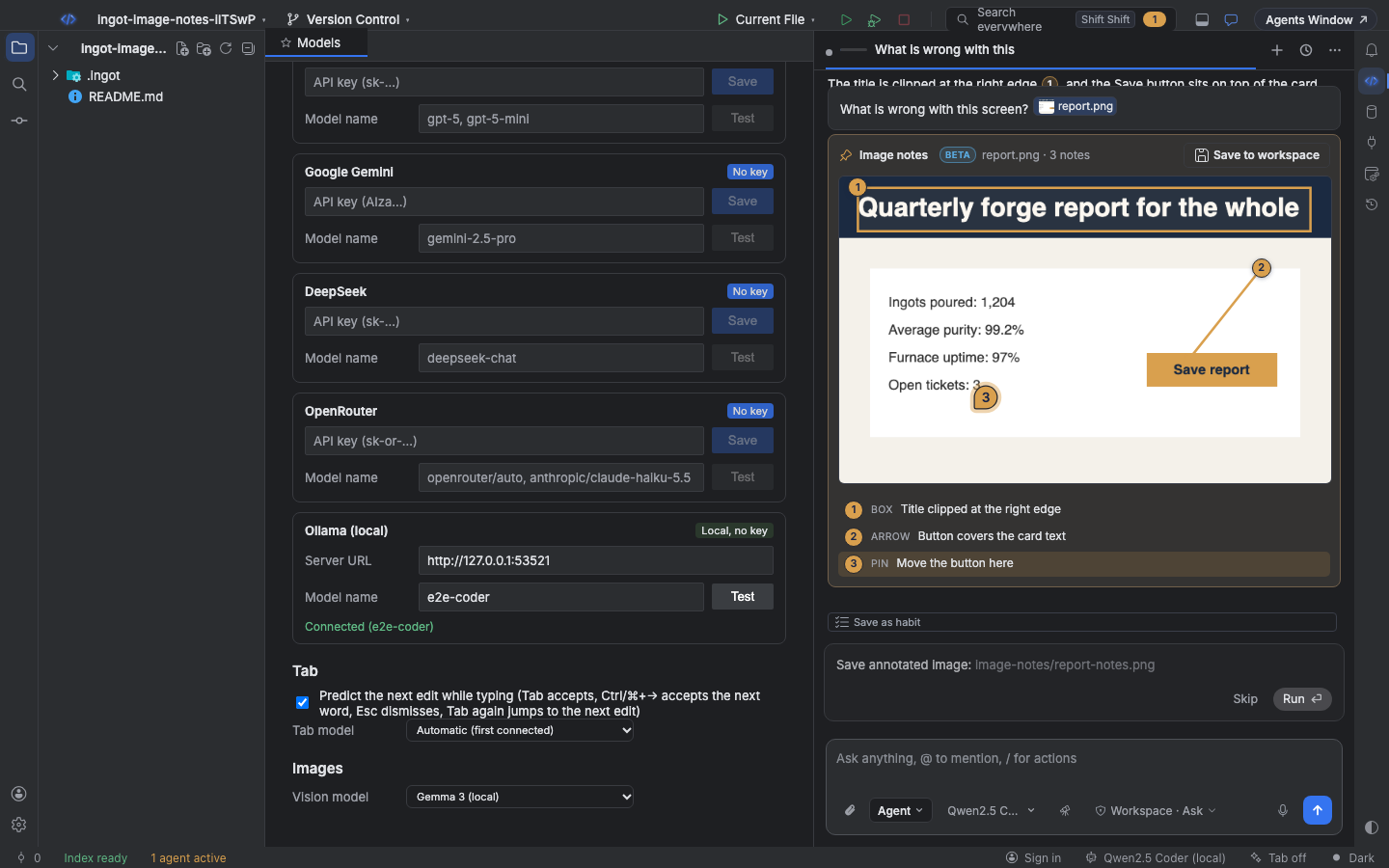
Under the reply, an Image notes card shows the image with the agent's notes in gold and a numbered list of them.
| Note | What it marks |
|---|---|
| Box | An area, such as a cut-off title or a misaligned panel |
| Arrow | From one point to another, such as "this button covers that text" |
| Pin | One spot |
| Text | A short label placed on the image |
Wherever the reply says [note 2], you see a small numbered chip. Click it to highlight note 2 on the image and scroll it into view. Click a number on the image, or a row in the list, to highlight the matching chip in the text.
Draw notes before you send
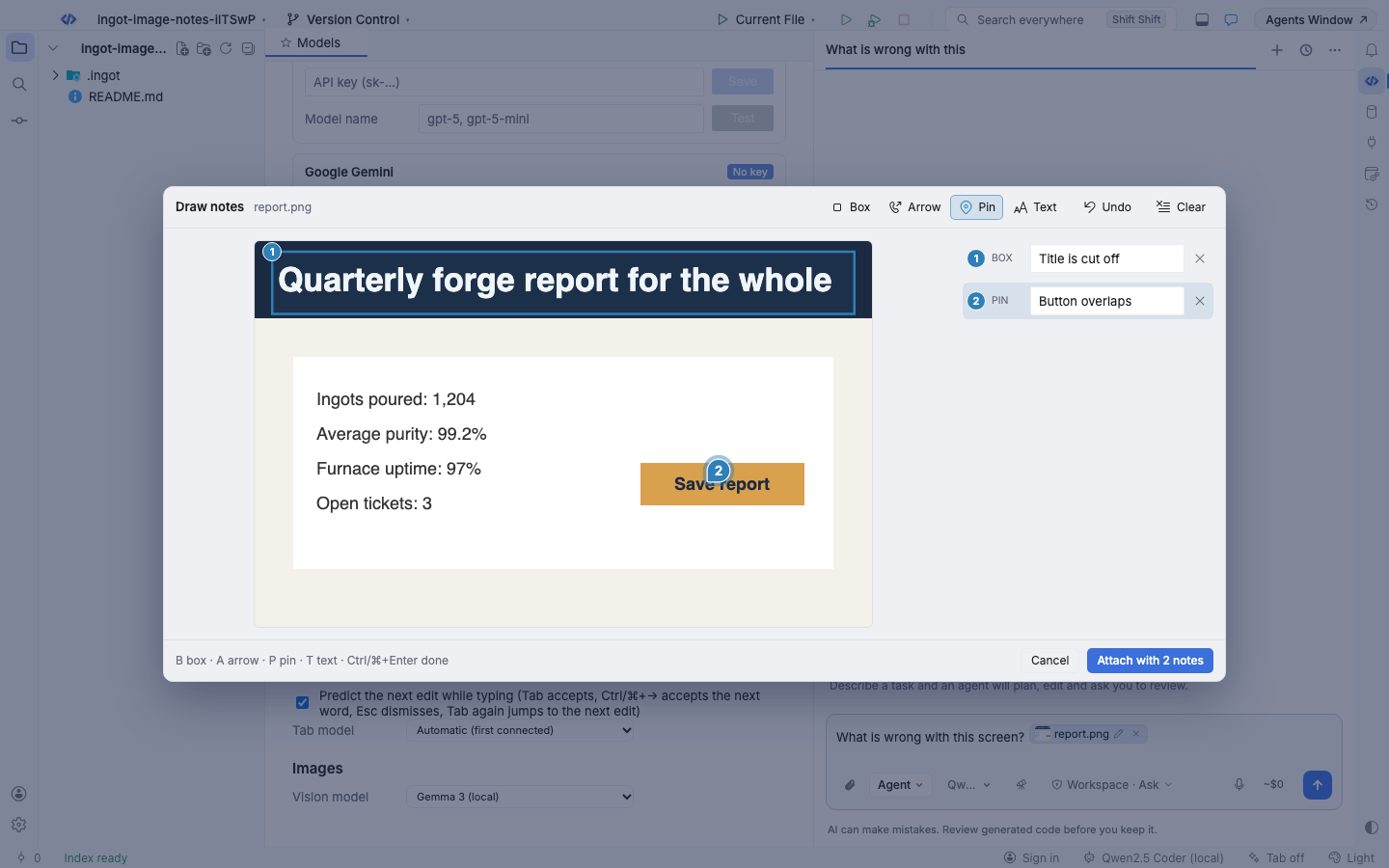
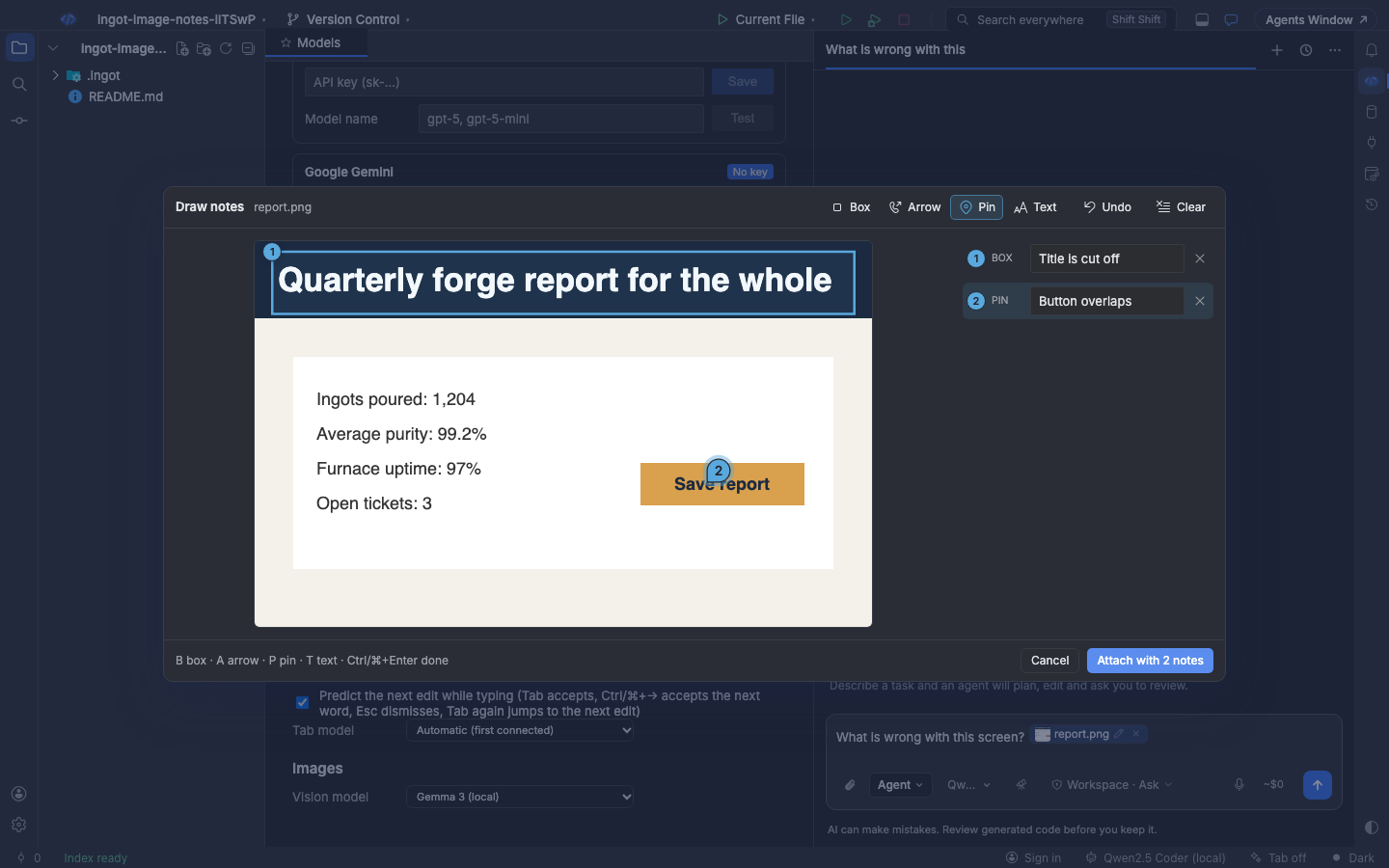
Click the pencil on an image chip in your message, or run Draw Notes on Attached Image (⌘⌥I, Ctrl+Alt+I while the chat has focus, also in Find Action). The note editor opens on the image.
| Tool | Key | How |
|---|---|---|
| Box | B | Drag over the area |
| Arrow | A | Drag from the tail to the head |
| Pin | P | Click a spot |
| Text | T | Click where the label goes |
Type what each note is about in the list next to the image. Undo (⌘Z, Ctrl+Z) removes the last note and Clear removes them all. Attach with N notes (⌘Enter, Ctrl+Enter) draws your notes in blue on the image in your message, and the agent gets both the image and a numbered list of your notes with their places. Esc closes the editor without changes. Open the editor again to change your notes; removing them all gives you back the original image.
When your model can't read images
Not every model reads images. Claude, GPT, Gemini, Ingot models, OpenRouter models and Gemma 3 (local) do. DeepSeek V3 and Qwen2.5 Coder (local) don't.
If the chat's model can't read images, Ingot sends that turn to a model that can and tells you in the chat, for example: Qwen2.5 Coder (local) can't read images, so Gemma 3 (local) read them for this reply (Settings › Models › Vision model).
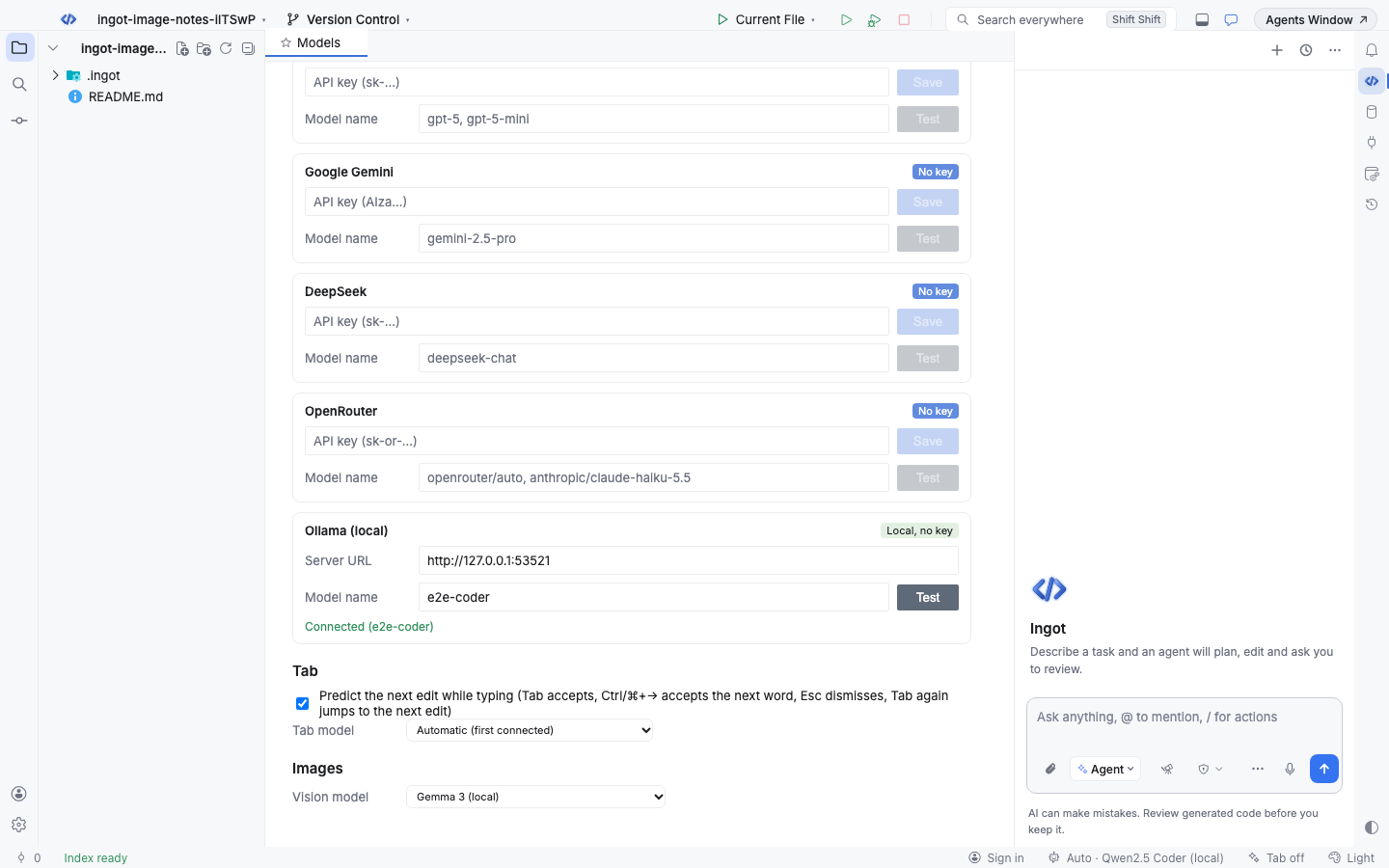
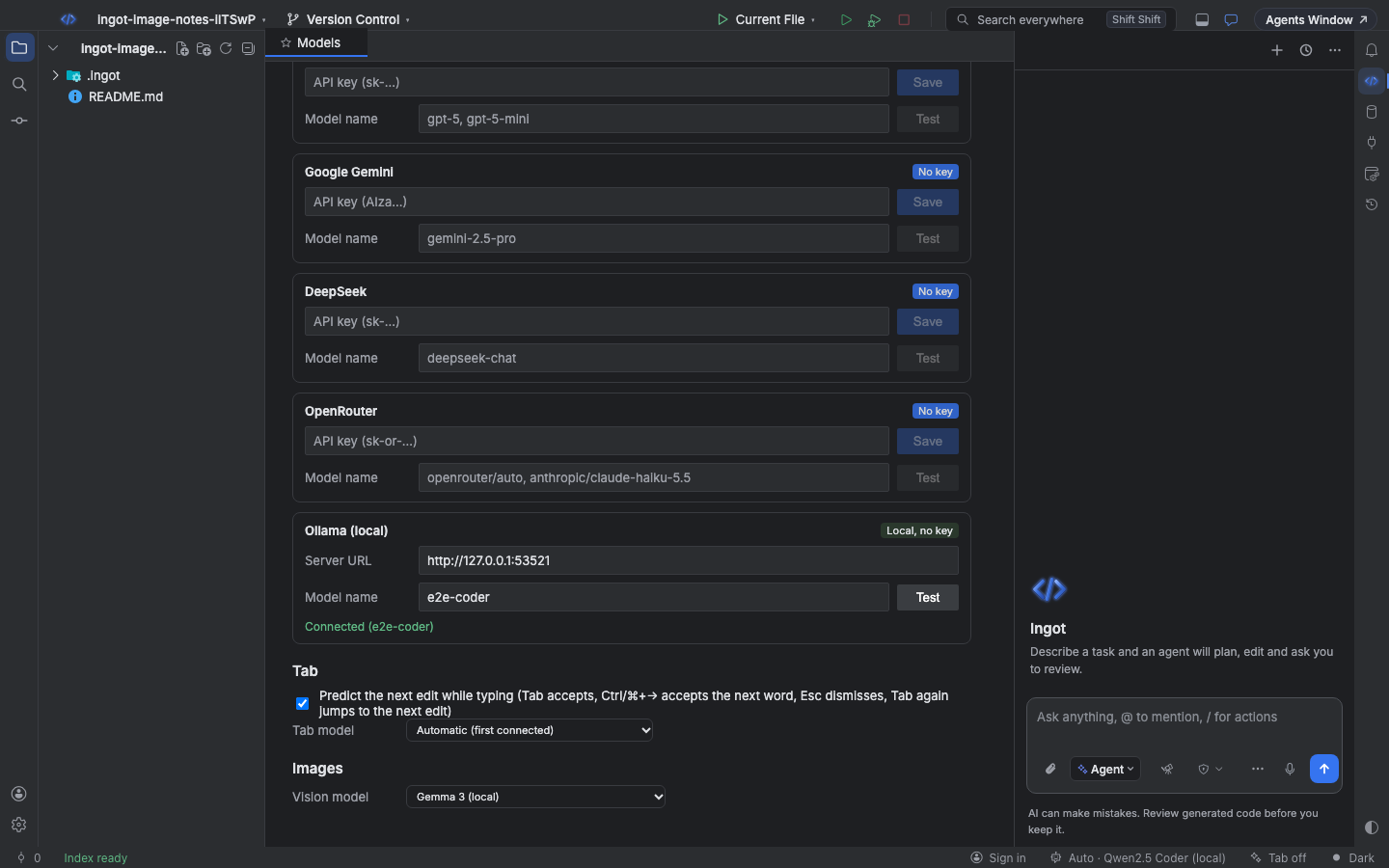
Pick that model in Settings › Models › Images › Vision model (ingot.vision.model). Automatic uses the first connected model that reads images. If no connected model can read images, the chat says so and the model only sees the image names.
Save the annotated image
Click Save to workspace on the Image notes card. An approval card asks first, every time: Save annotated image: image-notes/report-notes.png. Click Run (Enter) to write a PNG with the notes drawn on it and a numbered legend under the image, or Skip (Esc) to leave the project unchanged. After saving, the card links to the file.
The agent can save an annotated copy too, with its save_image_notes tool. It always asks the same way and only writes inside the project.
In Zaprex
The Zaprex app has image notes too. Draw notes on an attached image with the pencil on its chip, and Zaprex's reply draws its numbered notes on the image. If the chat model can't read images, the vision model set in the back-office reads them and the chat says so. Save to repo asks first, then opens a draft pull request that adds the annotated image as an SVG. See Image notes in the Zaprex docs.
From the terminal
ingot image notes gets the same notes from the command line and writes the annotated image as SVG:
ingot image notes screenshot.png --prompt "Is the header aligned?"
ingot image notes screenshot.png --mock --json
| Option | What it does |
|---|---|
--prompt | What to look for |
--model | An OpenRouter model that reads images (default google/gemini-2.5-flash-lite) |
--mock | A free, fixed reply for CI, with three notes |
--max-cost | Hard cap in USD (default $0.01, at most $1). The image is counted at its worst case, and a call that could go over the cap is not made (exit 3). |
--out | Where to write the SVG (default <image>-notes.svg) |
--json | Prints the reply, the notes, the SVG path and the cost |
The OpenRouter key comes from OPENROUTER_API_KEY or ai.openrouterApiKey in your gitignored ingot.config.json. See the CLI reference.