Bottom panel tabs
The bottom panel holds Terminal, Problems, Output, Ports, Tests, the Git tool window, Agent Manager, database results and every other tool window you dock there. Its tabs keep one height and the same spacing however many are open, even in a 1024 px wide window. Tabs never overlap, long names end with … instead of pushing their neighbors, and each close button has its own spot so it never covers the next tab. All your terminals and the commands the agent runs share one Terminal tab with a list of sessions: see Terminal sessions.
When the tabs do not fit
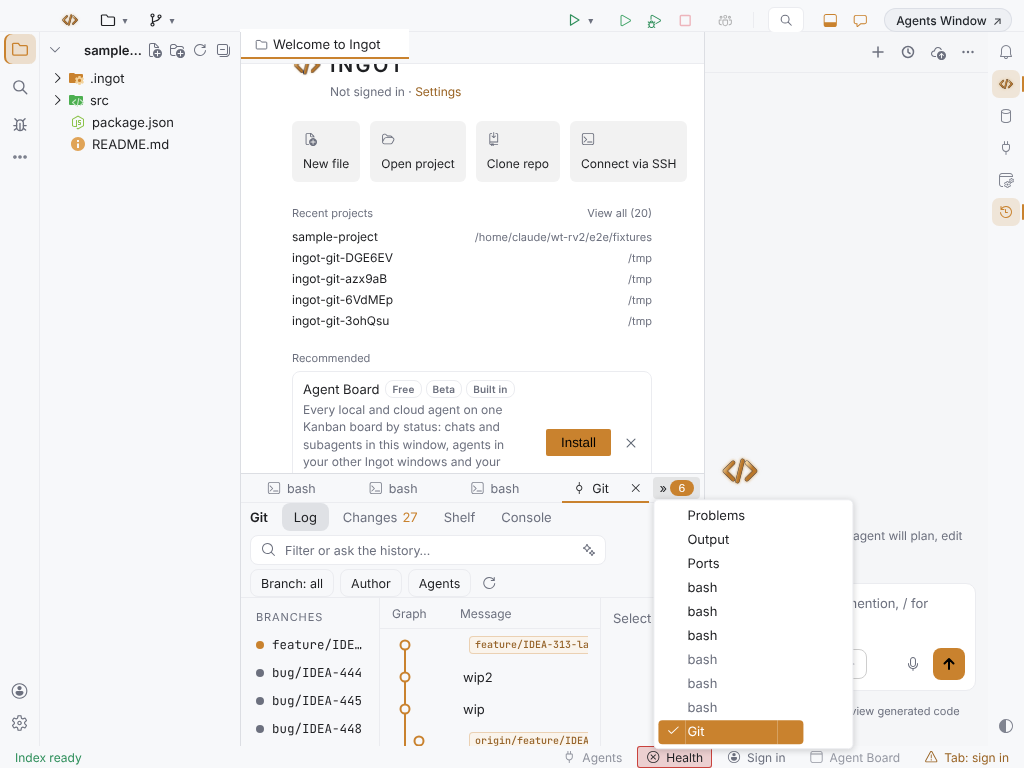
Each tab keeps its natural width, so tabs never shrink to unreadable stubs. When more tabs are open than the panel is wide, the tab row scrolls and a » button right after the tabs shows how many are out of view.
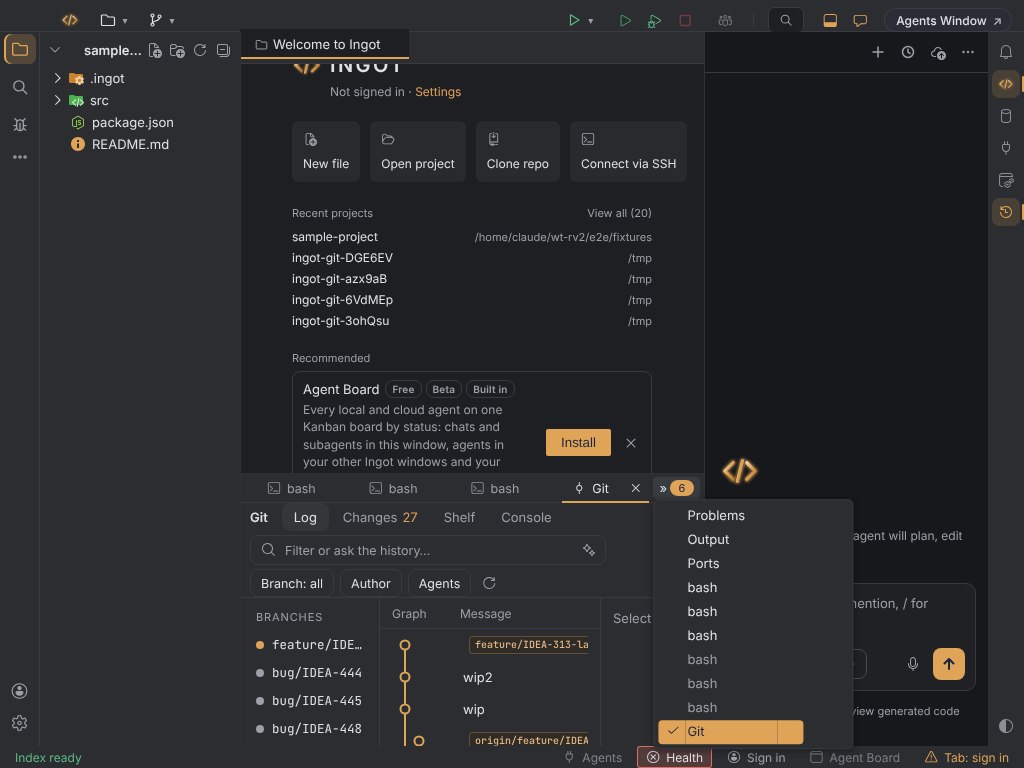
- Click » to list every tab of the panel in order. The current tab has a check mark, the tabs that are out of view stand out, and picking one opens it and scrolls it into view.
- View: Show All Panel Tabs… in Find Action (⌘⇧A, Ctrl+Shift+A) opens the same list from the keyboard: ⌥⌘] on macOS, Ctrl+Alt+] on Windows and Linux. Use ↑ and ↓ to move, Enter to open a tab and Escape to close the list.
- Scroll the tab row with the mouse wheel or a trackpad to slide through the tabs.
Whenever the current tab changes, by a click, a shortcut or a command, the row scrolls so the current tab is in view.
The screenshot below has the session list turned off, so each terminal has its own tab.
Long names
A long name, like a database query result or a terminal named after its command, ends with …. Hover the tab to read the full name, with the tool window's description under it.
Close buttons
The × of a tab shows on the current tab, on the tab under the mouse and on the tab that has keyboard focus. It sits in a fixed box inside its own tab, so the tab keeps its width when the × appears, and clicking it can never close the tab next to it.
The current tab is marked by an underline, not by bold text, so tabs don't change width when you switch between them.
Colors
The tabs take every color from the active color theme: the panel title colors for the labels and for the underline under the current tab, the list hover color for the tab under the mouse, the focus border for keyboard focus and the badge colors for the count on ». Light, dark, High Contrast and imported color themes all look right without extra settings.
Settings
The bottom panel tabs have no settings: this is always on, in the desktop app and in the browser. To fit more tabs, make the panel wider or close tabs you don't need. To change the shortcut, use Settings › Keymap.
Shortcuts
| Action | macOS | Windows / Linux |
|---|---|---|
| View: Show All Panel Tabs… | ⌥⌘] | Ctrl+Alt+] |
| Terminal | ⌥F12 | Alt+F12 |
| Problems | ⌘6 | Alt+6 |
| Hide all tool windows | ⌘⇧F12 | Ctrl+Shift+F12 |
These are the Ingot keymap's defaults. See the full Keymap and Layout.
The status bar
The status bar follows the same rule: when it is too narrow for all its items, the least important ones first become icons, then step out into a … menu, instead of sliding under each other.
FAQ
Can tabs shrink to fit instead of scrolling? No. The bottom panel keeps every label readable and scrolls instead; use » or ⌥⌘] (Ctrl+Alt+]) to reach the tabs out of view.
Why don't I see the » button? It only shows while some tabs are out of view.
Where did the density, label width and +N settings go? An earlier build had them. The tabs now have one fixed size and the » list, so those settings are gone. ingot.panelTabs.* keys left in a settings file no longer do anything, and you can delete them.
⌥⌘' used to open the tab list. That shortcut now opens Ask Agent at This Line. The tab list moved to ⌥⌘] (Ctrl+Alt+]).