Session Panes
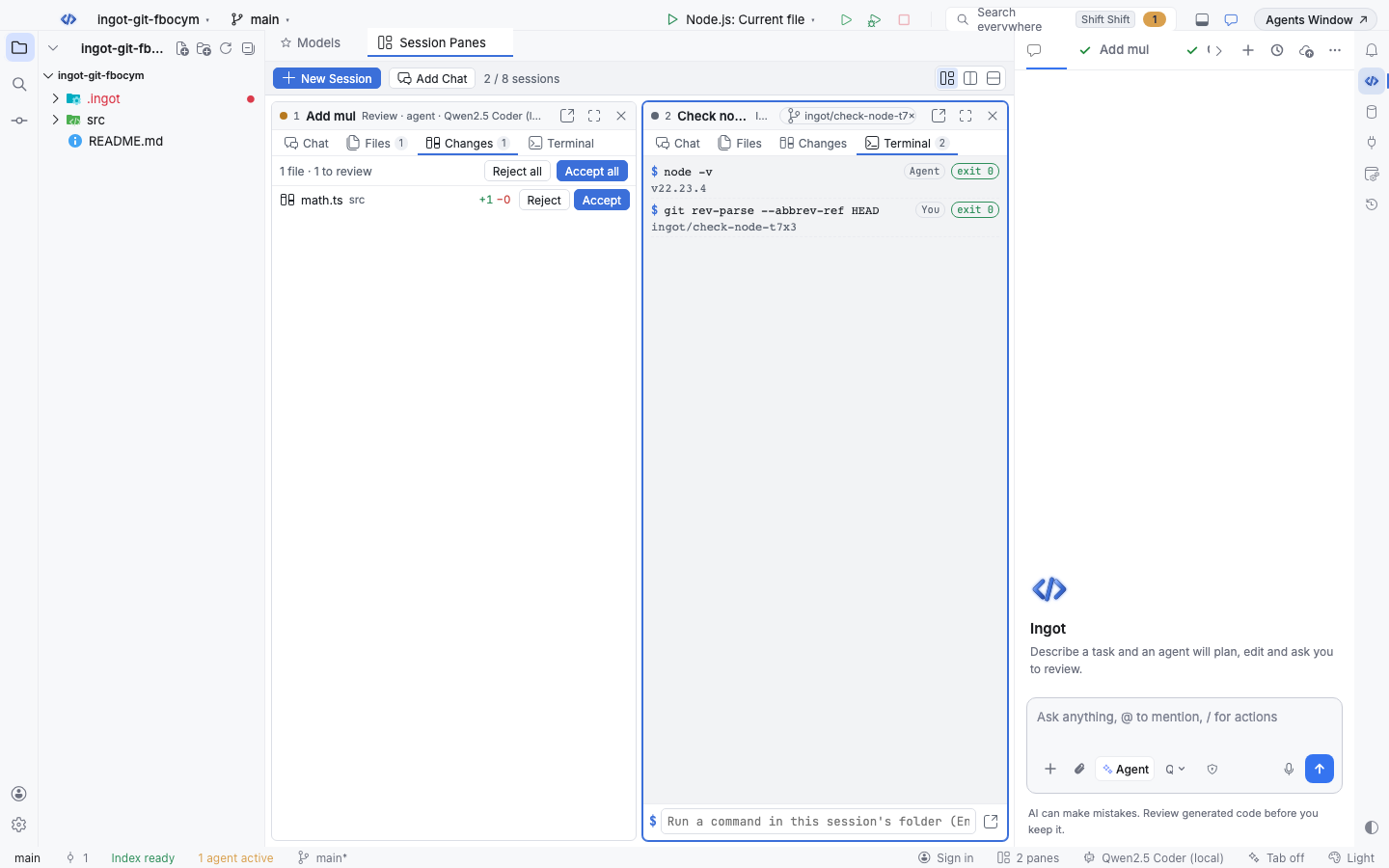
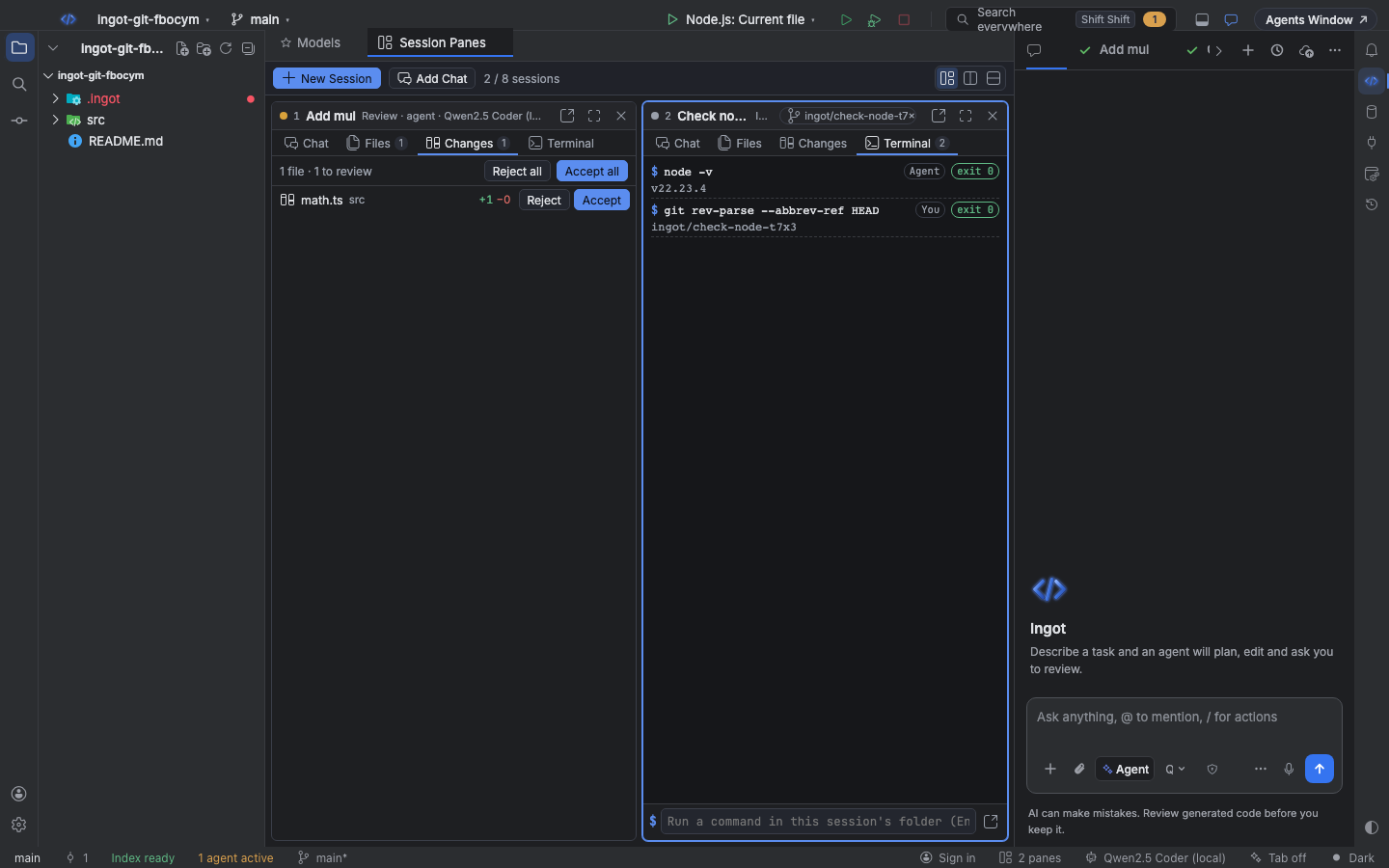
Watch up to 8 agent sessions side by side in Ingot, each in its own pane with Chat, Files, Changes and Terminal tabs.
Beta Session Panes is an optional feature and is off until you turn it on. Run several agents at once and keep an eye on all of them: what each one is saying, which files it touched, the changes waiting for review and the commands it ran.
Turn it on
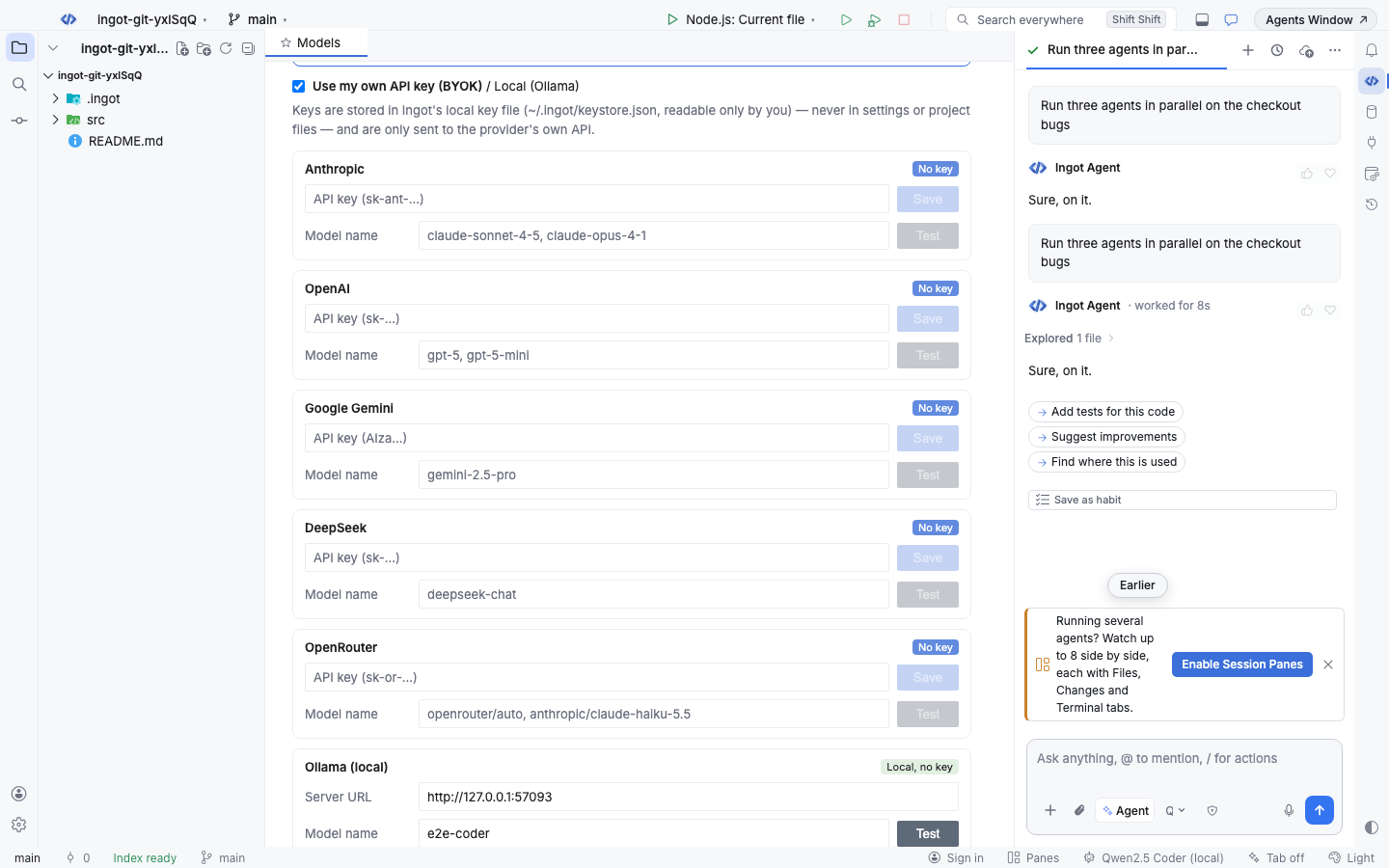
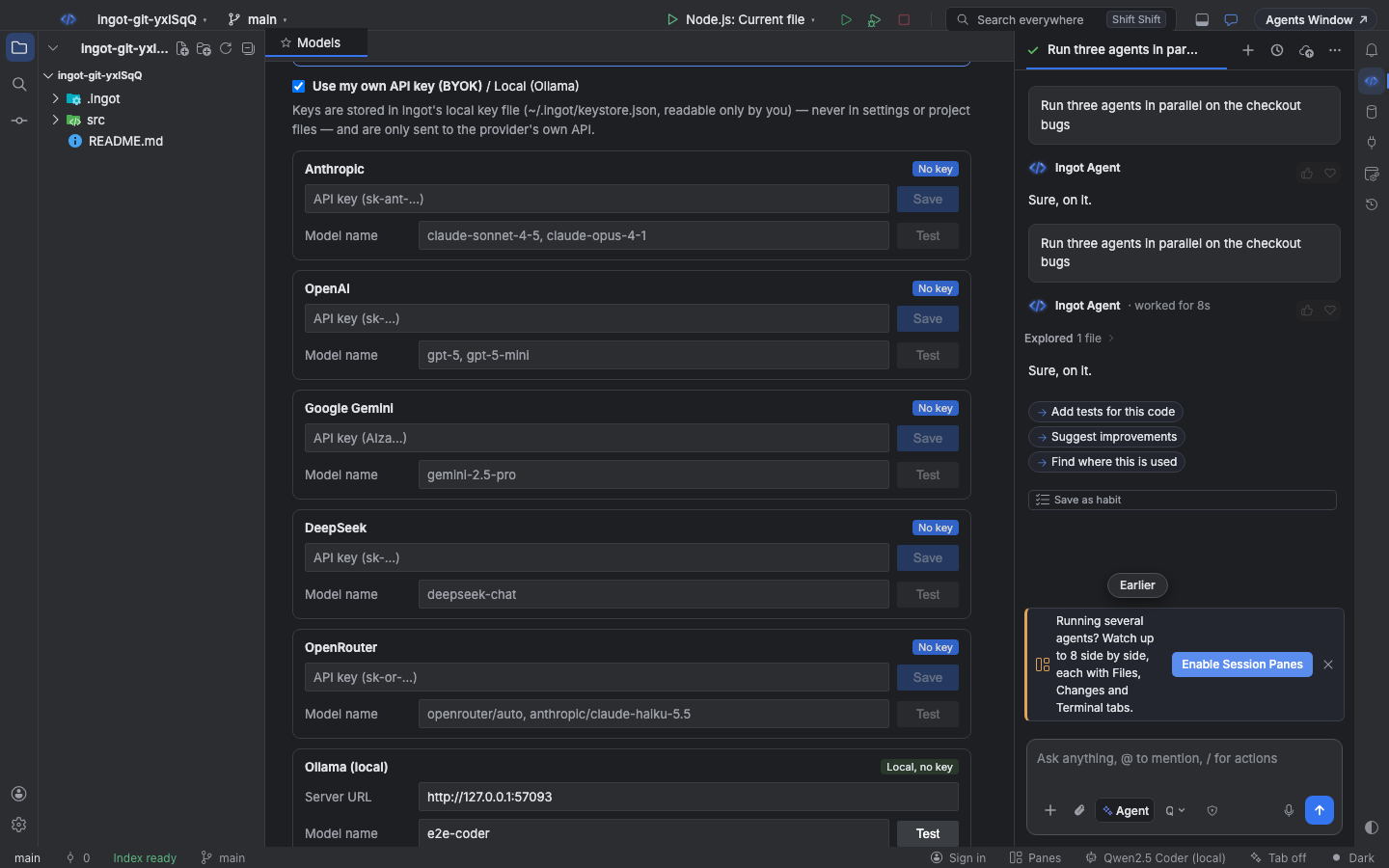
Session Panes is easy to find in three ways, like every optional feature:
- A suggestion in the chat. When you ask for several agents at once ("run three agents in parallel", "side by side", "compare sessions") or another agent is already running, a small card above the chat box offers Enable Session Panes. × hides it for good.
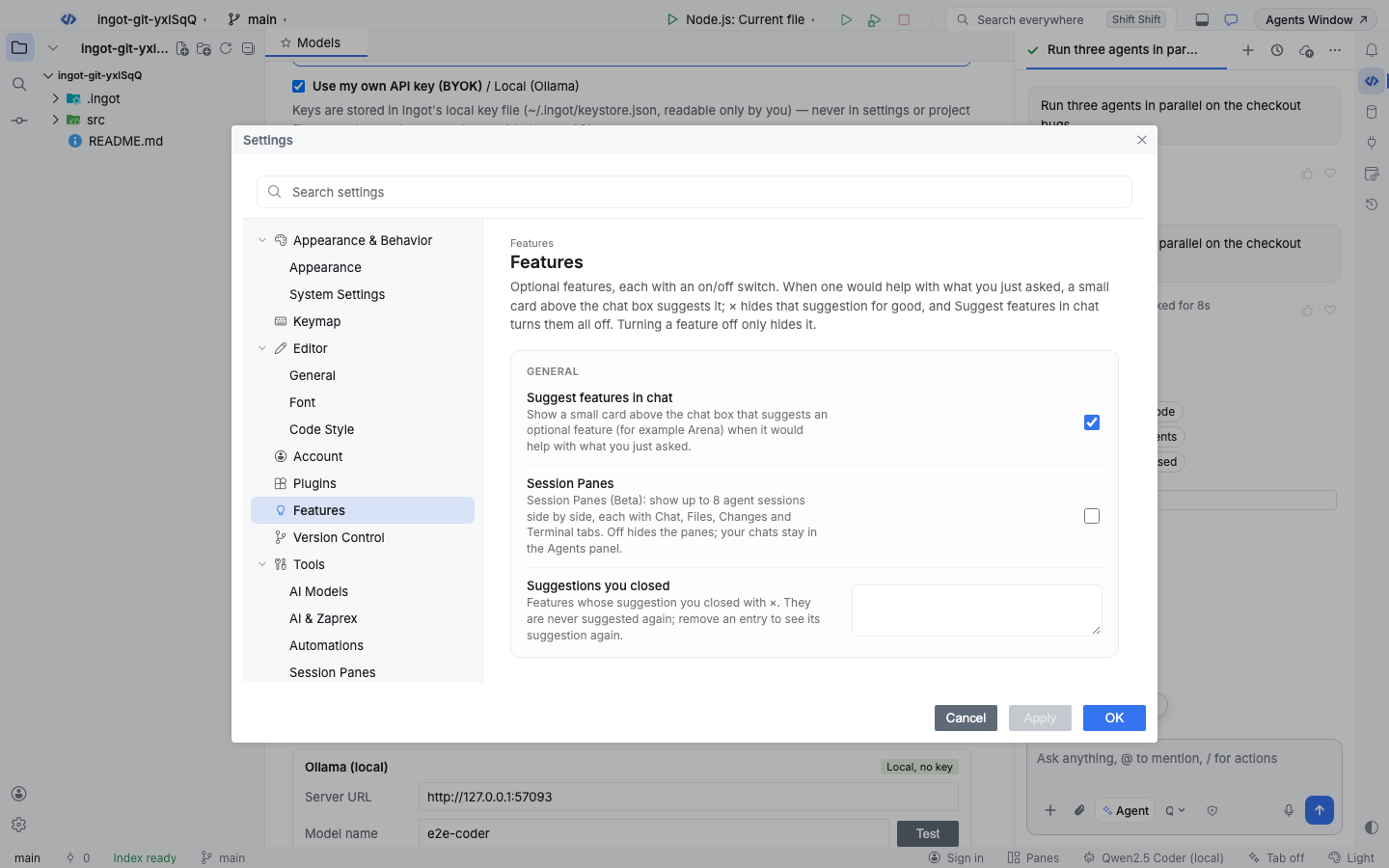
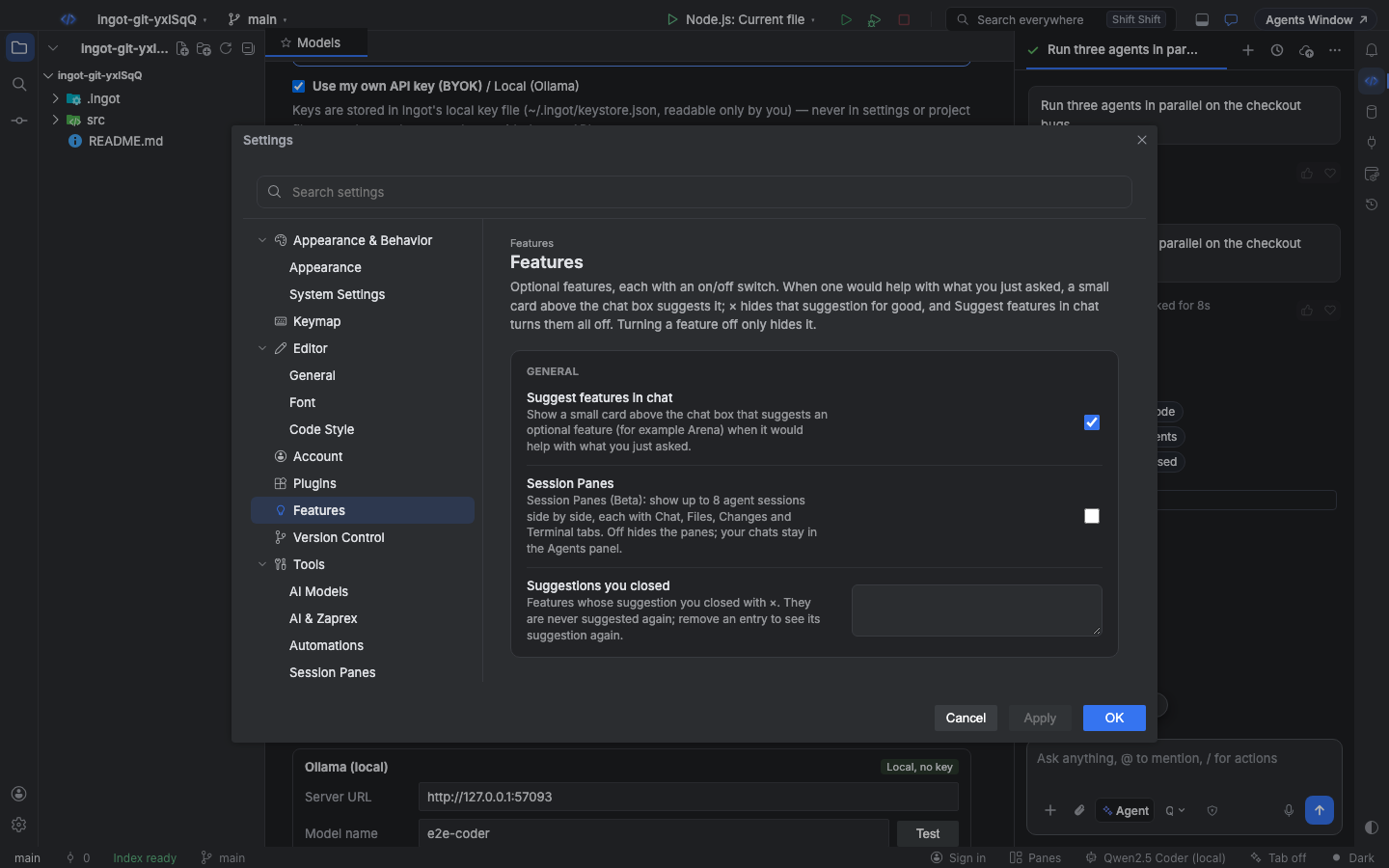
- Settings › Features › Session Panes. An on/off switch. Turning it off hides the view and its button; your panes are kept for next time.
- The Panes button in the status bar. One click turns Session Panes on and opens it. When it is on, the button shows how many panes are open ("2 panes") and shows or hides the view.
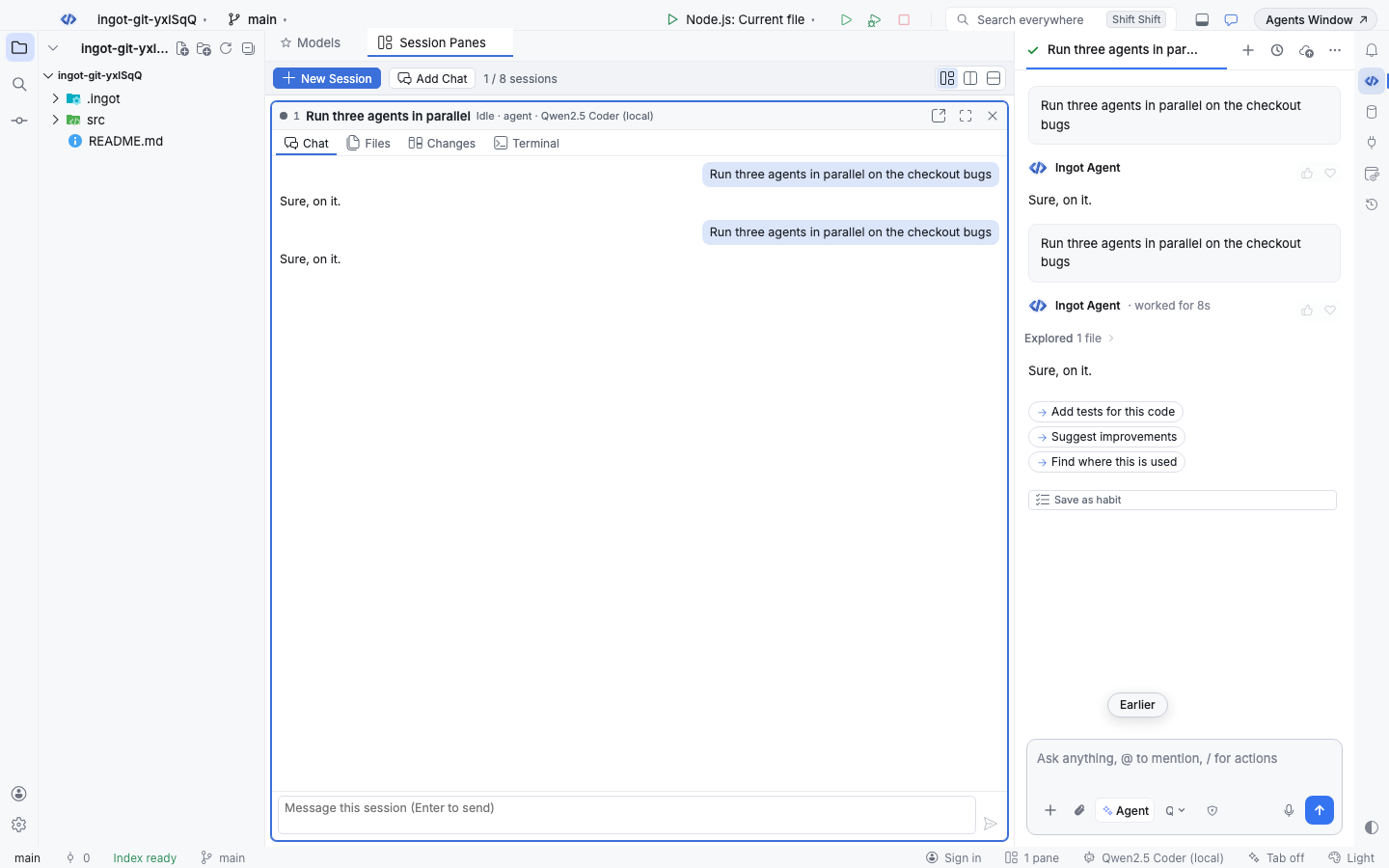
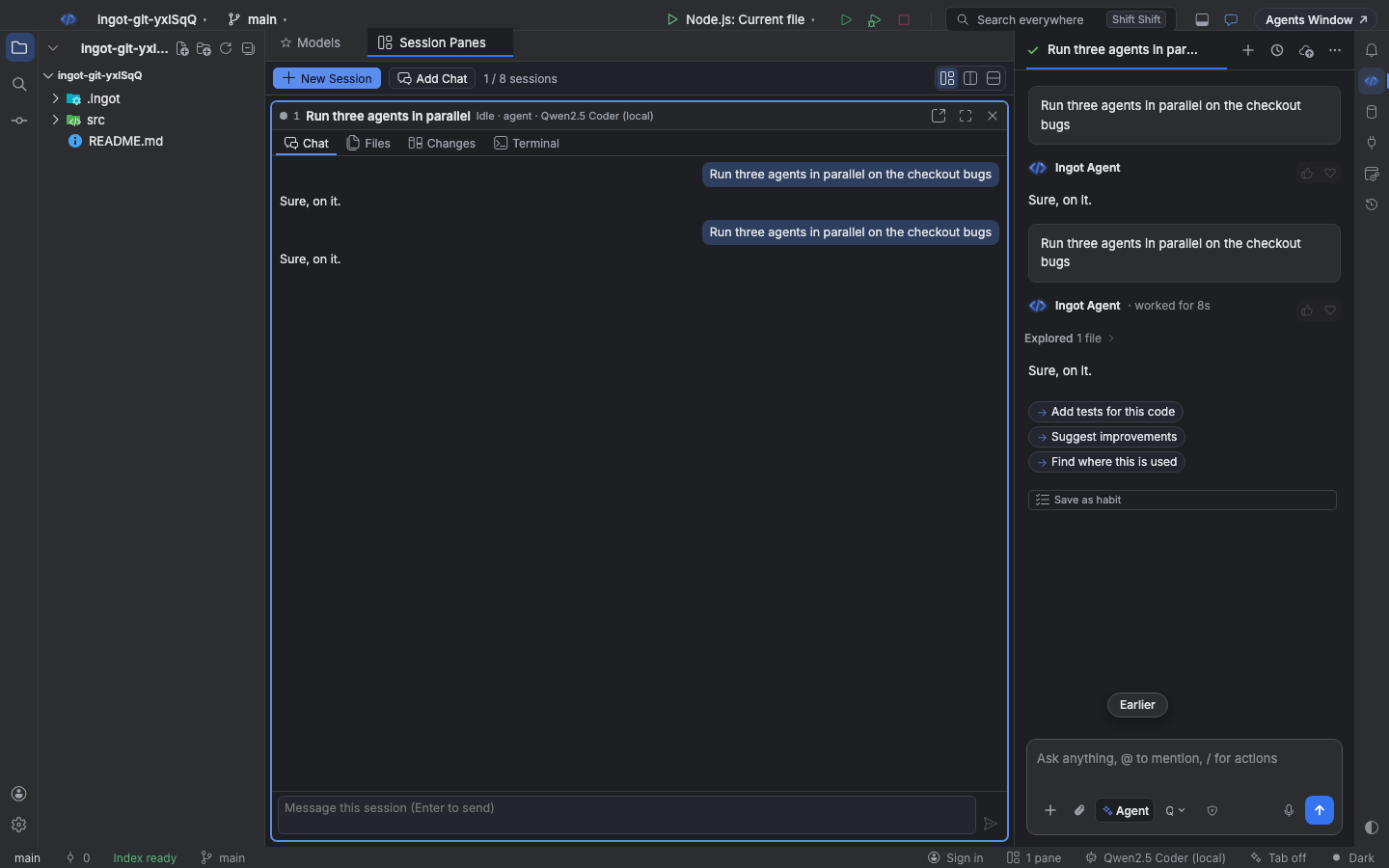
Open sessions in panes
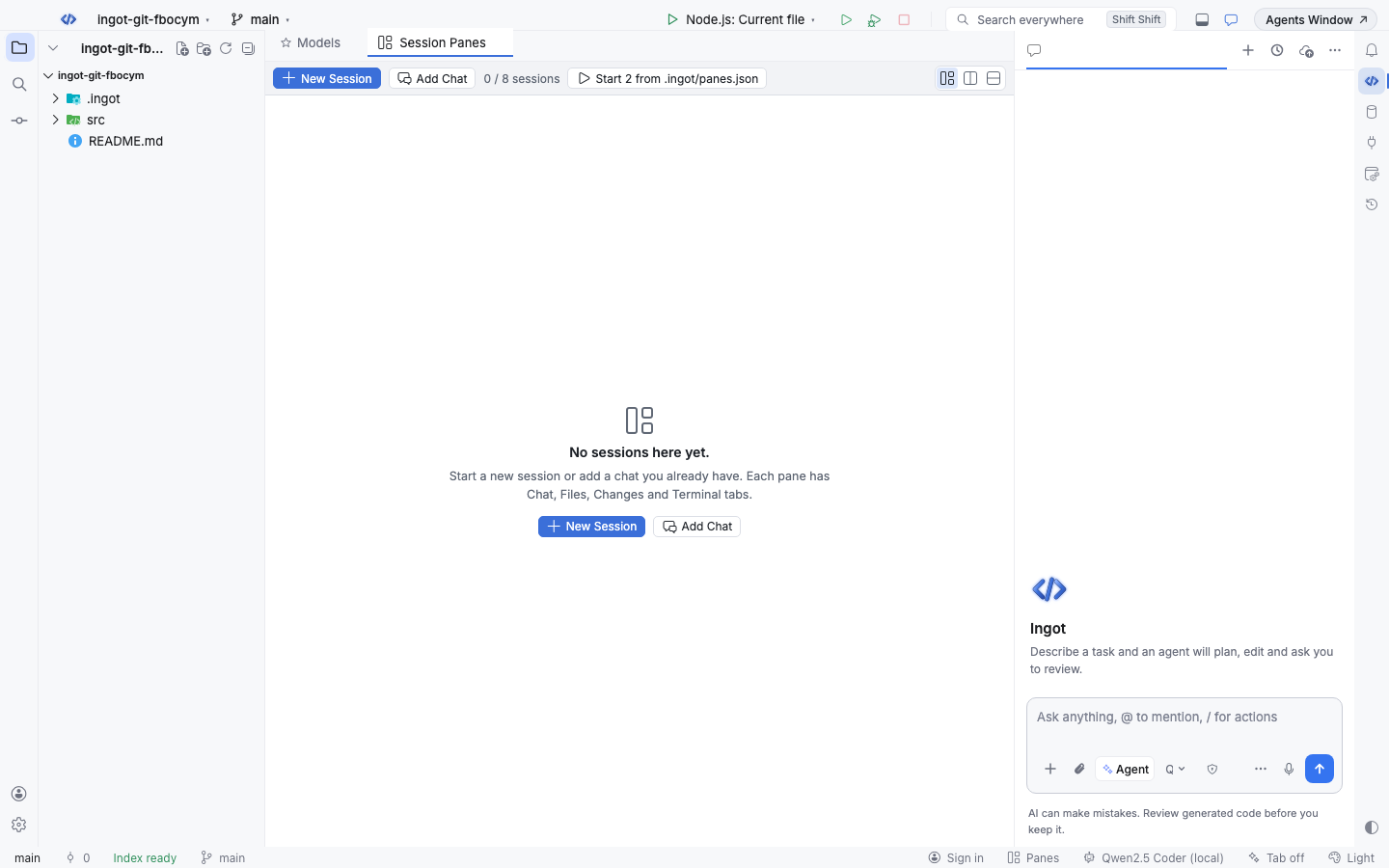
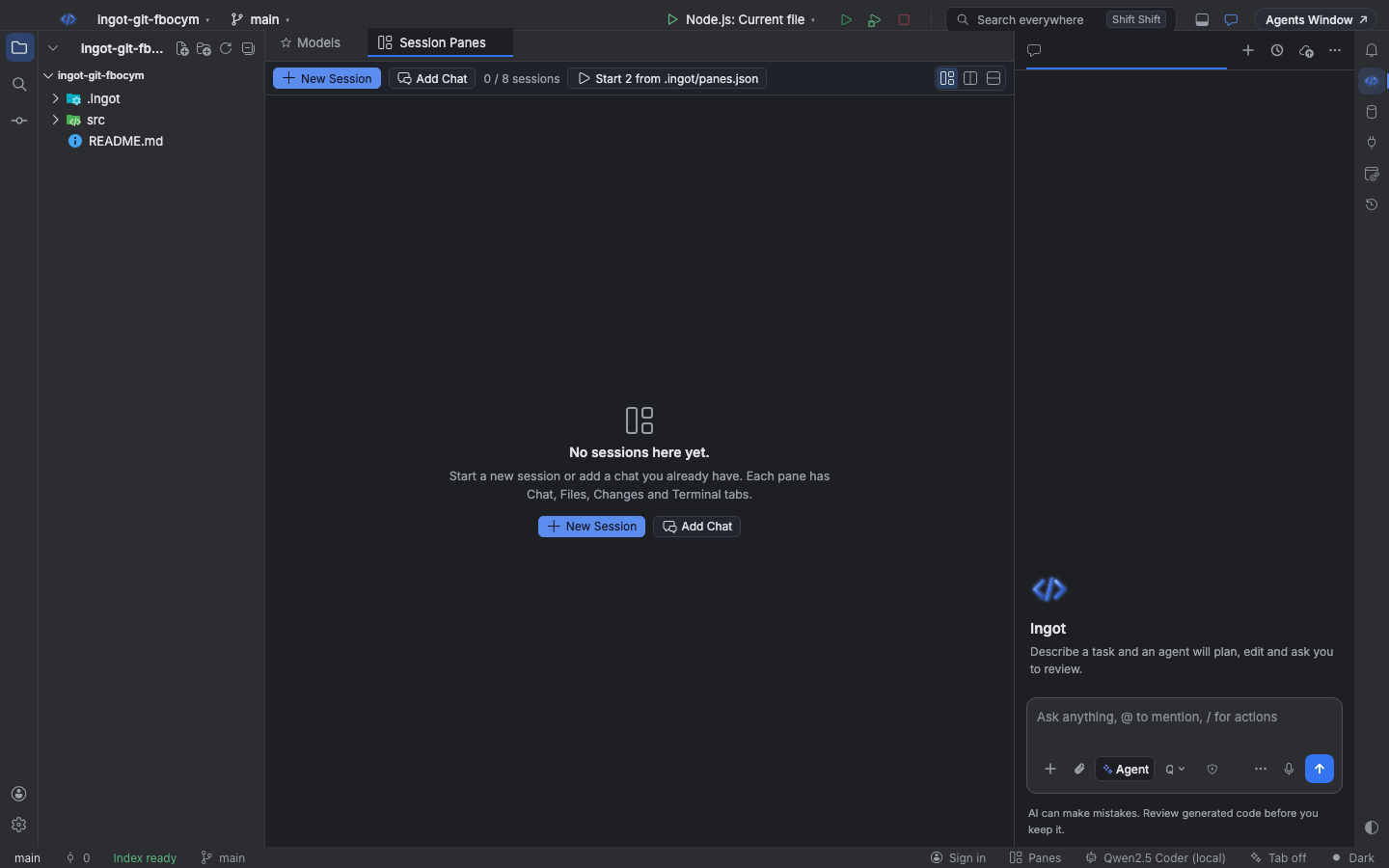
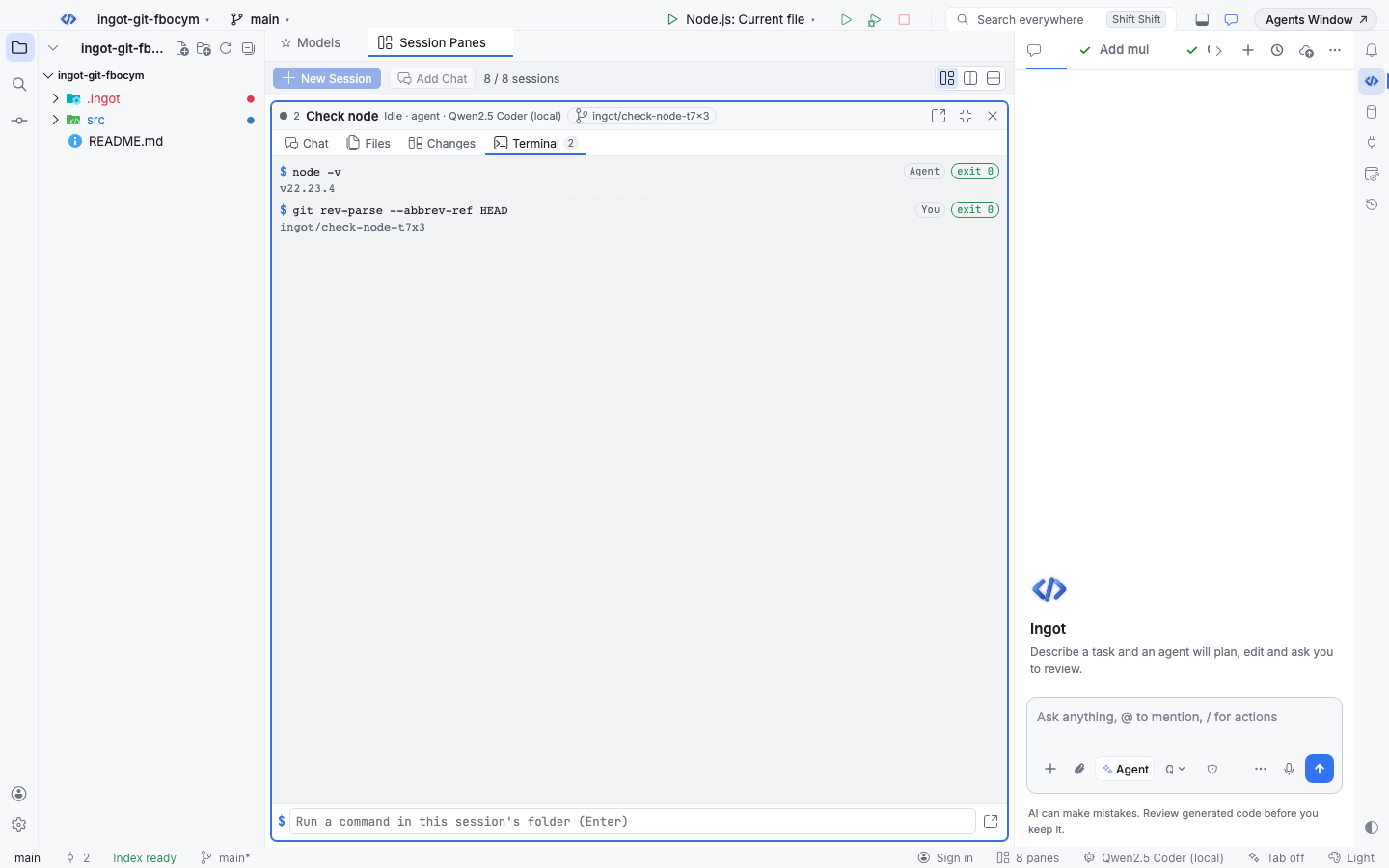
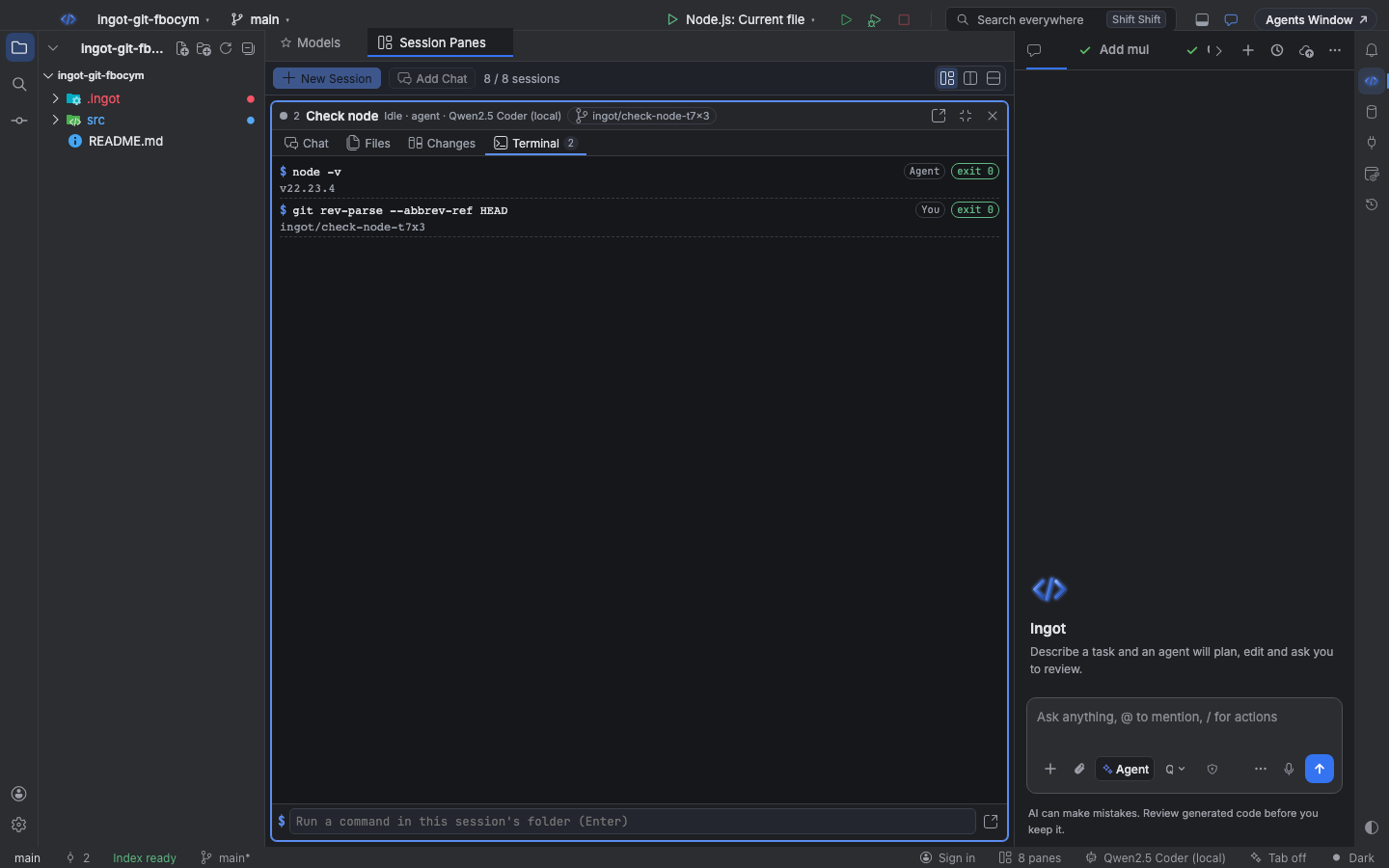
The toolbar at the top of the view has:
- New Session starts a new agent chat in a new pane, with the model you are using now.
- Add Chat puts a chat you already have into a pane. Open Current Chat in Session Panes (Find Action) adds the chat you are looking at.
- Start appears when
.ingot/panes.jsonlists panes that are not open yet (see Plan panes in a file). - The count (
2 / 8 sessions) and the layout switcher: Grid, Columns or Rows.
Each chat can be in one pane at a time. With 8 panes open, New Session and Add Chat are turned off and Ingot asks you to close a pane first. Lower Most panes at once in Settings to keep fewer.
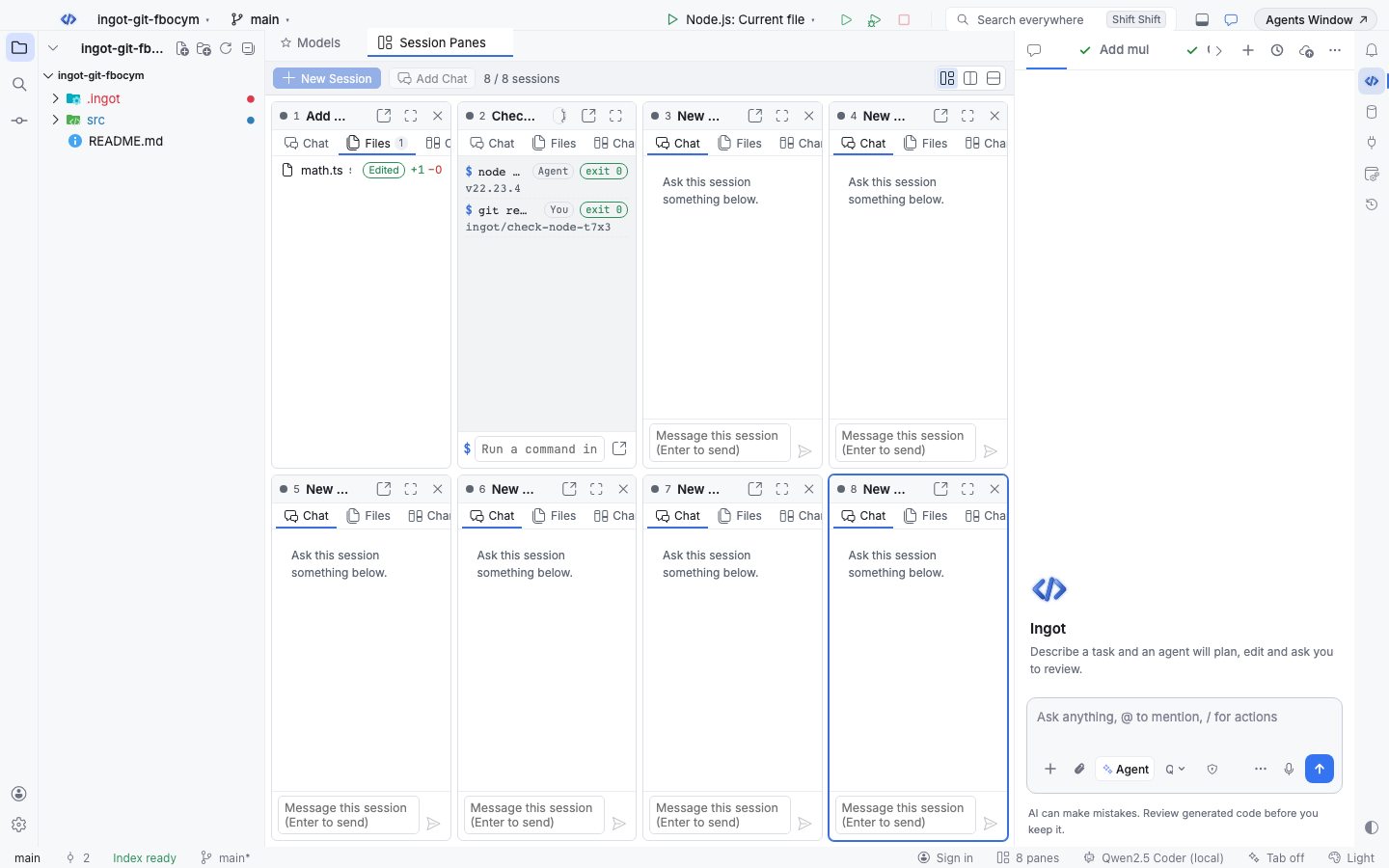
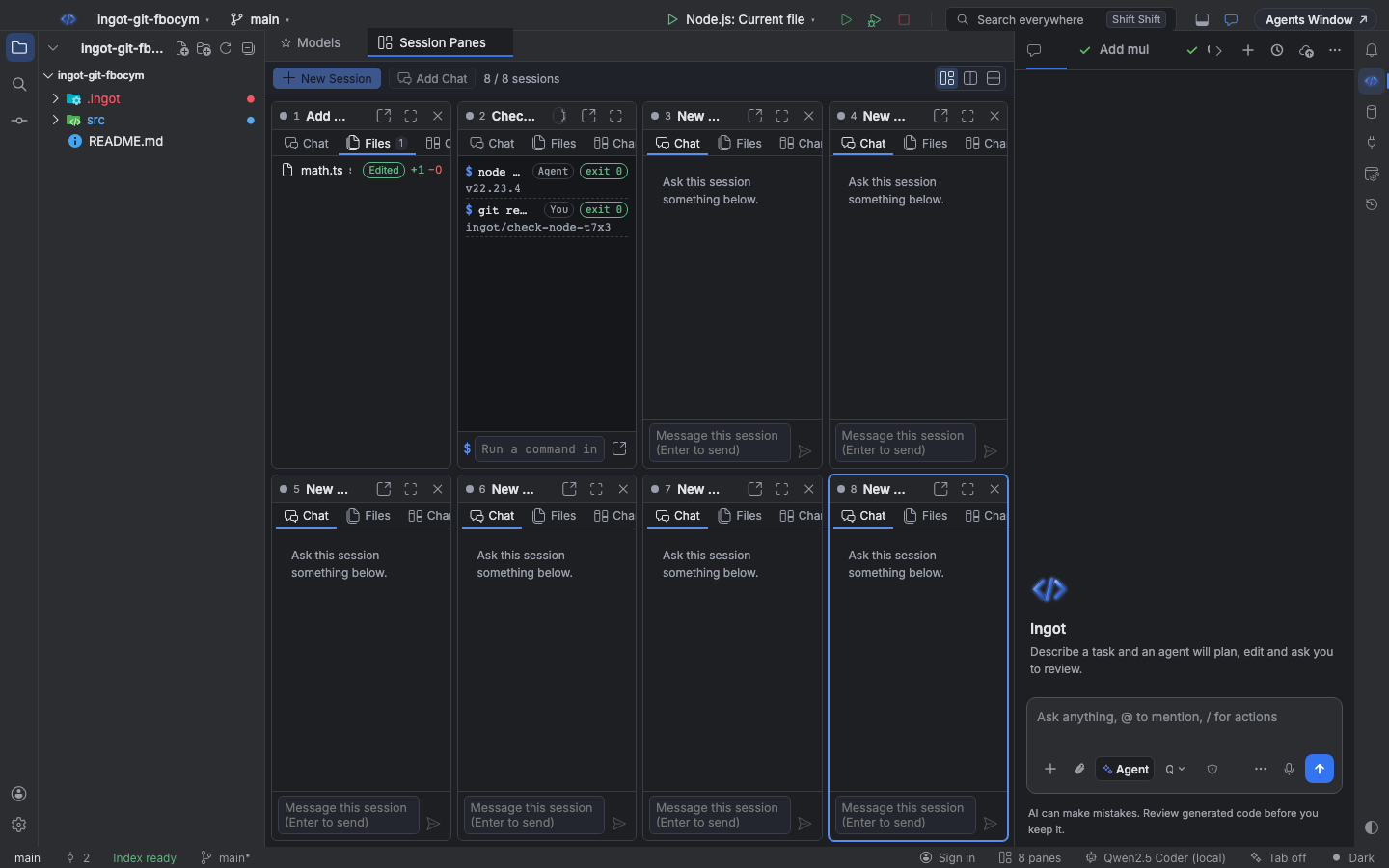
The four tabs
Each pane header shows the session's number, title, status (Thinking, Needs approval, Review, Done…), mode and model, and a chip with the worktree branch when the session runs in its own worktree. Its buttons stop a running agent, open the chat in the Agents panel, maximize the pane and close it. Closing a pane never deletes the chat.
| Tab | What it shows |
|---|---|
| Chat | The session's messages, with its own message box. Messages you send here go to this session only |
| Files | Every file the agent read, edited or got attached, with Edited and line counts for the ones it changed. Click one to open it |
| Changes | This session's edits waiting for review, with Accept, Reject, Accept all and Reject all |
| Terminal | The commands the agent ran, with their output and exit code, and a box to run your own command in the session's folder (its worktree when it has one). The button next to it opens a full terminal there |
When an agent asks to run a command or asks you a question, the approval card shows at the top of its pane on every tab, so you can answer without switching. While a pane is on screen, its agent's edits are reviewed in the pane instead of opening a preview tab over the panes.
Keyboard
| Action | Find Action | Shortcut (macOS / Windows and Linux) |
|---|---|---|
| Show or hide Session Panes | Session Panes | ⌥⇧⌘[ / Ctrl+Alt+Shift+[ |
| Turn on and open | Turn On and Open Session Panes | ⌥⇧⌘4 / Ctrl+Alt+Shift+4 |
| New session in a pane | Session Panes: New Session in a Pane | ⌥⇧⌘0 / Ctrl+Alt+Shift+0 |
| Add a chat to a pane | Session Panes: Add Chat to a Pane… | ⌥⇧⌘- / Ctrl+Alt+Shift+- |
| Open the current chat in a pane | Open Current Chat in Session Panes | ⌥⇧⌘1 / Ctrl+Alt+Shift+1 |
| Start panes from the file | Session Panes: Start Panes from .ingot/panes.json | ⌥⇧⌘2 / Ctrl+Alt+Shift+2 |
These work while a pane has focus:
| Action | Find Action | Shortcut (macOS / Windows and Linux) |
|---|---|---|
| Next or previous pane | Session Panes: Focus Next Pane / Focus Previous Pane | ⌥⌘↓ ⌥⌘↑ / Ctrl+Alt+Down Ctrl+Alt+Up |
| Next tab in the pane | Session Panes: Next Tab in Pane | ⌥⌘. / Ctrl+Alt+. |
| Maximize or restore | Session Panes: Maximize or Restore Pane | ⌥⌘↩ / Ctrl+Alt+Enter |
| Change the layout | Session Panes: Change Layout… | ⌥⌘; / Ctrl+Alt+; |
| Close the pane | Session Panes: Close Focused Pane | ⌥⇧⌘3 / Ctrl+Alt+Shift+3 |
Plan panes in a file
.ingot/panes.json lists sessions to open, so you can plan a set of agents (or commit one for your team) and start them together:
{
  "version": 1,
  "layout": "grid",
  "panes": [
    { "id": "mul", "title": "Add mul", "prompt": "Add a mul helper to src/math.ts", "tab": "changes" },
    { "id": "check-node", "title": "Check node", "prompt": "Which Node version runs here?", "tab": "terminal", "worktree": true }
  ]
}
| Key | What it means |
|---|---|
id | a short id, unique in the file: lowercase letters, digits, - and _ |
title | the chat's title |
prompt | the first message; without one the pane opens an empty chat |
model | a model id; empty uses the model you are using now |
mode | agent (default), ask, plan or debug |
tab | the tab the pane opens on: chat, files, changes or terminal |
worktree | true runs the session in its own git worktree, on a branch named after its title, like ingot/check-node-bvw3 |
Ingot never sends these prompts on its own: Start in the toolbar opens the panes that are not open yet and sends their prompts. Each pane in the file starts once per project. Problems in the file (a ninth pane, an unknown tab) show as .ingot/panes.json has problems in the toolbar; hover it for the details. The panes Ingot could read still start.
Settings
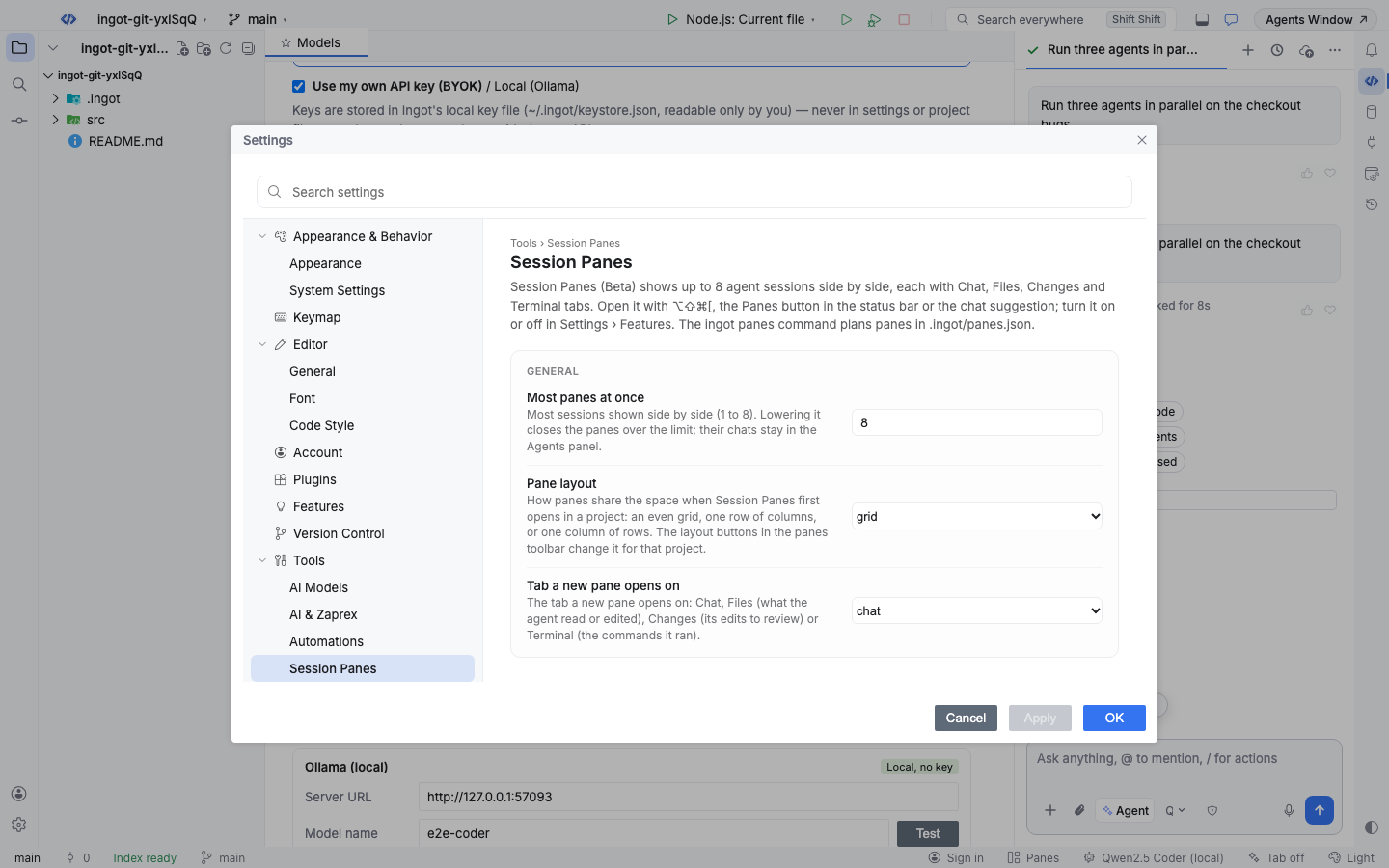
Settings › Tools › Session Panes:
| Setting | Default | What it does |
|---|---|---|
Most panes at once (ingot.sessionPanes.maxPanes) | 8 | How many sessions the view shows side by side, 1 to 8. Lowering it closes the panes over the limit; their chats stay in the Agents panel |
Pane layout (ingot.sessionPanes.layout) | grid | How panes share the space when Session Panes first opens in a project: grid, columns (side by side) or rows (stacked). The layout buttons change it for that project |
Tab a new pane opens on (ingot.sessionPanes.defaultTab) | chat | chat, files, changes or terminal |
Settings › Features:
| Setting | Default | What it does |
|---|---|---|
Session Panes (ingot.sessionPanes.enabled) | false | Shows the Session Panes view and its status bar button |
Suggest features in chat (ingot.suggestions.enabled) | true | Shows the small suggestion cards above the chat box, for every optional feature |
From the terminal
ingot panes edits .ingot/panes.json. It never calls a model and never starts an agent.
npx @ingotide/cli panes                                   # the panes in the file, with a layout drawing; --json
npx @ingotide/cli panes add "Write tests for the cart" --tab changes --worktree
npx @ingotide/cli panes add --title "Docs" --mode ask --model claude-sonnet-4-5
npx @ingotide/cli panes remove 2                          # by number or id
npx @ingotide/cli panes layout columns                    # grid, columns or rows
npx @ingotide/cli panes validate                          # exit 1 when the file has errors (use it in CI)
npx @ingotide/cli panes grid 7                            # how 7 panes are laid out, no file needed
clear removes every pane. Every option is on the CLI page.
FAQ
Does closing a pane stop the agent? No. The chat keeps running and stays in the Agents panel; add it back with Add Chat.
Do panes share a folder? Sessions share your project folder unless they run in their own worktree ("worktree": true), which keeps their edits and commands apart.
Can I have more than 8? No. 8 is the most that stays readable; open the rest in the Agents panel.