The chat box
The chat box fits on one line at any panel width: { + }, the mode, the model, the mic and Send. When the panel gets narrow, the model name shortens with an ellipsis before anything wraps.
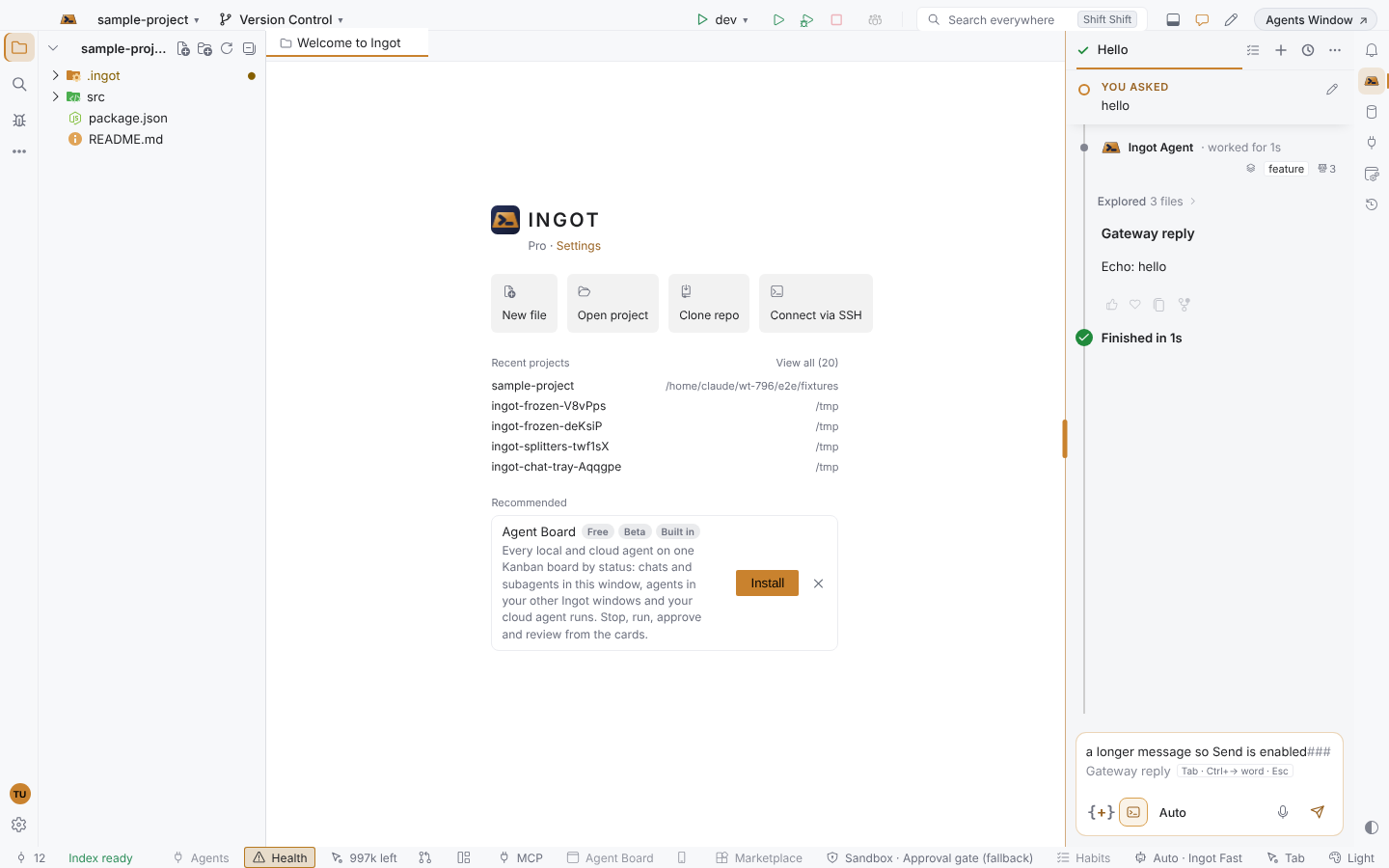
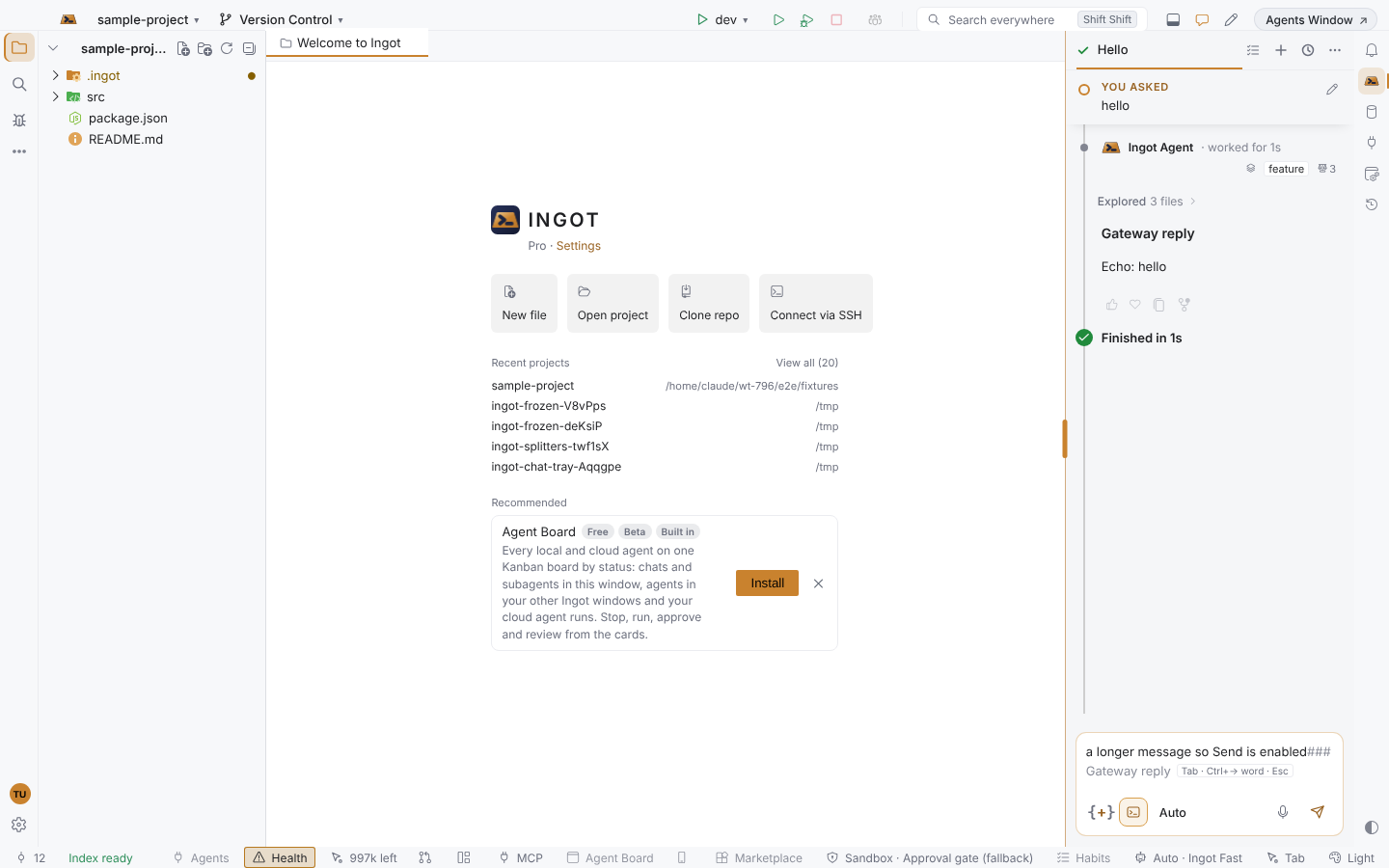
The mode is one icon
The orange icon next to { + } shows the current mode. Click it to open a strip of modes, and hover an icon to see what it does, when to use it and its shortcut. Tab (or the mode shortcut) cycles through them.
| Mode | What it does |
|---|---|
| Agent | Plans, edits files and runs tools. Every edit goes through review. |
| Plan | Reads the code and writes a step plan you can edit. Changes nothing until you approve. |
| Ask | Answers questions. No edits. |
| Multi-task | Splits the work across parallel agents and merges the results. |
| Mission | A plan to approve, then step by step with checks until the goal is met. Replaces Goal. |
| Debug | Reads terminal output and stack traces, finds the cause and proposes a fix. |
| Grill me | Asks you hard questions first, then starts. |
The › at the end of the strip opens the model, sandbox and review options. The { + } menu keeps actions and context. Deep research, btw, Schedule and Boost are in { + } and under /.
Context usage
The chat box no longer shows a context percentage all the time. Click the model to see it at the bottom of the model list (percent, tokens, a bar). Click that row for what fills the context, Compact and Start a fresh chat. When the context is nearly full (80% or more), a small red dot shows on the model.
Send
Send is a line paper plane in Ingot orange. When you send, it flies off and comes back with a ring pulse. With reduced motion turned on in your system, it only fades.
Settings
| Setting | Default | Where |
|---|---|---|
ingot.chat.modeStrip | on | Settings › Appearance › Layout › Modes as one icon, Settings › Features |
ingot.chat.contextRing | off | Settings › Appearance › Layout: turn on to bring the context ring back to the row |
See also Chat controls and Actions and modes.