Queue, edit & rerun
The composer does more than send a prompt. Steer an agent while it runs, answer its questions in the chat, rewind to an earlier message and run it again, fork a chat to try another direction, dictate instead of typing, and pick a suggested next step with one click.
Steer a running agent
You don't have to wait for a run to finish. Type a message and send it while the agent works (the Send button says Send to the running agent).
- The message joins the chat with a Queued chip.
- The agent reads it on its next step, without restarting the run. The chip disappears once it has.
- Stop (or Esc) ends the run and clears anything still queued.
Answer the agent's questions
When the agent needs a decision, an Agent asks card appears in the chat with the question, answer buttons when there are options, and a text field (Type your answer). Click an answer or type one and choose Send; the run continues. Typing in the composer answers the card too.
Edit a message and run again
Click one of your sent messages (or its Edit button) to change it. Enter sends, Esc cancels. Ingot then asks what to do with the work done after that message:
| Choice | Files | Later replies |
|---|---|---|
| Revert changes after this point and rerun | put back to how they were before this message | dropped, then the edited message runs |
| Keep changes and rerun | kept as they are now | dropped, then the edited message runs |
| Cancel | unchanged | back to editing |
Fork from here
Hover any message to see its actions:
- On a prompt you sent: Edit, Revert to here, Copy and Fork from here.
- On a finished reply: a fork icon next to Copy reply.
Fork from here opens a new chat tab named <original title> (fork). Its history is every message up to and including the one you picked. It keeps the original chat's mode, model and context (files, rules and memories).
The original chat stays exactly as it was. Use a fork to try another approach without losing the first one. To find an old chat again, search the Threads sidebar.
Forking and chat search are on by default. Turn them off with Fork and search chats in Settings › Features (Agent area) or in the first-run setup, or with "ingot.chat.forkAndSearch": false. The setting is also under Settings › Tools › AI & Zaprex › Chat history.
Suggested next steps
When a run ends, up to three buttons under the last reply suggest what to do next, such as Run the tests or Commit the changes. Click one to send it as your next prompt, with the current editor context attached. They only show while the chat is idle.
While the agent works
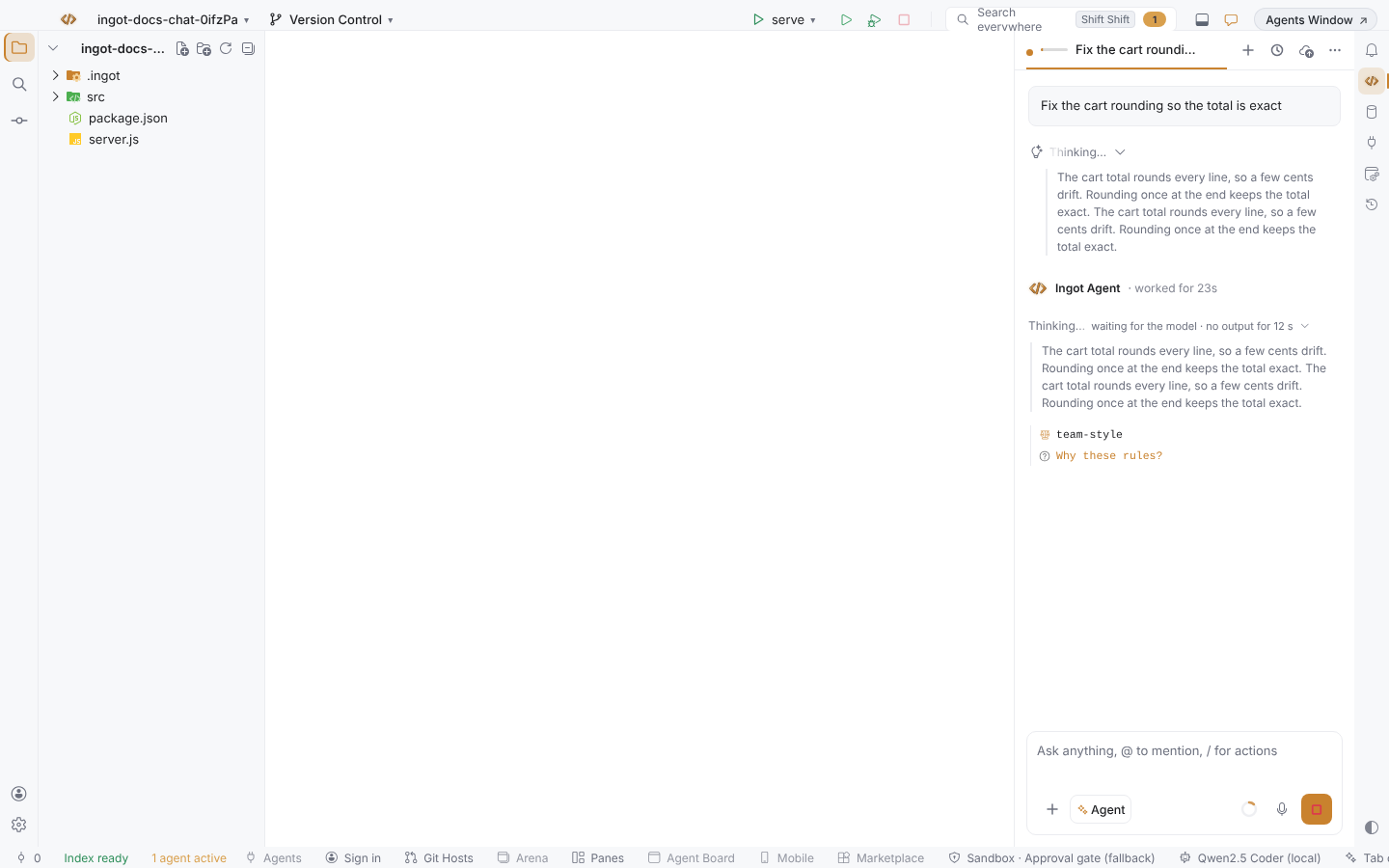
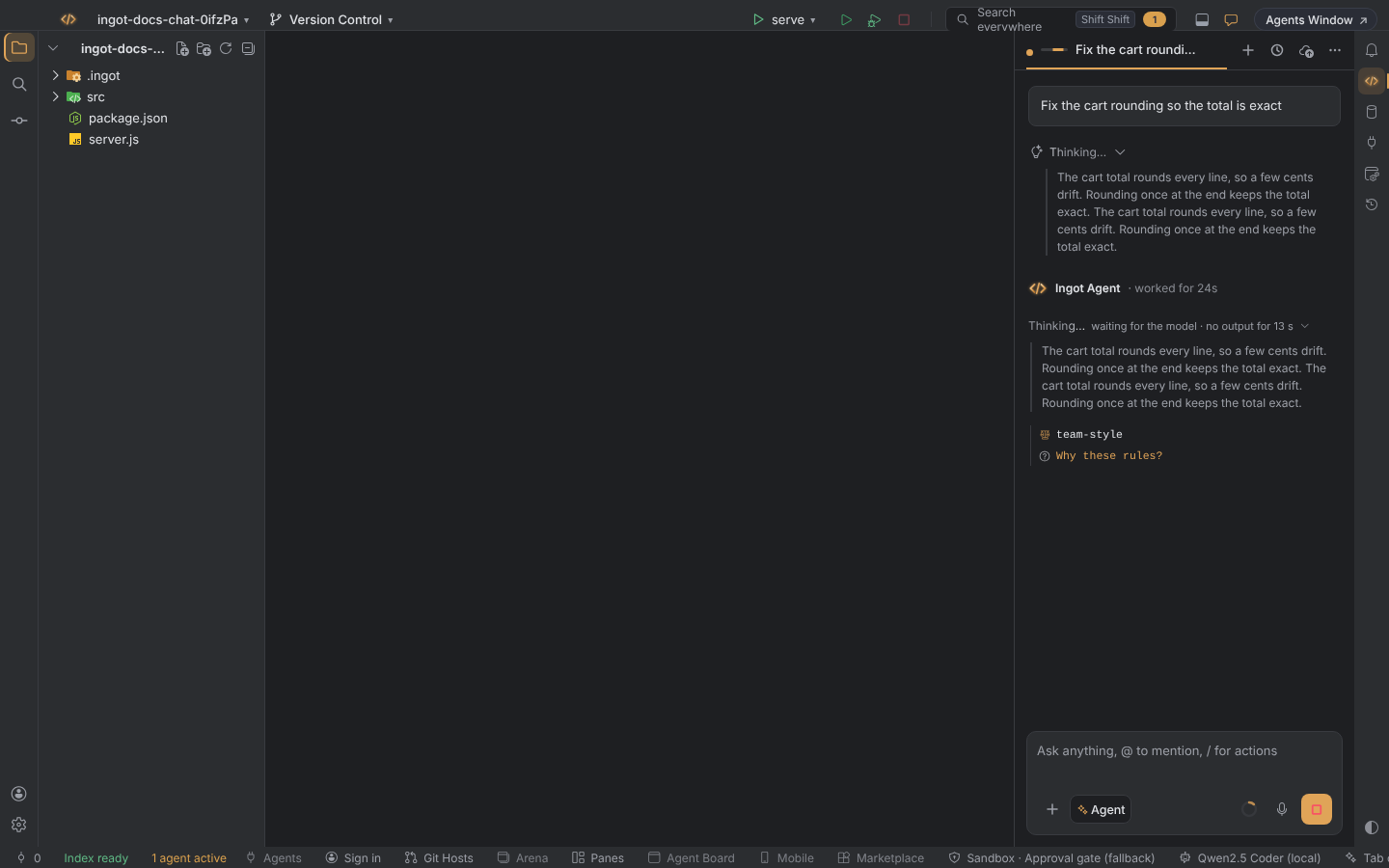
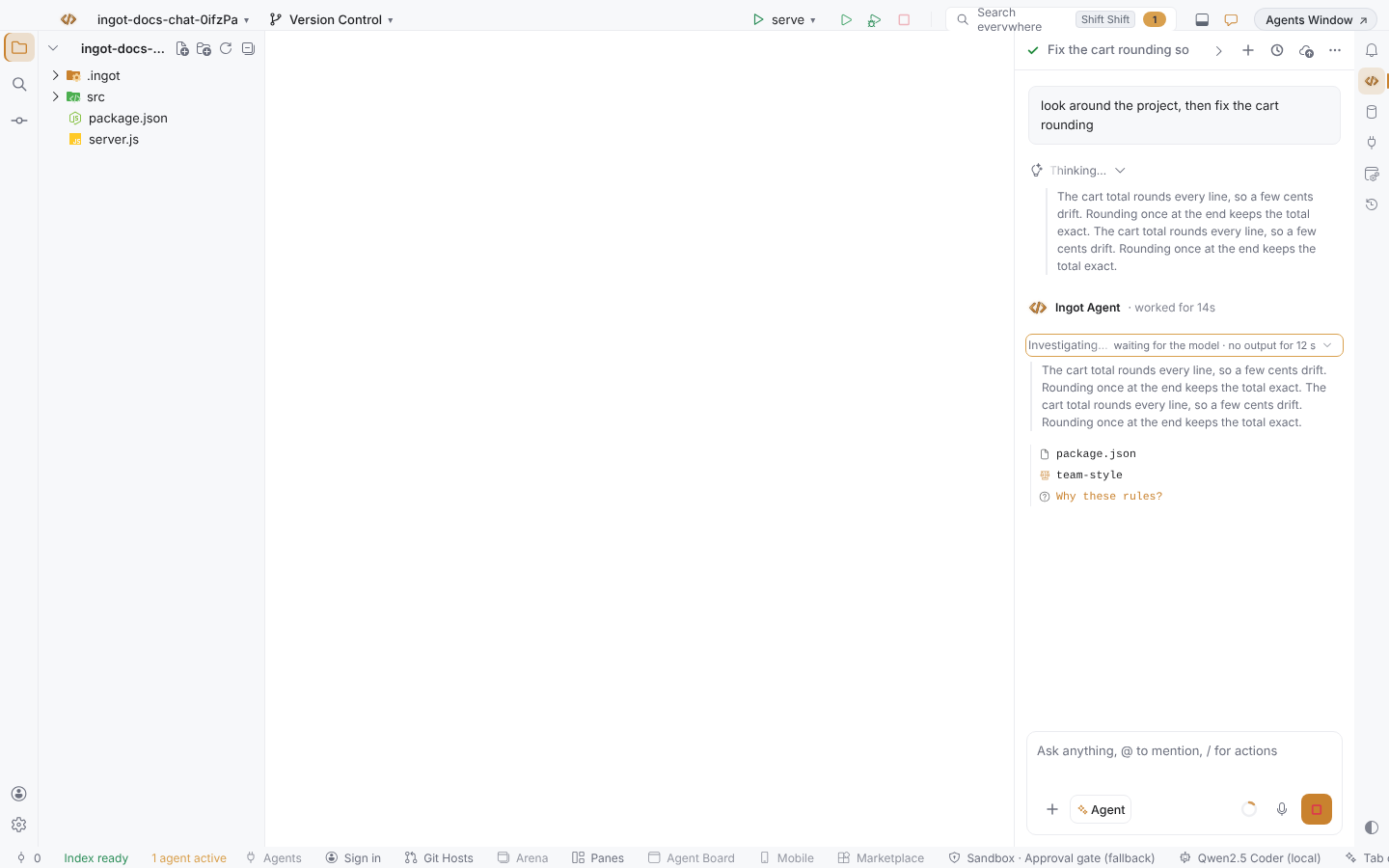
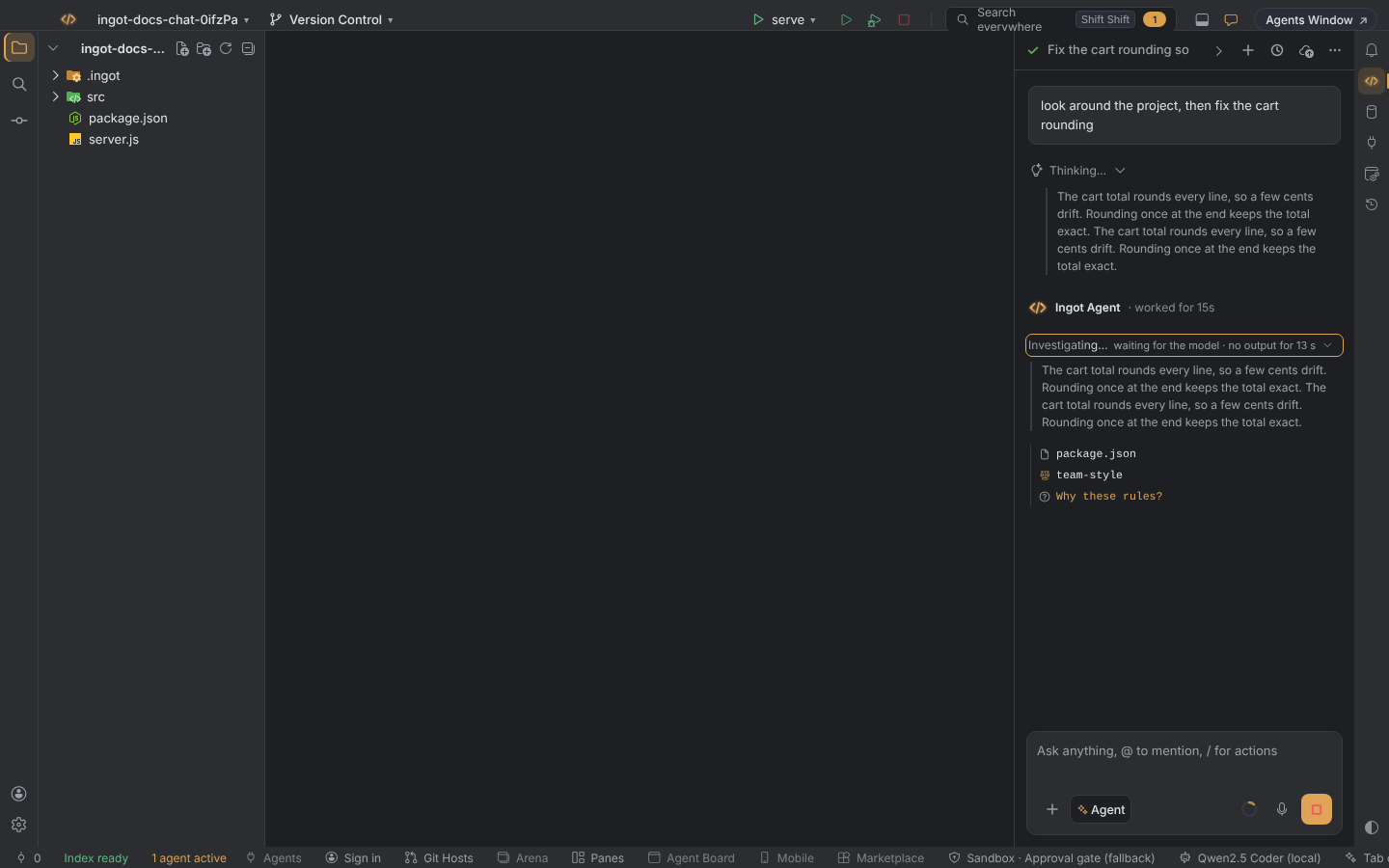
A shimmering row at the end of the chat tells you what the agent is doing:
| Row | When |
|---|---|
| Thinking… | the model is working on its next step |
| Investigating… | it has started reading files or searching the project in this turn |
| Editing cart.ts… | a file is being written |
Click the row to see more: what the model is thinking so far (when it streams its reasoning), otherwise which model it is waiting on and for how long, the file it is reading right now, and every file it has read in this turn. Click a file to open it in the editor. Click the row again to fold it.
Processes the agent started, Ingot's browser and subagents show as rows in the tray above the chat box, not in this row: see Processes, browser and subagents.
When the run is over, the row gives way to Explored N files, which keeps the same list one click away. The row hides while an approval card or a question waits for you. With reduced motion turned on in your operating system, the text stays still.
Going back in a long chat
Scroll up to read earlier messages; Jump to latest appears at the bottom right and glides back down. Click one of your earlier prompts to bring it into view or edit it. (The Earlier button that listed past prompts is gone.) In the timeline thread, the prompt of the turn you are reading stays pinned at the top.
After a reload or a restart
Each chat remembers where you were reading it. Reload the window or restart Ingot, and the first time a chat shows it is back at the same place, with Jump to latest on screen. This holds for the selected chat and for your other chat tabs.
- A chat you had scrolled to its latest line still opens at its latest line and follows new text.
- Text you typed in the chat box and did not send is back too, in the chat you typed it in. Text you sent or erased is not kept.
- Switching between chat tabs while Ingot runs works as before: a tab opens at its latest line.
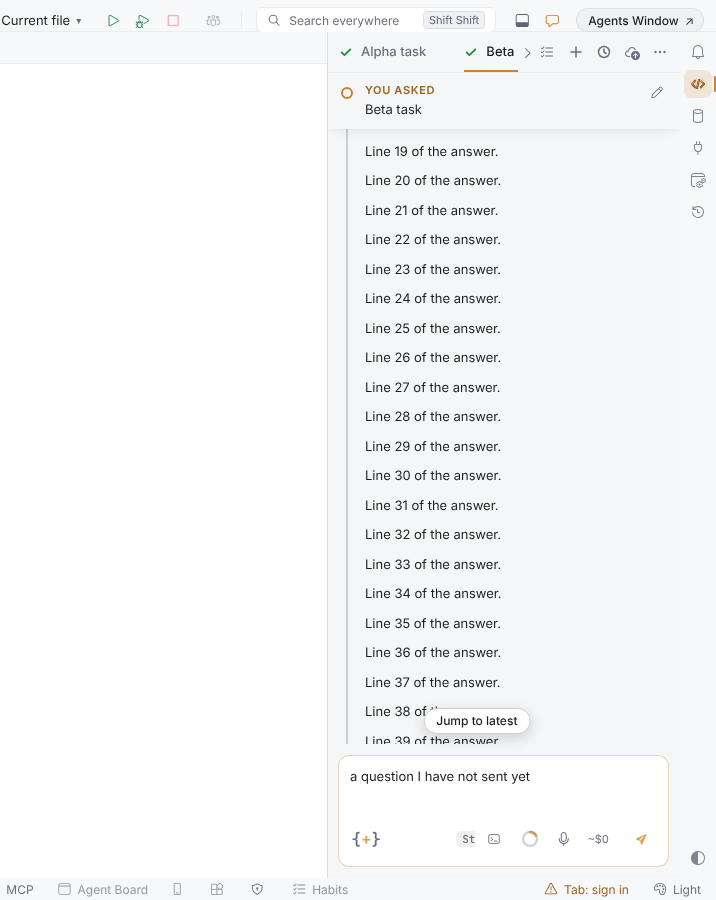
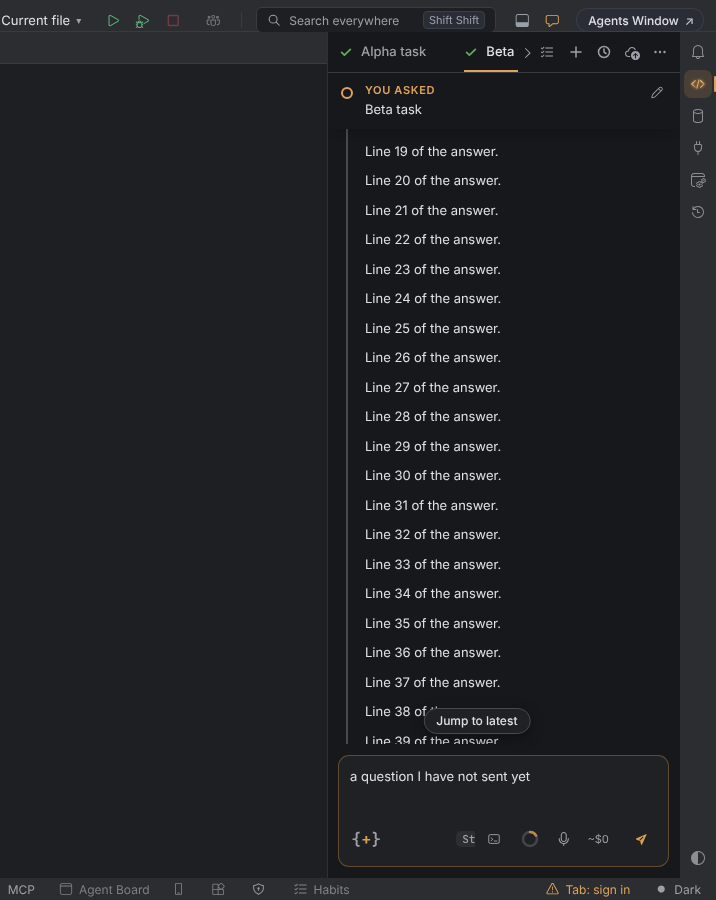
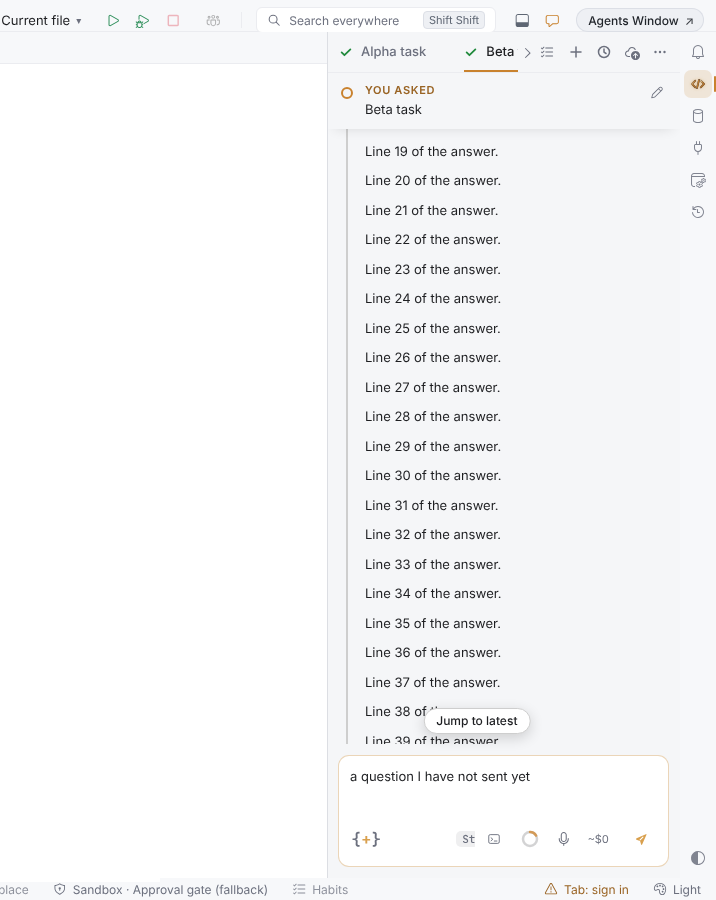
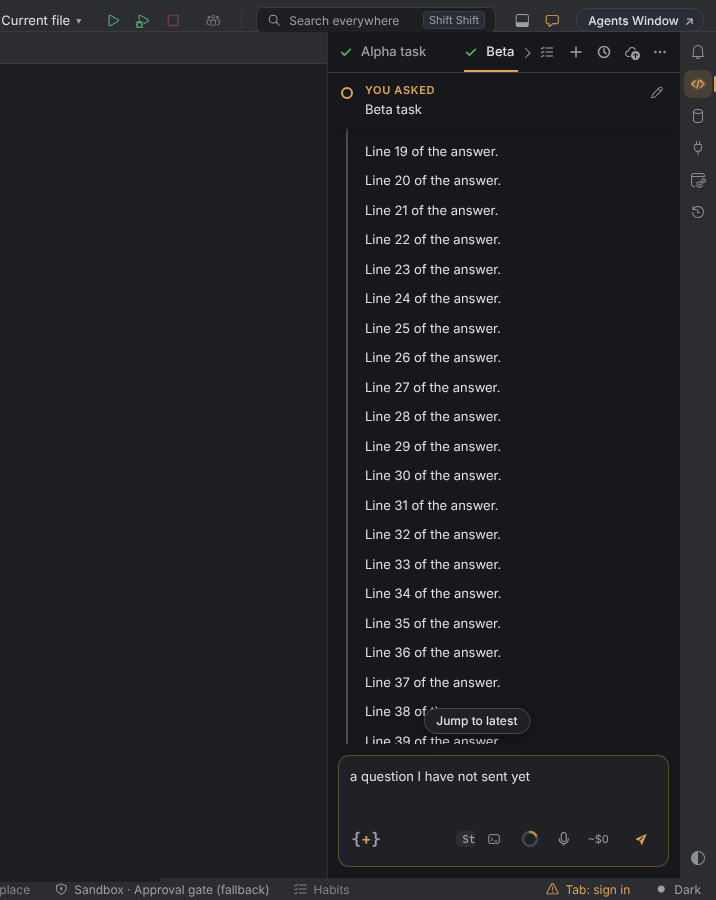
Ingot keeps this on your machine (the 40 chats you used last, and the plain text of each unsent draft).
Dictate a prompt
Click the microphone next to Send (Dictate), speak, and click again (Stop dictation). The text appears in the composer after Transcribing….
| Where | Speech-to-text |
|---|---|
| Desktop app, signed in | Ingot's transcription service (counted in your usage) |
| Desktop app, not signed in | your OpenAI key from Settings › Models |
| Web version | the browser's built-in speech recognition |
On macOS, allow Ingot under System Settings › Privacy & Security › Microphone the first time.
React to replies
Hover a finished reply to show Like and Heart. Reactions are saved with the chat on your machine.
Typing special characters
Characters you type with Option (macOS) or AltGr (Windows and Linux), such as \, |, ~, [ or ń, go into the composer instead of firing a shortcut. ⌘ shortcuts keep working.